
Key Takeaways
- Invite Staff employees and Client customers via Profile > Users > Invite User and customize Client Access, User Permissions, and Dashboard Visibility.
- Sign in as the Account Admin (or a permitted Staff user) and use a unique email address not already tied to another account user.
- Five steps cover opening Users, inviting Staff or Client profiles, assigning Client access, editing granular permissions, and previewing via Login as x user.
- Confirm restrictions work by clicking Ellipsis > Login as x user on the Users page to inspect their exact view.
Creating Staff and Client users in AgencyAnalytics lets employees manage reports and dashboards while giving customers secure sign-in access to custom dashboards. Admins tailor Client access and integration visibility per user to protect multi-client data.
For plan limits and team seat pricing behind this workflow, read our AgencyAnalytics review or connect AgencyAnalytics to AI agents in AgencyAnalytics API and MCP.
Key steps
What do you need before starting in AgencyAnalytics?
AgencyAnalytics requires the following workspace setup before you begin:
- Account Admin access (or a Staff user granted user-creation permissions)
- A unique email address per invitee not already used in your account
- Your agency's white-labeled login domain or subdomain URL to share with users
How do you complete the steps in AgencyAnalytics?
Follow these 5 steps in AgencyAnalytics in order:
Open the Users management page from your profile menu
Click your user profile in the lower-left corner of AgencyAnalytics and click Users in the dropdown menu.
Each account has one Admin tied to billing and settings, plus Staff users for employees and Client users for customers viewing custom dashboards. Staff can create Client users by default but need Admin permission to add Staff, and user types cannot be converted without deleting and recreating the profile.
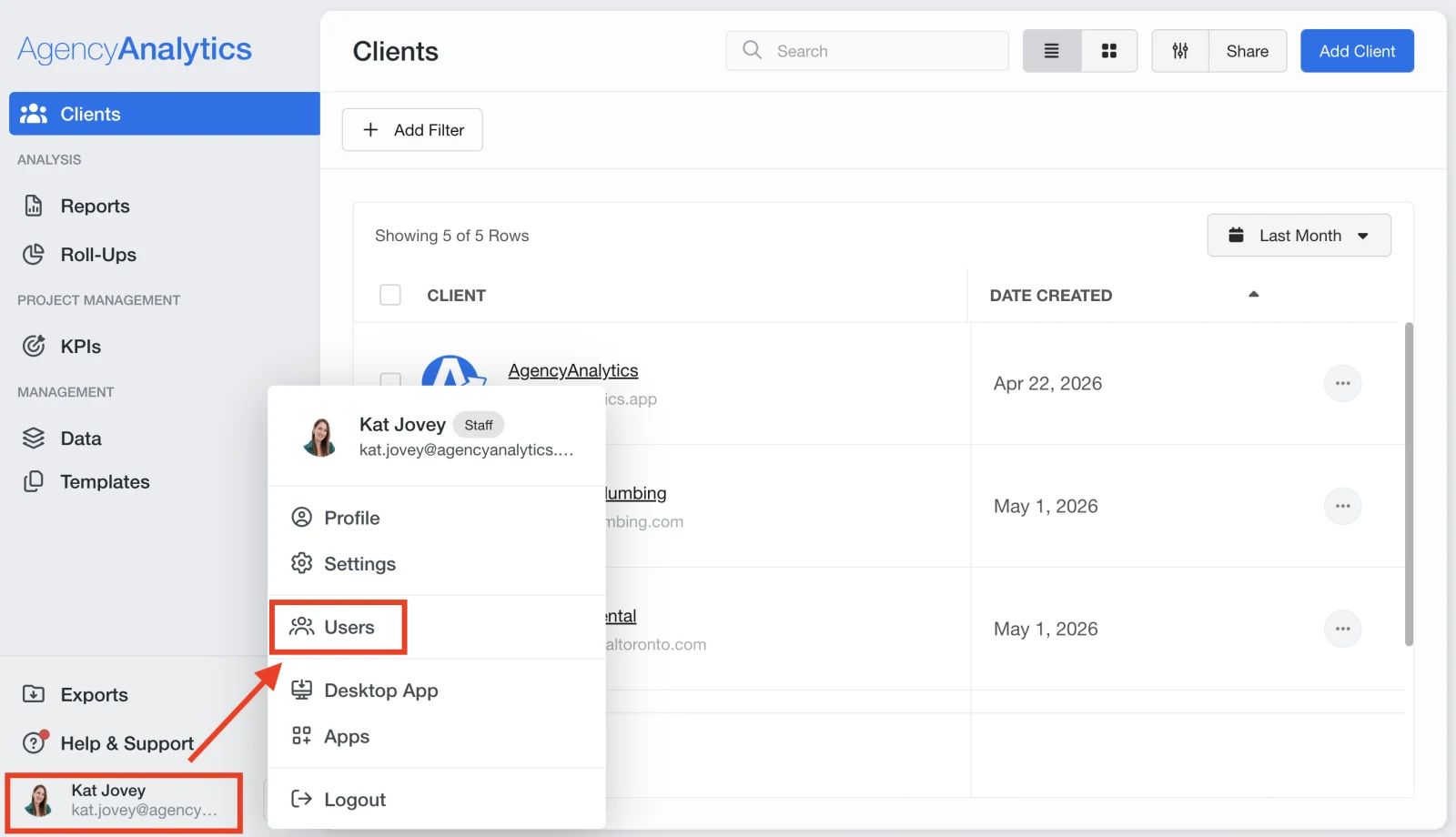
Click your user profile in the lower-left corner and select Users from the pop-up menu. Screenshot source Invite a Staff or Client user and set initial permissions
Click Invite User in the upper right, select the Staff or Client tile, and enter the email address (clicking Add Staff User for multiple teammates). For Staff, toggle the green Client restriction switch to check specific Clients, pick default permissions or Clone an existing user, keep or uncheck the bottom-right email invite box, and click Finish.
If you skip the email invite, hover over their tile on Users, click Ellipsis > Edit Profile, click Generate above the password field, and click Save.
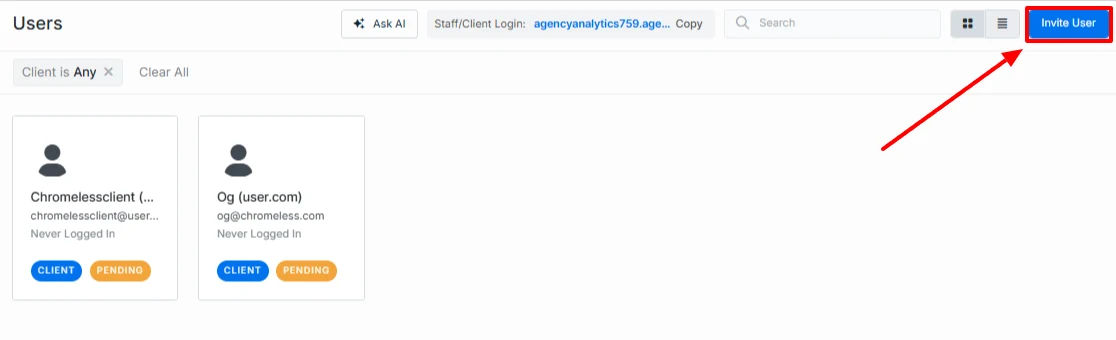
Click Invite User in the upper-right corner of the Users page to launch the Staff or Client creation window. Screenshot source Assign or update Client access for the user
Go to the Clients page (or locate the user row/tile), click the Ellipsis on the far right in list view or top right in tile view, click the circle beside each Client they should access, and click Save in the bottom left.
Because Client users are not assigned Clients during creation, linking their Client access right afterward ensures they see only their own company's dashboards.
Edit granular user controls and integration visibility
On the Users page, click the Ellipsis on the user's entry, select Edit Permissions, expand any general or integration category to toggle access on or off, and click Save. Click an individual integration name to restrict specific actions, such as turning off Manage Keywords while leaving SERP and Pages data visible.
Toggling off a full integration category hides it completely from the user. Custom domains, custom email, enforcing MFA, and enabling apps remain strictly reserved for the Admin.
Verify the user's perspective with Login as user
On the Users page, click the Ellipsis on the user and select Login as x user to inspect the workspace from their perspective.
Remind Staff and Client users to click Accept Invite in their email so their status clears from Pending, and have them sign in on your white-labeled domain or subdomain rather than the Admin login URL.
How does this AgencyAnalytics setup work in practice?
Worked example: Onboarding a freelance SEO specialist with restricted access
An agency Admin invites a contract SEO analyst to view rankings on three retainers without adding billable keywords or viewing other clients.
| Choice | Why it matters | How to check |
|---|---|---|
| Invite User > Staff tile with green toggle limited to 3 Clients | Restricts visibility to the three assigned retainers immediately. | Only three Clients are checked before clicking Finish. |
| Edit Permissions > disable Billing/Users and Manage Keywords | Allows viewing SERP and Pages data while blocking keyword edits. | Manage Keywords shows toggled off before clicking Save. |
| Ellipsis > Login as x user verification | Confirms read-only keyword tables and restricted Clients before handoff. | Preview displays only the three retainers without keyword add controls. |
The analyst clicks Accept Invite, signs in on the agency's white-labeled subdomain, and reviews rank data across the three assigned Clients.
How do you verify your result in AgencyAnalytics?
Verify on the Users page that Pending status clears once the user accepts their invite and confirm their restricted workspace via Login as x user. Next, configure your white-label custom domain or enforce Multi-Factor Authentication from Admin settings.
| Step | What you should see |
|---|---|
| Open the Users management page from your profile menu | The account-level Users page opens showing your existing Admin, Staff, and Client profiles. |
| Invite a Staff or Client user and set initial permissions | The new profile appears on the Users page and invitation emails send if selected. |
| Assign or update Client access for the user | Only the selected Clients remain visible when that user visits the Clients page. |
| Edit granular user controls and integration visibility | Updated feature and integration permission toggles save to that user profile. |
| Verify the user's perspective with Login as user | The preview loads showing only the Clients, dashboards, and metrics permitted for that user. |
Related AgencyAnalytics guides include How to create and manage custom dashboards in AgencyAnalytics and How to send, schedule, and approve reports in AgencyAnalytics.
Which official AgencyAnalytics sources were checked?
Every step and limit in this AgencyAnalytics guide was verified against official documentation on 27 Nov 2026 following how we check figures, alongside more walkthroughs in our AgencyAnalytics tutorials hub:
How do you troubleshoot common AgencyAnalytics issues?
Why do I get an Email is already used error when creating a user?
Each email can belong to only one user in your account, and deleting a Client does not remove Client users linked to it. Check the Users page for the existing profile and update its Client access and permissions instead.
How do I fix a Pending status on an invited Staff or Client user?
Status stays Pending if the user signs in directly or via Google without clicking Accept Invite in the invitation email. Have them log out, click Accept Invite in the original email to register, or delete and re-invite them.
Why can Staff or Client users not sign in on the Admin login page?
Only the Account Admin uses the Admin login URL, while Staff and Client users sign in via your white-labeled domain or subdomain. Share your custom login URL and have them reset their password there if needed.
 Reviewed byDanny Kirk
Founder of ReddiReach.
 Checked byAndrés Felipe
Digital designer and marketer.
Every figure is checked against the vendor's own page. Read our editorial standards.