
Key Takeaways
- Detect dead internal site paths in Ahrefs Site Audit by reviewing reports for pages linking directly to 4XX error codes.
- Ensure an Ahrefs Site Audit project has completed at least one full website crawl before checking link health reports.
- Navigate four specific steps to open crawl issues, view inlink counts, evaluate destination URLs, and prepare repairs.
- Confirm resolved internal links by running an updated Ahrefs crawl to ensure the broken link alert clears completely.
Find internal links that point to broken pages using Ahrefs Site Audit to locate dead destinations across your website. Inspect affected source pages directly from the crawl reports before updating or removing broken hyperlinks in your CMS.
For plan limits and team seat pricing behind this workflow, read our Ahrefs review or connect Ahrefs to AI agents in Ahrefs API and MCP.
Key steps
What do you need before starting in Ahrefs?
Ahrefs requires the following workspace setup before you begin:
- A completed Site Audit crawl for the website.
- Access to the crawl’s Overview and report navigation.
How do you complete the steps in Ahrefs?
Follow these 4 steps in Ahrefs in order:
Open the latest completed crawl
Go to Site Audit, open the project for your website, and select its latest completed crawl. The broken-link reports rely on crawl results, so run a new crawl first if the project has no completed crawl or the pages may have changed since the last one.
If the last crawl predates a site migration, large content release, or URL change, run a fresh crawl before assigning fixes. Otherwise, a report can describe an earlier site state. Note which crawl you reviewed so the developer can reproduce the finding.
Open the broken-page linking issue
From the crawl’s Overview, open Outgoing Links and choose Page has links to broken page. The report lists pages on your site that link to broken pages. Review the affected page URLs and the broken destination details shown in the report.
When several source pages appear, group the findings by broken destination. Fixing one destination may require edits on multiple source pages, so keep each source URL paired with the exact target it links to. Confirm the issue is an internal link before assigning it to the site owner.

In Site Audit's Outgoing links section, open Page has links to broken page. Screenshot source Inspect a broken destination’s inlinks
For a destination-level view, open Internal Pages and select 4XX Page. Find the broken URL and check its No. of inlinks value. Click the number to see the pages that link to that target. This is useful when you want to work backward from a particular 404 page and find every source page linking to it.
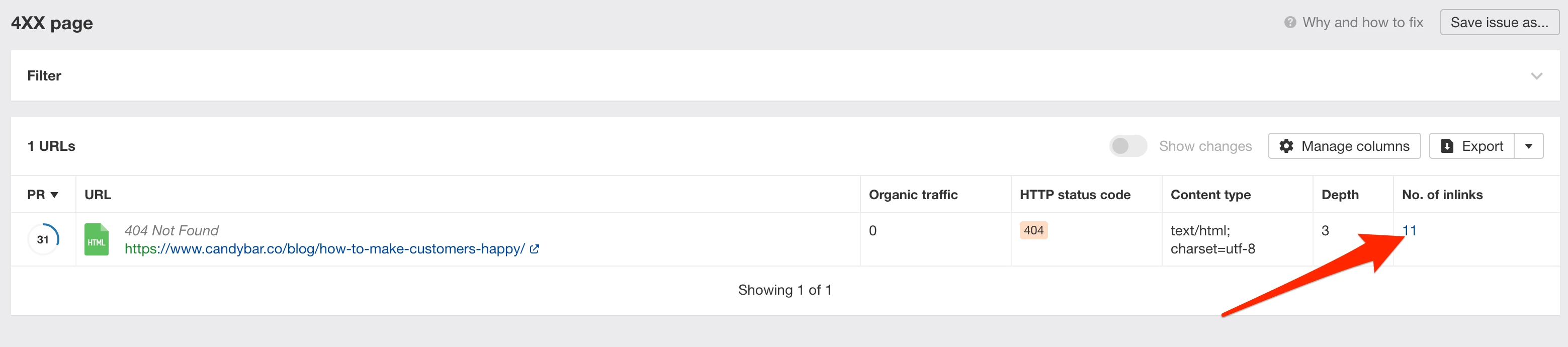
In the 4XX page report, the inlinks count opens the list of pages that point to the broken URL. Screenshot source Decide how to repair each link
For each result, confirm whether the destination should exist. If it was removed by mistake, restore it. If it has a relevant replacement, update the source page to link directly to that live destination. If there is no suitable replacement, remove the link. Ahrefs also notes that a redirect can be appropriate for a broken page with valuable incoming links, while direct internal links are preferable where possible.
Choose the repair at the link level. If a live replacement directly answers the same need, update the source page to link to it. Do not point several unrelated links to a broad category page merely to remove the error. After the edit, check that the source link reaches the intended page.
How does this Ahrefs setup work in practice?
Worked example: repair internal links after a documentation URL change
A software team updates technical documentation URLs and uses Ahrefs Site Audit to locate outdated internal hyperlinks pointing to retired setup guides.
| Choice | Why it matters | How to check |
|---|---|---|
| Open the latest completed crawl | The team needs findings from after the documentation move. | The selected crawl completed after the URL change. |
| Open Outgoing Links > Page has links to broken page | This starts from the affected source pages and shows their broken destinations. | The report includes the old setup URL and the source pages that link to it. |
| Use Internal Pages > 4XX Page and click No. of inlinks for the old URL | This checks which crawled pages point to that particular broken destination. | The inlinks list contains the same source pages or explains the discrepancy. |
| Update each source to the replacement setup guide | A direct link helps readers and avoids relying on a redirect for internal navigation. | Each edited source page opens the replacement guide from its link. |
Web developers update the identified source pages with live URLs, verifying that subsequent audit crawls show zero broken internal links.
How do you verify your result in Ahrefs?
The report gives you the source pages linking to broken destinations. Send the affected URLs to the person who maintains the site, then run another crawl after fixes to confirm the issue is resolved.
| Step | What you should see |
|---|---|
| Open the latest completed crawl | The selected Site Audit crawl has completed and its report navigation is available. |
| Open the broken-page linking issue | The Page has links to broken page report lists affected source pages, or reports no affected pages. |
| Inspect a broken destination’s inlinks | Clicking a No. of inlinks value opens the pages linking to that broken destination. |
| Decide how to repair each link | Each reviewed broken link has a chosen repair action tied to its source page and target URL. |
Related Ahrefs guides include Ahrefs Link Intersect guide and Find organic competitors in Ahrefs Site Explorer.
Which official Ahrefs sources were checked?
Every step and limit in this Ahrefs guide was verified against official documentation on 21 Nov 2026 following how we check figures, alongside more walkthroughs in our Ahrefs tutorials hub:
How do you troubleshoot common Ahrefs issues?
Why can’t I see the broken-link report?
Site Audit needs a completed crawl before it can show these results. Open a completed crawl or start and finish a new crawl for the project.
What does “No. of inlinks” show?
It counts links pointing to the broken destination. Click the number in Internal Pages > 4XX Page to open the list of pages that link to that target.
Why do the two Site Audit routes show different source-page counts?
The reports present the issue from different directions, and crawl timing or page coverage may differ. Compare the exact broken target and source URLs, then confirm the pages were included in the same completed crawl. Re-crawl if the site changed or the reports came from different crawls.
 Reviewed byDanny Kirk
Founder of ReddiReach.
 Checked byAndrés Felipe
Digital designer and marketer.
Every figure is checked against the vendor's own page. Read our editorial standards.