
Key Takeaways
- Create a dedicated Airtable grid view with custom filters to isolate specific record subsets without affecting underlying data.
- Verify you possess permission to create or modify views within the target Airtable base and table.
- Complete four basic steps to add a grid view, open filter controls, apply logical conditions, and evaluate visible rows.
- Reopen the view to confirm applied filter rules remain active and display only matching records in the grid.
Airtable filtered grid views isolate relevant records by applying conditional rules while preserving underlying base tables. Creating saved filtered views lets collaborators track active queues without altering shared records.
For plan limits and team seat pricing behind this workflow, read our Airtable review or connect Airtable to AI agents in Airtable API and MCP.
Key steps
What do you need before starting in Airtable?
Airtable requires the following workspace setup before you begin:
- Access to the Airtable base and table you want to work with.
- Permission to create or modify views in the base.
How do you complete the steps in Airtable?
Follow these 4 steps in Airtable in order:
Create a new grid view
Open Airtable and select the base and table you want to filter. In the view area, click Create new… and choose Grid. Enter a descriptive name, such as “Open tasks,” choose the view’s editing permissions, then click Create new view.
Open the filter controls
In the new grid view, open the view toolbar’s Filter control. Choose the option to add a condition. Filters apply to this view. They do not delete records from the table.
Set the condition
Choose the field you want to use, then select an operator and value. For example, to show tasks awaiting work, choose Status, select is, and choose Open. If the field can hold multiple values, such as a linked-record or multiple-select field, select an array operator such as Has any of when appropriate.
For a multi-select or linked-record field, use an array operator such as Has any of to include records containing at least one chosen value. Use Has all of when every selected value must be present, or Is exactly when no additional values are allowed. Check the field type before choosing an operator because the available choices depend on it.
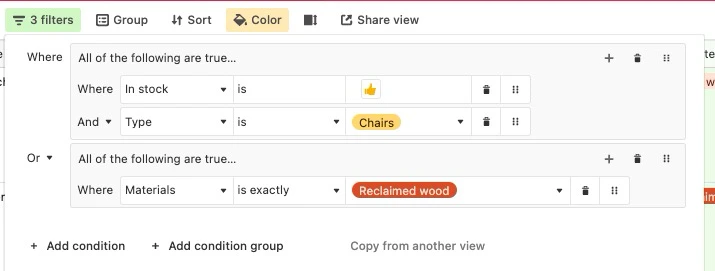
The Filter panel shows each condition and its value. Start with one condition before adding groups. Screenshot source Review and adjust the result
Inspect the rows in the grid. If you need more than one rule, add another condition and check whether the conditions are joined with And or Or as intended. For a simple one-condition view, leave the filter as a single rule.
When adding a second condition, decide whether the task needs And or Or before judging the rows. For example, Status is Open and Priority is High narrows the view to records matching both rules. Joining those rules with Or also shows records matching either one. Compare a known matching row and a known nonmatching row to catch an unintended conjunction.
How does this Airtable setup work in practice?
Build a review queue for overdue work
A coordinator sets up a dedicated grid view displaying open tasks due before a specified date for weekly project audits.
| Choice | Why it matters | How to check |
|---|---|---|
| Create a grid view named Overdue review | A task-focused name helps distinguish this queue from the broader working view. | Confirm the new view opens from the table’s view list. |
| Set Status is Open | Completed tasks should not compete with work that still needs attention. | Inspect a known completed task and confirm it is hidden. |
| Add Due date is before the review date | This limits the queue to tasks already late as of the chosen review point. | Use a known open task due before that date and a known open task due after it to compare visibility. |
| Join the conditions with And | A task should appear only when it is both open and overdue. Or would broaden the queue substantially. | Confirm the overdue open task appears and that an overdue completed task does not. |
The view should contain only open tasks due before the review date. If a known record is missing, inspect its field values and the condition join before changing the filter. The records remain in the table when hidden from this view.
How do you verify your result in Airtable?
Reopen the view and confirm the filter condition is still shown and the displayed records satisfy it. Use the view to review or update that subset. The underlying records remain in the table.
| Step | What you should see |
|---|---|
| Create a new grid view | The new grid view appears in the table’s view list and opens. |
| Open the filter controls | A condition row appears with controls for a field, operator, and value. |
| Set the condition | The filter condition displays the intended field, operator, and value. |
| Review and adjust the result | Rows that meet the condition appear. Records that do not meet it are hidden from this view. |
Related Airtable guides include How to add a linked record field in Airtable and How to arrange related work in an Airtable list view.
Which official Airtable sources were checked?
Every step and limit in this Airtable guide was verified against official documentation on 21 Nov 2026 following how we check figures, alongside more walkthroughs in our Airtable tutorials hub:
How do you troubleshoot common Airtable issues?
Why is a record missing from the filtered view?
Check that the record’s field value matches the selected operator and value. If there are multiple conditions joined with And, the record must satisfy every condition. Also check whether the field allows multiple values and needs an array operator such as Has any of.
Does filtering remove records from the table?
No. A filter hides records only in the current view. Open another view or remove the filter to see the other records.
Why does a date filter include a task that looks due today?
Check the stored due date and the operator in the condition, then compare both against the date boundary you intended. If the task’s date is the same as the selected boundary, a before condition may exclude it. Use the operator that matches whether the review includes the boundary date.
 Reviewed byDanny Kirk
Founder of ReddiReach.
 Checked byAndrés Felipe
Digital designer and marketer.
Every figure is checked against the vendor's own page. Read our editorial standards.