
Key Takeaways
- Configure reusable task templates in Asana to standardize recurring workflows with pre-populated subtasks, assignees, and relative schedules.
- Confirm project-level edit permissions in Asana, noting that organization guest accounts cannot build or edit project task templates.
- Execute six defined steps to name the template, configure dates, build nested subtasks, apply custom fields, and save.
- Generate a task using the template from the Add new menu to verify all subtasks, descriptions, and assignees populate correctly.
Create reusable task templates in Asana by opening a project's Customize or Workflow menu, selecting Add template, and saving repeatable fields with Done. Each saved template pre-populates titles, assignees, relative due dates, descriptions, custom fields, and subtasks each cycle.
For plan limits and team seat pricing behind this workflow, read our Asana review or connect Asana to AI agents in Asana API and MCP.
Key steps
What do you need before starting in Asana?
Asana requires the following workspace setup before you begin:
- Open the Asana project where your team will store and launch the reusable task template.
- Confirm permission to create or edit templates, since organization guests cannot create or edit project templates.
How do you complete the steps in Asana?
Follow these 6 steps in Asana in order:
Open the project's template controls
In your target Asana project, select Customize in the project toolbar, scroll through the options, and choose Add template. If your workspace displays a Workflow button instead of Customize, open Workflow and select the template option there. Creating the template inside the target project keeps it ready where teammates add tasks.
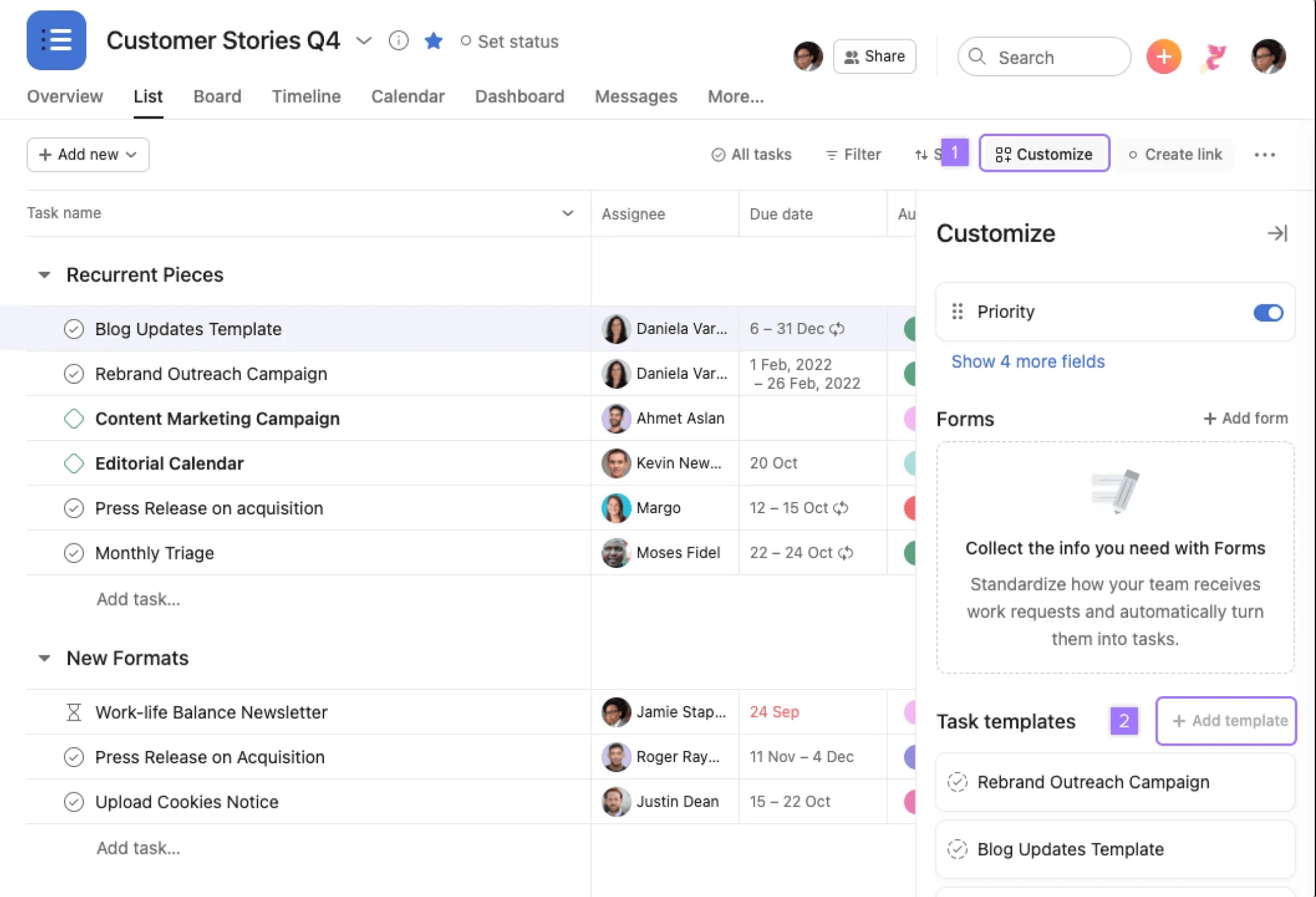
Open Customize and find Task templates. Add template is beside the heading. Screenshot source Name the repeatable task
Enter a clear title naming the deliverable, such as Prepare monthly client report. Add template to the title when multiple teammates use the project list so nobody mistakes it for active work. Select a task type if needed, and set a default assignee only when ownership stays fixed; leave assignee blank if coverage rotates.
Set the timing and context
Set a relative due date or date range when work falls a fixed number of days after creation, avoiding stale calendar dates. If cycle start dates shift, leave template timing blank and set dates on each created task. Enter reusable instructions in the description plus any project or custom field values to carry forward.
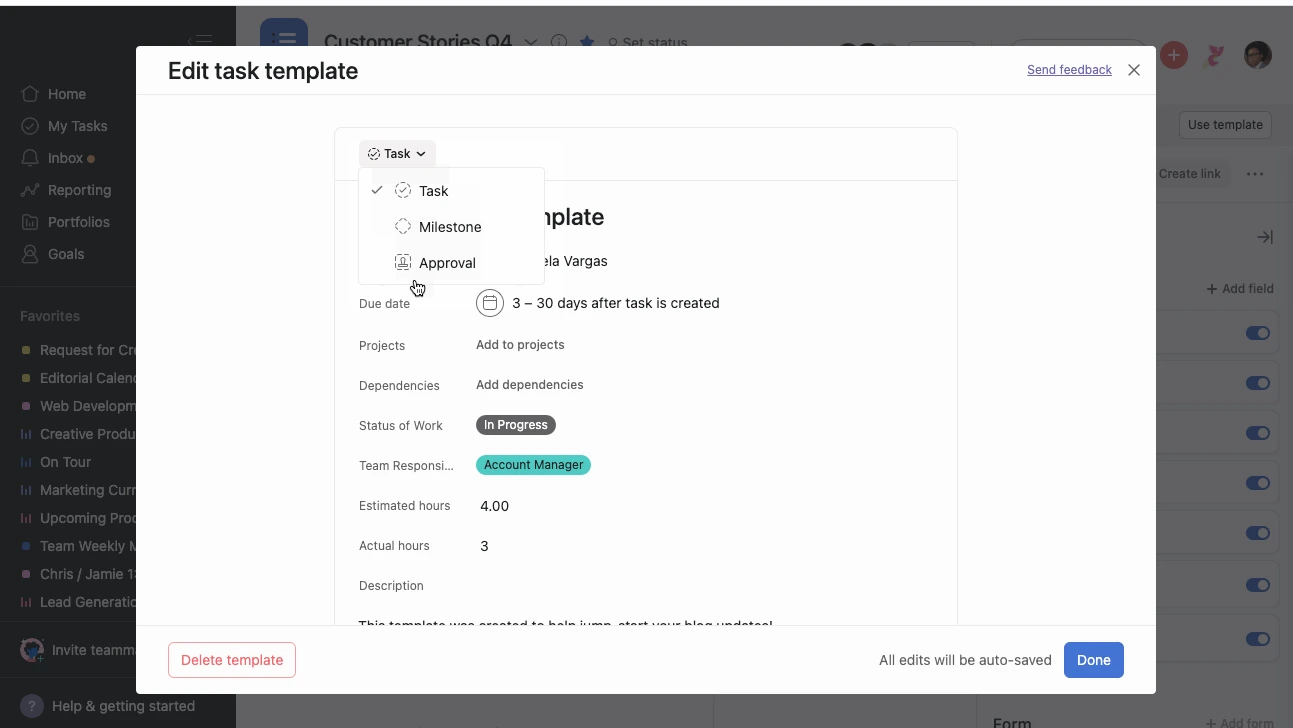
The task template editor has controls for task type, due date, projects, and dependencies. Screenshot source Add repeatable subtasks and supporting details
Add repeatable subtasks such as Gather source data, Review changes, and Share final report, plus any collaborators or attachments. Include subtasks in the template first if you need dependencies, since dependencies are only enabled when subtasks exist. Link only true blockers, like Review changes waiting for Gather source data, leaving independent subtasks unlinked.
Save the template
Review every field so no one-off date, temporary assignee, or cycle-specific attachment remains, then select Done in the template editor. Asana saves the template inside this project and adds it to the project's task-creation menus without closing existing tasks.
Confirm it can create a task
Open the Add new dropdown or select the plus icon beside a section header, then choose your template. Check that the created task includes the expected title, description, fields, and subtasks. Before scheduling live work, verify the assignee and due date for the current cycle and remove or revise steps that do not apply.
How does this Asana setup work in practice?
Standardizing monthly client reporting across rotating analysts
An agency prepares monthly client reporting packages and uses template tasks to manage analyst assignments and relative review schedules.
| Choice | Why it matters | How to check |
|---|---|---|
| Title it Prepare monthly client report, template | Clarifies the deliverable and distinguishes the template from active client tasks. | The title is clear in the Add new menu. |
| Leave the assignee unset | Rotating coverage means a fixed default could assign work to unavailable staff. | The coordinator assigns that month's analyst on creation. |
| Verify or adjust relative timing on creation | Relative due dates count from task creation and drift when data closes shift. | The created task matches the actual reporting deadline. |
| Add gathering and review subtasks with review dependent on gathering | Subtasks enable dependencies so review waits until source data is ready. | The editor shows Review changes waiting on Gather source data. |
Create a task from the template each month, inspect its title and subtasks, assign the covering analyst, and adjust the created task's due date if the data close shifted.
How do you verify your result in Asana?
Confirm the template appears in the project's Add new menu and section plus icon, and verify a created task includes the expected title and subtasks.
| Step | What you should see |
|---|---|
| Open the project's template controls | The task template editor opens for the selected project. |
| Name the repeatable task | The editor shows your intended task title and any default task type or assignee. |
| Set the timing and context | The editor contains your reusable description, custom fields, and any relative timing. |
| Add repeatable subtasks and supporting details | The template editor lists your subtasks alongside any collaborators, attachments, or dependencies. |
| Save the template | The editor closes and returns to the project with the template available. |
| Confirm it can create a task | A new task created from the template contains the expected reusable details. |
Related Asana guides include How to add a custom field to an Asana project and How to add a numeric rollup to a portfolio in Asana.
Which official Asana sources were checked?
Every step and limit in this Asana guide was verified against official documentation on 21 Nov 2026 following how we check figures, alongside more walkthroughs in our Asana tutorials hub:
How do you troubleshoot common Asana issues?
Why can't I find the template option?
Templates are project-specific, and organization guests cannot create or edit them. Open the target project directly, check Customize or Workflow in the toolbar, and verify your permissions.
Does converting an existing task into a template keep that task open?
No. Converting an existing task to a template closes the original task. Use Customize (or Workflow) and Add template in the project toolbar to keep active work open.
Why does a created task have a due date that does not fit this cycle?
Relative due dates count from task creation. If a cycle start moved, adjust the created task's due date and keep template timing only when intervals stay consistent.
 Reviewed byDanny Kirk
Founder of ReddiReach.
 Checked byAndrés Felipe
Digital designer and marketer.
Every figure is checked against the vendor's own page. Read our editorial standards.