
Key Takeaways
- Schedule tasks on Asana Timeline to manage visual project roadmaps and connect dependent deliverables across teams.
- Assign start and due dates to all relevant project tasks beforehand, as undated items do not render in Timeline view.
- Complete five sequential steps to assign task dates, open Timeline, drag schedule bars, link dependencies, and resolve timing conflicts.
- Check the timeline view to verify task bars cover planned date ranges and inspect red dependency indicators for scheduling conflicts.
Asana Timeline maps dated tasks onto an interactive Gantt-style schedule with visual dependency connections between related items. Adjusting task bars and resolving scheduling conflicts helps teams maintain realistic project delivery timelines.
For plan limits and team seat pricing behind this workflow, read our Asana review or connect Asana to AI agents in Asana API and MCP.
Key steps
What do you need before starting in Asana?
Asana requires the following workspace setup before you begin:
- A project with tasks to schedule.
- Start and due dates for the tasks you want displayed. Tasks without dates do not appear in Timeline view.
- A project with Timeline access. Asana lists Timeline for Starter, Advanced, Enterprise, Enterprise+, and certain legacy tiers.
How do you complete the steps in Asana?
Follow these 5 steps in Asana in order:
Add dates to the work
Open the project and set start and due dates on the tasks you need to schedule. For example, give “Draft launch copy” a start and due date, then date “Review copy” for the period after drafting. Timeline bars represent the duration from start date to due date.
Schedule tasks at the level where timing decisions are useful. For a product release, date “Implement change” and “Review release” separately if review cannot start until implementation is ready. Check that each bar spans the intended work period, since a due date alone does not show the full duration described by a start and due date.
Open Timeline view
From the project’s views, click the Timeline tab. Find the dated tasks as bars along the schedule. Tasks without dates will be absent, so add dates to any task you expected to see but cannot find.
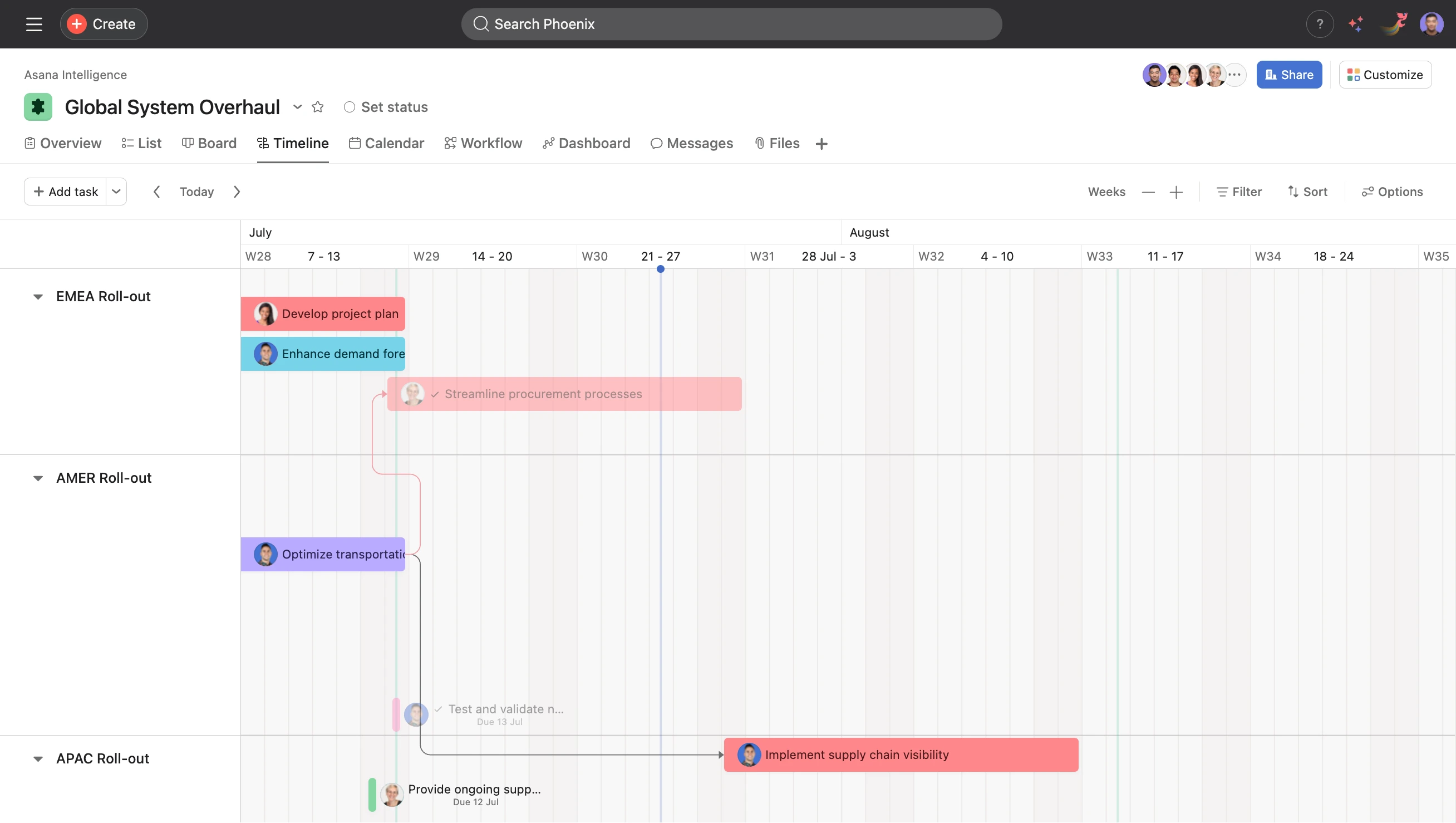
The Timeline tab lays out tasks by date. The bars show when each task is scheduled. Screenshot source Adjust task timing on the schedule
Drag a task bar left or right to change its dates. Drag either edge to extend or shorten its duration. For a task that needs to happen later, move its bar to the right date range. These changes update the task details and sync across project views.
When moving a bar, decide whether the task moved as a whole or only needs more or less time. Drag the bar to shift its dates. Drag an edge to change duration. After either edit, check the task dates and whether connected work still follows in a feasible order.
Connect work that depends on other work
Hover over a task bar and locate the small dependency connector at the end of the task. Drag it to the task that depends on it. For example, connect “Draft launch copy” to “Review copy” if review must wait for the draft.
Create a dependency only for a real handoff, such as review waiting for implementation. Drag the connector from the prerequisite task to the task that depends on it, then inspect the line. This makes the schedule relationship visible without implying that unrelated tasks must happen in sequence.
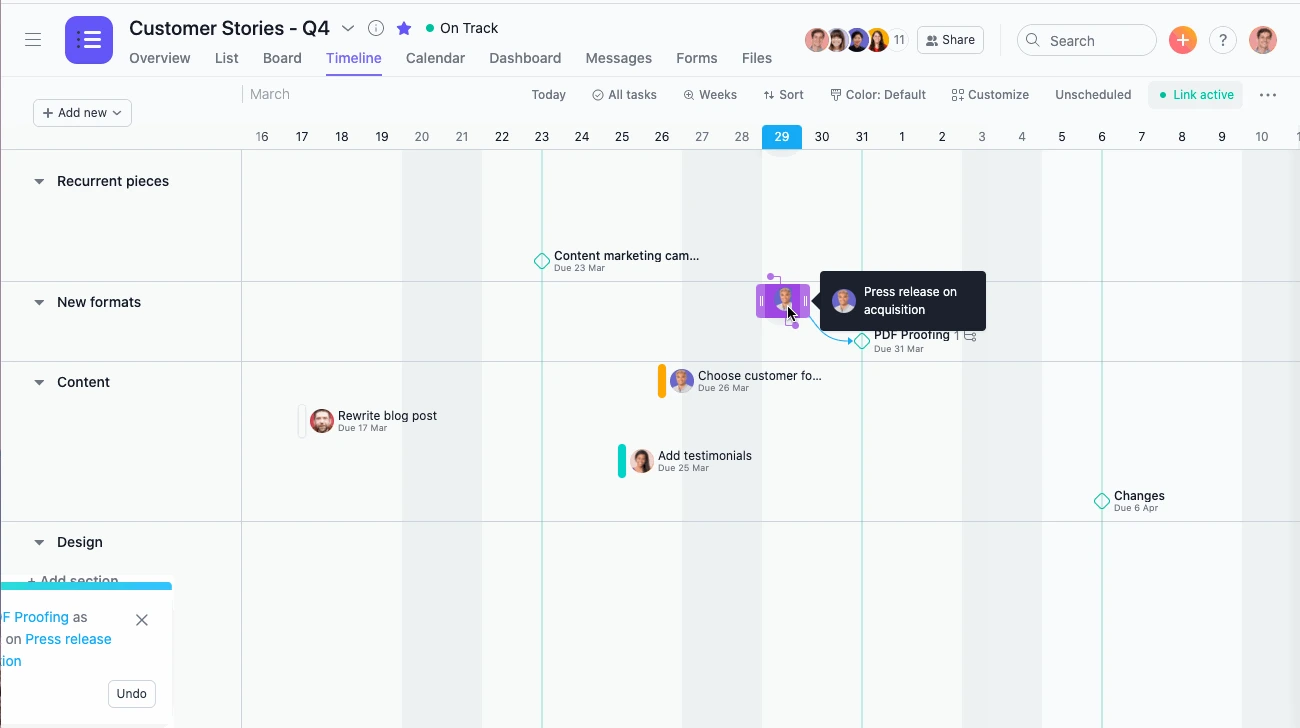
Drag the connector from a task in Timeline to the task it depends on. Screenshot source Review schedule conflicts
Inspect the dependency line and relative dates. Asana describes a grey line when there is no date conflict and a red line when dependent tasks overlap in a way that may create a conflict. Adjust the dependent task’s dates by dragging its bar or edges if needed.
Treat a red dependency line as a prompt to inspect overlapping dates, not as proof that the plan is impossible. Confirm whether the dependent task truly starts before its prerequisite finishes. If overlap is intentional, retain it. If not, adjust the dependent task’s dates and recheck the line.
How does this Asana setup work in practice?
Scheduling a release review after implementation
A product team schedules three implementation tasks and sets sequential dependencies to preserve buffer time before release reviews.
| Choice | Why it matters | How to check |
|---|---|---|
| Date implementation from its planned start through its expected finish | A duration bar makes the work window visible rather than showing only a deadline. | The Timeline bar spans the intended implementation period. |
| Give release review its own dates after implementation | Review is a separate handoff and should not be hidden inside the implementation task. | Both tasks appear as distinct bars. |
| Connect implementation to release review | The review depends on implementation being ready, so the line communicates that order. | The dependency line links the intended pair of tasks. |
| Move the review bar if it overlaps implementation unintentionally | A red line indicates a potential date conflict, but some overlap may be deliberate if partial review is allowed. | After adjusting, inspect the dates and line color again. |
Use the bars and dependency line to discuss whether the review buffer is realistic. Keep intentional overlap when the team can review partial work. Otherwise move the review dates and confirm the updated task details.
How do you verify your result in Asana?
Your dated tasks are arranged on Timeline with dependency links where needed. Confirm that the bars span the intended dates and inspect any red dependency lines. Use the completed view to discuss timing and adjust the plan as work changes.
| Step | What you should see |
|---|---|
| Add dates to the work | The tasks have start and due dates saved. |
| Open Timeline view | The dated tasks appear as bars in the project Timeline. |
| Adjust task timing on the schedule | The bar moves or changes length, and the task dates reflect the new schedule. |
| Connect work that depends on other work | A line appears between the related tasks. |
| Review schedule conflicts | The dependency is visible, and any schedule overlap is shown by the line color. |
Related Asana guides include How to add a custom field to an Asana project and How to add a numeric rollup to a portfolio in Asana.
Which official Asana sources were checked?
Every step and limit in this Asana guide was verified against official documentation on 21 Nov 2026 following how we check figures, alongside more walkthroughs in our Asana tutorials hub:
How do you troubleshoot common Asana issues?
Why is a task missing from Timeline?
Asana says tasks without dates do not appear in Timeline. Add start and due dates to the task and return to the view.
Will moving a Timeline bar update the task dates elsewhere?
Yes. Asana says changes made by dragging bars in Timeline automatically update task details and sync across project views.
The dependency line is red, but the team says some overlap is acceptable. Should I move the task?
First compare the dependent task’s start date with the prerequisite’s finish date. Red signals a potential conflict when dates overlap. If the team intentionally starts review before all prerequisite work finishes, document that scheduling choice and keep the dates. Otherwise adjust the dependent task and check the line again.
 Reviewed byDanny Kirk
Founder of ReddiReach.
 Checked byAndrés Felipe
Digital designer and marketer.
Every figure is checked against the vendor's own page. Read our editorial standards.