
Key Takeaways
- Select the Board layout option in Asana during blank project creation to organize cards into stage-based columns.
- Verify your account possesses project creation permissions and prepare your workflow stages before building new sections in Asana.
- Complete five sequential configuration steps in Asana to establish custom columns, insert task cards, and move active work.
- Verify the board setup in Asana by scanning named columns and checking that cards move smoothly between stages.
Configure a board layout in Asana to structure project tasks into clear, stage-based workflow columns. Moving work between named sections gives collaborators immediate visibility into handoffs and delivery status.
For plan limits and team seat pricing behind this workflow, read our Asana review or connect Asana to AI agents in Asana API and MCP.
Key steps
What do you need before starting in Asana?
Asana requires the following workspace setup before you begin:
- An Asana account with access to create a project.
- A project name and a simple set of categories or workflow stages.
How do you complete the steps in Asana?
Follow these 5 steps in Asana in order:
Start a blank project
From the top bar, click Quick Add, choose Project, then select + Blank Project. Enter a clear name, such as “Website launch,” so collaborators can identify the work.
Choose Board as the layout
In the project setup window, choose Board for the project layout and default view. Then click Create project. A board layout is useful when you want to move tasks between visual stages, such as “Ready,” “In progress,” and “Done.”
Choose Board when the team needs to move work visibly through stages. Before creating the project, agree on whether sections represent workflow states or categories. Mixing both can make a card’s location ambiguous, such as a “Paid” column beside “In progress” when one describes a result and the other a stage.
Add sections for your workflow
On the board, click + Add section or the section placeholder. Enter a name in the section header, then repeat for each stage or category you need. For a launch, you might use “Planning,” “In progress,” and “Ready to publish.” Keep the categories meaningful to the people who will update the board.
Name sections from the team’s actual handoffs. For a content workflow, “Ready,” “Writing,” “Review,” and “Published” indicate where work stands. Keep the stages few enough that collaborators can choose the right column. Add a section only when it represents a meaningful state or category.
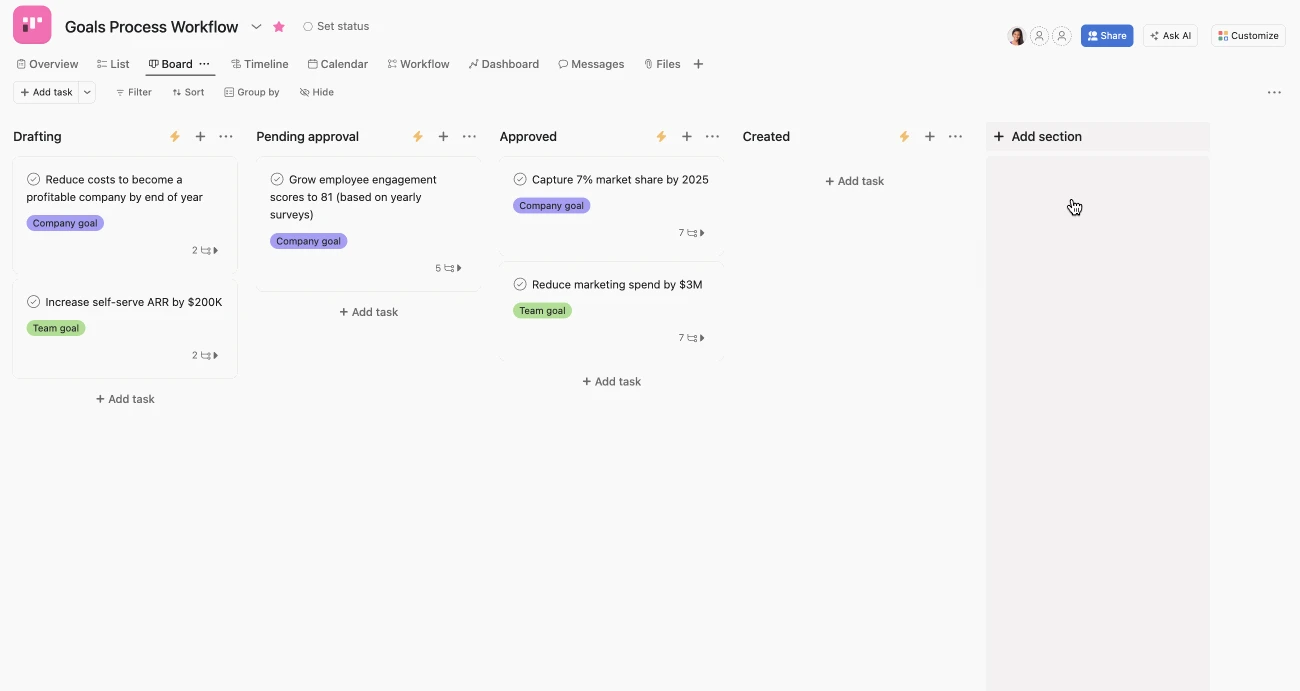
The Add section control sits to the right of the existing Board columns. Screenshot source Add a task to a section
Click + Add task in the section where the work belongs, or use the plus beside the section name. Enter a specific task, such as “Draft launch announcement.” Add a few starter tasks if you already know what work the project needs.
Put each new task in the section that matches its current state, not the state it is expected to reach. For example, add “Draft product comparison” under “Ready” if writing has not started. Confirm the card appears beneath the intended header before adding more work.
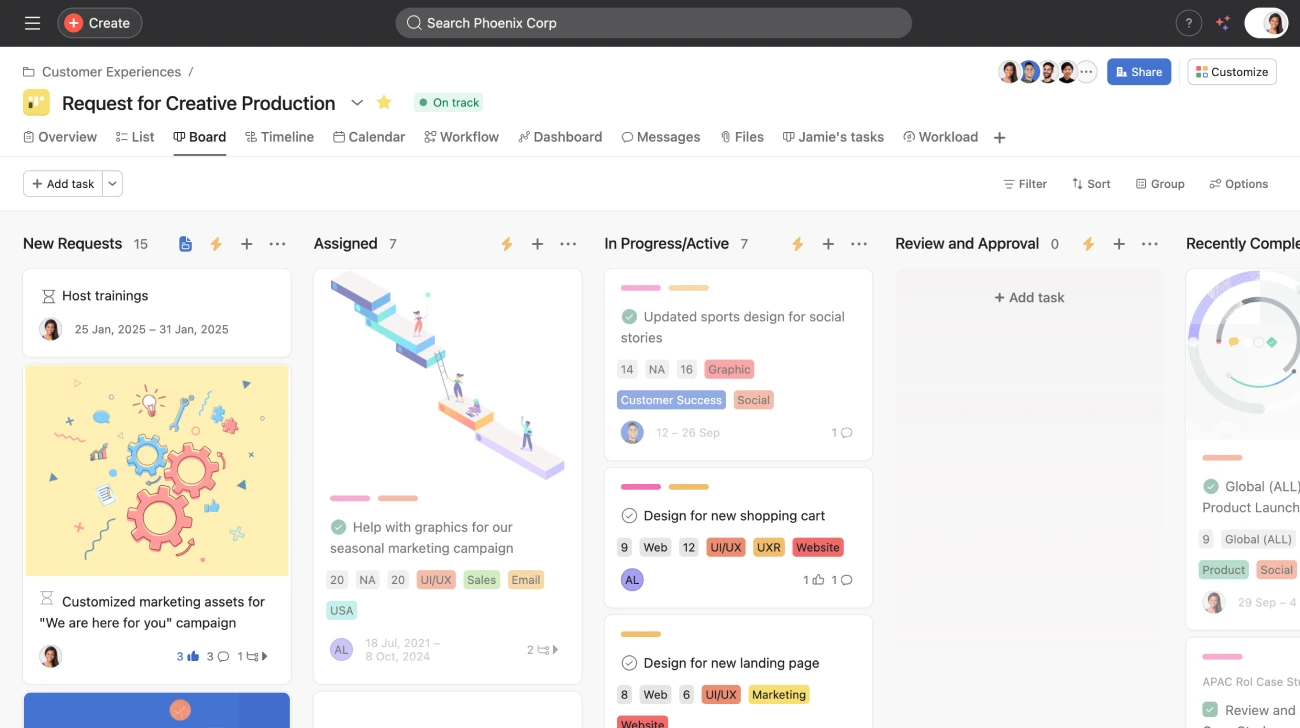
Tasks appear as cards under their section headings in Board view. Screenshot source Move work as it changes stage
Drag a task card to another section when its status changes. For example, move “Draft launch announcement” from “Planning” to “In progress” when writing begins. Project members can rearrange tasks and sections in Board view.
Move a card when the work changes stage, and check the destination column after dropping it. If the team disagrees about where a task belongs, clarify the section meanings before adding more columns. Otherwise the board can show movement without a shared interpretation.
How does this Asana setup work in practice?
Worked example: setting up a board for a product comparison article
A marketing team tracks a comparison article from initial assignment through final publication. The workflow makes stage handoffs visible across columns without cluttering the board with redundant micro-stages.
| Choice | Why it matters | How to check |
|---|---|---|
| Create “Ready,” “Writing,” “Review,” and “Published” sections | Each column represents a workflow stage, so a card’s location communicates status. | Team members can explain what qualifies for each stage. |
| Add “Draft product comparison” under “Ready” | The task has not started, so it belongs at the current stage rather than the next expected one. | The task card appears beneath Ready. |
| Move the card to “Writing” when drafting begins | The board should reflect the actual transition, not an estimated future state. | The card appears in Writing after the move. |
| Move it to “Review” when a draft is ready for review | The section change signals a handoff to the reviewer. | The card is in Review and the team knows review is now expected. |
The Asana board shows the article's active stage at a glance. When a card lingers between sections because a handoff is ambiguous, team leads define clear column entry criteria before restructuring the workflow.
How do you verify your result in Asana?
Your project has a Board view with named sections and at least one task card. Confirm the arrangement by scanning the board columns, then add owners or due dates to help coordinate the work.
| Step | What you should see |
|---|---|
| Start a blank project | The project setup window opens with a field for the project name. |
| Choose Board as the layout | The new project opens in Board view. |
| Add sections for your workflow | Each section appears as its own board column with the name you entered. |
| Add a task to a section | The task card appears beneath the section where you added it. |
| Move work as it changes stage | The task card appears in the destination section after you drop it. |
Related Asana guides include How to add a custom field to an Asana project and How to add a numeric rollup to a portfolio in Asana.
Which official Asana sources were checked?
Every step and limit in this Asana guide was verified against official documentation on 21 Nov 2026 following how we check figures, alongside more walkthroughs in our Asana tutorials hub:
How do you troubleshoot common Asana issues?
How do I add another section later?
In Board view, click + Add section or the section placeholder, then enter a name in the new section header.
Why can’t I delete a section?
Asana requires a section to be empty before deletion. Move its tasks to other sections or delete them, then open the three-dot menu beside the section title and choose Delete.
What if a task fits two board sections?
Check whether the sections mix categories and workflow stages or lack clear entry conditions. Agree on one meaning for each section, then place the task according to its current stage. Add or rename a section only if the team needs a distinct, consistently understood state.
 Reviewed byDanny Kirk
Founder of ReddiReach.
 Checked byAndrés Felipe
Digital designer and marketer.
Every figure is checked against the vendor's own page. Read our editorial standards.