
Key Takeaways
- Add task dependencies in Asana through the task details pane to link prerequisites directly to downstream work items.
- Ensure you hold access to the dependent task details pane and have at least two clearly ordered tasks in Asana.
- Follow five direct steps in Asana to select the waiting task, search for the prerequisite, and confirm link direction.
- Confirm the dependency in Asana by inspecting the task details pane for the active blocked status indicator badge.
Establish task dependencies in Asana to indicate which prerequisite work must finish before subsequent assignments can proceed. The dependent task displays a blocked banner to prevent premature handoffs across team members.
For plan limits and team seat pricing behind this workflow, read our Asana review or connect Asana to AI agents in Asana API and MCP.
Key steps
What do you need before starting in Asana?
Asana requires the following workspace setup before you begin:
- Two tasks in Asana that have a clear sequence, such as “Prepare product images” before “Publish product page.”
- Access to the task details pane for the dependent task.
How do you complete the steps in Asana?
Follow these 5 steps in Asana in order:
Open the task that must wait
Find the task that cannot start until another task is done, then open its task details pane. For example, open “Publish product page” if it depends on “Prepare product images.”
Before linking tasks, confirm that the prerequisite represents a real handoff or condition, not just work that happens around the same time. For example, “Prepare product images” should block publishing only if the page cannot be published without those images.
Find the dependency control
In the task details pane, locate and click Add dependencies. This is where you connect the current task to its prerequisite.
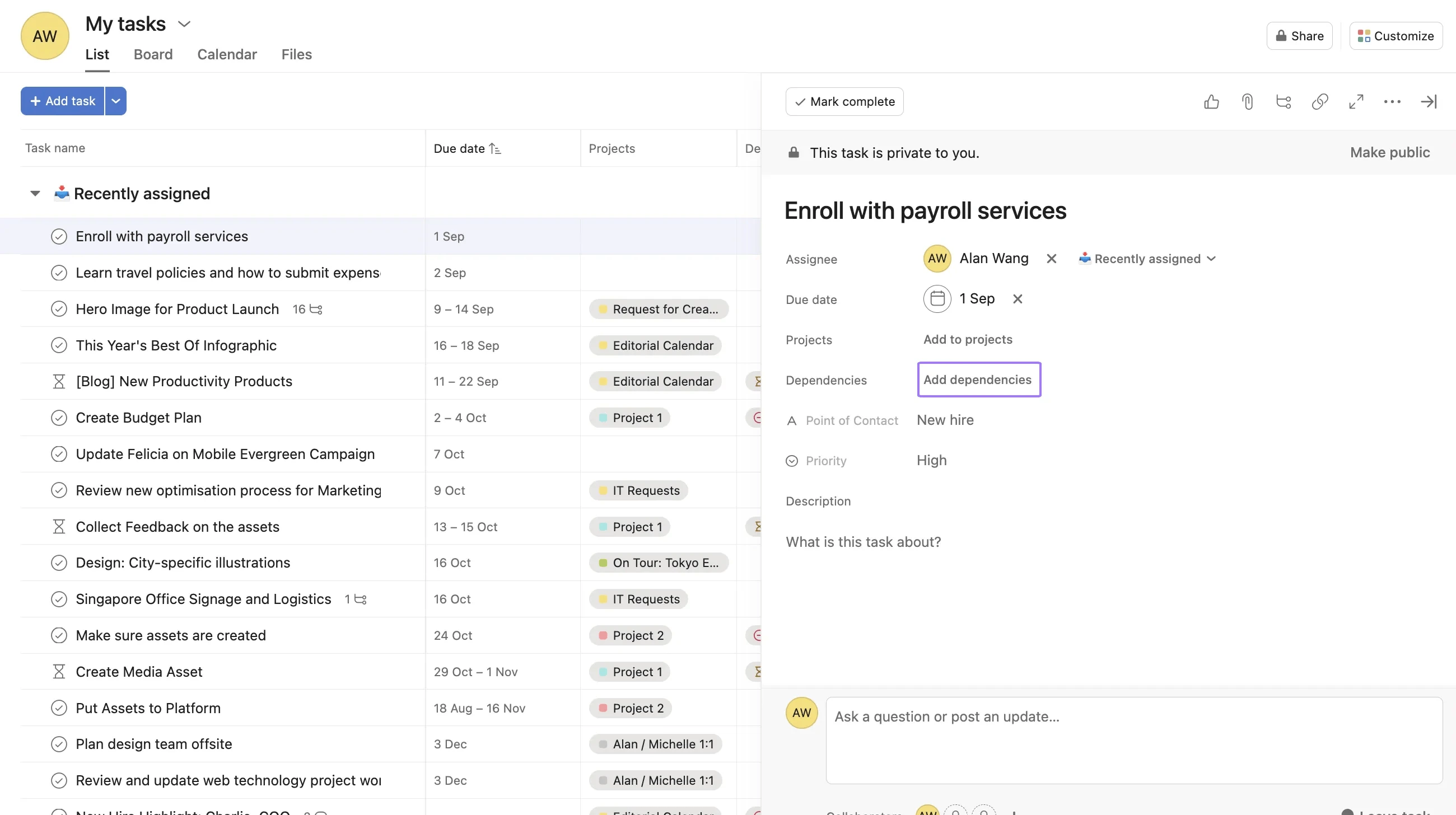
The dependency controls appear in the task details pane beside the other properties. Screenshot source Search for the prerequisite task
Type the name of the task that must happen first into the selector, then choose the matching task from the typeahead results. If names are similar, inspect the result before selecting so you link the right work item.
If several tasks have similar names, compare their project or other visible context before selecting one. This helps avoid linking a similarly named task from a different workstream. Check that the selected prerequisite is the task the assignee expects to complete first.
Confirm the dependency direction
Check that the dependent task is shown as Blocked by the prerequisite. If you are creating the relationship from the other task’s side, use the appropriate direction, Blocked by or Blocking, to describe which task waits and which task holds it up.
For a chain of work, check each link from the task that waits: design the relationship so each task says what it is blocked by, and confirm the direction at every link. This makes a reversed link easier to catch before people rely on it.
Check the blocked indicator
Close or scan the task details and look for the blocked indicator beside the dependent task name. Asana documents a small hourglass symbol in place of the usual checkmark. The dependent task’s details pane also shows the relationship.
If the blocked indicator is missing, reopen the dependent task’s details and inspect the relationship there. Confirm the prerequisite is still listed and the direction is correct. The indicator alone does not tell you whether the right task was selected.
How does this Asana setup work in practice?
Worked example: coordinating product page launch reviews
A web team manages a product page launch that requires prepared product images and approved promotional copy before final publishing. The coordinator links both prerequisite tasks directly to the launch task in Asana.
| Choice | Why it matters | How to check |
|---|---|---|
| Open “Publish product page” first | This is the task that must wait, so its details show the dependencies that block it. | The dependent task’s details pane is open. |
| Add “Prepare product images” | The page needs the approved image files before publication. | The selected task appears as a dependency and is identified as blocking publication. |
| Add “Review product copy” | The team also requires an approved copy review before the page can go live. | The second dependency appears with the correct direction. |
| Review both links with the assignee | A dependency is useful only if it reflects the team’s actual handoff and the assignee recognizes the prerequisites. | The assignee confirms both tasks are the work that must finish first. |
The launch task shows that it is blocked by both prerequisite review tasks. If an asset requirement becomes optional, the team unlinks that specific dependency in Asana so the schedule reflects actual release gates.
How do you verify your result in Asana?
The dependency now records the order of work. Verify the prerequisite name and the blocked indicator on the dependent task, then make sure the relevant assignee can see the relationship before work begins.
| Step | What you should see |
|---|---|
| Open the task that must wait | The dependent task’s details pane is open. |
| Find the dependency control | The dependency selector opens in the task details pane. |
| Search for the prerequisite task | The selected task appears as a dependency. |
| Confirm the dependency direction | The dependency details identify the prerequisite task and the correct direction. |
| Check the blocked indicator | The dependent task shows the blocked indicator and the dependency in its details. |
Related Asana guides include How to add a custom field to an Asana project and How to add a numeric rollup to a portfolio in Asana.
Which official Asana sources were checked?
Every step and limit in this Asana guide was verified against official documentation on 21 Nov 2026 following how we check figures, alongside more walkthroughs in our Asana tutorials hub:
How do you troubleshoot common Asana issues?
What does “Blocked by” mean compared with “Blocking”?
“Blocked by” identifies tasks preventing the current task from proceeding. “Blocking” identifies tasks that must wait for the current task.
Will the dependent task’s assignee be notified when the prerequisite is complete?
Asana says the assignee of the dependent task receives a notification when the precedent task is marked complete. They may also be notified if its due date changes or is removed.
What if the prerequisite task is complete but the dependent task still appears blocked?
Open the dependent task’s details and confirm which task is linked and in what direction. If the linked prerequisite is not the completed task, correct the relationship. If it is the right task, check its current completion state in Asana and ask the task owner to verify it if the relationship still looks inconsistent.
 Reviewed byDanny Kirk
Founder of ReddiReach.
 Checked byAndrés Felipe
Digital designer and marketer.
Every figure is checked against the vendor's own page. Read our editorial standards.