
Key Takeaways
- Update project status to Complete in Asana to ensure portfolio dashboards and team reporting accurately reflect completed milestones.
- Confirm project permissions in Asana and align with team stakeholders before changing project status or adjusting automated notification preferences.
- Execute five concise steps to access project actions, select Complete, review Overview banners, choose active statuses, and inspect archives.
- Verify the update by checking the Asana project header and portfolio views to ensure the status badge displays Complete correctly.
Mark an Asana project Complete from the project actions menu or status controls to update portfolio summaries and archive delivered milestones. Reopen the project anytime by selecting an active status from the Overview dropdown when additional deliverables arise.
For plan limits and team seat pricing behind this workflow, read our Asana review or connect Asana to AI agents in Asana API and MCP.
Key steps
What do you need before starting in Asana?
Asana requires the following workspace setup before you begin:
- Access to the Asana project you intend to mark Complete or reopen.
- Team alignment on changing the current project status to Complete and whether to silence notifications if the status changes again.
How do you complete the steps in Asana?
Follow these 5 steps in Asana in order:
Open the project actions
Navigate to your project in Asana and click the three-dot project actions menu near the project header. Confirm you have opened the exact project you intend to close, particularly when recurring initiatives share similar names. Review the available actions in the menu before selecting completion rather than archiving.
Complete the project
Select Complete from the menu. You can complete a project in Asana whether or not it already has a status. If no status exists yet, click Set status and select Complete. If the project already shows an active status, click that status control and choose Complete from its dropdown.

Use the current status next to the project name to open its status selector. Screenshot source Confirm the completed state on Overview
Open or return to the project Overview page and confirm that the project is marked Complete. Asana uses the Complete status to distinguish finished initiatives in portfolio summaries and reporting. Completing a project updates its status directly, whereas archiving alone hides inactive projects without changing their status to Complete.
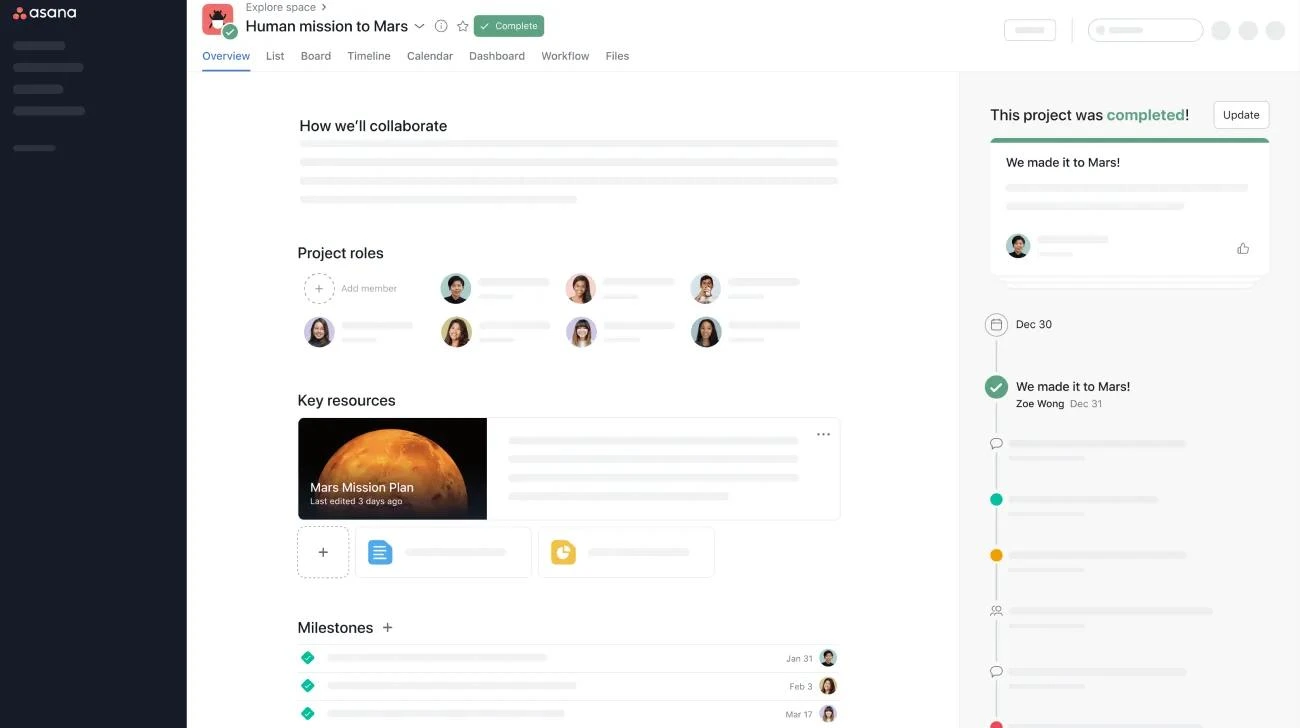
The project Overview displays a green Complete badge and a completion notice. Screenshot source Choose an updated status if the project resumes
When follow-up tasks make the project active again, select Complete on the Overview page and pick an updated status from the dropdown. Choosing an updated status moves the project out of its completed state. To suppress the update notification for project members, tick the checkbox in the upper-right corner before applying the change.
Check whether the project is archived
Look at the top of the project page to check whether an archived-project banner appears next to the status. Asana treats completion and archiving as separate states: completing communicates project status in summaries and reporting, while archiving helps focus on active projects. Selecting an updated status from Complete does not change the archive state.
How does this Asana setup work in practice?
Close and reopen a website refresh project in Asana
A web team marks a completed website redesign project as Complete in Asana, then reopens it when stakeholders submit post-launch updates.
| Choice | Why it matters | How to check |
|---|---|---|
| Select Complete from the project actions menu | Marks the project status Complete across portfolio summaries and reporting. | Confirm Complete appears on the Overview page. |
| Check the archive state separately | Completing sets reporting status, whereas archiving separately hides inactive projects. | Record whether the archived-project banner is visible. |
| Click Complete on Overview when updates arrive | Uncompleting begins from the current Complete status control. | Confirm the status dropdown opens from Complete. |
| Pick an updated status and tick the upper-right checkbox | Uncompletes the project for copy edits while turning off the update notification. | Verify the new status replaces Complete and review the archive state separately. |
The project status updates from Complete to an active state on Overview while the team confirms whether archived project banners require clearance.
How do you verify your result in Asana?
The Asana project displays Complete when its deliverables finish, making its status clear in portfolio summaries and reporting. When work resumes, selecting an updated status from Complete on the Overview page marks it uncompleted. Because an archived project can still show Complete alongside an archived-project banner, check both indicators when reviewing its state.
| Step | What you should see |
|---|---|
| Open the project actions | The three-dot project actions menu is open for the project you intend to mark Complete. |
| Complete the project | The project status updates and is shown as Complete. |
| Confirm the completed state on Overview | The Overview page shows Complete as the project status. |
| Choose an updated status if the project resumes | The Overview page displays the newly selected status instead of Complete. |
| Check whether the project is archived | You have confirmed whether the archived-project banner is shown and verified that the displayed status matches the project state. |
Related Asana guides include How to add a custom field to an Asana project and How to add a numeric rollup to a portfolio in Asana.
Which official Asana sources were checked?
Every step and limit in this Asana guide was verified against official documentation on 21 Nov 2026 following how we check figures, alongside more walkthroughs in our Asana tutorials hub:
How do you troubleshoot common Asana issues?
Why can't I find Complete in the project menu?
Check the project status control instead. If a status exists, open it and select Complete from the dropdown. If there is no status yet, use Set status and choose Complete.
Why does the project still appear archived after I change its status?
Archiving is separate from project status in Asana. Selecting an updated status from Complete changes completion status on Overview without removing an archived-project banner.
Why didn't completing the project archive it?
Completing and archiving are separate actions. Complete updates project status for portfolio summaries and reporting, while archiving helps you focus on active projects.
 Reviewed byDanny Kirk
Founder of ReddiReach.
 Checked byAndrés Felipe
Digital designer and marketer.
Every figure is checked against the vendor's own page. Read our editorial standards.