
Key Takeaways
- Build visual dashboard charts in Asana Reporting by isolating projects owned by specific team members using dedicated ownership filters.
- Verify your organization holds an Asana Advanced, Enterprise, or legacy Business tier subscription with permission to view target projects.
- Follow the five steps to open reporting dashboards, designate Projects as report types, choose owners, pick evaluation measures, and save.
- Verify the saved chart displays accurate owner tallies on the dashboard and open underlying projects to inspect status and remaining tasks.
Build an owner-scoped project chart in Asana by opening Reporting, selecting Add chart, setting Report on to Projects, and choosing specific people under Project owners. Pair that scope with project count or a consistent numeric project custom field to answer your ownership question.
For plan limits and team seat pricing behind this workflow, read our Asana review or connect Asana to AI agents in Asana API and MCP.
Key steps
What do you need before starting in Asana?
Asana requires the following workspace setup before you begin:
- Access to Asana Reporting and view permissions for the projects you want to include.
- Project metadata reporting on Asana Advanced, Enterprise, and Enterprise+ tiers, or legacy Business and Legacy Enterprise tiers.
- Agreement on which organization, teams, portfolios, owners, or specific projects belong in the report scope.
How do you complete the steps in Asana?
Follow these 5 steps in Asana in order:
Open a reporting dashboard
Select Reporting in the Asana sidebar, open the dashboard where the chart belongs, and select Add chart. Start with a shared dashboard that project reviewers already check during status meetings so the chart fits existing routines. Remember that viewers only see counts for Asana projects they have permission to access.
Choose Projects as the report type
In the chart editor, choose Projects under Report on. Use project reporting when the unit you want to count or compare is an entire project. When your question involves individual assignments, bottlenecks, or overdue work items inside projects, build a separate task report so project and task units stay distinct.
Include projects from selected owners
Under Include projects from, choose Project owners and select the people whose projects belong in the scope. Verify who actually owns the projects in Asana before bringing the chart into a team review. Team members often contribute to tasks on a project without being assigned as its owner, and unowned projects stay excluded.
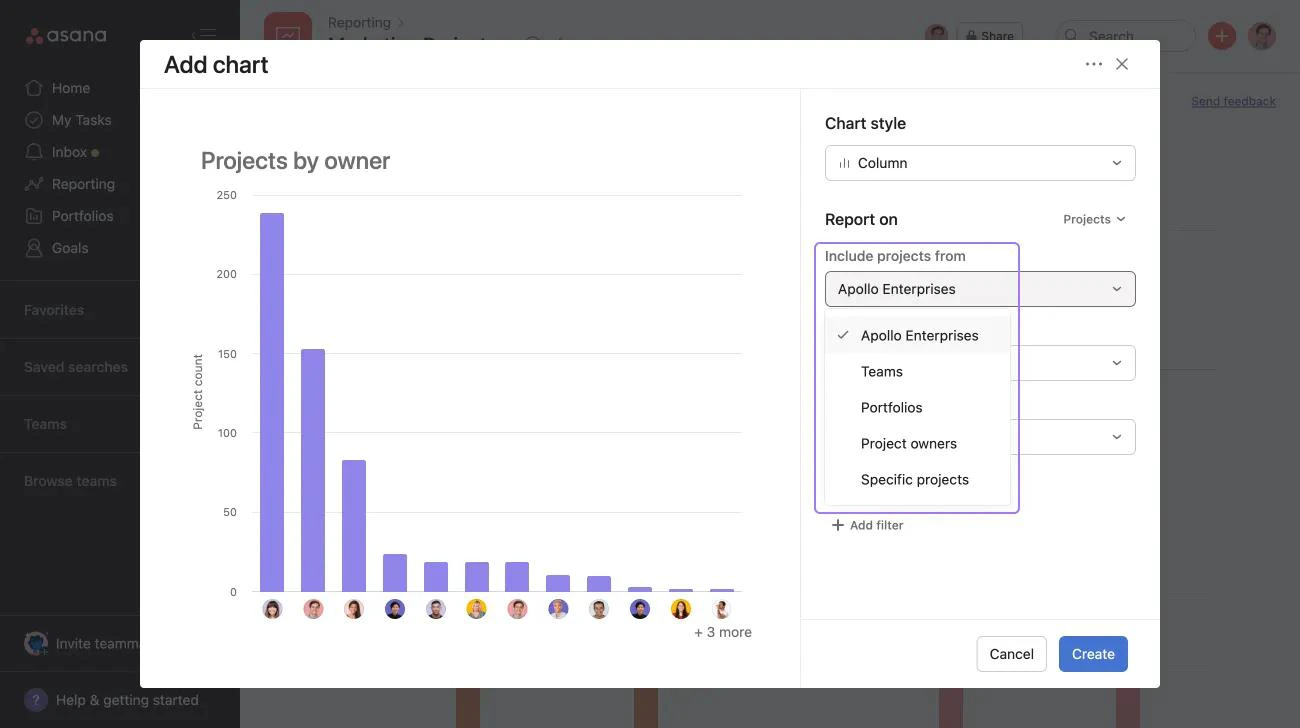
Choose Project owners under Include projects from in the Asana chart editor. Screenshot source Select a measure you can interpret
Choose project count to display the number of projects owned by the selected people. If your question relies on a numeric project custom field instead, select that field only after verifying what unit it measures and confirming the relevant projects populate it consistently. Empty field values will understate totals.
Save and verify the chart
Review the chart preview and enter a name that states the scope clearly, such as Product launch projects by owner, then save it to the dashboard. Compare the saved counts against several known projects and their assigned ownership in Asana before relying on the chart in a review.
How does this Asana setup work in practice?
Example: reviewing active launch projects across two project leads
A launch team with two project leads runs a weekly review meeting and needs a clear view of each lead's open launch projects before setting the discussion order.
| Choice | Why it matters | How to check |
|---|---|---|
| Start with Projects under Report on | Counting whole projects fits the weekly agenda, while individual tasks get discussed inside each project separately. | Confirm the chart editor lists Projects as the report type. |
| Select both leads in Project owners | Owner scoping isolates launches the leads formally own instead of mixing in projects they only advise on. | Open one known launch project per lead and confirm its assigned owner. |
| Measure by project count | A project count gives a repeatable weekly starting point for choosing which projects need closer review. | Compare the reported counts with the team's known launch projects. |
Use the chart during the meeting to choose which owner's project list to open first, then inspect status, deadlines, and remaining work inside those projects before moving assignments.
How do you verify your result in Asana?
The dashboard now contains a chart scoped to Asana projects owned by the people you selected. Use the counts to identify which project lists need a closer look in reviews. For effort or capacity decisions, open the underlying projects directly to check status, deadlines, and remaining work.
| Step | What you should see |
|---|---|
| Open a reporting dashboard | The chart editor opens in the intended dashboard. |
| Choose Projects as the report type | The report type under Report on shows Projects. |
| Include projects from selected owners | The selected owners match the project scope you intend to review. |
| Select a measure you can interpret | The selected measure matches the question and units for the chart. |
| Save and verify the chart | The dashboard displays the chart and its counts match the expected project scope. |
Related Asana guides include How to add a custom field to an Asana project and How to add a numeric rollup to a portfolio in Asana.
Which official Asana sources were checked?
Every step and limit in this Asana guide was verified against official documentation on 21 Nov 2026 following how we check figures, alongside more walkthroughs in our Asana tutorials hub:
How do you troubleshoot common Asana issues?
Why is a project I expected missing?
Open the project in Asana and check its assigned owner first. Confirm that person is selected under Project owners, verify you have access to view the project, and check the dashboard scope and any other filters that might exclude it.
Can I focus on a single portfolio instead?
Choose Portfolios under Include projects from when your reporting question covers projects inside a specific portfolio. Verify the included projects in that portfolio before comparing the result with an owner-scoped chart.
What if I need to compare effort?
Select a consistently populated numeric project custom field if it measures your effort question. A project count gives every project equal weight, whether it involves a small handoff or a larger build.
 Reviewed byDanny Kirk
Founder of ReddiReach.
 Checked byAndrés Felipe
Digital designer and marketer.
Every figure is checked against the vendor's own page. Read our editorial standards.