
Key Takeaways
- Isolate crawler coverage failures in Semrush Site Audit by systematically evaluating robots disallow rules, crawl sources, and server response codes.
- Ensure administrative access to the Semrush project configuration along with permissions to inspect web server logs and robots.txt files.
- Work through the six diagnostic steps checking crawl parameters, robots directives, server reachability, page weight limits, and comparison crawls.
- Verify audit diagnostics by running a targeted recrawl to confirm previously skipped URLs are processed into the Site Audit database.
Diagnose incomplete audit crawls in Semrush Site Audit by comparing crawl settings against robots.txt directives, rendering options, and server access barriers. Update crawler user-agent allowances or crawl sources before initiating a fresh verification crawl.
For plan limits and team seat pricing behind this workflow, read our Semrush review or connect Semrush to AI agents in Semrush API and MCP.
Key steps
What do you need before starting in Semrush?
Semrush requires the following workspace setup before you begin:
- A Site Audit campaign and a description of which pages or sections were not crawled.
- Access to the site’s crawl settings and, where needed, its robots.txt, hosting, or CDN configuration.
- If changing site access rules, coordinate with the site owner or administrator responsible for those settings.
How do you complete the steps in Semrush?
Follow these 6 steps in Semrush in order:
Identify what is incomplete
Compare the pages the audit crawled with the pages you expected it to find. Note whether a whole section is missing, the domain cannot be reached, or only pages that depend on JavaScript or authentication are absent. These patterns help narrow the possible cause.
Review crawl scope and source
Open the Site Audit settings and check the configured scope. The supplied settings screenshot shows the Crawl source dropdown with Website, Robots.txt sitemap, and Import URLs from file options. If important pages are difficult for the crawler to discover through the site, the product guidance says changing the source to a sitemap can help include them.
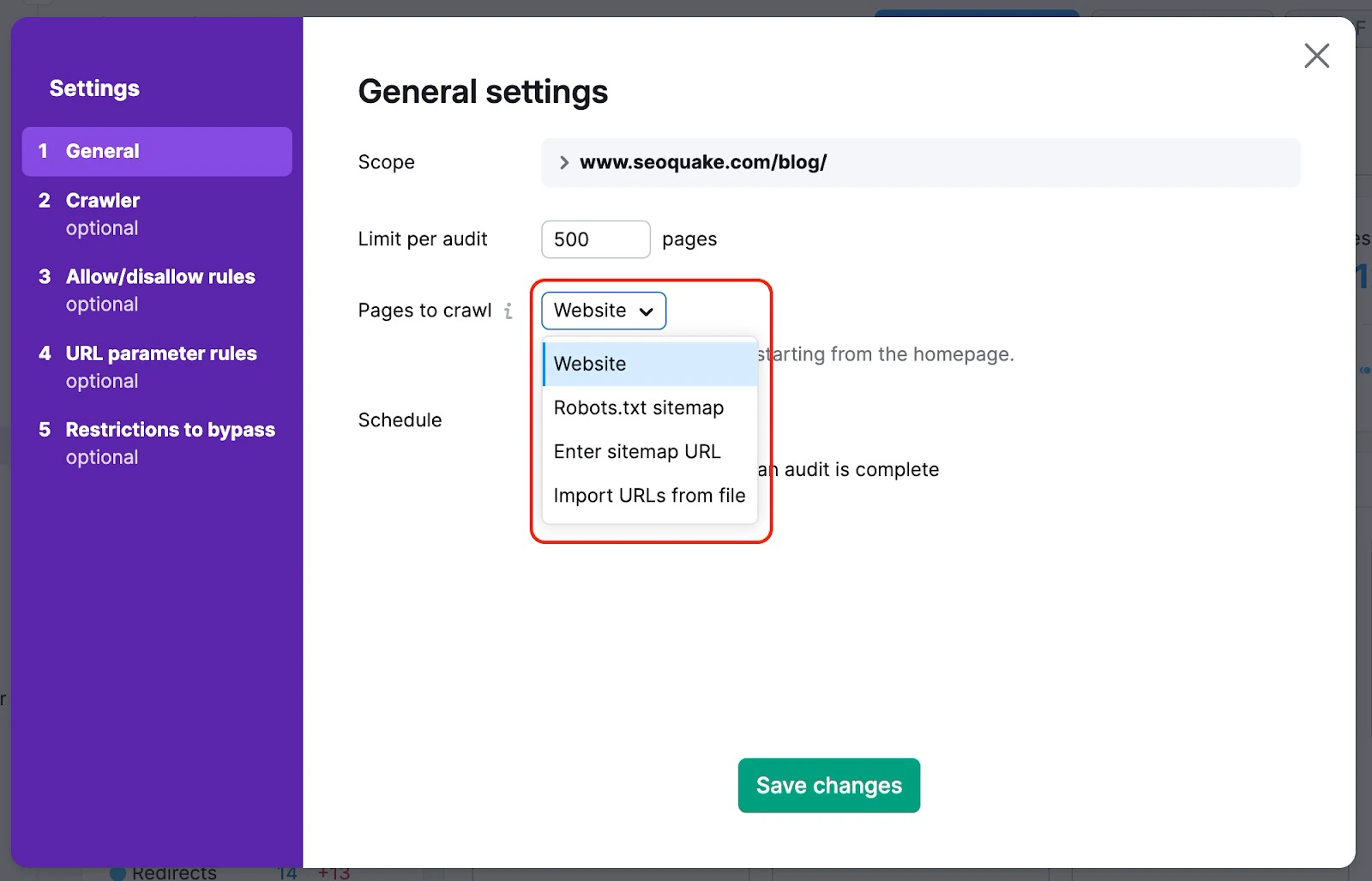
The visible control is the Crawl source dropdown, with Website, Robots.txt sitemap, and Import URLs from file options. Screenshot source Check robots.txt and page directives
Inspect the site’s robots.txt for a rule that disallows SiteAuditBot or the relevant section. Also check whether affected pages contain a noindex, nofollow, or none directive, which the supplied troubleshooting guidance identifies as blocking crawl access. Have the responsible administrator review and adjust rules if they are preventing the intended audit.
Check whether the crawler can reach the site
If the domain cannot be resolved, verify that the configured domain is online and that the selected root or www version exists. The product guidance identifies DNS resolution, shared hosting, and crawler blocking by hosting platforms, plugins, or CDNs as possible causes. Ask the site administrator or provider to check whether SiteAuditBot is blocked, including in CDN or security settings.
Check page size, JavaScript, and protected pages
The troubleshooting information says pages whose landing page or total JavaScript/CSS size exceeds 2 MB cannot be processed. If navigation links are hidden in JavaScript, the guidance recommends enabling JS rendering. It also says sitemap crawl source can help avoid missing pages that are hard to discover. For password-protected areas, Site Audit has a Crawling with your credentials option under the settings gear.
Rerun with the appropriate correction and compare
After the relevant settings or access issue has been addressed, rerun the audit and compare the crawled pages with your original list. If settings were changed, the audit may show a notification that crawler settings changed since the previous audit. The supplied information describes this as a note about interpreting changed results.
How does this Semrush setup work in practice?
Example: diagnosing missing blog pages
An SEO specialist observes that client blog articles rendered via client-side JavaScript are omitted from recent Semrush Site Audit reports.
| Choice | Why it matters | How to check |
|---|---|---|
| Confirm the missing pages are within the configured audit scope. | A scope restriction can exclude areas before crawler discovery is considered. | The intended blog section is included in the configured scope. |
| Inspect the Crawl source setting. | The shown options include a sitemap source, and the product guidance says it can help with pages that are difficult to find through the site. | Choose a source that actually contains the pages under review. |
| Check whether homepage links to those pages depend on JavaScript. | The troubleshooting information identifies JavaScript-hidden links as a reason pages may be missed and recommends JS rendering in that case. | Confirm the navigation behavior with the site administrator and review the rendering setting. |
| Rerun and compare the discovered pages. | The comparison shows whether the selected discovery or rendering adjustment addressed the omission. | Verify the previously missing pages appear in the new crawl. |
Enable JavaScript rendering in crawl settings and verify the subsequent audit run successfully parses and reports on the missing blog URLs.
How do you verify your result in Semrush?
You have narrowed an incomplete crawl to a concrete class of causes and selected the relevant next check. A crawl that still misses pages after a settings change calls for reviewing the remaining access, scope, size, or rendering condition rather than assuming the audit has covered the full site.
| Step | What you should see |
|---|---|
| Identify what is incomplete | You can describe the missing pages or the specific failure shown by the audit. |
| Review crawl scope and source | The scope matches the area you intend to audit, and the selected crawl source suits how the pages are listed. |
| Check robots.txt and page directives | You have confirmed whether robots.txt or a page directive explains the missing pages. |
| Check whether the crawler can reach the site | The configured domain resolves and the site’s hosting or CDN is not blocking the crawler, or you have identified the party who can investigate. |
| Check page size, JavaScript, and protected pages | You have matched the missing-page pattern to a supported check: file size, rendering, sitemap discovery, or credentials. |
| Rerun with the appropriate correction and compare | The new crawl includes the pages you expected, or its remaining omissions point to a specific unresolved access or configuration issue. |
Related Semrush guides include How to add competitors in Semrush Position Tracking and How to build a Semrush My Reports report from a template.
Which official Semrush sources were checked?
Every step and limit in this Semrush guide was verified against official documentation on 21 Nov 2026 following how we check figures, alongside more walkthroughs in our Semrush tutorials hub:
How do you troubleshoot common Semrush issues?
Why are pages in one folder missing?
Check the audit scope and robots.txt rules for that folder. A disallow rule can block crawler access, and the scope may exclude areas of the site.
Why does a sitemap crawl help?
The supplied product guidance says a sitemap source can help when important pages are difficult to find naturally through the website. It does not by itself resolve access restrictions or page processing limits.
Why are private pages still missing?
The product information describes a Crawling with your credentials option under the settings gear for password-protected areas. Confirm the pages are in scope and the appropriate credentials are configured.
 Reviewed byDanny Kirk
Founder of ReddiReach.
 Checked byAndrés Felipe
Digital designer and marketer.
Every figure is checked against the vendor's own page. Read our editorial standards.