
Key Takeaways
- Streamline schedule tracking in Asana by applying assignee, completion, and date filters to Month or Week project calendar views.
- Confirm project access in Asana and ensure scheduled tasks have assigned due dates so they populate on calendar grids.
- Complete the five steps to open project calendars, reveal filter controls, apply specific task parameters, inspect results, and save views.
- Verify the calendar displays only matching scheduled tasks and check whether saving creates a persistent tab for workspace collaborators.
Filter calendar views in Asana by clicking the Filter button in Month or Week mode to isolate tasks by assignee, custom field, or completion status. Save the filtered perspective to preserve the layout for your team or save it as an independent project tab.
For plan limits and team seat pricing behind this workflow, read our Asana review or connect Asana to AI agents in Asana API and MCP.
Key steps
What do you need before starting in Asana?
Asana requires the following workspace setup before you begin:
- Open the project whose calendar you want to filter.
- Switch the calendar to Month or Week view. The source says filters can be applied in either view.
- Decide what subset you want to inspect, such as incomplete tasks or tasks assigned to a particular person.
How do you complete the steps in Asana?
Follow these 5 steps in Asana in order:
Open the project calendar
Open the project and select its Calendar view. Choose Month or Week view, since multi-filtering is available in those views. The screenshot shows a project calendar in Week view with the Filters panel open.
The visible filter labels include Quick filters, Incomplete tasks, Completed tasks, Just my tasks, and + Add filter. This is a useful point of reference for the filtering controls.
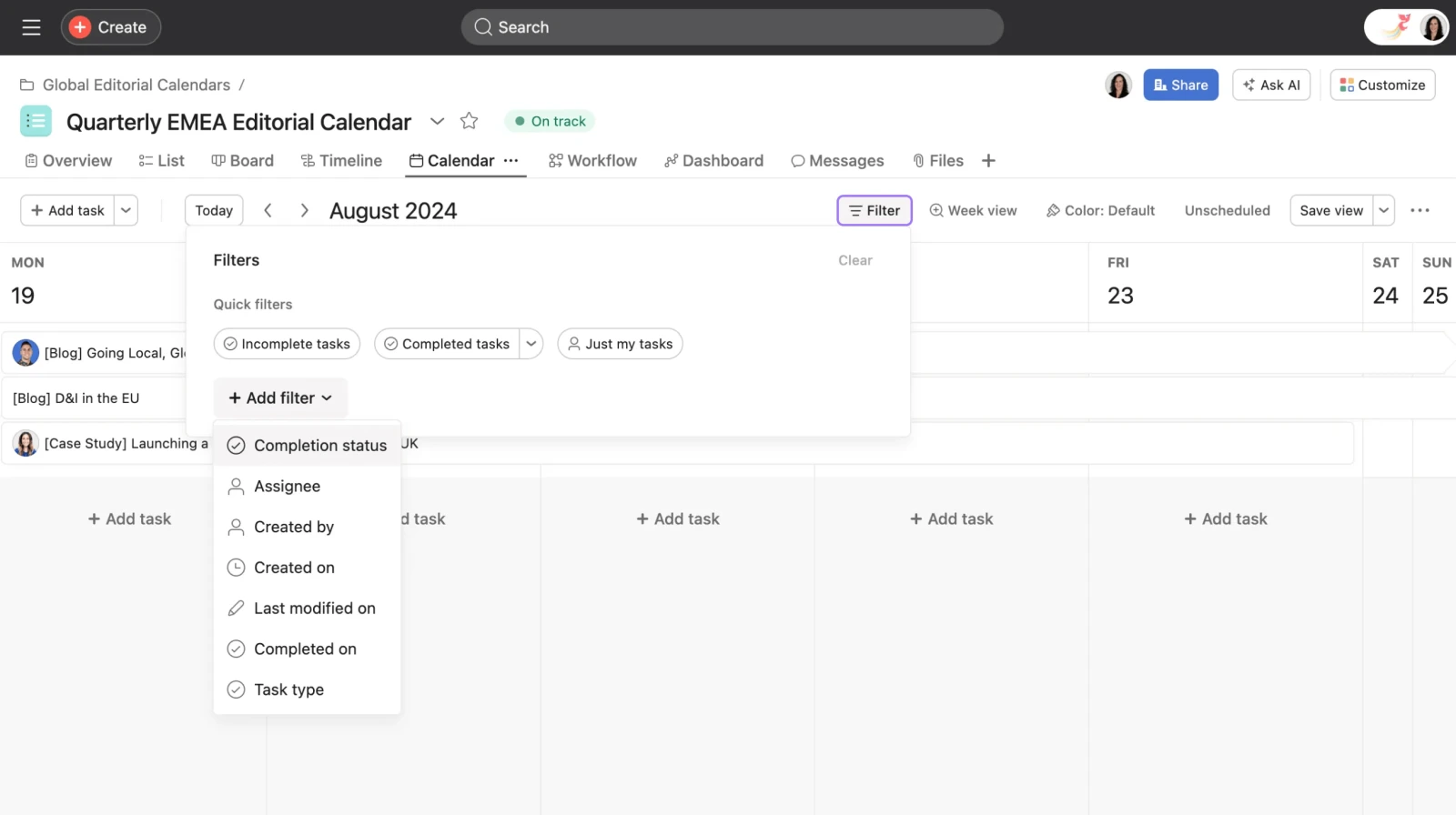
The screenshot shows the Week view filter panel and its visible controls, including Quick filters and + Add filter. Screenshot source Open the filter controls
Click Filter within the calendar view. The screenshot shows the Filters panel expanded in Week view. If your calendar is already showing filters, use that panel to continue rather than opening a different project control.
Choose a quick filter or add criteria
Select one of the listed Quick filters, or click + Add filter to choose additional criteria from the available dropdown. The screenshot shows options including incomplete tasks, completed tasks, and just your tasks. It also shows additional criteria such as assignee and created by.
Choose only criteria relevant to what you are trying to review, and use the labels available in your actual menu.
Review the filtered calendar
Inspect the calendar after applying filters. Confirm that the task cards shown fit the criteria and that the Week or Month date range is the one you intended. You can use the calendar controls to move to today or select a month, and the source also describes options for viewing unscheduled tasks and showing or hiding weekends.
If the result is too narrow or empty, reopen Filter and adjust or clear criteria. The screenshot includes a Clear control in the panel.
Save the view if it should persist
To save the filtered layout for collaborators, click Save view. The source says this saves the project view for everyone collaborating on it. You can also choose +Save as a new tab to create a separate tab for the view.
If you want Calendar to be the project’s default view, use the three-dot icon next to the Calendar tab and choose Set as default. Save only after confirming the layout is useful.
How does this Asana setup work in practice?
Example: review incomplete editorial tasks for one owner
An editorial director wants to inspect open assignments scheduled for a single writer during a designated publication week in Asana.
| Choice | Why it matters | How to check |
|---|---|---|
| Open the editorial project calendar and select Week view. | Week is one of the documented views that supports filters. | The intended project and week are visible. |
| Open Filter and choose Incomplete tasks. | The editor wants to focus on unfinished work. | The filter panel shows the incomplete-task criterion selected. |
| Use + Add filter to choose Assignee, then select the intended teammate. | The review is scoped to one owner as well as task status. | Both status and assignee criteria are reflected in the filter panel. |
| Review the calendar and save the view only if the team should reuse it. | Saving shares the project view with collaborators, while an unsaved filter can serve a temporary review. | The visible tasks fit the intended criteria and the save choice matches the audience. |
Evaluate whether the filtered calendar view should be saved as a dedicated project tab for recurring weekly editorial review meetings.
How do you verify your result in Asana?
The calendar now focuses on tasks matching the selected criteria. Use the result to review the relevant work in its date context. If you saved the view, the project collaborators will see that saved layout. If you used it temporarily, clear filters when you return to the broader calendar.
| Step | What you should see |
|---|---|
| Open the project calendar | The correct project calendar is open in Month or Week view. |
| Open the filter controls | The calendar’s filter panel is visible. |
| Choose a quick filter or add criteria | The selected filter criteria represent the tasks you want the calendar to show. |
| Review the filtered calendar | The calendar displays the intended subset for the correct date range. |
| Save the view if it should persist | The filtered view is saved in the intended way, or left unsaved if it is only for a temporary review. |
Related Asana guides include How to add a custom field to an Asana project and How to add a numeric rollup to a portfolio in Asana.
Which official Asana sources were checked?
Every step and limit in this Asana guide was verified against official documentation on 21 Nov 2026 following how we check figures, alongside more walkthroughs in our Asana tutorials hub:
How do you troubleshoot common Asana issues?
Why is Filter unavailable in my calendar?
The source says calendar filters are available in Month and Week view within projects and My tasks. Switch to one of those views and check again.
Why did filtering remove every task?
The selected criteria may be too restrictive or no tasks may match them in the displayed date range. Reopen Filter, clear or adjust criteria, and confirm the calendar dates.
Will Save view change what collaborators see?
Yes. The source says clicking Save view saves the project view for everyone collaborating with you. Review the filters and layout before saving.
 Reviewed byDanny Kirk
Founder of ReddiReach.
 Checked byAndrés Felipe
Digital designer and marketer.
Every figure is checked against the vendor's own page. Read our editorial standards.