
Key Takeaways
- Apply Semrush Keyword Magic Tool filters to uncover specific long-tail keywords, search intent classifications, and low-competition queries from core seed terms.
- Sign in to Semrush with keyword research permissions and identify a primary seed keyword alongside your target country market database.
- Perform 5 sequential steps to submit a seed topic, select matching broad modes, configure word count thresholds, filter question queries, and shortlist terms.
- Confirm that results match your selected country database, minimum word count rules, and search intent labels before finalizing your editorial schedule.
Semrush Keyword Magic Tool generates targeted long-tail search terms from a primary seed query using advanced volume, word count, and intent filters. Isolate specific question queries and high-intent phrases to address niche customer questions across your site content.
For plan limits and team seat pricing behind this workflow, read our Semrush review or connect Semrush to AI agents in Semrush API and MCP.
Key steps
What do you need before starting in Semrush?
Semrush requires the following workspace setup before you begin:
- Sign in to Semrush.
- Choose a seed topic and target country database.
- Decide what makes a query relevant to your audience before filtering.
How do you complete the steps in Semrush?
Follow these 5 steps in Semrush in order:
Open Keyword Magic Tool and enter a seed
In the SEO navigation, open Keyword Magic Tool. Enter a broad topic or product phrase in the search bar, choose the country database you want to research, and run the search. For a home coffee business, for example, a seed such as “espresso machine” can reveal more specific searches than the generic category alone.
Choose a seed that reflects the product or problem a searcher would describe, and select the country database where the audience searches. A broad category can help discovery, while a specific product type can surface narrower wording. Keep the seed and database with your notes so another person can reproduce the search.
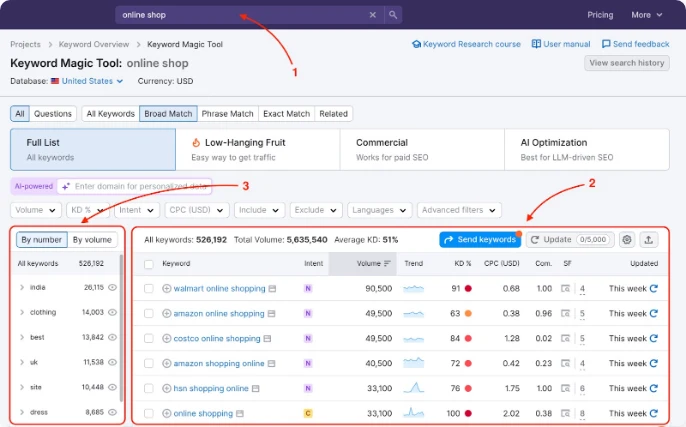
Enter a seed term and confirm the intended country database before reviewing ideas. Screenshot source Use a matching mode to shape the ideas
At the top of the results, choose Broad Match to see a wider set of terms containing your seed in varied forms. Phrase Match and Exact Match keep results closer to the original wording. Related can surface semantically connected terms. Start broad when you want discovery, then tighten the match if the list is too wide.
Use Broad Match for initial exploration, then test Phrase Match if the list includes too many loosely related terms. Related can help when the audience uses different wording, but verify that each suggestion still addresses the same need. The useful mode depends on whether breadth or close wording matters for this pass.
Narrow by word count and demand
Open Advanced filters and use Word count to focus on longer phrases. You can also set a Volume range that fits your research and use KD % to limit difficulty. Use the filters to narrow the list. Keep low-volume phrases that closely match what your audience needs.
Set Word count to find longer phrases, but do not use length as a proxy for usefulness. A shorter query can reveal a clear buying or troubleshooting need, while a long phrase may be irrelevant. Apply Volume and KD % ranges only when they answer a planning constraint, and review what the filters remove.
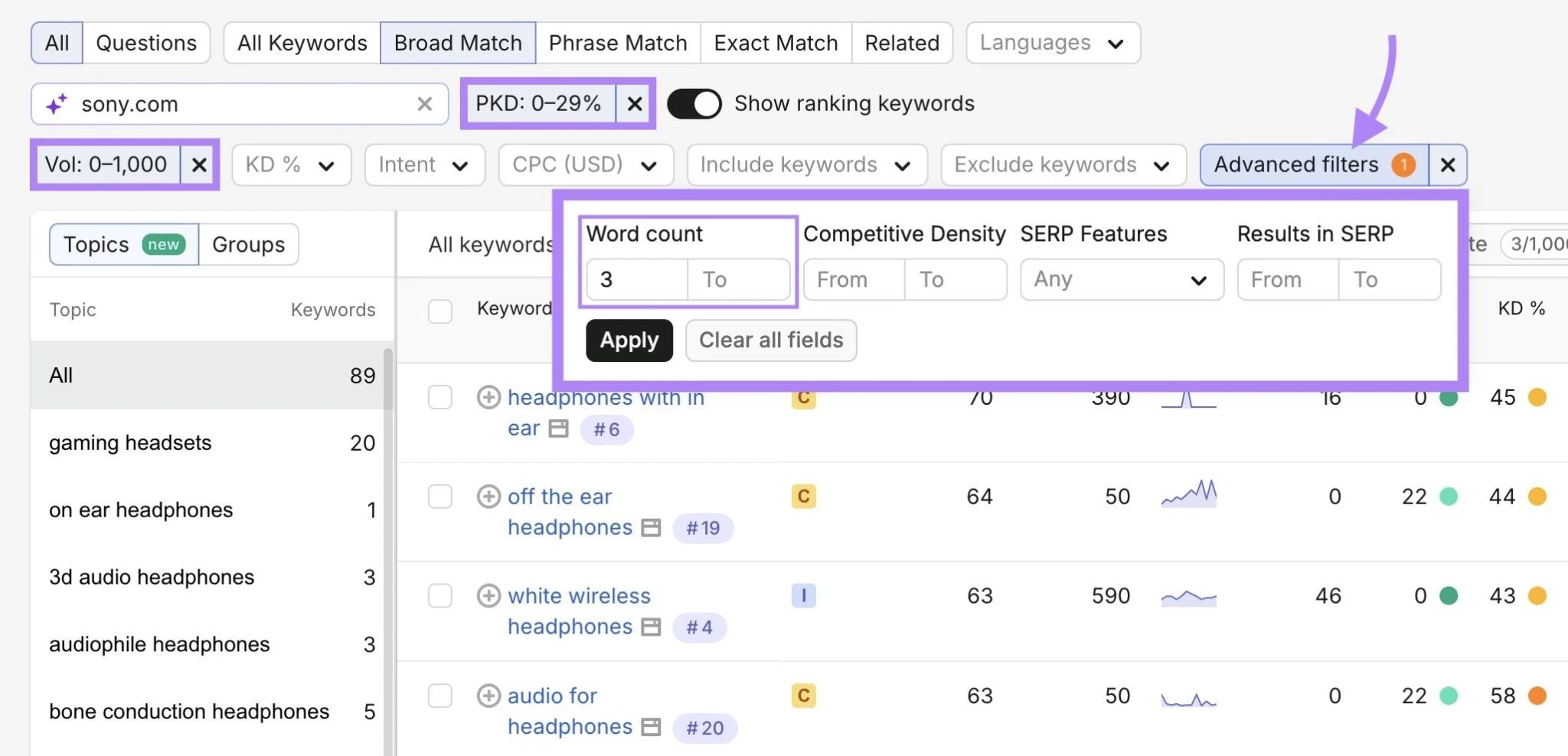
Applied filters appear above the keyword table. Screenshot source Check question phrasing and intent
Select Questions to isolate queries phrased as questions. Inspect the Keyword and Intent columns, then click into relevant topic groups or subgroups in the left sidebar to explore specific angles. For example, a question about choosing an espresso machine may suit a buying guide, while a maintenance question may need a troubleshooting article.
A question is useful when its wording points to a page purpose the site can satisfy. Compare the intent and wording: “which espresso machine for a small apartment” may support a buying guide, while a repair question calls for accurate troubleshooting. Keep questions for separate pages when their answers require different expertise or intent.
Keep a focused set of query ideas
Review each candidate for fit, specificity, and likely page purpose. Select useful rows and use the available copy or export controls if you need to take the list into your planning sheet. Keep related queries together when they can be answered well by one page.
How does this Semrush setup work in practice?
Worked example: finding long-tail queries for an espresso machine guide
An ecommerce content team plans a comprehensive buyer guide for beginner espresso machines and requires specific conversational queries to address.
| Choice | Why it matters | How to check |
|---|---|---|
| Search “espresso machine” in the target country database | The broad product seed reveals language used around the category in the intended market. | The results table reflects the selected seed and database. |
| Start with Broad Match, then inspect Phrase Match | Broad Match supports discovery. Phrase Match helps check whether candidates stay close to the product topic. | Compare candidate wording across the two selected match types. |
| Use a Word count minimum as a discovery aid | Longer wording can expose specific needs, but a strict threshold could hide short, valuable buying terms. | Review the filtered list and retain relevant shorter candidates if they fit the guide. |
| Select Questions and review intent | Question phrasing can reveal buyer concerns that belong in a guide or a separate support article. | Each retained question has wording and intent consistent with the planned page. |
Group complementary question queries into dedicated buying guide sections, separating technical repair inquiries that require independent troubleshooting articles.
How do you verify your result in Semrush?
Confirm the results match your selected database and filters, then review a few query phrases against your audience and likely page format before adding them to a content plan.
| Step | What you should see |
|---|---|
| Open Keyword Magic Tool and enter a seed | A keyword results table appears for your seed and selected database. |
| Use a matching mode to shape the ideas | The selected match type is active and the keyword list reflects it. |
| Narrow by word count and demand | The table is narrowed by your selected word-count and metric filters. |
| Check question phrasing and intent | Question results appear, and you can see keyword wording and intent for the candidates. |
| Keep a focused set of query ideas | You have a reviewed set of specific queries ready for content planning. |
Related Semrush guides include How to add competitors in Semrush Position Tracking and How to build a Semrush My Reports report from a template.
Which official Semrush sources were checked?
Every step and limit in this Semrush guide was verified against official documentation on 21 Nov 2026 following how we check figures, alongside more walkthroughs in our Semrush tutorials hub:
How do you troubleshoot common Semrush issues?
Why are my results not very specific?
Try a more focused seed, switch from Broad Match to Phrase Match, or add a higher Word count minimum in Advanced filters. You can also open a narrower topic subgroup.
Why do question results disappear when I change filters?
The Questions option narrows the current result set. Check whether the selected match type, volume, difficulty, or other filters leave any question terms that meet your criteria.
Why does a long phrase look valuable in the table but not fit my page?
Word count only describes phrase length. Read the full query and inspect intent. If it signals a different audience need or page type, exclude it from this page’s set or assess it separately.
 Reviewed byDanny Kirk
Founder of ReddiReach.
 Checked byAndrés Felipe
Digital designer and marketer.
Every figure is checked against the vendor's own page. Read our editorial standards.