
Key Takeaways
- Open Semrush Organic Rankings to evaluate traffic distribution, estimated visits, and ranking keyword totals across all subdomains on a root domain.
- Access an active Semrush account and select a root domain with active multi-subdomain architecture across blogs, documentation, or localized portals.
- Execute 5 direct steps to navigate to Subdomains, select comparison metrics, evaluate subdomain rows, open ranking keyword reports, and inspect subfolders.
- Verify that the Subdomains table breaks down estimated organic traffic percentages and allows direct click-through to individual keyword position tables.
Semrush Organic Rankings features a Subdomains report that breaks down organic search visibility, traffic share, and ranking keyword volumes across all domain hostnames. Compare subdomains to understand content distribution and isolate specific hostnames for detailed keyword analysis.
For plan limits and team seat pricing behind this workflow, read our Semrush review or connect Semrush to AI agents in Semrush API and MCP.
Key steps
What do you need before starting in Semrush?
Semrush requires the following workspace setup before you begin:
- A root domain to investigate in Semrush Organic Rankings.
- A question to guide the comparison, such as which subdomain has the most estimated traffic or ranking keywords.
How do you complete the steps in Semrush?
Follow these 5 steps in Semrush in order:
Open the Subdomains report
In Organic Rankings for the domain, select Subdomains. The report lists subdomains and their organic traffic, traffic percentage, and keyword counts. By default, it orders subdomains by estimated traffic, with the highest shown first.
The screenshot shows an older report view with Nike subdomains and the columns Traffic, Traffic %, and Keywords. Those are example rows and values from the screenshot, not a general ranking or expected result for another domain.
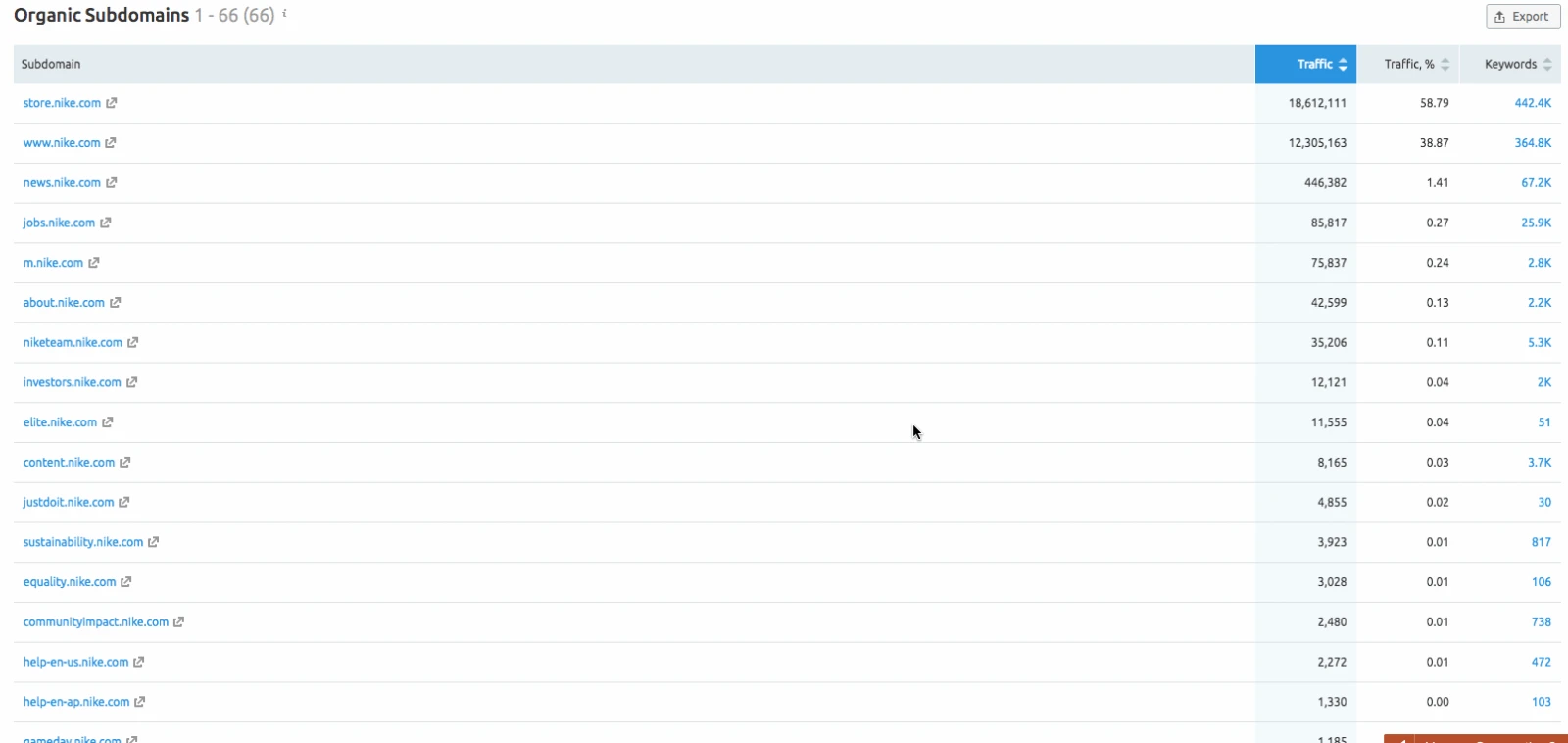
The screenshot shows an older Subdomains table, with the listed subdomains and the three columns used for comparison. Screenshot source Choose the comparison measure
Read the question before comparing rows. Use Traffic to find subdomains with the most estimated organic traffic, Traffic % to compare their share of the domain’s estimated traffic, or Keywords to compare the number of ranking keywords.
You can sort the report by estimated traffic percentage and number of keywords as well as estimated traffic. Keep the selected measure in your notes, because a subdomain that leads on one column may not lead on another.
Compare the subdomain rows
Scan the listed subdomains and compare values in the chosen column. Look for whether activity is concentrated in one subdomain or distributed among several. Read Traffic % alongside Traffic when you need to understand a subdomain’s share, and use Keywords as a separate measure of ranking breadth.
These are report metrics for the domain’s organic rankings. Avoid treating one column as a substitute for another or inferring a subdomain’s business purpose from its name alone.
Open a subdomain’s keyword positions
To see the keywords associated with a subdomain, click one of the numbers under its Keywords column. This opens a Positions report showing the keywords and positions for that subdomain.
Use this when a subdomain’s traffic, share, or keyword count makes it worth examining in detail. The subdomain report is the comparison view. The Positions report provides the keyword-level follow-up.
Decide whether to inspect a subfolder instead
If the site uses subfolders rather than separate subdomains, the source describes two ways to inspect one. Enter the subfolder in the search bar with the dropdown set to Subfolder, or use Positions and add an advanced URL Containing filter for the subfolder.
Choose the subfolder route only when your question is about a path within a site rather than a separate subdomain. Keep that distinction explicit in your analysis.
How does this Semrush setup work in practice?
Worked example: comparing subdomain organic traffic for an enterprise website
An analyst examines how an enterprise software provider distributes search visibility across its dedicated blog, knowledge base, and main application subdomains.
| Choice | Why it matters | How to check |
|---|---|---|
| Open Subdomains for the competitor’s root domain. | The report provides a domain-level list of subdomains with traffic, share, and keyword columns. | Verify the report’s domain scope. |
| Sort by Traffic % to answer a share question. | This measure compares each subdomain’s proportion of the domain’s estimated traffic. | Confirm the selected sort and capture the displayed values. |
| Compare the leading share row with its Keywords count. | The two columns answer different questions: traffic contribution and ranking keyword count. | Record both values without treating them as interchangeable. |
| Open the Keywords count for the subdomain selected for deeper review. | This opens keyword and position details for that subdomain. | Confirm the resulting Positions report names the intended subdomain. |
Identify which subdomain drives primary search traffic, then open its keyword positions report to analyze high-performing page clusters and ranking queries.
How do you verify your result in Semrush?
You should be able to identify which listed subdomains lead on estimated traffic, traffic share, or keyword count, and open a subdomain’s keyword-level Positions report. If the site organization is based on paths, use the subfolder workflow and confirm its scope.
| Step | What you should see |
|---|---|
| Open the Subdomains report | Confirm the report is scoped to the domain you intend to analyze and that the three comparison columns are visible. |
| Choose the comparison measure | Name the column you are using to compare and verify that the rows are sorted by that measure. |
| Compare the subdomain rows | Record the subdomain names and the corresponding values that answer your comparison question. |
| Open a subdomain’s keyword positions | Confirm the Positions report is scoped to the subdomain you selected and inspect the keywords and positions shown there. |
| Decide whether to inspect a subfolder instead | Verify the search scope is Subfolder or the URL filter contains the intended path before interpreting results. |
Related Semrush guides include How to add competitors in Semrush Position Tracking and How to build a Semrush My Reports report from a template.
Which official Semrush sources were checked?
Every step and limit in this Semrush guide was verified against official documentation on 21 Nov 2026 following how we check figures, alongside more walkthroughs in our Semrush tutorials hub:
How do you troubleshoot common Semrush issues?
Why is the first subdomain not the leader by keyword count?
The report defaults to ordering by estimated traffic. Sort by Keywords when you want the largest ranking keyword count.
What does Traffic % tell me?
It is the traffic percentage attributed to the subdomain in the report. Use it to compare share, while keeping it distinct from the estimated traffic count.
How do I analyze a subfolder rather than a subdomain?
Enter the subfolder in the search bar and set the dropdown to Subfolder, or use the Positions report with an advanced URL Containing filter for the path.
 Reviewed byDanny Kirk
Founder of ReddiReach.
 Checked byAndrés Felipe
Digital designer and marketer.
Every figure is checked against the vendor's own page. Read our editorial standards.