
Key Takeaways
- Create report comparisons in Google Analytics using the Audience name dimension to contrast engagement metrics across user segments side by side.
- Ensure you hold Viewer or higher access to a Google Analytics property configured with at least two previously established audience definitions.
- Complete 4 focused steps to open a standard report, configure the primary audience comparison, add the secondary audience, and review comparative charts.
- Verify that both colored comparison tags appear at the top of the report and that chart cards display distinct metrics for each audience.
Google Analytics lets you create side-by-side report comparisons using the Audience name dimension to evaluate behavior across user segments. Apply audience comparisons across standard reports to contrast engagement, retention, and conversion metrics from the audience creation date onward.
For plan limits and team seat pricing behind this workflow, read our Google Analytics 4 review or connect Google Analytics 4 to AI agents in Google Analytics 4 API and MCP.
Key steps
What do you need before starting in Google Analytics 4?
Google Analytics 4 requires the following workspace setup before you begin:
- Access to a Google Analytics property with two existing audiences.
- Permission to view reports and apply comparisons.
- For complex audience rules, create the audiences first and allow them to accumulate users.
How do you complete the steps in Google Analytics 4?
Follow these 4 steps in Google Analytics 4 in order:
Open a report to compare
In Google Analytics, open the report where you want to compare the audience data. Choose a report that includes metrics relevant to your question, such as engagement or key events. Audience membership is measured from when the audience was created, so the comparison will not provide audience data from before that point.
For a fair audience check, choose a report whose metrics answer one question, such as whether the groups engage differently. If you switch reports later, keep the date range and metric in mind because different report cards may support different comparisons.
Create the first audience comparison
At the top right of the report, open the comparisons control and select + Create new. In the Dimension field, choose Audience name. Set Match Type to exactly matches, then select the first audience name as the value. Click Apply to add that subset to the report.
Before applying the comparison, confirm the audience name in your existing audience definitions. Names that differ only by a suffix or campaign label are easy to mix up. Exact matching makes the comparison specific to the selected name.
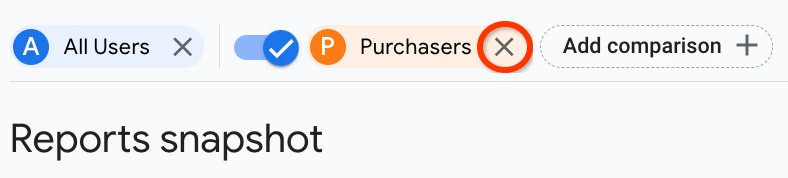
Add comparison sits next to the audience chips at the top of the report. Screenshot source Add the second audience
Open the comparisons control again and create another comparison with Audience name exactly matches the second audience's name. Apply it so the report can display the two defined audiences as separate subsets. Use exact matching to avoid including similarly named audience values.
Read the side-by-side result
Review the report's charts and table with both comparisons applied. Compare the same metrics and date range for each audience. If a particular report does not support a condition or dimension, its card may be blank. Choose another compatible report or adjust the comparison condition.
Treat a difference as a prompt for investigation, not evidence that audience membership caused the outcome. Audience sizes and the period each audience has existed can differ. Check the available user or event counts alongside rates or engagement metrics, where the report provides them.
How does this Google Analytics 4 setup work in practice?
Worked example: comparing engagement across two trial-intent audiences
A growth team compares two user audiences in standard reports: visitors who viewed the pricing page versus visitors who started the trial registration form.
| Choice | Why it matters | How to check |
|---|---|---|
| Open an engagement report for the same date range for both groups. | A shared report and period make the comparison easier to interpret. | Confirm the report loaded and both comparisons will use its current date range. |
| Create a comparison with Audience name exactly matches Pricing viewers. | This targets the intended audience rather than similarly named groups. | After Apply, confirm the comparison definition uses the exact existing audience name. |
| Create a second comparison with Audience name exactly matches Trial form starters. | A separate definition keeps each group identifiable in the report. | Confirm both definitions appear in the comparisons control. |
| Review the same engagement metric for both groups, then inspect available counts. | A strong average with very few users may warrant a different follow-up than a modest average across a larger group. | Check that supported report cards show both groups and note any blank cards before drawing a conclusion. |
Examine session duration and key event counts across both groups, accounting for the fact that audience data only accumulates from the date of audience creation.
How do you verify your result in Google Analytics 4?
Verify that two Audience name comparisons are active and that supported report cards show separate data for each. Use the shared metrics to decide which audience warrants a deeper review, remembering that audience-based data starts accruing from audience creation.
| Step | What you should see |
|---|---|
| Open a report to compare | The selected report loads and contains metrics relevant to the comparison. |
| Create the first audience comparison | The report shows a color-coded comparison for the first audience. |
| Add the second audience | Both audience comparisons appear in the report's comparison definitions. |
| Read the side-by-side result | The report displays color-coded data for both audience comparisons on supported cards. |
Related Google Analytics 4 guides include Compare date ranges in Google Analytics reports and Find GA4 events in DebugView.
Which official Google Analytics 4 sources were checked?
Every step and limit in this Google Analytics 4 guide was verified against official documentation on 21 Nov 2026 following how we check figures, alongside more walkthroughs in our Google Analytics 4 tutorials hub:
How do you troubleshoot common Google Analytics 4 issues?
Why does the audience comparison contain less historical data than expected?
Audience comparisons only include data from when the audience was created onward. They do not retroactively populate membership for earlier dates.
Why is a comparison card blank?
The report may not support one of the comparison's dimensions or conditions. Try a report that supports Audience name or remove an incompatible condition.
Why do the two audiences look very different in size even over the same report dates?
The audiences may have different membership rules, creation dates, or accumulated users. Confirm the intended audience names and remember that audience comparison data begins when each audience was created. Compare only metrics and periods the report supports.
 Reviewed byDanny Kirk
Founder of ReddiReach.
 Checked byAndrés Felipe
Digital designer and marketer.
Every figure is checked against the vendor's own page. Read our editorial standards.