
Key Takeaways
- Open Google Analytics Explore and create a Funnel exploration to track sequential user interactions across your website or mobile application.
- Ensure your Google Analytics property has active event collection and that your user account has permission to create and edit explorations.
- Complete the 5-step workflow by creating the exploration, editing steps, setting sequence and timing rules, selecting entry criteria, and reviewing visualizations.
- Verify the exploration by checking that each intended step displays active counts and that the chart updates dynamically with your chosen sequence rules.
Build a funnel exploration in Google Analytics to measure how users move through a sequence of events or conditions and identify drop-off points. The resulting exploration displays step counts and conversion rates across standard or trended visualizations.
For plan limits and team seat pricing behind this workflow, read our Google Analytics 4 review or connect Google Analytics 4 to AI agents in Google Analytics 4 API and MCP.
Key steps
What do you need before starting in Google Analytics 4?
Google Analytics 4 requires the following workspace setup before you begin:
- Access to a Google Analytics property with relevant events or dimensions.
- Permission to use Explorations.
- A clear user journey to measure, such as product view > add to cart > purchase.
How do you complete the steps in Google Analytics 4?
Follow these 5 steps in Google Analytics 4 in order:
Start a Funnel exploration
Select Explore from the left navigation. Under Start a new exploration, choose Funnel exploration. You can change the property with the property selector if Analytics opened a different property. Until you define steps, the exploration may show a no-data notice.
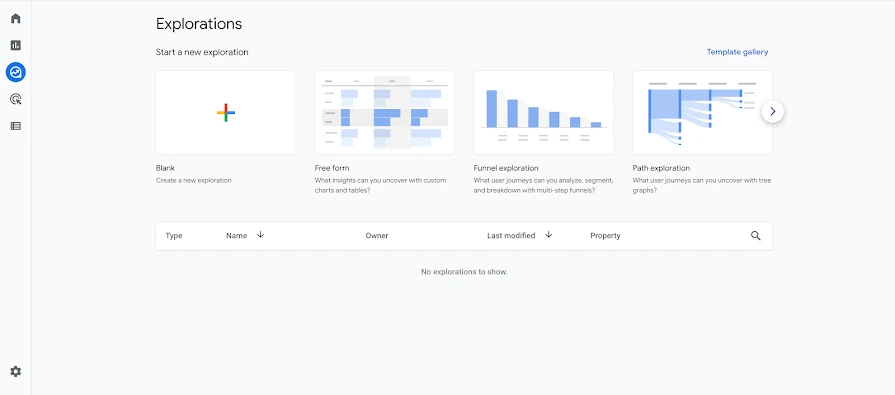
Choose Funnel exploration from the templates in Explore. Screenshot source Edit the funnel steps
In Tab Settings, use the edit pencil to configure the steps. Give each step a distinctive name and add conditions based on events users trigger or dimension values they share. For a simple shop journey, you might use view_item, add_to_cart, and purchase if those events are collected in your property. Add more steps with Add step. Funnel steps cannot be defined using metrics.
Name steps for the user action or stage they represent, and keep conditions narrow enough to distinguish that stage. If multiple events can mean different things in your property, confirm the intended event names in the available data before using them. A familiar ecommerce event name is only suitable if your property actually collects it.
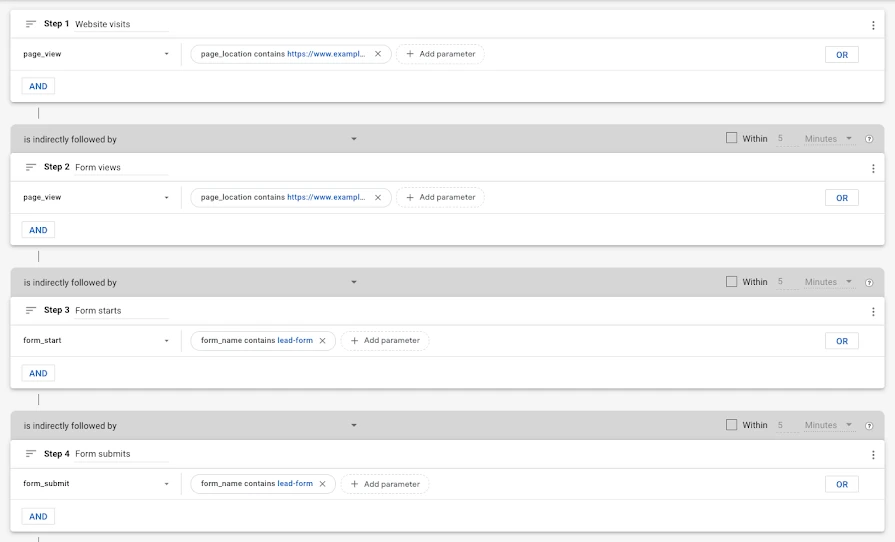
Define each funnel step with its own conditions and check the order before applying. Screenshot source Set sequence and timing rules
For each step after the first, decide whether it must be directly followed by the prior step or may be indirectly followed. Directly followed requires the next step to occur immediately after the previous one. Indirectly followed permits intervening actions. Use Within to set a time limit when one matters, then click APPLY.
Choose direct sequence only when intervening actions should invalidate the journey. For example, if a user can view product details between adding to cart and purchase, an indirect sequence may better represent the intended path. A time limit can exclude long-delayed progress, so use one only when the business question has a meaningful time boundary.
Choose open or closed entry
Decide whether users must begin at the first step. A closed funnel counts users who enter at the first step. An open funnel allows users to enter at any step. Use a closed funnel to measure a defined journey from its start. Use an open funnel when you need to examine users who enter partway through, while keeping in mind that the sequence still matters.
Open entry changes who can be counted at the start of the analysis. With an open funnel, a user entering at a later step is not evidence they completed earlier steps in the measured sequence. Keep the entry rule aligned with whether you are evaluating the whole journey or investigating mid-journey users.
Review the visualization
Choose the standard stepped funnel or the trended line-chart visualization. Read the step counts and the drop between successive stages. The Summary card updates as conditions are configured, helping you check how the rules match the data. If the result shows no data, revisit the selected date range, event names, conditions, and any filters or segments.
Use the largest drop as a place to inspect event instrumentation and the surrounding experience. A drop can reflect a real user decision, an event that is not firing consistently, or a rule that is too strict. Compare the configured conditions with what the property records before proposing a product fix.
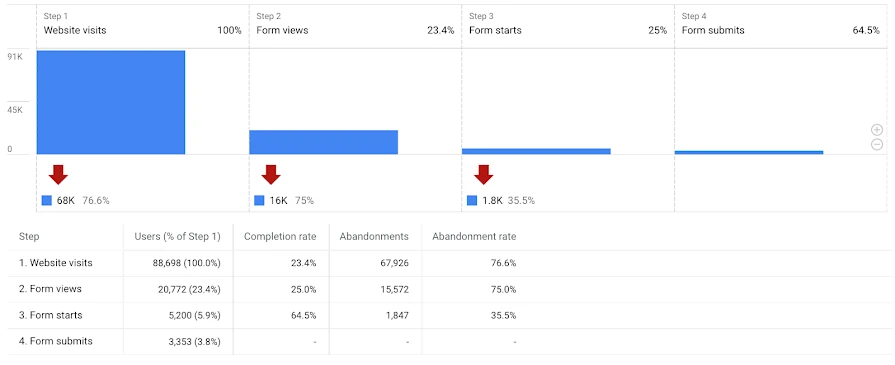
Each bar is a funnel step. The rows underneath show completion and abandonment for that example. Screenshot source
How does this Google Analytics 4 setup work in practice?
Worked example: diagnosing drop-offs in a signup journey
A service team wants to locate where visitors abandon a multi-step registration flow before completing account creation. The team needs to determine whether form interactions cause the primary drop-off or if event tracking requires initial validation.
| Choice | Why it matters | How to check |
|---|---|---|
| Start a Funnel exploration and define account_page_view as the first step if that event is collected. | The first step should represent entry into the journey being measured. | Confirm the event is available in the property's data and appears as the configured step condition. |
| Add signup_form_start and account_created as later steps using the actual collected event names. | Distinct stages make the observed progression easier to interpret. | Review each step name and condition in Tab Settings before applying. |
| Allow intervening actions between form start and account creation if users may navigate or interact before submitting. | A direct sequence could exclude legitimate progress when another tracked action occurs in between. | Confirm the sequence setting matches the expected journey behavior. |
| Use a closed funnel if the question is how many entrants from the account page proceed through signup. | Closed entry anchors the measured journey at its intended starting stage. | Confirm the funnel's open or closed setting is closed. |
| Review the largest drop and check event collection before recommending a form change. | A missing or inconsistently collected event can resemble user abandonment. | Compare the configured event conditions with the property's recorded events and date range. |
If the form-start step shows a significant drop, confirm both events fire accurately and that sequence rules mirror actual navigation before modifying form fields.
How do you verify your result in Google Analytics 4?
Confirm that each intended step is present and that the visualization responds to the chosen sequence and entry settings. Use the largest step-to-step drop as a cue for further investigation, not as proof of its cause.
| Step | What you should see |
|---|---|
| Start a Funnel exploration | The Funnel exploration workspace opens with funnel settings. |
| Edit the funnel steps | Each intended stage appears as a named step with a condition. |
| Set sequence and timing rules | The step sequence and any time windows appear in the funnel settings. |
| Choose open or closed entry | The funnel's open or closed setting matches the intended entry rule. |
| Review the visualization | The visualization shows the configured steps and their data, or the Summary card reflects the configured conditions. |
Related Google Analytics 4 guides include Compare date ranges in Google Analytics reports and Find GA4 events in DebugView.
Which official Google Analytics 4 sources were checked?
Every step and limit in this Google Analytics 4 guide was verified against official documentation on 21 Nov 2026 following how we check figures, alongside more walkthroughs in our Google Analytics 4 tutorials hub:
How do you troubleshoot common Google Analytics 4 issues?
Why does my funnel show no data?
The steps, segments, values, filters, or date range may not match available data. Check that the event names and conditions reflect events your property collects, then remove or adjust restrictive settings.
Should I choose an open or closed funnel?
Choose closed when users should enter at the first step. Choose open when users may enter at any step and you want to examine how they proceed from that point.
Why does an open funnel show users at a later step without the earlier steps?
An open funnel allows entry at any step, so users can begin being counted at a later stage. If the question requires users to start from the first stage, change the entry setting to a closed funnel and review the result.
 Reviewed byDanny Kirk
Founder of ReddiReach.
 Checked byAndrés Felipe
Digital designer and marketer.
Every figure is checked against the vendor's own page. Read our editorial standards.