
Key Takeaways
- Access Admin > Data display > Events in Google Analytics and select the star icon next to an existing event to designate it as a key event.
- Confirm you hold Editor or Administrator permissions in the target Google Analytics property before attempting to toggle key event statuses.
- Follow the 4-step path by opening Events in the target property, locating the event row, selecting its star icon, and confirming status in Key events.
- Verify the configuration by opening the Key events tab to ensure the designated event appears with an active star indicator and displays incoming counts.
Mark existing events in Google Analytics as key events to prioritize critical conversion milestones across standard and real-time reports. Flagging high-value interactions ensures that downstream attribution and acquisition tables surface business outcomes prominently.
For plan limits and team seat pricing behind this workflow, read our Google Analytics 4 review or connect Google Analytics 4 to AI agents in Google Analytics 4 API and MCP.
Key steps
What do you need before starting in Google Analytics 4?
Google Analytics 4 requires the following workspace setup before you begin:
- Access to the Google Analytics property containing the event.
- Editor or higher property-level access to mark an existing event as a key event.
- The event must already be set up, though a newly created event may take time to appear.
How do you complete the steps in Google Analytics 4?
Follow these 4 steps in Google Analytics 4 in order:
Open Events in the right property
In Google Analytics, choose the property where you want to mark the event. Open Admin, then under Data display select Events. Check the property name before changing anything, especially if you manage multiple sites or apps.
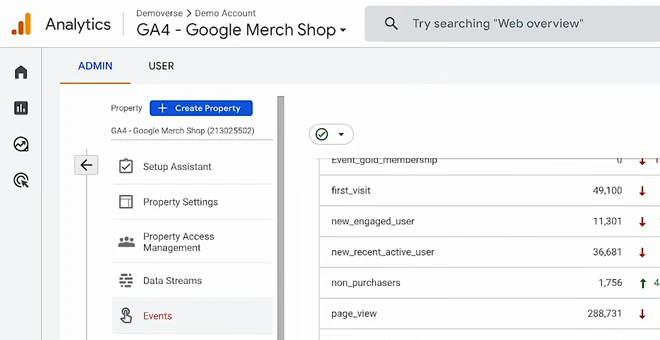
In the Google Merchandise Store demo, Events is highlighted under Admin. Check that you have selected the property containing your event. Screenshot source Find the event you want to mark
On Events, find the event in the Recent events tab. If it isn't visible there, use the search section on the right to look for its exact event name. Choose an event that represents an action important to your business, such as a completed lead form, with a clearly defined trigger.
Before marking an event, write down the action it is meant to represent and the trigger that sends it. For a lead form, decide whether the event means a successful submission or merely a button click. If the trigger only records a click, marking it as a key event will report that click, not necessarily a completed lead.
Select the event's star
Click the star icon next to the event. This marks the existing event as a key event. If the star is already selected, the event is already marked. Clicking it again would deselect it.
Use the exact existing event name and check the star before selecting it. This is a property-level reporting choice, so confirm the event belongs to the intended business action and property. If you select the star by mistake, selecting it again deselects it.
Confirm it in Key events
Open the Key events tab on the Events page and find the event there. Marking the event affects reporting from the time of the change. It does not convert earlier event activity into historical key-event data. Allow up to 24 hours for the change to appear in standard reports. Realtime reports can update a few minutes after the event is triggered.
When checking the result, separate configuration from reporting delay. The event should be listed on the Key events tab after you mark it, while standard reports can take up to 24 hours to reflect the change. Do not use earlier event activity as evidence that it was already counted as a key event.
How does this Google Analytics 4 setup work in practice?
Worked example: selecting the primary lead submission event to mark
A professional services firm collects both button-click and form-submission events and wants key event reporting to represent genuine inquiry completions rather than unsubmitted clicks.
| Choice | Why it matters | How to check |
|---|---|---|
| Locate both exact event names on the Events page for the correct property. | The team needs to compare what each existing event represents before changing reporting. | Both candidates are visible in Recent events or search. |
| Check the configured trigger for each event, using the team's instrumentation notes or a test in DebugView. | Names alone may not establish whether an event means a click or a completed submission. | The trigger for each event is understood and matches its observed behavior. |
| Select the star for the event whose trigger represents a successful submission. | This aligns the key event with the business outcome the team wants to count. | That event's star is selected and it appears on the Key events tab. |
| Revisit reporting after the configuration takes effect. | Standard reports can take time to reflect the change, and older activity is not retroactively marked. | The event is listed as a key event, then appears in eligible reporting after processing. |
Locate and mark only the verified form-submission event on the Events table, ensuring downstream conversion reports reflect completed inquiries accurately.
How do you verify your result in Google Analytics 4?
Verify that the event appears on the Key events tab and its star is selected. After the configuration takes effect, use Realtime or standard reports to monitor the important action and review performance by channel.
| Step | What you should see |
|---|---|
| Open Events in the right property | The Events page is open for the property that receives the event. |
| Find the event you want to mark | You have located the existing event whose name matches the action you intend to measure. |
| Select the event's star | The event's star is selected, indicating that it is marked as a key event. |
| Confirm it in Key events | The event appears on the Key events tab with its star selected. |
Related Google Analytics 4 guides include Compare date ranges in Google Analytics reports and Find GA4 events in DebugView.
Which official Google Analytics 4 sources were checked?
Every step and limit in this Google Analytics 4 guide was verified against official documentation on 21 Nov 2026 following how we check figures, alongside more walkthroughs in our Google Analytics 4 tutorials hub:
How do you troubleshoot common Google Analytics 4 issues?
I can't find the event on the Events page. What should I check?
Confirm that you're in the property where the event is collected. Check both Recent events and the search section on the right. A newly created event may not appear immediately because Analytics has to process it. If your access is insufficient, ask a property administrator to review your role.
Will marking the event update older reports?
No. Marking an event as a key event affects reports from the time you make the change. It does not change historical data. Google says to allow up to 24 hours for it to appear in standard reports. Realtime updates a few minutes after a user triggers it.
The key event count seems higher than the number of completed inquiries. What should I check?
Confirm what triggers the marked event. If it fires on a button click, repeat click, or another action before successful completion, its count can exceed completed inquiries. Review the event configuration and compare its trigger with the actual completion outcome before using it as a lead measure.
 Reviewed byDanny Kirk
Founder of ReddiReach.
 Checked byAndrés Felipe
Digital designer and marketer.
Every figure is checked against the vendor's own page. Read our editorial standards.