
Key Takeaways
- Help Scout chat saved replies store plain-text responses inside Inbox Settings, either standalone for chat or paired alongside an email version under the same reply name.
- Before creating or converting chat replies, ensure chat is enabled on your target inbox and your user role includes the Manage saved replies permission.
- In four steps, you navigate to Inbox Saved Replies, create a plain-text chat reply from scratch, convert existing email replies with Copy email content, and insert replies from the live chat shortcut menu.
- Verify your chat replies by opening the shortcut menu during an active chat session, selecting Saved Reply, and confirming clean plain text, variables, and full URLs populate.
You can equip live chat agents with fast, plain-text standard responses in Help Scout either by authoring dedicated chat saved replies or by converting existing email snippets in one click. Using **Copy email content** preserves variables and line breaks automatically while stripping HTML and inline images that do not belong in live chat.
For plan limits and team seat pricing behind this workflow, read our Help Scout review or connect Help Scout to AI agents in Help Scout API and MCP.
Key steps
What do you need before starting in Help Scout?
Help Scout requires the following workspace setup before you begin:
- A Help Scout user account with the Manage saved replies permission enabled under User Roles and Permissions
- An inbox with Help Scout chat enabled where agents handle live chat conversations
- Existing email saved replies in that inbox if you plan to convert email snippets rather than writing from scratch
How do you complete the steps in Help Scout?
Follow these 4 steps in Help Scout in order:
Open Saved Replies in your chat-enabled inbox settings
Click Settings (gear icon) > Inboxes, select your chat-enabled inbox, and click Saved Replies in the left sidebar. Review your existing saved replies list to decide which answers need new chat-only snippets and which email replies can be converted.
Confirm before starting that your account carries the Manage saved replies permission, because users without that role entitlement cannot open or edit chat saved replies inside inbox settings.
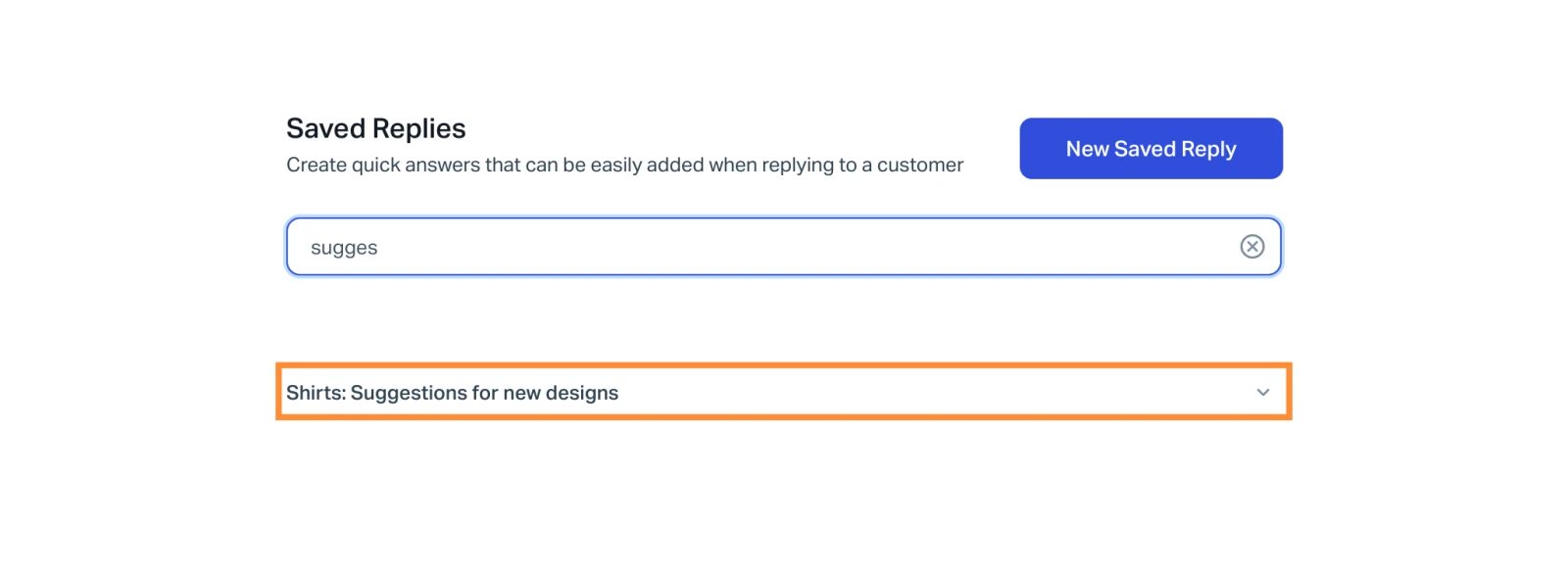
Search or scroll in Settings > Inboxes > Saved Replies and click an existing reply name to open its editor. Screenshot source Create a new plain-text saved reply for chat
Click New Saved Reply at the top of the Saved Replies page, enter a clear reply name, and compose your message inside the chat content text editor. Choose whether to save a chat-only reply, an email-only reply, or a unified entry containing both email and chat versions, then click Save.
Keep chat replies concise and conversational because the chat version supports plain text only. Break multi-step instructions into short line-separated sentences so customers reading inside a compact chat window can follow easily.
Convert existing email saved replies into chat format
In Settings (gear icon) > Inboxes > choose your inbox > Saved Replies, search for or scroll down to an existing email saved reply and click its name to open the content editor. In the chat section, click Copy email content to copy the email text into the chat version (or click Start from scratch if you prefer a blank chat content editor), review the converted plain text, and click Save Reply.
When you click Copy email content, Help Scout automatically preserves your variables and line breaks, removes HTML formatting, pre-formatted code blocks, and inline images, and expands any hyperlinked URLs in full. Always scan expanded URLs after conversion and trim long tracking parameters so links stay readable in chat.
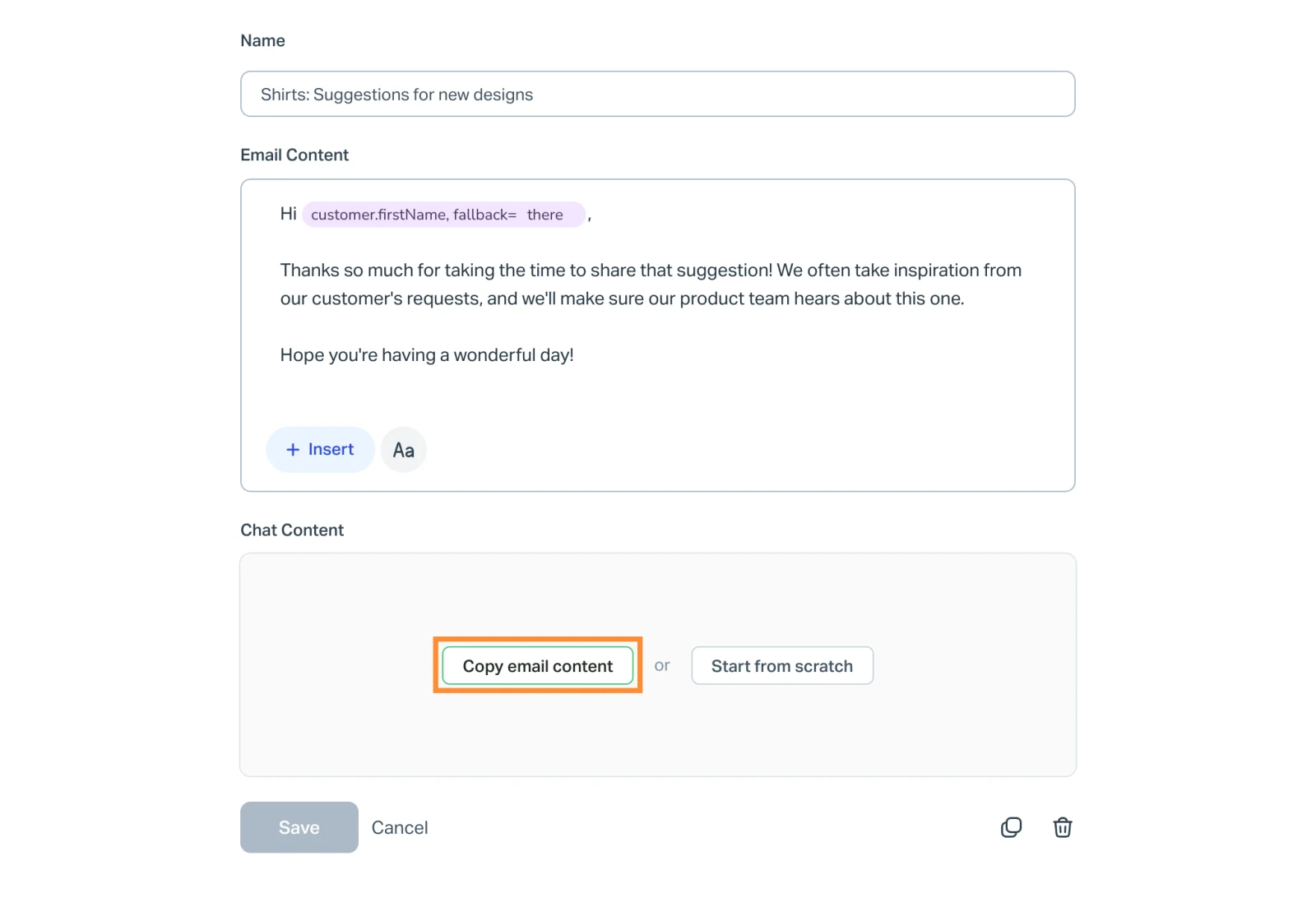
Click Copy email content to convert your email reply into plain text with variables preserved, or click Start from scratch. Screenshot source Insert a saved reply from the live chat shortcut menu
While actively chatting with a customer in Help Scout, open the chat shortcut menu inside the conversation composer and choose Saved Reply. Select your desired snippet to insert its plain-text chat content directly into the chat response field, review any populated variables, and send.
When a saved reply stores both an email version and a chat version under one name, Help Scout automatically pulls the plain-text chat version whenever an agent selects it inside a chat session.
How does this Help Scout setup work in practice?
Worked example: Converting top password-reset and status-page email replies for live chat
A technical support team launching live chat on their primary Help Scout inbox wants to reuse 10 existing email saved replies without retyping variables or links.
| Choice | Why it matters | How to check |
|---|---|---|
| Open each of the 10 email replies in Settings > Inboxes > Saved Replies and click Copy email content | Copies text, customer variables, and line breaks into the chat editor while stripping HTML and inline screenshots. | Each chat editor shows clean plain text with variables intact and inline images removed. |
| Shorten expanded full URLs and click Save Reply on each converted entry | Makes plain-text links exposed during HTML stripping cleaner to read inside a narrow chat widget. | All 10 replies show saved email and chat versions under their existing reply names. |
| Open the chat shortcut menu in a test chat and choose Saved Reply | Confirms agents can pull the plain-text chat version immediately during live sessions. | The chat response field fills with the plain-text chat snippet and resolved variables. |
Chat agents reuse the exact same reply names they already know from email while sending crisp, plain-text answers formatted specifically for live chat.
How do you verify your result in Help Scout?
Start or open a test chat session in Help Scout, open the chat shortcut menu to select Saved Reply, and confirm your new or converted plain-text response populates the chat response field accurately. Next, review any converted replies that relied on inline screenshots in email and add concise text navigation cues for chat readers.
| Step | What you should see |
|---|---|
| Open Saved Replies in your chat-enabled inbox settings | The Saved Replies management list loads inside your selected inbox's settings. |
| Create a new plain-text saved reply for chat | The new saved reply saves in your inbox list with an active plain-text chat version. |
| Convert existing email saved replies into chat format | The chat content editor displays plain text with intact variables, line breaks, and full URLs, and saves cleanly when you click Save Reply. |
| Insert a saved reply from the live chat shortcut menu | Selecting the saved reply from the chat shortcut menu populates its plain-text chat content into the chat response field. |
Related Help Scout guides include How to create and organize email saved replies in Help Scout and How to enable and customize Docs contact with Beacon in Help Scout.
Which official Help Scout sources were checked?
Every step and limit in this Help Scout guide was verified against official documentation on 27 Nov 2026 following how we check figures, alongside more walkthroughs in our Help Scout tutorials hub:
How do you troubleshoot common Help Scout issues?
What happens to links, images, and variables when I click Copy email content?
Clicking Copy email content keeps all Help Scout variables and line breaks intact in your chat reply. HTML styling, pre-formatted code, and inline images are stripped out automatically because chat supports plain text only, and any linked URLs are displayed in full.
Why can an agent not see the option to add or edit chat versions in Saved Replies settings?
Editing saved replies and configuring chat versions in Settings > Inboxes > Saved Replies requires the Manage saved replies permission. Have an Account Owner or Administrator enable Manage saved replies on that user's role under User Roles and Permissions.
Do we need separate saved reply names for email and chat versions of the same answer?
No, a single saved reply in Help Scout can hold both an email version and a plain-text chat version under one name. Help Scout automatically inserts the chat content when selected from the chat shortcut menu and the email content in email threads.
 Reviewed byDanny Kirk
Founder of ReddiReach.
 Checked byAndrés Felipe
Digital designer and marketer.
Every figure is checked against the vendor's own page. Read our editorial standards.