
Key Takeaways
- Add a Zapier Tables Find record action to match trigger values against stored records and output related fields.
- Verify your target Zapier Table contains at least two defined fields before mapping lookup criteria inside the Zap editor.
- Complete the configuration across six steps by defining table fields, selecting lookup parameters, and mapping outputs to subsequent actions.
- Test the action with sample data to verify the step returns correct matching values for downstream automation steps.
Use a Zapier Tables Find record action to match an incoming value from an earlier step and retrieve related field data. This setup passes connected table attributes to downstream actions automatically.
For plan limits and team seat pricing behind this workflow, read our Zapier review or connect Zapier to AI agents in Zapier API and MCP.
Key steps
What do you need before starting in Zapier?
Zapier requires the following workspace setup before you begin:
- A Zap with a trigger or earlier step that provides the value you want to look up.
- A Zapier Table containing that lookup value and the corresponding result fields. The table must have at least two fields.
- Know which table field should match the incoming value and which result field the next action needs.
How do you complete the steps in Zapier?
Follow these 6 steps in Zapier in order:
Prepare the table fields
Create a lookup table or open the Zapier Table you intend to use. Add a field to hold the value arriving from your Zap, such as a name or email, and at least one field for the result you will send to another app. Add more result fields if different actions need different corresponding values.
The screenshot shows a table with Name, ID, and Email columns and example rows. Those rows illustrate the table layout only. They are not values to copy into your own workflow.
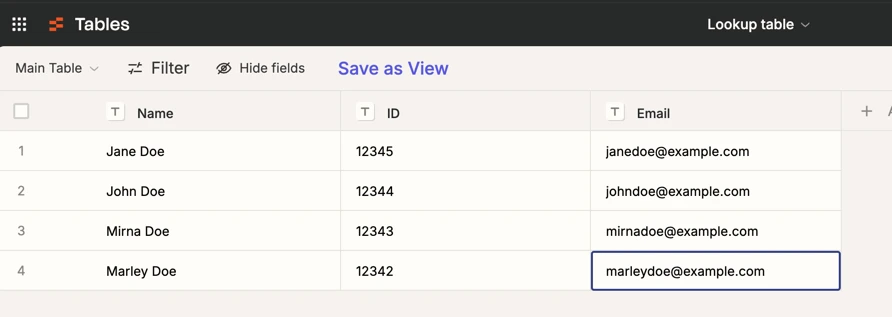
Visible table structure for the preparation step: identify the lookup column and the result field or fields your workflow needs. Screenshot source Add a Find record action
In the Zap editor, add an action after the step that supplies the lookup value. Search for and select Zapier Tables, then choose Find record as the action event and continue.
This guide uses the table action path. It lets you keep lookup data in a table, including multiple result fields that may be useful to later actions.
Choose the table and lookup field
In the action setup, select your table from Table ID. Leave Filter Count at 1. In Lookup Field 1, select the table field that contains the kind of value supplied by the earlier Zap step.
For example, if the trigger provides an email address and your table has an Email field, choose that field for the search. The exact fields available depend on your table and Zap data.
Set the incoming value for the lookup
Set up or review the trigger so its test data contains a representative lookup value. Configure the Find record action to use that value from the trigger or an earlier step as the search input. Check that the value is mapped from the prior step, rather than typed as fixed text, if it should vary on each Zap run.
Compare the sample value with the contents of the chosen table field. The table lookup can only find a corresponding record when the searched value is present in that field.
Map a table result into the next action
Add the action that needs the looked-up information. Click the destination field, open its field mapping menu, and select the Zapier Tables step, followed by the result field to send. Choose the field that contains the value the destination expects, such as an ID or email address.
A table can hold several result fields. Map only the one appropriate for the destination field, and check that its data type and meaning fit what the destination expects.
Test the lookup path
Test the configured steps with a sample whose lookup value exists in the table. Review the Find record output and then check the mapped value in the later action. If the test does not return the expected row or result, compare the incoming sample with the table's lookup field and verify the field selection.
A successful test demonstrates the result for that sample. It does not verify every possible row, so check important table entries and representative input values as you build the workflow.
How does this Zapier setup work in practice?
Worked example: route a contact using a table lookup
A team receives customer email addresses via a signup trigger and needs to retrieve the matching internal customer ID from Zapier Tables before creating downstream records.
| Choice | Why it matters | How to check |
|---|---|---|
| Add an Email field and a Customer ID field to the table. | The trigger provides an email for matching, while the later action needs a corresponding ID. | Confirm that both fields exist and that the relevant records have values in each. |
| Select the contact table for Table ID and choose Email for Lookup Field 1. | The lookup should search the field whose contents correspond to the trigger's incoming value. | Confirm the table and lookup field match the email-based scenario. |
| Use the trigger's email as the lookup input. | A mapped input can change with each trigger event, so the lookup follows the current contact. | Confirm the sample email is mapped from the trigger and has a corresponding table row. |
| Map Customer ID from the Find record output into the later action. | That is the result the scenario says the destination needs. | Confirm the selected output field is Customer ID, then test and inspect the later action's input. |
The test returns the intended contact customer ID, confirming downstream actions can accurately reference mapped fields from the matched table record.
How do you verify your result in Zapier?
The Zap now has a lookup step between the incoming data and the action that uses a corresponding table value. When the tested input matches a record in the selected table, the later action can receive the mapped result field. Interpret the test as evidence for the sample you used, then check additional values that matter to your workflow.
| Step | What you should see |
|---|---|
| Prepare the table fields | Confirm that every incoming value you expect to search for has a corresponding row, and that the result field is populated for each row you plan to use. |
| Add a Find record action | Confirm that the Zap outline shows a Zapier Tables action configured as Find record after the source step. |
| Choose the table and lookup field | Confirm that Table ID names the intended table and Lookup Field 1 is the field that should match the incoming value. |
| Set the incoming value for the lookup | Confirm that the action's search input comes from the intended earlier step and that the sample value has a matching table entry. |
| Map a table result into the next action | Confirm that the destination field contains a mapped value from the Zapier Tables step and that it is the intended result field. |
| Test the lookup path | Confirm that the table action returns the expected record and the later action receives the intended result field. |
Related Zapier guides include How to add a Zapier filter before an action and How to build a Zapier automation with a trigger and action.
Which official Zapier sources were checked?
Every step and limit in this Zapier guide was verified against official documentation on 21 Nov 2026 following how we check figures, alongside more walkthroughs in our Zapier tutorials hub:
How do you troubleshoot common Zapier issues?
Why did Find record return no matching record?
The sample input may not match a value in the selected lookup field, or the action may be searching the wrong field or table. Compare the input with the table row and confirm Table ID and Lookup Field 1.
Why is the value I need missing from the mapping menu?
The field may not be present in the table or available in the step's current test data. Confirm the table includes the result field, then review the step setup and its output before mapping again.
Why does the next action receive an unexpected value?
It may be mapped to a different table field than intended, or the matched row may not be the one you expected. Check the lookup input, the record returned, and the exact result field selected in the later action.
 Reviewed byDanny Kirk
Founder of ReddiReach.
 Checked byAndrés Felipe
Digital designer and marketer.
Every figure is checked against the vendor's own page. Read our editorial standards.