
Key Takeaways
- Analyze Mailchimp campaign reports to evaluate delivery success, subscriber engagement patterns, and individual link performance data.
- Confirm the campaign has completed sending and allowed sufficient delivery time before analyzing primary performance metrics in Mailchimp.
- Follow five standard review steps to inspect overview totals, click maps, recipient activity logs, and available conversion metrics.
- Compare unique link clicks across email sections to verify which specific calls to action drove the highest engagement.
Mailchimp consolidates campaign delivery, open rates, link clicks, and revenue figures into a single performance report. Reviewing these post-send analytics highlights recipient engagement trends to inform subsequent content adjustments.
For plan limits and team seat pricing behind this workflow, read our Mailchimp review or connect Mailchimp to AI agents in Mailchimp API and MCP.
Key steps
What do you need before starting in Mailchimp?
Mailchimp requires the following workspace setup before you begin:
- A Mailchimp account with access to the sent email campaign.
- The email has been sent. Some report data may take time to appear.
- Choose the audience used for the campaign if your account has more than one.
How do you complete the steps in Mailchimp?
Follow these 5 steps in Mailchimp in order:
Open Campaigns
Sign in to Mailchimp and select Campaigns from the main navigation. Locate the sent email you want to review. If your account has more than one audience, use the Audience drop-down to choose the audience associated with that email. For example, select your store’s newsletter audience before looking for its monthly product update.
When the campaign list contains similar sends, use the audience and the campaign’s subject and send status to identify the report. This avoids comparing engagement from one audience or resend with another by mistake.
Open the email report
Find the email in the campaign list and click View Report. Mailchimp opens an overview with campaign details and performance information. Confirm the subject and sending status so you know you opened the right message. If you cannot find it in the list, check that the selected audience is correct.
Read the overview metrics
Start with Recipients, Successful deliveries, and Bounced to understand how many messages went out and how many reached recipient servers. Then review Open rate and Click rate, plus the Opened and Clicked counts. Open rate is based on successfully delivered emails that registered as opened. Click rate is based on successful deliveries that registered a tracked click. Total opens and Total clicks include repeated activity, so they can be higher than the number of unique people who opened or clicked. Depending on your account and campaign, the overview may also show orders, revenue, click performance, and a 24-hour performance graph.
Read the unique counts alongside rates and totals. A single recipient can generate repeated opens or clicks, so totals describe activity volume while unique counts are more useful for estimating how many people interacted. Treat opens cautiously because privacy protections and automated activity can affect them.
Inspect which links received clicks
Open the Click Performance tab to see tracked URLs and their total and unique clicks. Use this view when you want to compare links in the email, such as a main product button with a secondary editorial link. For a regular email, RSS email, or classic automation, select View Click Map if you want a visual view of where links appeared and performed.
Compare tracked URLs only when the links serve comparable goals. A product button and an unsubscribe or policy link have different purposes, so raw click totals do not show which message goal performed better. Check the destination and unique clicks before changing the next email.
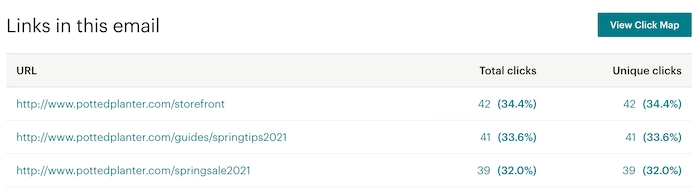
The Links in this email table separates total clicks from unique clicks for each URL. Screenshot source Explore recipient activity or purchases
Open the Activity menu and choose the interaction you want to examine, such as opened, clicked, bounced, or unsubscribed. The report lets you review or export the matching recipient segment. If purchase tracking is relevant and available, use the E-commerce tab to review purchase details. The Social and Inbox tabs provide other campaign-specific activity when those features apply.
Use an Activity view to investigate a question, such as which recipients clicked, rather than treating the list as a campaign-wide summary. If you export or review matching contacts, keep the report’s selected audience and interaction type in view so the result is not confused with another activity group.
How does this Mailchimp setup work in practice?
Worked example: choose which link to feature in the next product email
A retail team reviews report data from a recent promotion containing links to a product catalog and a sizing guide to prioritize layout placement.
| Choice | Why it matters | How to check |
|---|---|---|
| Confirm the subject, sending status, and audience | The comparison is useful only if the report belongs to the intended product email. | Match those details to the campaign brief. |
| Review unique clicks for both tracked URLs | Unique clicks better approximate distinct recipients than total repeated clicks. | Confirm each URL points to the intended product page or guide. |
| Compare links against their roles in the email | The product page is the main purchase path, while the guide supports evaluation. Their counts answer different questions. | Note the call to action attached to each URL before interpreting the difference. |
| Check Activity or available purchase data before deciding | A click indicates interaction, not necessarily a completed purchase or a better customer outcome. | See whether recipient activity or purchase details are available for this campaign. |
The product link received higher unique click volume than the sizing guide, indicating it should occupy the primary visual placement in future campaigns.
How do you verify your result in Mailchimp?
You have confirmed the email’s subject and send status, reviewed delivery and engagement, and checked the available link or recipient detail. Record the metric or link that matters for your next campaign decision, such as which call-to-action earned the most unique clicks.
Unique clicks by link
In the Mailchimp example, the storefront link drew the most unique clicks. Use this column to compare how many recipients clicked each link. Example source
- Storefront
42 42 - Spring tips guide
41 41 - Spring sale
39 39
| Step | What you should see |
|---|---|
| Open Campaigns | The Campaigns page shows the intended audience and the sent email you want to inspect. |
| Open the email report | The report displays the expected subject and sending status. |
| Read the overview metrics | The Overview section shows campaign delivery and engagement metrics, with additional sales details when available. |
| Inspect which links received clicks | Click Performance lists tracked URLs with click counts, or indicates that no tracked URL data is available. |
| Explore recipient activity or purchases | The selected Activity view or report tab displays details for the chosen interaction or data type. |
Related Mailchimp guides include How to build an audience segment in Mailchimp and How to create a popup signup form in Mailchimp.
Which official Mailchimp sources were checked?
Every step and limit in this Mailchimp guide was verified against official documentation on 21 Nov 2026 following how we check figures, alongside more walkthroughs in our Mailchimp tutorials hub:
How do you troubleshoot common Mailchimp issues?
Why is the open rate or click rate missing?
Mailchimp says open tracking and click tracking must be enabled in the email for those statistics to populate. If tracking was enabled, allow time for sending and reporting data to update, then check the report again.
Why might opens or clicks look higher than expected?
Total opens and total clicks count repeat activity, so they can exceed unique recipient counts. Mailchimp also notes that bot activity can inflate open and click metrics. Check whether bot filtering is enabled and compare unique counts with totals.
Why do Click Performance counts not match the total in my email report?
The views may distinguish unique clicks from total clicks, and repeated clicks by one recipient can increase totals. Confirm that you are comparing the same metric, campaign, and reporting view. If tracked click data is absent, check that click tracking was enabled for the email.
 Reviewed byDanny Kirk
Founder of ReddiReach.
 Checked byAndrés Felipe
Digital designer and marketer.
Every figure is checked against the vendor's own page. Read our editorial standards.