
Key Takeaways
- Rerun failed automation workflows in Zapier by selecting errored task executions directly from your account Zap History dashboard.
- Resolve underlying trigger or downstream authentication errors in connected apps prior to initiating a Zapier execution replay.
- Complete four operational steps to isolate the failed run, select execution items, trigger manual replaying, and monitor job summaries.
- Review the Zapier replay job summary and execution logs to confirm the retried run reached a clean Success status.
After correcting an errored Zap workflow, select the run in Zap history and replay it, then check the replay job summary. You can also select runs in the Zap editor and choose to replay their errored steps.
For plan limits and team seat pricing behind this workflow, read our Zapier review or connect Zapier to AI agents in Zapier API and MCP.
Key steps
What do you need before starting in Zapier?
Zapier requires the following workspace setup before you begin:
- A Zap run with an errored status.
- The cause of the error has been corrected in the Zap or its connected app, as appropriate for your scenario.
- Access to Zap history or the Zap editor where the run appears.
How do you complete the steps in Zapier?
Follow these 4 steps in Zapier in order:
Find the errored run
Open Zap history and locate the run you want to replay. Review the run’s status and identify the specific errored item. The supplied Zap history view shows a run list with statuses, including Errored, and selection checkboxes.
Correct the underlying issue before replaying so the run can be tried again with the correction in place.
Select the run to replay
Select the checkbox beside the run. If you are replaying several runs, select each run you intend to include. The history view displays the selected run count and a Play control with that count.
For a single-run replay, confirm that only the intended run is selected before proceeding.
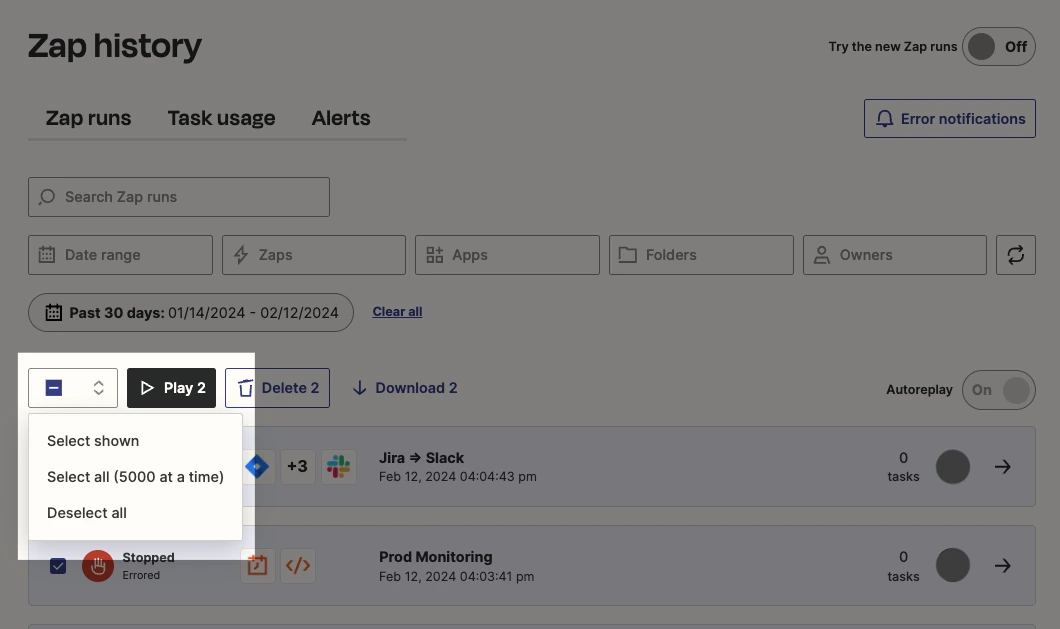
The history view shows two selected runs and the Play 2 control used to begin a manual replay. Screenshot source Start the manual replay
Click Play with the selected count. In the confirmation dialog, click Replay to start the replay job. Zapier provides a way to monitor the job status and shows a summary when the job is complete.
The screenshot shows the history list with two errored runs selected and a Play 2 control. For one run, the count and label will reflect that selection.
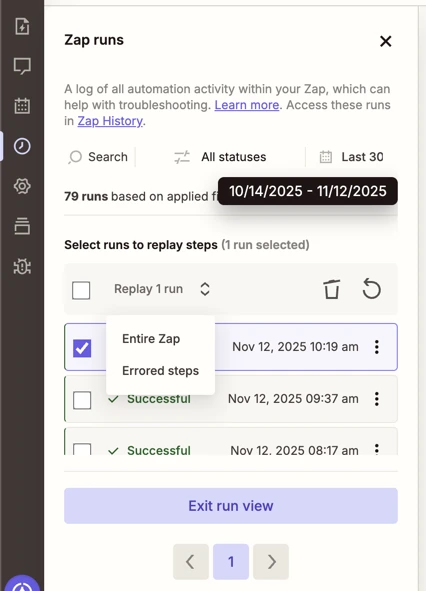
This editor view shows the separate replay choices, including Errored steps, for a selected run. Screenshot source Review the result and decide next steps
When the replay job completes, review its summary to see the result for the selected runs. If a run errors again, inspect that run’s details to determine whether the original cause remains or another issue appeared, then correct it before another replay.
You can also start from the Zap editor: open the Zap, expand the Zap runs section in the left sidebar, select one or more runs, choose Replay X runs, then choose Errored steps.
How does this Zapier setup work in practice?
Worked example: retrying one corrected run
An operations team corrects an expired API connection responsible for a failed webhook automation and needs to reprocess the pending customer payload.
| Choice | Why it matters | How to check |
|---|---|---|
| Locate the run marked Errored in Zap history | The team needs to target the failed attempt it has corrected. | The run status and details match the intended workflow. |
| Select only that run | This keeps the replay selection focused on the corrected case. | The selected count shows one run. |
| Click Play 1 and confirm with Replay | This starts a manual replay of the selected run. | The replay job appears for monitoring. |
| Review the completed job summary | The summary gives the outcome of the replay attempt. | If it still errored, the next decision is whether to inspect and correct another cause before retrying. |
The team has an observable replay outcome and a next decision based on the summary. No success is assumed in advance.
How do you verify your result in Zapier?
The replay job gives you a new attempt for the selected errored run or runs and a summary to review. A successful replay indicates the attempt completed. An errored replay means you should inspect the run details and address the remaining issue before trying again. For this task, use the errored-steps replay option in the editor when you want to replay errored steps. The separately documented Entire Zap option replays every step, including the trigger and previous steps, and has distinct conditions and usage implications.
| Step | What you should see |
|---|---|
| Find the errored run | The intended run is visible in Zap history and has an errored status. |
| Select the run to replay | The selection count matches the runs you mean to replay. |
| Start the manual replay | The replay job starts, and you can see its status or completion summary. |
| Review the result and decide next steps | You have reviewed the replay summary and identified whether the selected run succeeded or needs further diagnosis. |
Related Zapier guides include How to add a Zapier filter before an action and How to build a Zapier automation with a trigger and action.
Which official Zapier sources were checked?
Every step and limit in this Zapier guide was verified against official documentation on 21 Nov 2026 following how we check figures, alongside more walkthroughs in our Zapier tutorials hub:
How do you troubleshoot common Zapier issues?
Why can’t I select or replay this run?
Check that you selected the intended run and that it has an errored status. On the Free plan, manual replay is available for errored runs. Replaying runs with other statuses, such as on hold, requires a paid plan.
Why did the replay fail again?
The cause may still be present, or another issue may have occurred. Inspect the replayed run’s details, correct the issue, and then start another manual replay.
How can I replay errored steps from the editor?
Open the Zap in the editor, expand Zap runs in the left sidebar, select the run or runs, choose Replay X runs, then choose Errored steps.
 Reviewed byDanny Kirk
Founder of ReddiReach.
 Checked byAndrés Felipe
Digital designer and marketer.
Every figure is checked against the vendor's own page. Read our editorial standards.