
Key Takeaways
- Track multi-step conversion drop-offs across web forms by constructing a custom Funnel Exploration within Google Analytics.
- Confirm enhanced measurement or custom event tagging for form start and submit events is active across your Google Analytics property.
- Build the report through five guided steps defining homepage visits, form views, initiation events, and final submission steps.
- Verify step-by-step completion rates and abandonment metrics in Google Analytics to pinpoint user friction points along the conversion path.
Create a funnel exploration that follows visitors from the homepage through form views and starts to form submissions.
For plan limits and team seat pricing behind this workflow, read our Google Analytics 4 review or connect Google Analytics 4 to AI agents in Google Analytics 4 API and MCP.
Key steps
What do you need before starting in Google Analytics 4?
Google Analytics 4 requires the following workspace setup before you begin:
- Google Analytics data collection is configured for the relevant pages and lead form. The source describes adding measurement code to each page before data begins to collect.
- Know the full homepage URL, the full form-page URL, and the form's name value from the form element's HTML name attribute.
- The form has a submit action, and the form_start event has been triggered. Event data can take up to 24 hours to appear in Explorations.
How do you complete the steps in Google Analytics 4?
Follow these 5 steps in Google Analytics 4 in order:
Open a funnel exploration and clear its default steps
Select Explore in the left navigation, then choose Funnel exploration at the top of the page. Analytics opens a prebuilt funnel. In the exploration, select Edit next to Steps and remove the default steps so you can define the lead-generation path you intend to measure.
Set the website visit step
In the first step text box, enter Website visits. Under Add new condition, choose Events, then select the page_view event. Add a parameter, choose Other, and select page_location. In the dialog, enter the full homepage URL for the site being measured, then select Apply.
Set the form view step
Select Add step. Name the second step Form views. Add an Events > page_view condition, then add the page_location parameter through Other. Enter the full URL of the form page and select Apply. Use the actual page URL for the property, rather than the illustrative example in the source.
Set the form start step
Select Add step and name the third step Form starts. Under Add new condition, choose Events and select form_start. Add a parameter through Other, enter form_name as the event parameter name, and select Save. In the value dialog, enter the form's actual name attribute value, then select Apply.
Set the form submission step and apply
Select Add step and name the fourth step Form submits. Choose Events > form_submit, then add the form_name parameter through Custom. Enter the same form name value used for the start condition, and select Apply. When all four steps are configured, select Apply in the top right to add them to the funnel and display data.
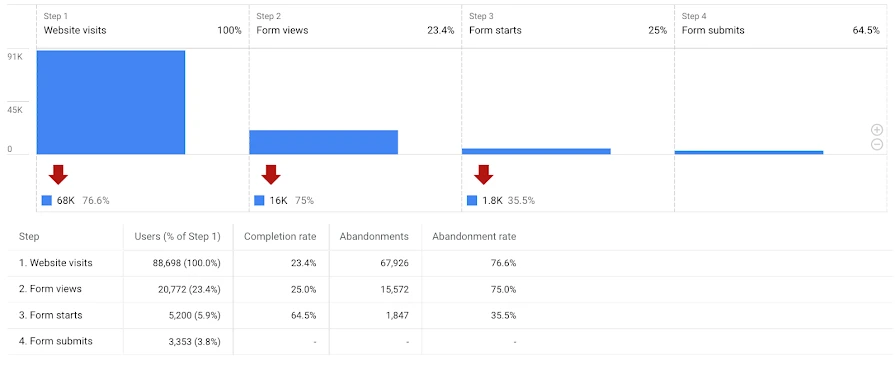
This results view shows the four-step funnel and its displayed sample counts and abandonment rates. These values are illustrative, not predicted results. Screenshot source
How does this Google Analytics 4 setup work in practice?
Worked example: investigating a lead form funnel
A growth marketing team wants to evaluate step-by-step drop-offs across a multi-stage lead capture flow starting from the homepage to form submission.
| Choice | Why it matters | How to check |
|---|---|---|
| Use the site's actual homepage URL for Website visits. | This makes the first step measure the page the team intends to treat as the entry point. | The first step's page_location condition contains that homepage URL. |
| Use the actual form page URL for Form views. | The second step then represents visits to the page containing the form. | The second step is a page_view condition scoped to the form page. |
| Use the form's name attribute value for both form_start and form_submit. | Matching the form identity keeps the interaction steps tied to the same form. | Both event conditions use the same intended form_name value. |
| Apply the exploration and inspect the observed step counts and abandonment rates. | The funnel can show where the measured audience narrows, which helps the team choose what to investigate next. | The results correspond to the four configured steps and the current exploration data. |
Next decision: select the step with the drop-off the team wants to understand, form a specific explanation, and decide what evidence or form change would help evaluate it.
How do you verify your result in Google Analytics 4?
The exploration shows how users progress from a homepage visit to a form view, a form start, and a submission. Read the counts and abandonment between adjacent steps as signals about where the measured journey narrows. The figures describe the configured data and time period. They do not by themselves explain why a user left.
Where people left the example lead form funnel
Google’s example uses the users at the preceding step as the starting point for each rate. The biggest drop was between a website visit and a form view. Example source
- Visited but did not view the form
76.6% 76.6% - Viewed but did not start the form
75% 75% - Started but did not submit the form
35.5% 35.5%
| Step | What you should see |
|---|---|
| Open a funnel exploration and clear its default steps | The step editor is open and no unrelated default steps remain in the funnel configuration. |
| Set the website visit step | Step 1 is named Website visits and its page_view condition uses the intended homepage page_location. |
| Set the form view step | Step 2 is named Form views and its page_view condition points to the intended form page. |
| Set the form start step | Step 3 uses form_start and filters on the intended form_name value. If the event or parameter is not available, verify that the form and event have been configured and triggered. |
| Set the form submission step and apply | The funnel shows the four intended steps and the applied exploration displays its available data. |
Related Google Analytics 4 guides include Compare date ranges in Google Analytics reports and Find GA4 events in DebugView.
Which official Google Analytics 4 sources were checked?
Every step and limit in this Google Analytics 4 guide was verified against official documentation on 21 Nov 2026 following how we check figures, alongside more walkthroughs in our Google Analytics 4 tutorials hub:
How do you troubleshoot common Google Analytics 4 issues?
Why is the funnel empty or missing form events?
The source says form events need to be triggered and may take up to 24 hours to appear in Explorations. Confirm the form has a submit action, the event is firing, and the form_name condition uses the form's actual name attribute value.
Why are homepage or form views not matching expectations?
The page_view conditions depend on the full page_location value. Check that each step contains the correct full URL for the corresponding page.
Why do form starts and submissions appear under different steps?
The start and submit conditions use separate events but should filter on the intended form name. Check that both conditions use the correct form_name value for the form being analyzed.
 Reviewed byDanny Kirk
Founder of ReddiReach.
 Checked byAndrés Felipe
Digital designer and marketer.
Every figure is checked against the vendor's own page. Read our editorial standards.