
Key Takeaways
- Evaluate inbound link profiles and discover outreach targets using the Referring Domains report within Semrush Backlink Analytics.
- Ensure your Semrush account includes Backlink Analytics access and identify the exact root domain or subfolder to audit.
- Follow five methodical steps to review domain trends, sort by Authority Score, apply attribute filters, and evaluate candidate sites.
- Verify referring domain metrics and inspect individual anchor links in Semrush before shortlisting third-party sites for outreach campaigns.
Use the Referring Domains report to review the domains linking to a queried site, compare link counts and Authority Score, and narrow the list by link status, attributes, category, zone, or country. Interpret the report as a prospecting and review aid, then inspect promising domains in context.
For plan limits and team seat pricing behind this workflow, read our Semrush review or connect Semrush to AI agents in Semrush API and MCP.
Key steps
What do you need before starting in Semrush?
Semrush requires the following workspace setup before you begin:
- Access to Semrush Backlink Analytics and its Referring Domains report.
- The exact domain you intend to analyze. The provided screenshots show examples for Semrush and nytimes.com. These are interface examples, not suggested targets.
- A review purpose, such as identifying domains with many backlinks, newer or lost referring domains, or domains in a particular category or country.
How do you complete the steps in Semrush?
Follow these 5 steps in Semrush in order:
Open the report for the target domain
In Backlink Analytics, open the Referring Domains report for the domain you intend to examine. Confirm the report heading refers to that target before interpreting its figures.
The supplied screenshots show two report variants: one has a referring domain table with quick filters, and another includes a New and Lost Referring Domains graph above the table. They are examples of visible report content, not the expected size or composition of your own report.
Read the new and lost trend, if shown
When the report displays a New and Lost Referring Domains graph, review its time range and the new and lost series to understand how the referring-domain counts changed during that period. The supplied nytimes.com screenshot shows this graph with a date range and a last-six-months selector.
Use the graph as a time-based summary. It does not tell you why a domain was gained or lost, so treat it as a prompt to inspect individual rows when the change matters to your analysis.
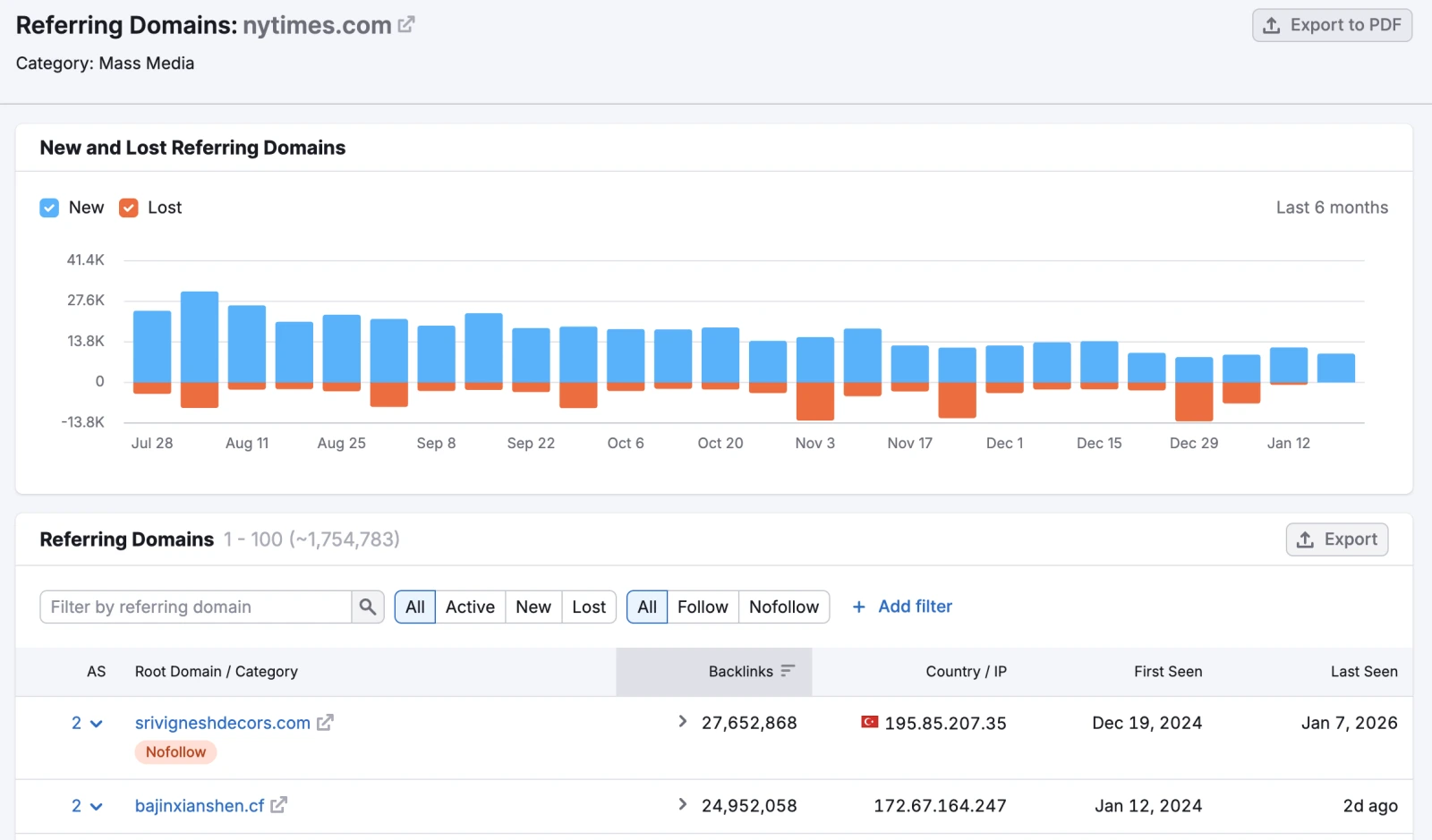
The visible graph and date selector show the trend context available in this report variant. Screenshot source Review and sort the domain table
The table lists domains Semrush found linking to the queried site. Review the root domain and category, backlink count, Authority Score, first and last seen dates, and country or IP fields where shown.
The source says the default listing is descending by backlinks, and that the table can be sorted by total backlinks, Authority Score, First Seen, and Last Seen. Sort by the field that answers your question: backlink count for volume of links, Authority Score for the report’s authority metric, or dates to inspect recency.
Narrow the report with quick filters
Use the visible quick filters to focus the table. The evidence describes All, Active, New, and Lost status options, plus Follow and Nofollow link filters. A follow referring domain has at least one follow link. A nofollow domain has no follow backlinks to the target, according to the source.
The screenshot showing a table includes these status and link attribute controls. Select only the option that matches your analysis, then check that the resulting rows reflect the chosen filter.
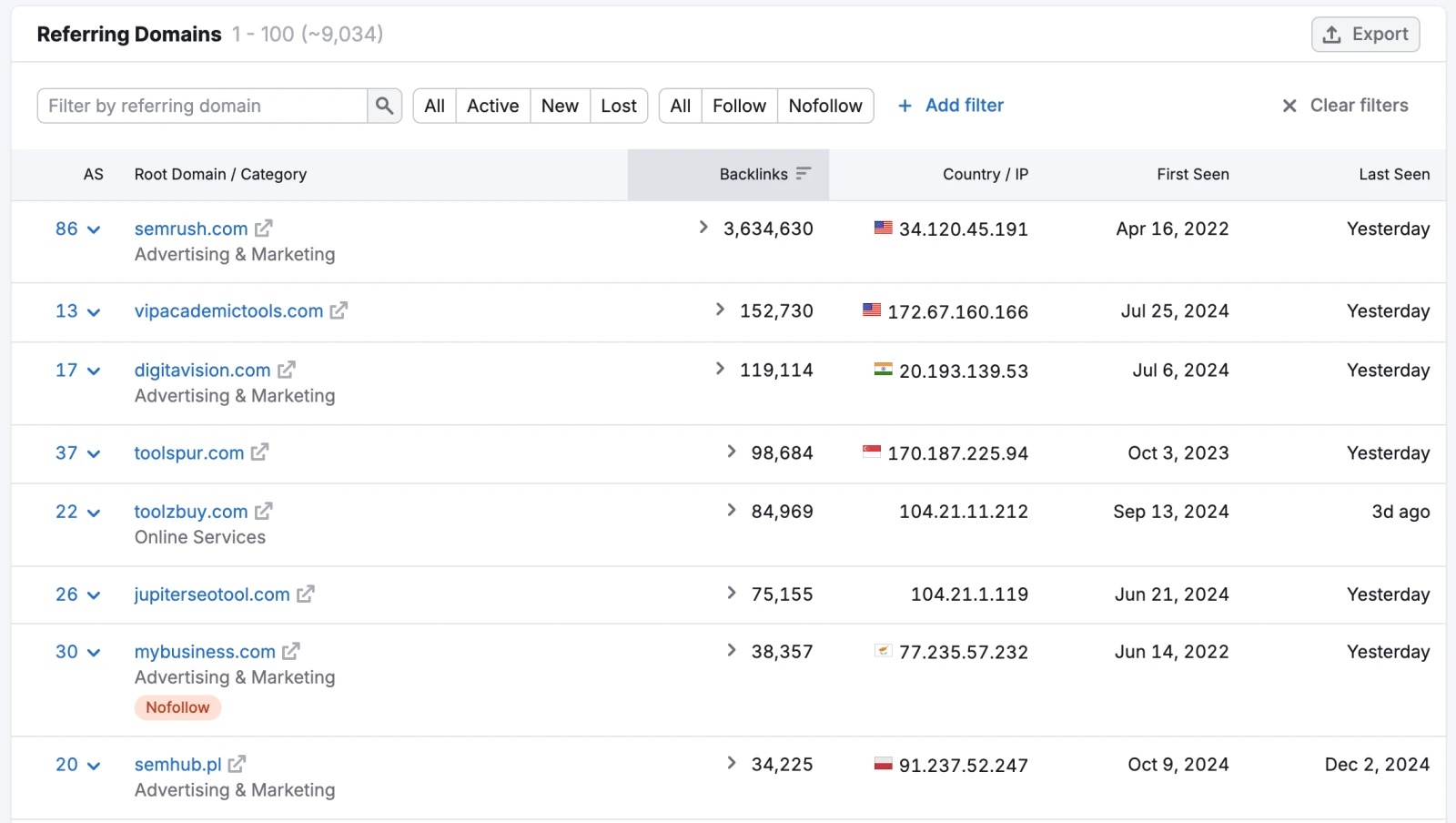
The visible quick filters and table fields correspond to narrowing and reviewing the referring-domain list. Screenshot source Add a targeted filter and assess prospects
Choose Add filter when you need to narrow by Link Attributes, Category, IP address, Zones, Countries, or Authority Score. The source describes country and zone as different filters: a zone is a top-level domain, while a country filter identifies domains located in a country and can include different TLDs.
Use category or geography to create a more relevant prospecting set, then review each domain and its context before deciding it merits follow-up. A row with many backlinks or a high Authority Score is a research lead, not evidence by itself that a partnership is appropriate.
How does this Semrush setup work in practice?
Worked example: finding relevant referring domain prospects
An SEO analyst reviews referring domains pointing to an industry resource to discover authoritative publication targets for upcoming digital PR campaigns.
| Choice | Why it matters | How to check |
|---|---|---|
| Open the report for the exact competitor domain under review. | The table and graph describe the queried target’s referring domains, so the target must be correct. | Verify the report heading before using the rows. |
| Review the graph period and then sort the table by Authority Score. | The graph adds change-over-time context, while sorting can surface domains by the report’s Authority Score field. | Record the date period and confirm the table is sorted on the intended field. |
| Use Add filter to select a relevant category or country. | A narrower set can focus research on a useful industry or geography, depending on the analyst’s goal. | Confirm the filter selection and inspect the remaining domain categories or locations. |
| Review promising domains and their backlink counts before building a prospect shortlist. | A high row count or score can justify closer inspection but does not establish relevance or outreach fit by itself. | Keep only domains with a plausible topical relationship after checking the visible category and context. |
Next decision: inspect the selected domains and their linking pages to decide whether any are appropriate outreach prospects. The report helps find candidates. It does not prove partnership potential.
How do you verify your result in Semrush?
You have a filtered and sorted view of referring domains for the queried site, with link counts, report metrics, dates, and geographic or category context where available. Use it to identify candidates for deeper review or to understand changes in a backlink profile. The report does not establish the reason for a link, the quality of a relationship, or whether a domain will accept outreach.
| Step | What you should see |
|---|---|
| Open the report for the target domain | The report heading and table correspond to the domain you meant to review. |
| Read the new and lost trend, if shown | You can identify the graph’s displayed period and whether it shows new, lost, or both series. |
| Review and sort the domain table | The table is sorted by the field relevant to your question, and you can identify the domains and row details being compared. |
| Narrow the report with quick filters | The selected status and link attribute filters are visible and the row set matches that narrower scope. |
| Add a targeted filter and assess prospects | The added filter reflects your intended category, score range, zone, or country, and you can explain why the remaining domains merit closer review. |
Related Semrush guides include How to add competitors in Semrush Position Tracking and How to build a Semrush My Reports report from a template.
Which official Semrush sources were checked?
Every step and limit in this Semrush guide was verified against official documentation on 21 Nov 2026 following how we check figures, alongside more walkthroughs in our Semrush tutorials hub:
How do you troubleshoot common Semrush issues?
Why do I see many backlinks from one domain?
The report lists referring domains and the backlinks they send, so one domain can account for multiple links. Review the domain row and the backlink count separately, then decide whether you need to inspect the individual link context.
What is the difference between a country filter and a zone filter?
A zone filter is based on the top-level domain, such as .au. A country filter looks for domains located in a particular country and can include domains with different TLDs. Choose the one that matches whether you care about domain suffix or location.
Why did my row count change after filtering?
The status, link attribute, and added filters narrow the table. Review the selected All, Active, New, or Lost and Follow or Nofollow controls, along with any Add filter criteria, and clear filters that do not fit your question.
 Reviewed byDanny Kirk
Founder of ReddiReach.
 Checked byAndrés Felipe
Digital designer and marketer.
Every figure is checked against the vendor's own page. Read our editorial standards.