
Key Takeaways
- Convert ad-hoc conversion path explorations into permanent Google Analytics reports saved directly within your property report library.
- Verify you hold Editor or Administrator permissions in Google Analytics to save custom library reports and modify shared navigation.
- Follow five structured steps to open explorations, save report templates, verify metric scopes, access the library, and assign navigation collections.
- Navigate to the designated collection in the Google Analytics sidebar to verify the saved custom funnel loads correctly for all team members.
Save a funnel exploration as a report in the property report library, then add it to a collection if you want it in the left navigation. The saved report preserves key funnel settings but is separate from the original exploration.
For plan limits and team seat pricing behind this workflow, read our Google Analytics 4 review or connect Google Analytics 4 to AI agents in Google Analytics 4 API and MCP.
Key steps
What do you need before starting in Google Analytics 4?
Google Analytics 4 requires the following workspace setup before you begin:
- Have Editor or Administrator access to create a funnel report and add it to navigation.
- Open or create a standard funnel exploration to use as the report template.
- Check that the exploration is eligible: unsupported filters or fields, more than five filters, segment comparisons, or a trended funnel can prevent saving.
How do you complete the steps in Google Analytics 4?
Follow these 5 steps in Google Analytics 4 in order:
Open the funnel exploration
From the left menu, choose Explore. Open an existing funnel exploration or create one for the task. Review its steps, filters, funnel type, and dimension breakdown because these settings are what the saved report will reflect. A trended funnel cannot be saved as a funnel report.
Save the exploration as a report
In the top right, choose Save as a report in the Library. Enter a name and description for the new report, then click Save. This action is available to Editors and Administrators. If the control is missing, check your access. If it is grayed out, the exploration may use an unsupported filter or field, more than five filters, segment comparisons, or a trended funnel.
Confirm the saved report's scope
The report retains the exploration's applied filters, step definitions, open or closed funnel type, and dimension breakdown. Advanced edits such as elapsed time and next action are not saved. The report and exploration are unlinked after saving: later edits to one do not update the other.
Open the report library
Below the saved exploration, choose View report in library, or open the report library from the left menu. Find the report you just saved. Saving it to the library makes it part of the property's reports. It does not by itself add it to the left navigation.
Add the report to a navigation collection
In the Collections section, choose Edit collection beneath the collection where the report belongs. In the Drag reports to create collection card, find the funnel report on the right and drag it under a topic on the left. Click Save. If the collection is unpublished, use More > Publish in the report library to publish the collection.
Open the saved report from the library and use the date range in the upper right to select the period you want to review.
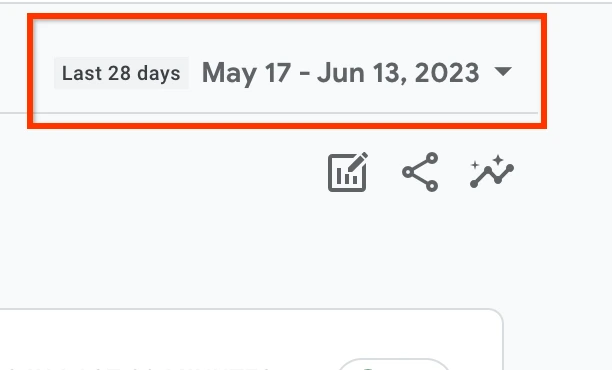
The saved funnel report has a date range in its upper-right corner. Screenshot source
How does this Google Analytics 4 setup work in practice?
Worked example: saving a signup funnel report
An analytics manager builds an exploration tracking a multi-step user onboarding sequence and wants to convert it into a standard navigation report for marketing stakeholders.
| Choice | Why it matters | How to check |
|---|---|---|
| Review the exploration's steps and filters before saving. | The saved report carries the step definitions and applied filters, so these define what the report will show. | The setup matches the intended signup journey and is not a trended funnel. |
| Save it with a clear name and description. | A descriptive name helps teammates locate the report in the library. | The report appears in the report library after saving. |
| Treat elapsed time and next action as exploration-only edits. | These advanced edits are not included in the saved report. | The intended report does not rely on those settings being carried over. |
| Place the report under the relevant collection topic and save. | This is the step that makes it accessible from the navigation collection. | The collection is saved and published if it was previously unpublished. |
Next decision: if the report needs different step definitions later, update the exploration and save a new report, then decide whether to replace or retain the existing collection entry.
How do you verify your result in Google Analytics 4?
The funnel report is saved in the property library and, if you completed the collection step, is available through the left navigation. It reflects the exploration as it was saved and must be recreated as a new report if you later change the exploration and want those changes represented.
| Step | What you should see |
|---|---|
| Open the funnel exploration | The exploration is open and shows the funnel setup you intend to preserve. |
| Save the exploration as a report | The report has a name and description, and the save action completes. |
| Confirm the saved report's scope | You know which exploration settings carry over and which advanced edits do not. |
| Open the report library | The funnel report appears in the report library. |
| Add the report to a navigation collection | The report is placed under a collection topic and the collection is saved, with publication completed if needed. |
Related Google Analytics 4 guides include Compare date ranges in Google Analytics reports and Find GA4 events in DebugView.
Which official Google Analytics 4 sources were checked?
Every step and limit in this Google Analytics 4 guide was verified against official documentation on 21 Nov 2026 following how we check figures, alongside more walkthroughs in our Google Analytics 4 tutorials hub:
How do you troubleshoot common Google Analytics 4 issues?
Why is Save as a report missing or disabled?
Only Editors and Administrators can use it. Saving can also be blocked by unsupported filters or dimensions, more than five filters, segment comparisons, or a trended funnel. Review the exploration setup and access.
Why don't edits to the exploration change my report?
The saved report is unlinked from its exploration. Make the desired edits to the exploration and save it as a new report.
Why can't I find the report in the left navigation?
A saved report first appears in the report library. Add it to a collection topic and save the collection. If that collection is unpublished, publish it from the library.
 Reviewed byDanny Kirk
Founder of ReddiReach.
 Checked byAndrés Felipe
Digital designer and marketer.
Every figure is checked against the vendor's own page. Read our editorial standards.