
Key Takeaways
- Add competing domains into your Semrush Position Tracking campaign to compare side by side rankings across your tracked target keywords.
- Require an active Semrush Position Tracking campaign containing seeded target keywords along with identified competing domains to evaluate.
- Follow four focused steps to open the campaign, choose competitor domains for graphing, compare keyword rows, and refine candidate sites.
- Verify setup by confirming Semrush Rankings Overview populates distinct competitor columns beside your tracked keywords with valid rank data.
Semrush Position Tracking allows teams to monitor competitor domains side by side against shared target keywords. Comparing ranking columns across visibility and estimated traffic highlights competitive gaps and dedicated landing page opportunities.
For plan limits and team seat pricing behind this workflow, read our Semrush review or connect Semrush to AI agents in Semrush API and MCP.
Key steps
What do you need before starting in Semrush?
Semrush requires the following workspace setup before you begin:
- A Position Tracking campaign with target keywords configured.
- The competitor domains you want to compare, or a campaign whose Competitors Discovery report can identify candidates.
How do you complete the steps in Semrush?
Follow these 4 steps in Semrush in order:
Open the campaign and add competitors
Open the website’s project and select “Position Tracking.” In the “Competitors” section at the top of the interface, click “Add” if no competitors are listed, or click the displayed competitor count. Enter a domain, subdomain, subfolder, or URL in the competitor window. You can also use “Competitors Discovery” to find domains ranking for your campaign’s target keywords, then select “Set as competitor” beside a relevant site.
Add domains that compete for the same tracked searchers, not every large site that appears in the results. A national publisher may share a few keywords with a local service provider but can distort the comparison. Use the campaign’s target keyword set to judge fit, and keep discovery candidates separate until you review them.
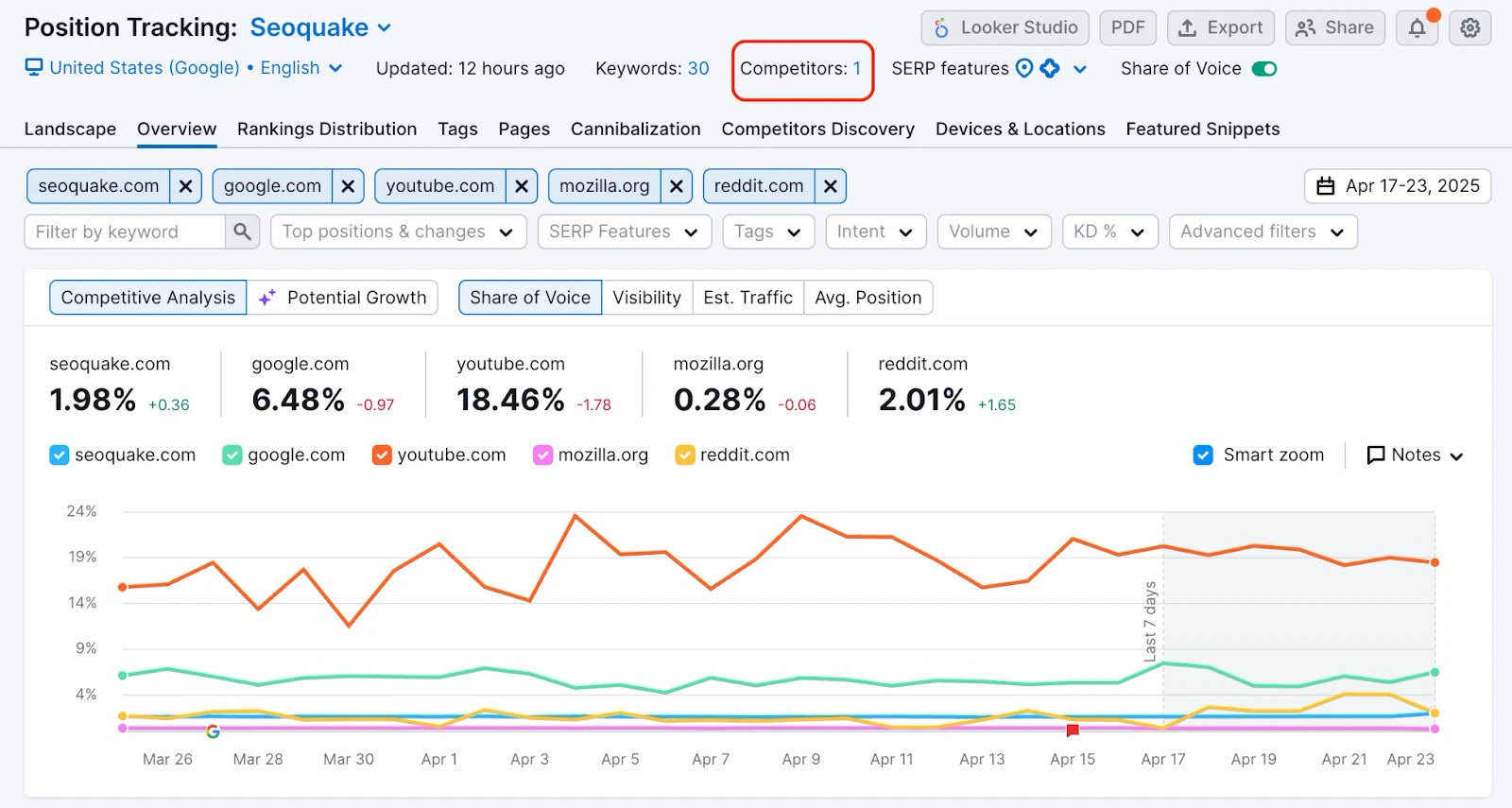
The Competitors control is above Position Tracking Overview. The chart shows the selected domains over time. Screenshot source Select competitors for the chart
Return to the Overview report. The input fields above the graph let you choose which competitors appear in the trend chart. The chart shows up to five domains at a time, including your own, so select a smaller set when you need a readable comparison.
Select domains that clarify one decision, such as your site plus two direct service competitors. The graph can display up to five domains including your own, but fewer lines are often easier to read. If comparing more companies, rotate the selected set and keep the campaign and time period consistent.
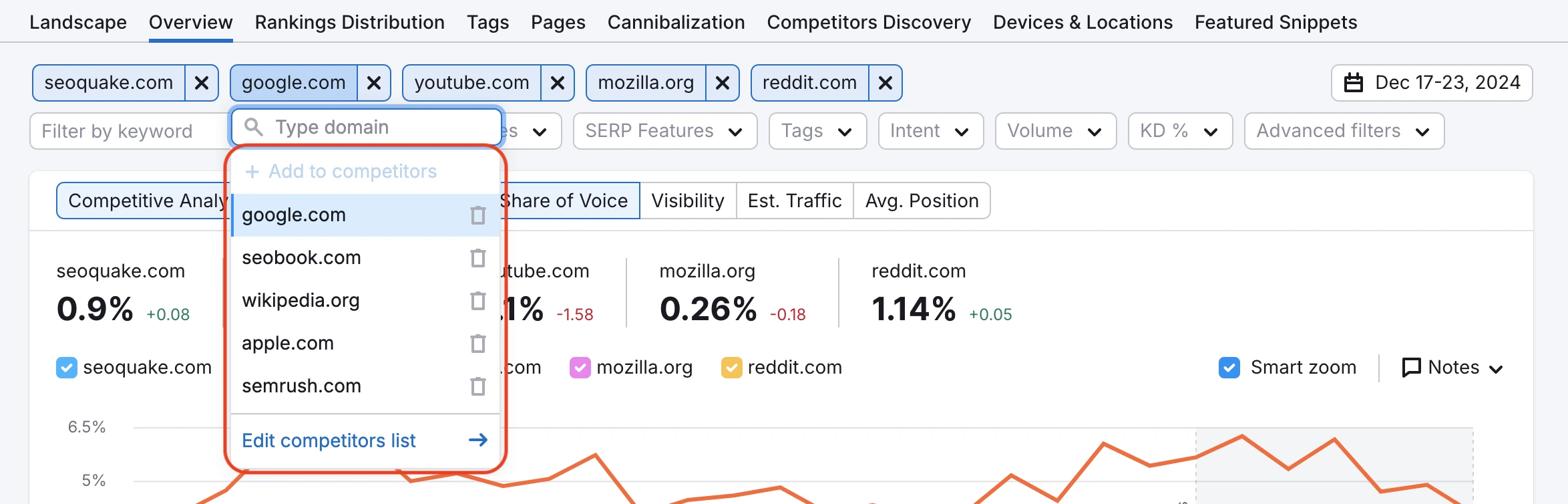
Use the domain selector to choose who appears alongside your site in the visibility chart. Screenshot source Compare keyword-level rankings
Scroll to “Rankings Overview.” Choose “Positions,” “Estimated Traffic,” “Visibility,” or “All” above the table to set the metric shown for each domain. Each row corresponds to a campaign keyword and each domain has a column. Sort a column to bring stronger or weaker values into view, and hover over a ranking to see the full URL that ranks for that keyword.
Pick one metric before drawing a conclusion. Positions helps inspect keyword rank, Visibility summarizes tracked keyword presence, and Estimated Traffic is an estimate rather than observed analytics. Sorting a metric column can surface a useful keyword, but inspect the ranking URL before deciding which page needs work.
Review competitor fit and adjust the list
If you used Competitors Discovery, review the Competition Map and table against the campaign’s keyword set. The map emphasizes domains with many shared keywords and strong average positions. The table is ordered by visibility by default. Select “Set as competitor” for a useful match. If a site shares keywords but does not serve the same audience or service, add it to the ignored list instead of treating it as a direct comparison.
When discovery returns an unexpected domain, compare its shared keywords with your actual target list and audience. A marketplace or directory may rank for the same terms while serving a different role. Use Set as competitor for a meaningful benchmark. Use the ignored list for irrelevant results so they do not distract from the comparison.
How does this Semrush setup work in practice?
Worked example: choose a competitor to investigate for a service keyword
A regional repair company wants to decide which keyword ranking gap to investigate first against local competing service providers.
| Choice | Why it matters | How to check |
|---|---|---|
| Review Competitors Discovery candidates against the campaign keywords | Shared ranking terms are a starting point. Business relevance determines whether a site is a useful benchmark. | Confirm the candidate serves the same region and type of customer as the company. |
| Set one direct local rival as a competitor | A close service match makes the comparison more actionable than a national directory with broad visibility. | The rival appears in the campaign’s competitor list. |
| Select the company and rival in the Overview graph | A two-domain comparison keeps the trend readable and isolates the relevant benchmark. | The graph displays both selected domains for the campaign. |
| In Rankings Overview, choose Positions and inspect one service keyword | Keyword-level positions can reveal a specific gap without conflating it with estimated traffic or overall visibility. | Compare both domains’ row and hover over the ranking to inspect the URL associated with each result. |
If the competitor ranks with a dedicated service page while your site uses a general page, inspect whether a focused page improves search intent match.
How do you verify your result in Semrush?
Confirm that Rankings Overview contains a column for each selected competitor and rows for your tracked keywords. Use the comparison to choose a keyword or landing page for closer review.
Share of Voice in a sample campaign
In the Semrush example for December 17 to 23, YouTube has the highest Share of Voice among the selected sites. Example source
- seoquake.com
0.9% 0.9% - google.com
2.95% 2.95% - youtube.com
4.1% 4.1% - mozilla.org
0.26% 0.26% - reddit.com
1.14% 1.14%
| Step | What you should see |
|---|---|
| Open the campaign and add competitors | The campaign’s competitor list includes the domains you intend to compare. |
| Select competitors for the chart | The graph displays your site and the selected competitor domains. |
| Compare keyword-level rankings | The table shows the selected metric for each domain and campaign keyword. |
| Review competitor fit and adjust the list | The selected comparison set contains relevant domains, and irrelevant discovery results are excluded or ignored. |
Related Semrush guides include How to add competitors in Semrush Position Tracking and How to build a Semrush My Reports report from a template.
Which official Semrush sources were checked?
Every step and limit in this Semrush guide was verified against official documentation on 21 Nov 2026 following how we check figures, alongside more walkthroughs in our Semrush tutorials hub:
How do you troubleshoot common Semrush issues?
Why can’t I see every competitor in the graph at once?
Semrush allows up to five domains in the Visibility Trend graph at one time, including your own. Select another competitor in the graph’s input fields to swap the displayed comparison.
How many competitors can I attach to one campaign?
Semrush’s Position Tracking guide documents up to 20 competitors per campaign. You can still show only five domains at a time in the trend graph.
A competitor ranks above us for a keyword, but the URL is a directory listing. Should I copy its approach?
First inspect the ranking URL and determine whether the directory serves the same searcher need as your business page. If it is only an indirect result, keep it out of the direct competitor set or use it as a separate search-result example. Do not treat its position alone as evidence that copying its page type will help.
 Reviewed byDanny Kirk
Founder of ReddiReach.
 Checked byAndrés Felipe
Digital designer and marketer.
Every figure is checked against the vendor's own page. Read our editorial standards.