
Key Takeaways
- Configure target location, device type, and search engine settings in Semrush Position Tracking before launching daily keyword monitoring.
- Prepare your target domain, target keyword list, and defined geographic search boundary before initiating the Semrush campaign setup wizard.
- Complete seven structured steps spanning project creation, location selection, device configuration, business name matching, and keyword import.
- Verify campaign parameters by checking the Semrush Position Tracking summary card to ensure correct domain, device, and city targeting apply.
Set up a Semrush Position Tracking campaign targeted to your precise search engine, device type, and geographic location. Establishing these parameters during creation preserves ranking history and reflects accurate local search volume.
For plan limits and team seat pricing behind this workflow, read our Semrush review or connect Semrush to AI agents in Semrush API and MCP.
Key steps
What do you need before starting in Semrush?
Semrush requires the following workspace setup before you begin:
- A Semrush account and the domain you want to monitor.
- A clear choice of search engine, device, and geographic area that matches the searches you want to track.
- A list of relevant keywords, or a source from which you can import them.
How do you complete the steps in Semrush?
Follow these 7 steps in Semrush in order:
Open Position Tracking and start a campaign
In Semrush, open Position Tracking from the left-hand menu. For a new project, follow the prompts to create a campaign. Semrush says Position Tracking is configured automatically for your first project. For later projects, start a new campaign from the Position Tracking tool and follow its setup prompts.
Set the website area and search engine
In the Targeting section, review the domain at the top. Use its dropdown to choose the root domain, subdomain, URL, or subfolder you intend to monitor. The root domain is a useful default when you want the broadest view. Then select the search engine. For example, choose Google if you want to monitor Google results.
Choose the target scope based on the question you need the campaign to answer. For example, use the root domain to see visibility across the whole site, or a subfolder when you only need to report on one product section. Check that the displayed scope includes the pages you intend to compare. A narrower scope can omit rankings from other parts of the site.
Choose the device before continuing
In Targeting, use the device control next to the search engine options and select desktop, mobile phone, or tablet. Match the device to the searches that matter to your audience. For a local service whose customers usually search on phones, select mobile phone. Check this choice carefully because the original device type is fixed after setup. Changing it later replaces the current target and loses its ranking history. If you need to preserve history while tracking another device, Semrush documents adding a separate target for eligible SEO Toolkit Guru or Business accounts.
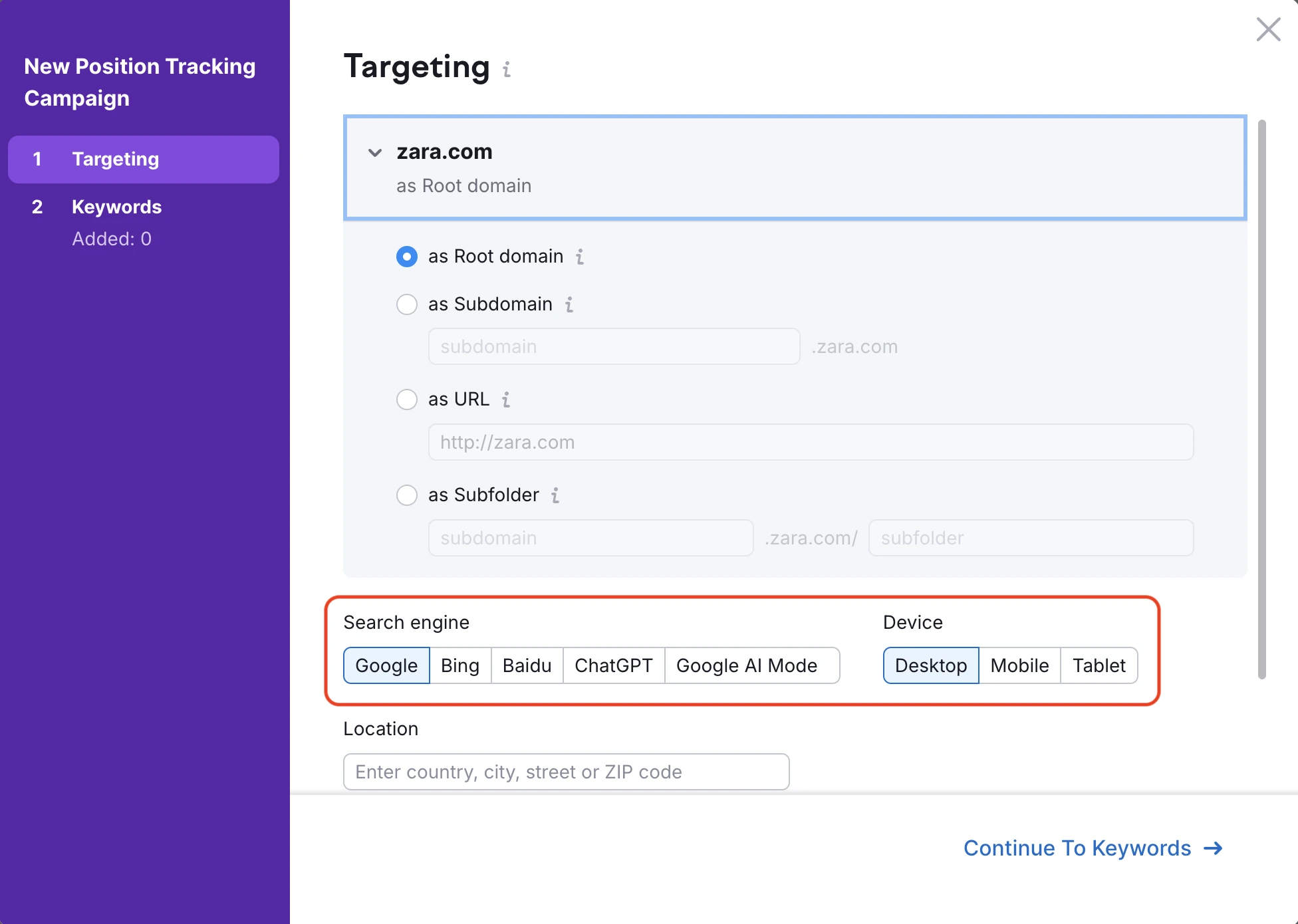
Choose the device in Targeting before saving the campaign. Screenshot source Set the location and volume
In the Location section, enter the country, state or region, city, or ZIP code that matches your target audience, then choose it from the available location results. For a neighborhood business, select its city or ZIP code. For a nationwide campaign, choose the country. Choose local or national keyword volume as appropriate. If you set a city-level campaign, Semrush says you can toggle between local and national volume after launch. This volume choice does not change the campaign’s geographic target.
For a service-area business, choose the city or ZIP code that best represents the searches you want to measure. If customers come from several distinct areas, one location gives a focused view but will not represent every market. Where your account supports additional targets, track other locations separately so their histories and keyword results remain distinguishable.
Add a business name for Local Pack tracking, if relevant
If you want to track your business in local pack results, enter its name as it appears in the real world, without shortening or misspelling it. If you do not need Local Pack tracking, leave this optional field out. This setting helps Semrush identify keywords where your business appears in the Local Pack.
Add the keywords you want to monitor
Continue to the Keywords section. You can enter keywords or use Import from to bring them in from a TXT or CSV file, another Position Tracking campaign, Semrush reports or suggestions, Keyword Strategy Builder, Google Analytics, or Google Search Console. For CSV imports, put the keywords in the first column because Semrush says other columns are not imported. Review the Added to campaign list before proceeding. You can also choose whether to receive the weekly email update using the checkbox above Start Tracking.
Before importing a CSV, inspect its first column and remove headers or blank rows if they would be treated as keywords. Semrush imports keywords from the first column only, so do not rely on adjacent columns for tags or landing pages. After import, compare the Added to campaign list with your intended keyword set and apply tags there if you need grouped reporting.
Review the target and start tracking
Before you click Start Tracking, check the displayed search engine, device, location, and keyword list once more. The device and location are especially important because Semrush says you cannot change the original campaign settings later without replacing the current target and losing its ranking history. When the settings are correct, select Start Tracking.
How does this Semrush setup work in practice?
Worked example: track mobile searches for a neighborhood plumbing company
A plumbing company wants to monitor Google rankings for emergency service searches in one city on mobile devices.
| Choice | Why it matters | How to check |
|---|---|---|
| Select the company’s service subfolder if it contains all plumbing pages being assessed. Otherwise select the root domain. | The target should cover the pages that can answer the tracked queries without mixing in unrelated site sections. | Confirm the target field includes the intended service pages. |
| Choose Google and mobile phone. | The scenario is specifically about Google searches made by mobile users. Desktop rankings would answer a different question. | Verify the selected search engine and device before setup continues. |
| Choose the service city, then select local volume if local keyword demand is the reporting focus. | A city target makes the measurement geographically specific. The volume choice changes the volume view, not the campaign location. | Confirm the chosen city and volume option are displayed. |
| Import a reviewed list of emergency and service keywords, then tag groups such as emergency and installation. | A compact, categorized set makes the first review easier to interpret than an unfiltered keyword dump. | Compare Added to campaign against the source list and check that each tag is attached to the intended terms. |
Use the campaign as a city and mobile snapshot of the selected service pages to evaluate regional mobile search visibility.
How do you verify your result in Semrush?
Open the new campaign’s Position Tracking view and confirm its target uses the intended domain, search engine, device, and location. Then use the campaign to monitor rankings for the keywords you added. If you need to track a different device or location while keeping the original history, check whether your account supports adding another target. Semrush documents multitargeting for SEO Toolkit Guru and Business.
| Step | What you should see |
|---|---|
| Open Position Tracking and start a campaign | The Position Tracking configuration window opens for the domain you want to track. |
| Set the website area and search engine | The target field shows the intended domain or site section, and the selected search engine is visible. |
| Choose the device before continuing | The device control displays the device you intended to track before you move on. |
| Set the location and volume | The selected location is the intended country, region, city, or ZIP code, and the volume option matches your reporting need. |
| Add a business name for Local Pack tracking, if relevant | The exact business name appears in the field when you need Local Pack tracking, or the optional field is left unused. |
| Add the keywords you want to monitor | The intended keywords appear in the Added to campaign list, with any needed tags applied. |
| Review the target and start tracking | The campaign begins and its Position Tracking interface shows the target and selected settings. |
Related Semrush guides include How to add competitors in Semrush Position Tracking and How to build a Semrush My Reports report from a template.
Which official Semrush sources were checked?
Every step and limit in this Semrush guide was verified against official documentation on 21 Nov 2026 following how we check figures, alongside more walkthroughs in our Semrush tutorials hub:
How do you troubleshoot common Semrush issues?
Can I change the device or location after I start tracking?
Semrush says the original device and location cannot be changed in place. You can replace the current campaign through Settings and Tracking domain, but Semrush warns that changing the search engine, location, or device loses the current target’s ranking history. To preserve that history, add a new target with different settings if your account supports multitargeting.
Which location should I choose for a local business?
Choose the city or ZIP code where you want to measure search results. Semrush supports country, state or region, city, and ZIP code targeting. For city-level campaigns, you can switch between local and national keyword volume after the campaign is running.
Why do my Position Tracking rankings differ from a manual Google search?
The comparison may use different locations or devices. For a useful check, align the manual search with the campaign’s exact target location and device, then compare the same keyword. If the manual search is personalized or uses another ZIP code, it may show different results.
 Reviewed byDanny Kirk
Founder of ReddiReach.
 Checked byAndrés Felipe
Digital designer and marketer.
Every figure is checked against the vendor's own page. Read our editorial standards.