
Key Takeaways
- Audit high Toxicity Score links in Semrush Backlink Audit to isolate toxic markers and assign URLs to disavow, remove, or whitelist groups.
- Maintain an active Semrush Backlink Audit project with completed crawl data and access to the Audit review workspace.
- Follow four steps to display candidates, sort by Toxicity Score, evaluate anchor and link context, and apply review actions.
- Verify categorization by opening the Disavow or Whitelist tabs in Semrush Backlink Audit to confirm candidate domains appear under chosen categories.
Review flagged toxic link candidates in Semrush Backlink Audit to decide whether to pursue manual outreach removal, disavow URLs, or whitelist domains. Analyzing Toxicity Scores alongside specific toxicity markers prevents unnecessary disavow submissions.
For plan limits and team seat pricing behind this workflow, read our Semrush review or connect Semrush to AI agents in Semrush API and MCP.
Key steps
What do you need before starting in Semrush?
Semrush requires the following workspace setup before you begin:
- A configured Backlink Audit campaign for the domain.
- Access to the Audit tab and its backlink list.
How do you complete the steps in Semrush?
Follow these 4 steps in Semrush in order:
Open the links for review
Open the domain’s project, choose “Backlink Audit,” and go to the “Audit” tab. Use “For Review” as the working list and “All links” to see the full set. Switch between “Domain” and “URL” to review referring domains together or inspect individual backlink URLs.
Use “Domain” view when you are deciding whether a referring domain needs follow-up, and “URL” view when you need to examine an individual backlink. This distinction matters when one domain has several links: evidence about one page may not justify treating every page on the domain the same way. Check which view is active before applying a row-level action.
Prioritize candidates by Toxicity Score
The table orders toxic links by Toxicity Score, with higher scores shown first. Use the score to decide which links to inspect first. The Semrush scale runs from 0 to 100, with 100 at the highest level. Hover over a score to see the Toxic Markers associated with that link.
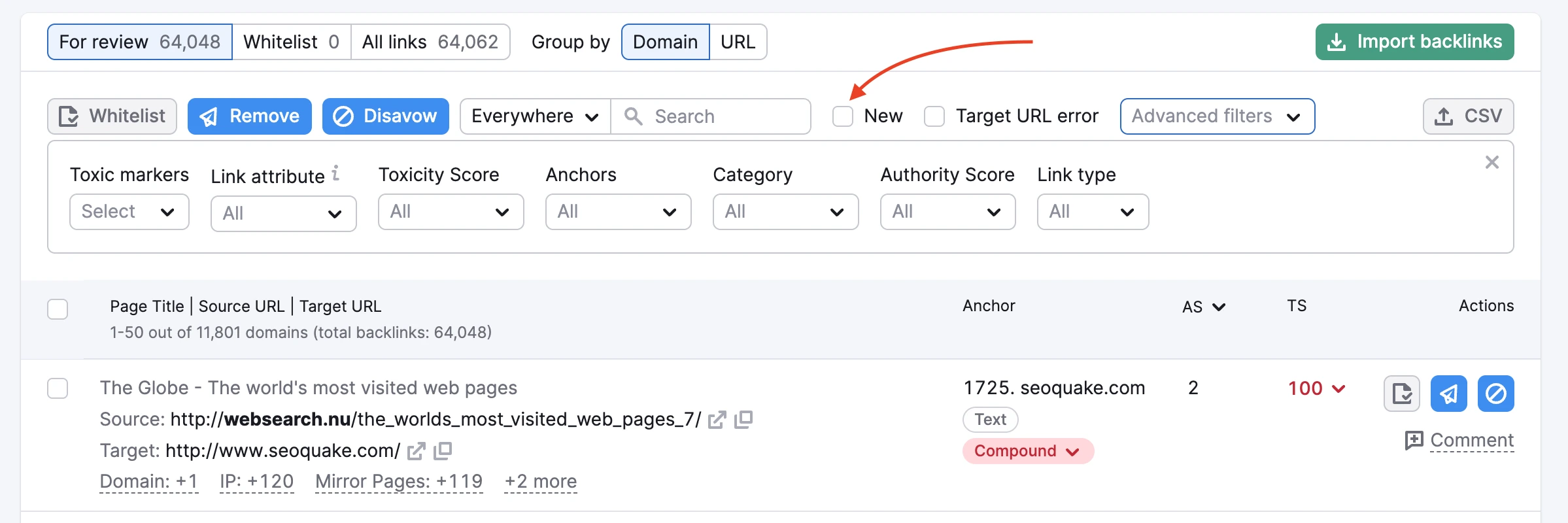
The Audit table shows Toxicity Score alongside the referring page and target. Open the rows you want to inspect. Screenshot source Narrow the list and inspect context
Use the Toxic Marker filters to focus on a pattern relevant to your review, such as links flagged for spam TLDs. You can also use advanced filters for Toxicity Score, link attribute, anchors, category, Authority Score, or link type. Review the source URL and anchor text, and consider available context such as Authority Score or referring-domain category before acting.
When a candidate is flagged for a spam TLD or another marker, inspect the actual source page and anchor before deciding. A marker explains why Semrush surfaced the link, but it does not establish who created it or whether it is harmful. If the source page is unavailable or the evidence is ambiguous, keep the candidate for further review rather than treating uncertainty as proof.
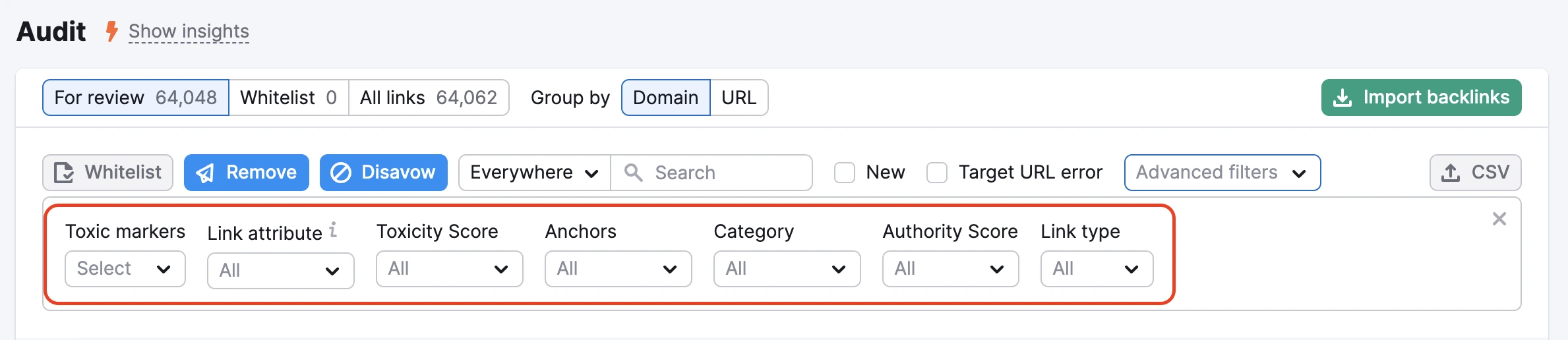
Advanced filters narrow the report by toxic marker, category, toxicity score, or other criteria. Screenshot source Choose a review action for each candidate
For a link you have investigated and consider safe, choose “Whitelist” using the action controls at the right of its row. For a link that warrants follow-up, use the remove list to track a manual removal request. If you decide to prepare a disavow entry, use the disavow control and choose “URL” or “Domain” as appropriate. Use a domain-level entry only when you have determined that all links from that domain should be disavowed. Semrush notes that whitelisting does not lower the overall Toxicity Score. Disavowing also requires a separate Google Disavow Tool step before you confirm the disavow in Semrush.
Before choosing “Domain” for a disavow entry, review the other links from that domain and ask whether the same decision applies to all of them. A URL-level entry is narrower when only one page is in question. A domain-level entry covers a broader set. After selecting an action, verify the candidate is in the intended group and retain the investigation notes that support the decision.
How does this Semrush setup work in practice?
Worked example: review a cluster of links to a product page
An SEO reviewer finds several links to one product page from a referring domain where Backlink Audit flags a spam-related marker.
| Choice | Why it matters | How to check |
|---|---|---|
| Open the candidate in URL view and inspect its source URL and anchor. | The concern is about a particular backlink, so page-level context is more useful than assuming every link on the domain is alike. | Record whether the source page loads and what page and anchor it actually links to. |
| Review the Toxicity Score markers and available domain context. | Markers explain the flag. The source and surrounding context help assess whether it reflects a meaningful concern. | Note which marker is present and whether the source supports the concern. |
| If the link appears safe after investigation, choose “Whitelist”. If it merits outreach, place it on the remove list. | These actions reflect different next steps and avoid turning an uncertain signal into a broad disavow decision. | Confirm the link appears in the selected group. |
| Consider a URL or Domain disavow entry only after deciding disavow is warranted and checking the scope. | Domain scope affects all links from that domain, while URL scope is limited to the individual entry. | Verify the selected scope and follow the separate Google Disavow Tool procedure before confirming in Semrush. |
Interpret the score as a review priority rather than an automatic penalty, matching your action to backlink evidence and context.
How do you verify your result in Semrush?
Return to the relevant group and confirm the candidate is listed under the action you chose. For removal candidates, use the list to organize outreach. For disavow candidates, review Semrush’s separate disavow procedure before applying changes in Google.
| Step | What you should see |
|---|---|
| Open the links for review | The Audit tab displays the “For Review” list and the Domain and URL views. |
| Prioritize candidates by Toxicity Score | Hovering over a candidate’s Toxicity Score displays its associated Toxic Markers. |
| Narrow the list and inspect context | The filtered rows match the selected marker or other filter, and you can inspect each candidate’s source and context. |
| Choose a review action for each candidate | The selected candidate appears in the corresponding Whitelist, Remove, or Disavow group. |
Related Semrush guides include How to add competitors in Semrush Position Tracking and How to build a Semrush My Reports report from a template.
Which official Semrush sources were checked?
Every step and limit in this Semrush guide was verified against official documentation on 21 Nov 2026 following how we check figures, alongside more walkthroughs in our Semrush tutorials hub:
How do you troubleshoot common Semrush issues?
Does a high Toxicity Score prove a link is harmful?
No. Semrush presents the score and its markers as signals for investigation. Review the source and context before choosing an action.
Why didn’t whitelisting lower the overall score?
Semrush says whitelisted links can still trigger Toxic Markers, so moving a link to the Whitelist does not change the overall Toxicity Score.
Why is a flagged backlink missing from both “For Review” and “All links”?
Semrush says disavowed links disappear from both groups. Check the Disavow group to see whether the link was moved there, and confirm whether the disavow was applied through the separate Google Disavow Tool workflow.
 Reviewed byDanny Kirk
Founder of ReddiReach.
 Checked byAndrés Felipe
Digital designer and marketer.
Every figure is checked against the vendor's own page. Read our editorial standards.