
Key Takeaways
- Semrush My Reports automates recurring PDF delivery on a daily, weekly, or monthly cadence, refreshing live widget data automatically before emailing your designated recipients.
- Before activating Schedule report in Semrush, verify recipient email addresses, inspect widgets for errors, keep total images at or below 50, and confirm available Base report slots.
- Choosing a specific delivery time requires Semrush Pro reports, while standard report configurations allow selecting the delivery frequency and the scheduled day.
- Verify completion in Semrush My Reports by reopening the PDF schedule settings to confirm your saved recipient list, frequency, and delivery day, or by reviewing the exported PDF.
Schedule recurring PDF email delivery in Semrush by opening your saved layout in My Reports, adding recipient addresses in the PDF generation settings, enabling Schedule report, and selecting a daily, weekly, or monthly cadence. Once saved or exported, Semrush automatically refreshes the report widgets and sends the updated PDF to your distribution list on the chosen schedule.
For plan limits and team seat pricing behind this workflow, read our Semrush review or connect Semrush to AI agents in Semrush API and MCP.
Key steps
What do you need before starting in Semrush?
Semrush requires the following workspace setup before you begin:
- A saved custom or template-based report in Semrush My Reports with populated, error-free widgets and no more than 50 images.
- Verified recipient email addresses approved to receive recurring report distributions.
- Your agreed delivery frequency (daily, weekly, or monthly), target delivery day, and Semrush Pro reports access if you need to set a specific send time.
- Available Base report slots or shared corporate reporting limits on your Semrush account.
How do you complete the steps in Semrush?
Follow these 4 steps in Semrush in order:
Open the report in My Reports
From the left Semrush navigation sidebar, select “My Reports” and open the saved report you want to automate. If you still need to build the report before scheduling it, click “Start from scratch” to assemble a custom drag-and-drop layout, or select a prebuilt template and customize its sections first.
Before opening the export menu, scan the report canvas from top to bottom to verify that every section is ready for recurring distribution. Check for blank, disconnected, or erroring widgets across each source tool so broken panels do not block scheduling or appear in automated emails. Also check that your layout stays within the 50-image technical limit.
Open PDF generation settings
Open the report’s PDF generation controls from the builder header. In the PDF settings dialog, type or paste the email addresses of everyone who should receive the scheduled PDF.
Treat this recipient field as a formal distribution review rather than a quick export step. Check every email address character by character for typos, confirm that former stakeholders are not included, and make sure internal reviewers and external contacts belong on the same report version. If you want a table of contents included in every automated PDF, enable that option in the report settings now before moving to the schedule controls.
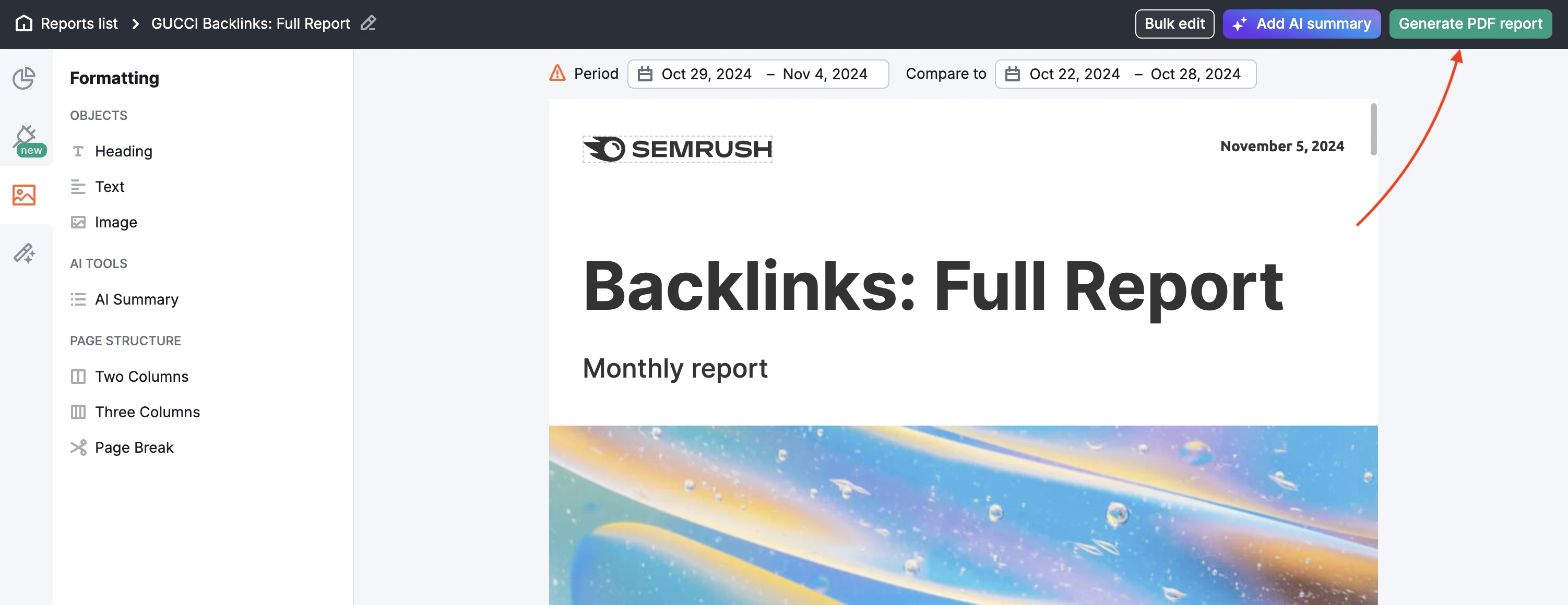
Generate PDF report opens the export settings from the report editor. Screenshot source Set the recurring schedule
Toggle on “Schedule report” inside the PDF settings panel. Choose a delivery frequency of daily, weekly, or monthly to match your reporting cycle, and select the specific delivery day when prompted by weekly or monthly options.
If your Semrush configuration includes Pro reports, a delivery time selector appears alongside the day and frequency fields so you can pick the exact send hour. If your current report tier does not show a time field, verify that your chosen frequency and delivery day give your team or client the report ahead of your review window.
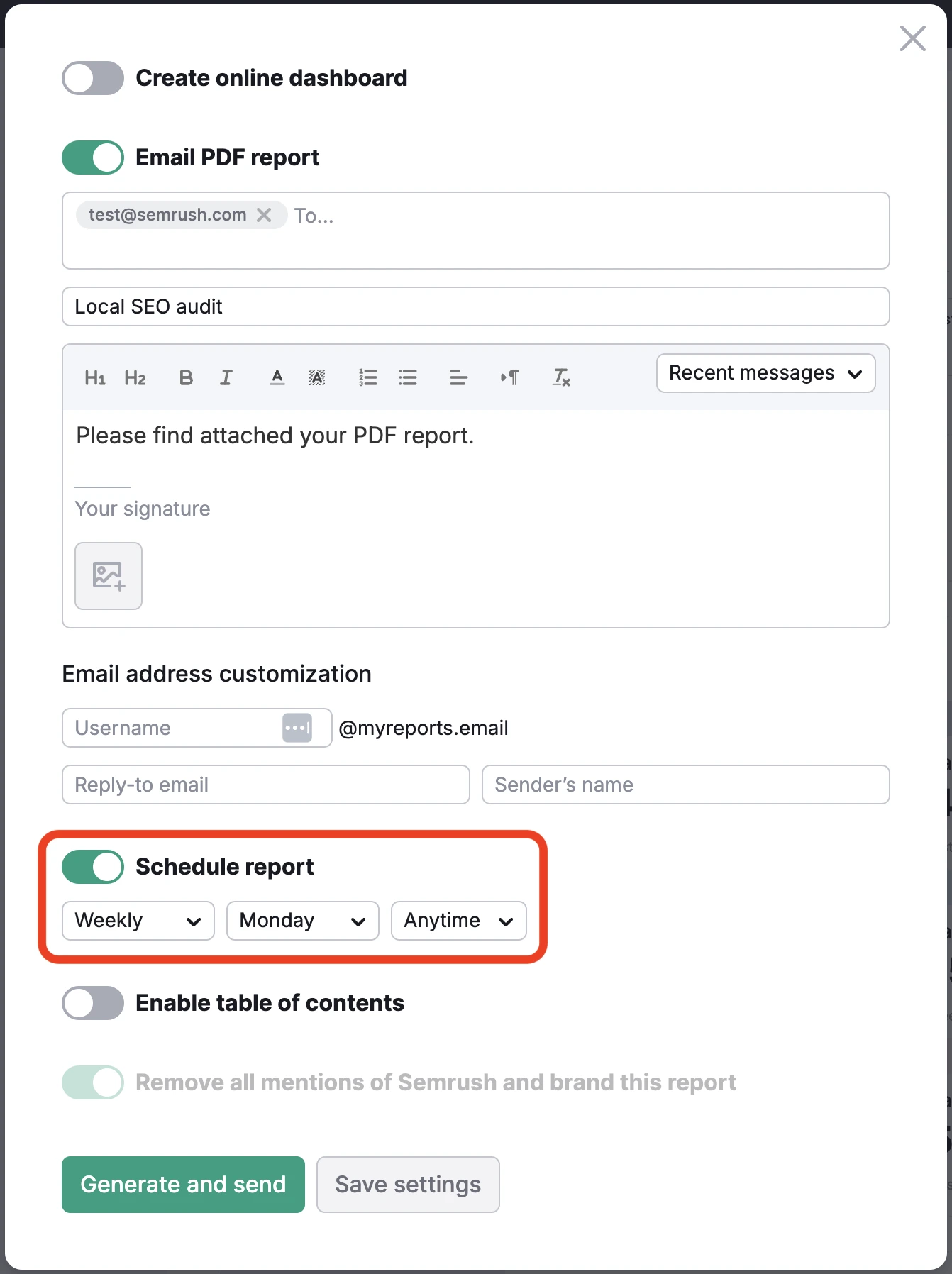
Enable Schedule report, then set the delivery frequency and time in the PDF settings. Screenshot source Export and confirm the schedule
Choose how you want Semrush to activate the schedule based on whether recipients should receive a copy right away. Select “Export to PDF” (or “Generate and send” where shown in your My Reports configuration) to generate the PDF immediately, email it to your recipient list now, and start recurring automatic updates on your chosen cadence.
If you want to activate the recurring schedule without triggering an immediate email to recipients, select “Save settings” when that option appears in your My Reports dialog. Once the action finishes, reopen the report’s schedule settings to confirm your saved recipients and cadence.
How does this Semrush setup work in practice?
Example: scheduling a monthly client SEO report in an agency account
An agency SEO lead configures a recurring monthly My Reports PDF in Semrush for a retail client marketing director and an internal account manager ahead of their monthly review call.
| Choice | Why it matters | How to check |
|---|---|---|
| Open the saved client SEO report in My Reports and inspect every widget and image block before opening PDF settings. | Broken widgets or layouts exceeding 50 images can block saving or send incomplete panels to the client. | Scroll through the My Reports canvas and verify every widget loads current data without error banners. |
| Enter the client marketing director and internal account manager email addresses, and enable the table of contents. | Sending the exact same PDF keeps both stakeholders aligned while helping readers navigate multi-section reports. | Verify both email addresses character by character and confirm no extra recipients appear in the list. |
| Enable “Schedule report,” choose the monthly frequency, select the agreed delivery day, and pick a morning send time if using Pro reports. | A monthly cadence matches the client review schedule without cluttering inboxes between monthly meetings. | Confirm the schedule summary shows monthly delivery on the intended day and time. |
| Select “Save settings” if available so the report waits until the scheduled monthly date rather than emailing an unannounced copy today. | Saving settings activates the future schedule without surprising the client mid-month, whereas “Export to PDF” or “Generate and send” dispatches a copy immediately. | Reopen the report’s schedule settings to verify the monthly schedule is saved and note whether an immediate PDF was sent. |
The agency’s My Reports layout is queued to refresh its Semrush widgets and email an updated monthly PDF to both the client contact and the internal account manager on the scheduled day.
How do you verify your result in Semrush?
Reopen the report’s PDF schedule settings in My Reports to confirm the active recipient list, frequency, and delivery day match your plan. Semrush will automatically refresh widget data and email the updated PDF on that cadence, and you should periodically check source widgets before upcoming send dates.
| Step | What you should see |
|---|---|
| Open the report in My Reports | The target report is open in the Semrush My Reports builder with all intended sections and live widget data visible. |
| Open PDF generation settings | The PDF settings dialog displays the exact recipient email addresses for the recurring distribution. |
| Set the recurring schedule | The “Schedule report” toggle is active and displays your chosen frequency, delivery day, and optional Pro report time. |
| Export and confirm the schedule | The export or save action completes without widget or slot errors, and the report shows an active email schedule. |
Related Semrush guides include How to add competitors in Semrush Position Tracking and How to build a Semrush My Reports report from a template.
Which official Semrush sources were checked?
Every step and limit in this Semrush guide was verified against official documentation on 21 Nov 2026 following how we check figures, alongside more walkthroughs in our Semrush tutorials hub:
How do you troubleshoot common Semrush issues?
Can I choose a specific delivery time for my scheduled PDF?
Setting a specific delivery hour requires Semrush Pro reports. If the time selector does not appear in your report’s scheduling options, choose your preferred daily, weekly, or monthly frequency and target delivery day.
What should I do if Semrush cannot save or schedule my report?
Inspect the report canvas in My Reports for broken or erroring widgets, then reset or delete any affected widget before trying to save or schedule again. If you receive a corporate account limit message, ask your Semrush account owner to share reporting limits with your user profile.
Why does my PDF export fail even when the schedule settings are filled out?
First check for broken or erroring widgets and reset or remove them. Next, check the image count in your layout and reduce it if the report contains more than 50 images. Finally, if Semrush shows an “Over Your Reports Base” message, all Base report slots on your plan are currently in use, so free up or adjust your report allocation instead of retrying the export.
 Reviewed byDanny Kirk
Founder of ReddiReach.
 Checked byAndrés Felipe
Digital designer and marketer.
Every figure is checked against the vendor's own page. Read our editorial standards.