
Key Takeaways
- Create custom amount-off discount codes in Shopify admin to offer percentage or fixed price reductions during online checkout.
- Determine promotion rules, eligible catalog collections, minimum purchase requirements, and active promotional schedules before creating the discount.
- Follow five steps covering discount type selection, code generation, eligible product assignment, limitation settings, and saving.
- Verify promotional behavior by applying the discount code in a Shopify checkout test cart with eligible items to confirm price reductions.
Shopify provides a centralized discount builder to create amount-off promotion codes with custom eligibility criteria, usage caps, and active date windows. Merchants configure these promotional codes to apply automatically or require customer entry at checkout.
For plan limits and team seat pricing behind this workflow, read our Shopify review or connect Shopify to AI agents in Shopify API and MCP.
Key steps
What do you need before starting in Shopify?
Shopify requires the following workspace setup before you begin:
- Sign in to your store admin.
- Decide whether the code discounts products or the order, and whether it uses a percentage or fixed amount.
- Know the intended audience, usage limits, and active dates, if you plan to restrict them.
How do you complete the steps in Shopify?
Follow these 5 steps in Shopify in order:
Choose the discount type
In Shopify admin, go to Discounts and click Create discount. From Select discount type, choose Amount off products or Amount off orders. Use the product option for selected products or collections. Use the order option when the discount should apply to an order subtotal.
Choose the discount scope based on how the offer is meant to work. A product discount can target selected products or collections. An order discount applies to the order subtotal. If shoppers need a minimum spend, confirm which items count toward that minimum, because for a product-specific discount only eligible products contribute.
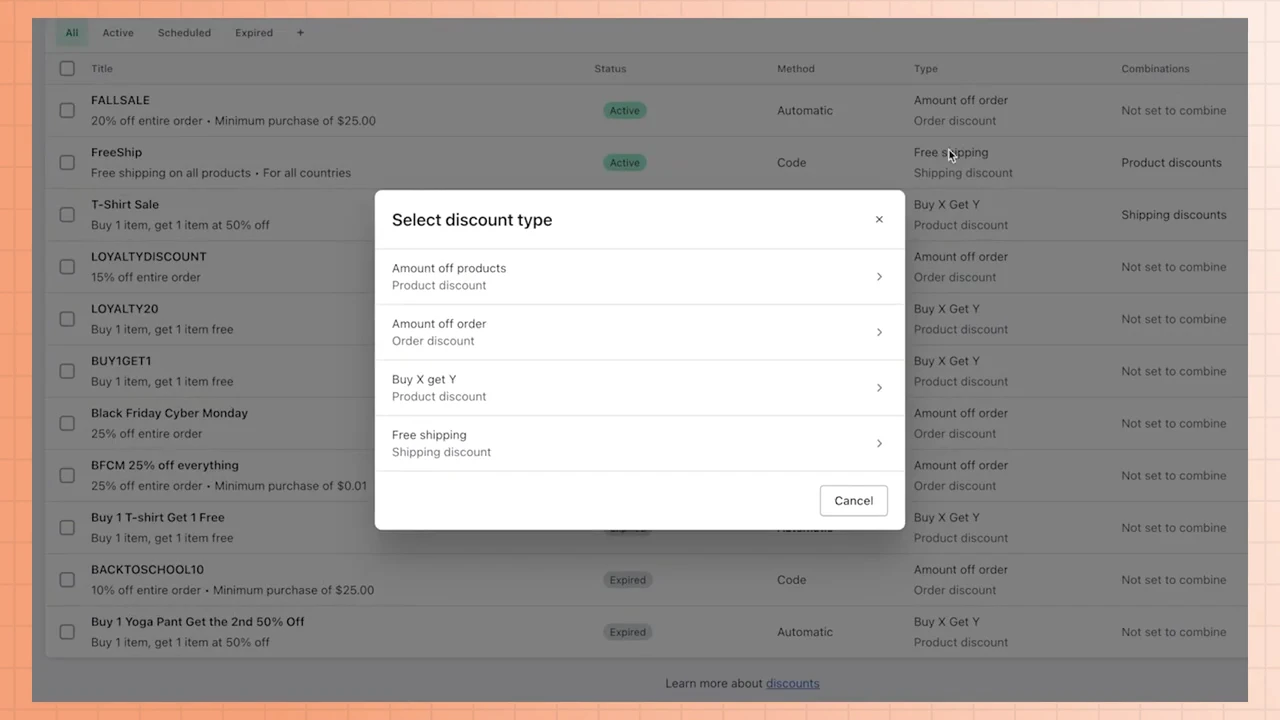
Choose how the discount applies from the list of discount types. Screenshot source Select the code method and set its value
Under Method, select Discount code. In Discount code, enter a simple name, such as WELCOME10, or click Generate code. In Value, choose Percentage and enter a percent, or choose Fixed amount and enter a monetary value. Avoid special characters in the code name so it can be used in checkout links.
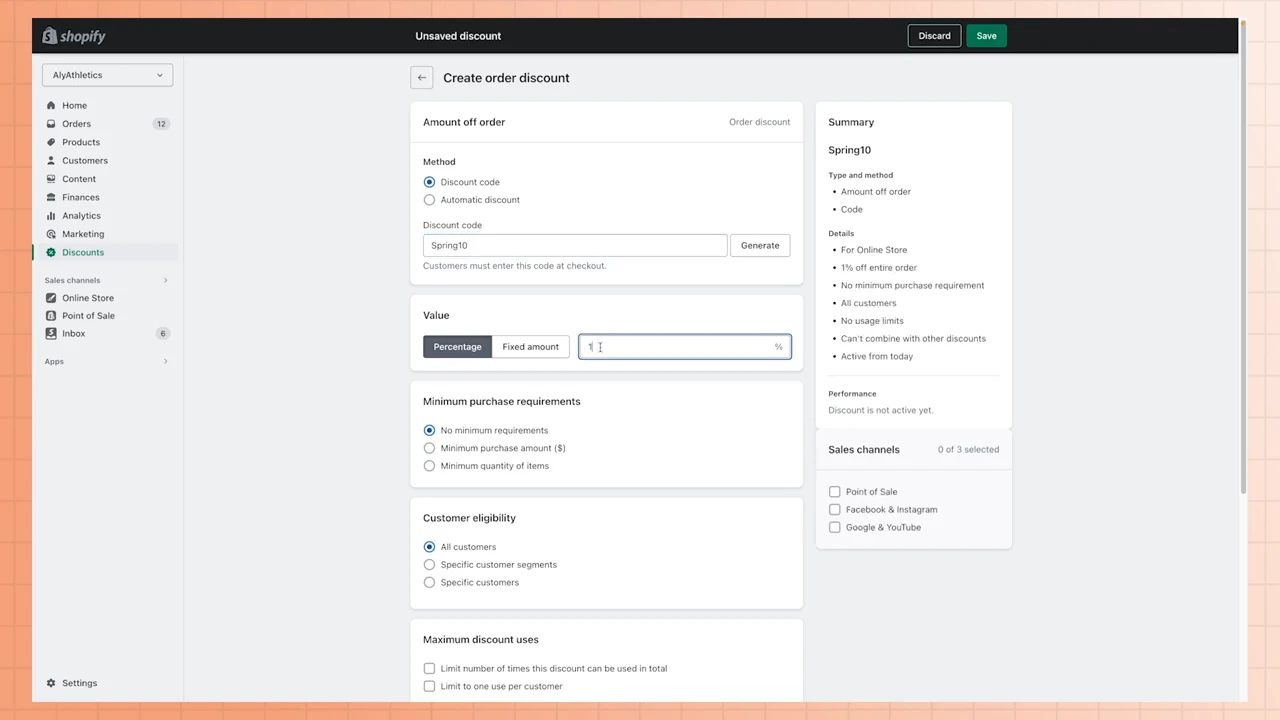
Select Discount code as the method, then choose the percentage or fixed amount and enter the value. Screenshot source Choose eligible products and minimums
For an amount off products discount, use Applies to to choose all products, specific products, or specific collections, then select the items or collection if prompted. If customers must meet a threshold, use Minimum requirements to choose a minimum purchase amount or minimum quantity. With a product-specific discount, only eligible products contribute to the minimum.
For a fixed amount off selected products, decide whether the value should apply once per order or across every eligible item. Shopify’s form includes an “Only apply discount once per order” choice for fixed-value product discounts. Without it, the discount can apply to all eligible products in the order. Check the cart behavior against the offer wording before publishing the code.
Set audience, usage, combinations, and dates
In Eligibility, choose All customers, specific customers, customer segments, or markets. Under Maximum discount uses, set a total-use limit or enable Limit to one per customer if appropriate. In Combinations, select any discount classes the code may combine with. In Active dates, set the start date and optionally click Set end date. Discount start and end times use the store’s configured time zone.
Set the active dates using the store’s configured time zone, not the audience’s assumed local time. For a one-day offer, Shopify allows the same calendar day for the start and end dates. When choosing customer segments, consider whether first-time buyers already have a customer profile. Shopify notes that new customers checking out for the first time are not included in a segment until after their first order is complete.
Save the code
Review the settings, then click Save. The saved code appears in Discounts. Share the code with its intended audience by email or on your online store. Customers enter a discount code at checkout to receive the offer.
How does this Shopify setup work in practice?
Worked example: configure a first-order code for a selected collection
A merchant wants to offer a 10 percent discount on a curated product collection during a targeted weekend promotion.
| Choice | Why it matters | How to check |
|---|---|---|
| Choose Amount off products and select the collection | The offer is limited to that collection rather than reducing the whole order subtotal. | Confirm the selected collection appears under Applies to. |
| Set Percentage to 10% | A percentage applies proportionally to eligible prices, which suits a promotion intended to scale with item price. | Review the displayed value and confirm the code form shows the intended percentage. |
| Set the intended customer eligibility | A customer segment may exclude first-time buyers who do not yet have a profile. Choose eligibility that matches the actual audience. | Check the eligibility summary and consider a first-time checkout test if new buyers should qualify. |
| Set the two-day active window in the store time zone | The store’s configured time zone determines when the discount starts and ends. | Compare the shown start and end dates with the intended campaign window in that time zone. |
| Test an eligible cart before sharing | A cart test can expose a mismatch in collection membership, eligibility, dates, or the displayed discount. | Apply the code to an eligible collection item and confirm the checkout reflects the intended offer. |
Test the coupon code across eligible and ineligible cart items to ensure price reductions apply strictly according to configured criteria.
How do you verify your result in Shopify?
Open the saved discount from Discounts and confirm its value, eligibility, limitations, and active dates. Then test the code in a checkout flow with an eligible cart before distributing it, and check that the displayed discount matches your intended offer.
| Step | What you should see |
|---|---|
| Choose the discount type | The amount-off discount form opens with configuration sections for the discount. |
| Select the code method and set its value | The code name and discount value appear in the form. |
| Choose eligible products and minimums | The intended products or collections and any minimum requirement are shown in the discount details. |
| Set audience, usage, combinations, and dates | The audience, use limits, combination settings, and active dates match the offer you intend to run. |
| Save the code | The saved discount appears in the Discounts list with the name and status you configured. |
Related Shopify guides include How to add or rearrange menus in Shopify and How to add product variants in Shopify.
Which official Shopify sources were checked?
Every step and limit in this Shopify guide was verified against official documentation on 21 Nov 2026 following how we check figures, alongside more walkthroughs in our Shopify tutorials hub:
How do you troubleshoot common Shopify issues?
Why is the code rejected for a product in the cart?
Check the Applies to selection, minimum purchase or quantity requirement, customer eligibility, and active dates. A code that exists but does not apply to the cart’s items can be rejected at checkout.
Can I change a discount’s type after saving it?
Shopify says discount settings can be edited except for the discount type. If you chose the wrong type, create a new discount with the intended type.
Why does a customer segment discount reject a first-time buyer?
Shopify says a new customer checking out for the first time does not yet have a customer profile for segment membership, so that customer may not qualify. If the promotion must include first-time buyers, review whether another available eligibility choice better matches the intended audience, then test with a first-time checkout.
 Reviewed byDanny Kirk
Founder of ReddiReach.
 Checked byAndrés Felipe
Digital designer and marketer.
Every figure is checked against the vendor's own page. Read our editorial standards.