
Key Takeaways
- Build custom sales orders in Shopify draft orders to prepare manual quotes, adjust line-item pricing, and send customer invoices.
- Require staff access to Orders in Shopify admin alongside verified product availability and customer contact information.
- Execute five structured steps to initiate a draft, insert line items, attach customer details, save the draft, and review totals.
- Verify draft details by reopening the saved order under Orders Drafts to confirm items, quantities, shipping rates, and calculated taxes.
Shopify draft orders allow merchants to assemble custom product orders, apply one-off discounts, and calculate taxes or shipping before sending an invoice. Saving the order as a draft holds customer specifications without prematurely finalizing payment or inventory transactions.
For plan limits and team seat pricing behind this workflow, read our Shopify review or connect Shopify to AI agents in Shopify API and MCP.
Key steps
What do you need before starting in Shopify?
Shopify requires the following workspace setup before you begin:
- You can access Orders in Shopify admin and create draft orders.
- Know which products and, if applicable, customer to include.
How do you complete the steps in Shopify?
Follow these 5 steps in Shopify in order:
Start a new draft
In Shopify admin, go to Orders > Drafts and click Create order. A new draft starts without order details, so you will add the information for this customer or sale.
Add products
In the Products section, click Product, search for the product or product bundle, select it, then click Done. Repeat if the order needs more items. If the sale is for something not listed as a product, Shopify also documents adding a custom item with a name, price, and quantity.
Before adding a custom item, decide whether it represents something that should be tracked as a regular product. A custom item is useful for a one-off service or charge that is not in your product list. Enter the agreed name, price, and quantity so the saved line item can be matched to the quote. For a stocked product, use the product picker so the draft uses the catalog item. Review each quantity against the customer’s request, especially when adding multiple items.
Add the customer and adjust order details
Add the customer if you know who the order is for. Review the order and add any relevant discount, custom line-item price, note, tag, tax setting, or market. For example, add a short note identifying a phone quote so you can recognize why the draft was created. If shipping rates depend on the customer’s location, add the customer and shipping address before choosing a location-based rate.
Treat the note as an internal reminder, not a substitute for the customer or address fields needed for fulfillment. If you are quoting delivery, enter the customer and shipping address before reviewing location-based rates. Check discounts and custom prices against the agreed quote, then inspect the displayed total. A note that explains why a price differs can help a colleague review it later.
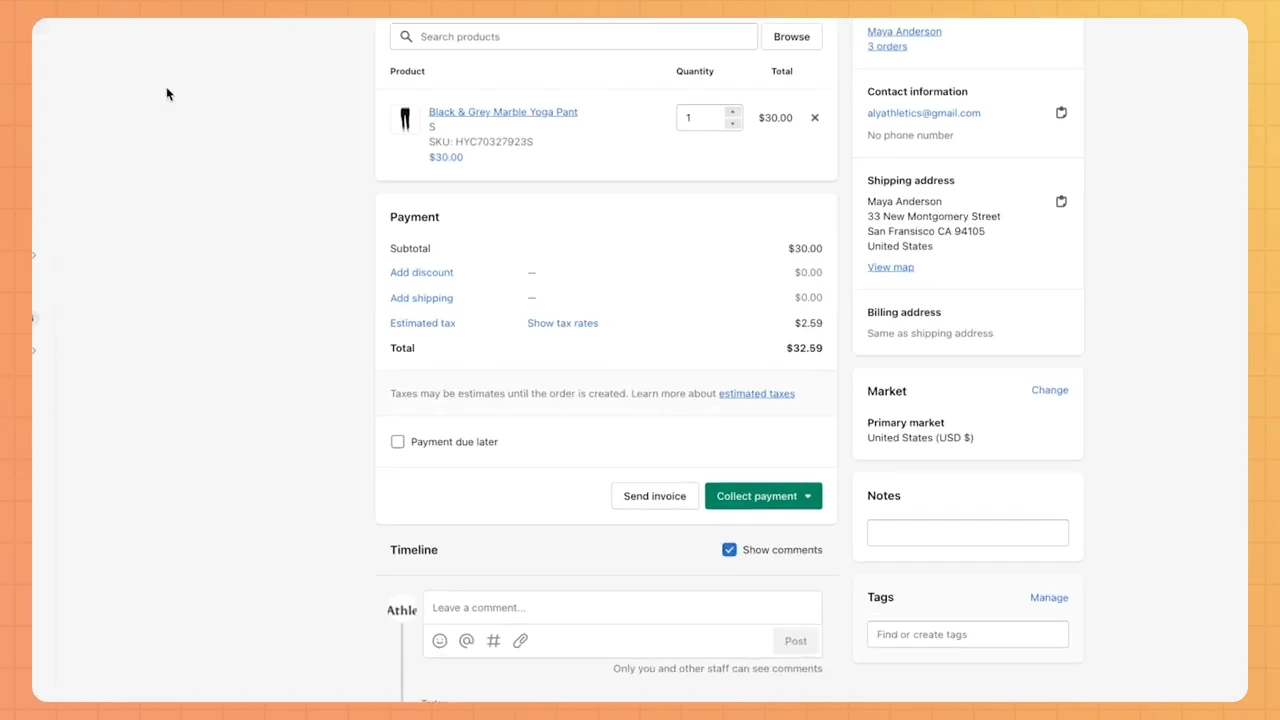
On the draft detail page, check the products, customer, shipping address, and order total before proceeding. Screenshot source Save the order as a draft
When the details are ready, choose the option to save the order as a draft. Shopify also offers other next steps, including sending an invoice, accepting payment, or setting payment terms. Select the draft option if you want to review or update the order later without sending it to the customer yet.
Consider inventory before leaving a draft open. Shopify documents an option to reserve draft-order items so other customers cannot purchase them. Reserve items when you have agreed to hold scarce stock, and avoid reserving them for an unconfirmed quote unless your store’s process allows that stock to be held. Confirm the intended reservation state in the draft before saving.
Reopen and review it
Return to Orders > Drafts and open the saved order. Check the customer, products, quantities, and total before you make a later decision to invoice or accept payment.
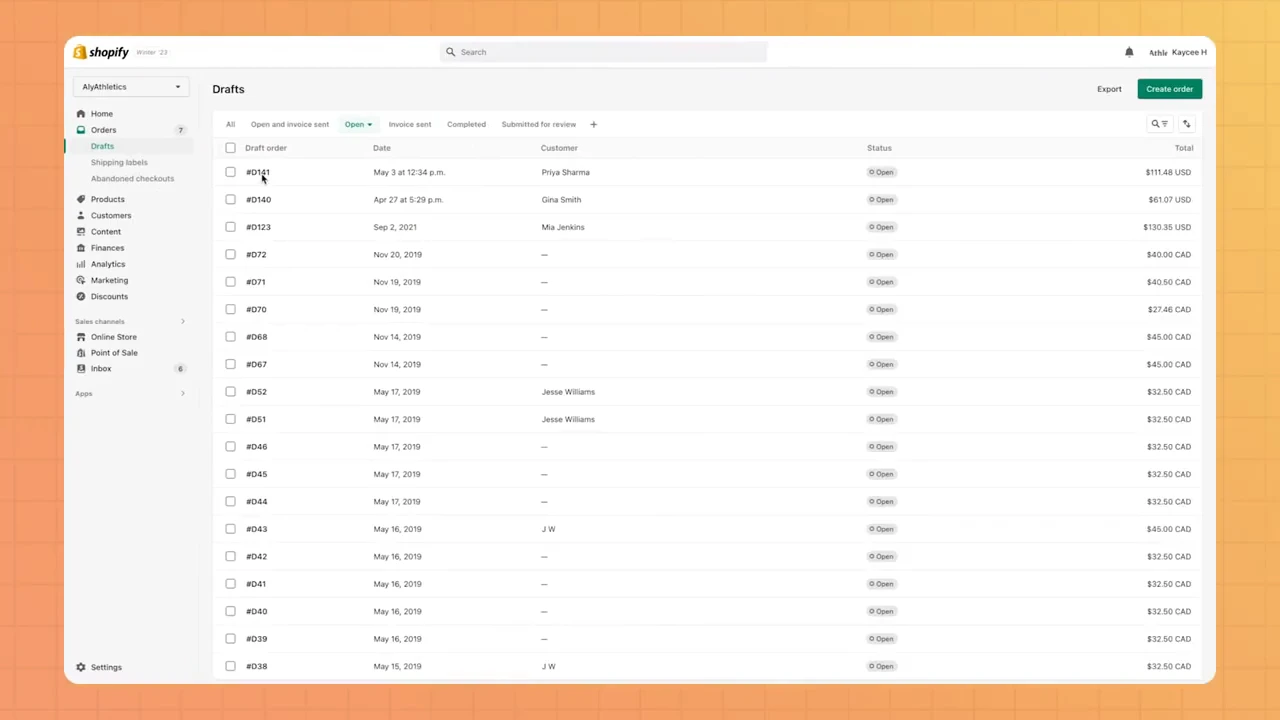
Reopen a draft from the Drafts list to verify it was saved for later. Screenshot source
How does this Shopify setup work in practice?
Worked example: a phone quote for a limited-stock hiking pack
A customer requests a phone quotation for an outdoor hiking backpack including specialized regional courier delivery.
| Choice | Why it matters | How to check |
|---|---|---|
| Add the catalog hiking pack | It is an existing stocked product, so the draft line item should use the store’s product record. | Confirm the correct pack and quantity of one appear in Products. |
| Add the customer and shipping address | A location-based shipping rate depends on the destination. | Confirm the customer and destination are shown before reviewing shipping. |
| Leave the agreed quote explanation in the note | The phone quote needs context for whoever reopens the draft. | Reopen the draft and confirm the note identifies the quote without replacing customer details. |
| Do not reserve the pack while the quote is unapproved | A stock hold could prevent another customer from buying it. Reserve only if the store has agreed to hold it. | Review the draft’s inventory reservation state before saving. |
Review saved order details including item quantities, customer address, and shipping fees before emailing an official invoice to the customer.
How do you verify your result in Shopify?
Confirm the saved order is listed under Orders > Drafts and reopen it to verify its line items and details. When you are ready, use the draft to send an invoice or complete the appropriate payment step.
| Step | What you should see |
|---|---|
| Start a new draft | A new draft order page opens with no pre-filled order details. |
| Add products | The intended items appear as line items on the draft order. |
| Add the customer and adjust order details | The customer and any intended adjustments are visible on the draft order. |
| Save the order as a draft | The draft order is saved and appears in Orders > Drafts. |
| Reopen and review it | The saved draft opens with the expected customer and line items. |
Related Shopify guides include How to add or rearrange menus in Shopify and How to add product variants in Shopify.
Which official Shopify sources were checked?
Every step and limit in this Shopify guide was verified against official documentation on 21 Nov 2026 following how we check figures, alongside more walkthroughs in our Shopify tutorials hub:
How do you troubleshoot common Shopify issues?
Can I save a draft without sending an invoice?
Yes. On the new draft order, choose the option to save it as a draft. It remains available from Orders > Drafts for later updates.
Why can’t I choose a location-based shipping rate?
Shopify requires a customer and shipping address on the draft order before you can use a location-based rate. Add the customer details, then review the available shipping options.
Why can the draft contain an item that is out of stock?
Shopify allows an item to be added to a draft even when available inventory is zero, but checkout can show an out-of-stock error if overselling is disabled. Recheck availability before invoicing and agree on a replacement or timing if the customer cannot complete checkout.
 Reviewed byDanny Kirk
Founder of ReddiReach.
 Checked byAndrés Felipe
Digital designer and marketer.
Every figure is checked against the vendor's own page. Read our editorial standards.