
Key Takeaways
- Construct combined AND and OR rule groups in Zapier Filter steps to control automated task execution based on incoming payload data.
- Confirm an active Zapier workflow containing preceding step output fields that supply the data points required for filter evaluations.
- Complete the five steps by defining pass logic, adding first rules, configuring connecting AND or OR operators, testing data, and adjusting mismatches.
- Verify filter behavior by testing sample payloads to ensure valid items pass successfully while non-conforming items stop at the filter step.
Zapier filters evaluate trigger data against configurable AND and OR rules to dictate whether an automated workflow continues execution. Testing complex multi-condition logic with realistic payload samples ensures Zaps process intended transactions while halting non-matching records.
For plan limits and team seat pricing behind this workflow, read our Zapier review or connect Zapier to AI agents in Zapier API and MCP.
Key steps
What do you need before starting in Zapier?
Zapier requires the following workspace setup before you begin:
- A Zap with a Filter step and fields available from the preceding step.
- The exact field types and example values you want the filter to evaluate.
- A representative test item whose expected pass or stop outcome you can state before running the test.
How do you complete the steps in Zapier?
Follow these 5 steps in Zapier in order:
Define the intended pass rule
Write down the conditions an item must meet before the Zap should proceed. Each Filter condition checks a field using a rule and value. The field type matters: text rules apply to text, number rules to numbers, date/time rules to dates, boolean rules to true or false values, and generic existence rules can apply to any field.
Decide whether the requirements are joined by AND or OR. AND means the item must meet the combined conditions. OR expresses an alternative. The screenshot shows two positive text Contains conditions joined with AND.
Add the first condition
In the Filter step, select the field from the preceding step, choose a rule that matches its data type, and enter the comparison value. For text, options include Contains, Exactly matches, Starts with, and others. For numbers, options include Greater than and Less than. Use date/time rules for dates and boolean rules for true or false.
Avoid comparing one type as another: the text rules do not apply to numeric or date data, and numeric rules expect values such as 1 or 100 rather than written number words.
Add the next condition and choose its connector
Add another condition when the filter needs a second check. Use the AND or OR control between the rows to express whether the checks are combined or alternatives. Verify the connector against your pass rule. The screenshot’s example uses AND between two Contains conditions.
For instance, a hypothetical text filter could check whether a field contains “apple” and whether another text field contains “whipped topping.” Those example values are illustrative only. Use values that match your own data and the decision you want the Zap to make.
Test with representative data
Run the Filter test using a sample that represents the case you expect to pass. Then test a case you expect to stop, if available. Check the result message rather than relying only on the condition labels.
The screenshot displays a sample-data test result saying the Zap would have continued. It also shows two positive Contains conditions joined by AND. That is a specific example outcome, not a guarantee for other data or configurations.
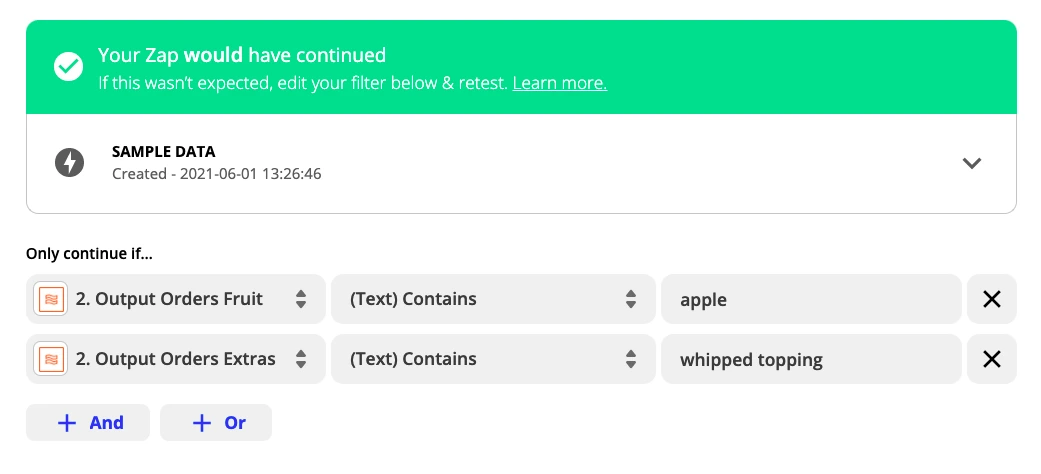
The test result and two-condition AND setup are visible. The pass message applies to the sample data shown. Screenshot source Correct mismatches and retest
If an item continues unexpectedly or stops unexpectedly, review the tested field values, selected rule types, comparison values, and AND or OR connector. Change the part that does not match the intended pass rule, then test again.
Keep in mind that a Filter stops further actions for items that do not pass. For line items, positive conditions and negative conditions have different continuation behavior, and the Filter does not remove line items from data passed to later actions.
How does this Zapier setup work in practice?
Worked example: validating multi-condition text criteria in an automated order filter
An automation engineer builds a multi-condition Zapier filter to ensure fulfillment workflows only trigger when specific product line and order status requirements match.
| Choice | Why it matters | How to check |
|---|---|---|
| Add the first text field and select Contains with the illustrative value “apple.” | Contains checks whether a text field includes the specified text. | Confirm the field is text and the comparison value matches the intended case. |
| Add the second text field and select Contains with “whipped topping.” | This adds the second required text check to the hypothetical rule. | Confirm the second row uses the intended text field and Contains rule. |
| Join the rows with AND. | The scenario requires both conditions, rather than either one, to be true. | Verify the connector between the conditions reads AND. |
| Test a sample that satisfies both conditions, then one that fails either condition. | These cases help reveal whether the configured test behavior matches the intended combined rule. | Read each test message and compare it with the expected pass or stop decision. |
Inspect the Zapier filter test response to verify the sample order passed and confirm the detailed logic explanation matches expected conditions.
How do you verify your result in Zapier?
A successful test confirms how the configured conditions behave for the sample data tested. A pass means that item can continue to the next action. A stopped item does not proceed further. Treat the sample as evidence for that case, then test other meaningful cases before relying on the filter’s behavior.
| Step | What you should see |
|---|---|
| Define the intended pass rule | You can state what should pass and what should stop before configuring the filter. |
| Add the first condition | The first row has the intended field, compatible rule type, and comparison value. |
| Add the next condition and choose its connector | The condition rows and their AND or OR connector reflect the intended logic. |
| Test with representative data | The test outcome matches the expected behavior for the representative item. |
| Correct mismatches and retest | The corrected filter produces the intended test outcome, and you understand whether non-passing items stop the Zap. |
Related Zapier guides include How to add a Zapier filter before an action and How to build a Zapier automation with a trigger and action.
Which official Zapier sources were checked?
Every step and limit in this Zapier guide was verified against official documentation on 21 Nov 2026 following how we check figures, alongside more walkthroughs in our Zapier tutorials hub:
How do you troubleshoot common Zapier issues?
Why did a test item continue when one line item did not pass?
For line items, if all filter conditions are positive, at least one line item must pass all conditions for the Zap to continue. Review the line items and the rules used.
Why did a negative line-item condition stop the Zap?
When any condition is negative, or all conditions are negative, all line items must pass all filter conditions for the Zap to continue. Check whether one line item failed a negative condition.
Why does my text condition not behave as expected on a number or date?
Text filters work with text data, not numbers or dates. Select a rule type that matches the field’s data type, then retest with representative values.
 Reviewed byDanny Kirk
Founder of ReddiReach.
 Checked byAndrés Felipe
Digital designer and marketer.
Every figure is checked against the vendor's own page. Read our editorial standards.