
Key Takeaways
- Identify high-impact featured snippet opportunities in Semrush Position Tracking to pinpoint queries where competing domains currently capture position zero.
- Maintain an active Semrush Position Tracking campaign configured with targeted location settings, tracked keywords, and a designated root domain.
- Follow the six steps by opening snippet reports, confirming date filters, reviewing opportunities, inspecting competitor content, tracking trends, and planning updates.
- Verify snippet status by reviewing the integrated SERP preview in Semrush to confirm the winning URL format and displayed content snippet.
Semrush Position Tracking identifies search queries where a tracked domain ranks highly but does not yet capture the featured snippet. Analyzing competitive snippet holders and SERP formats highlights immediate opportunities to optimize on-page content structures.
For plan limits and team seat pricing behind this workflow, read our Semrush review or connect Semrush to AI agents in Semrush API and MCP.
Key steps
What do you need before starting in Semrush?
Semrush requires the following workspace setup before you begin:
- A Semrush Position Tracking campaign with target keywords.
- The domain you want to assess selected as the target domain.
- A date range appropriate to the comparison you want to make. The report defaults to the past seven days, according to the supplied product information.
How do you complete the steps in Semrush?
Follow these 6 steps in Semrush in order:
Open the Featured Snippets report
In the relevant Position Tracking campaign, open Featured Snippets. The report summarizes tracked keywords that have featured snippets on their search results pages and the target domain’s presence in them.
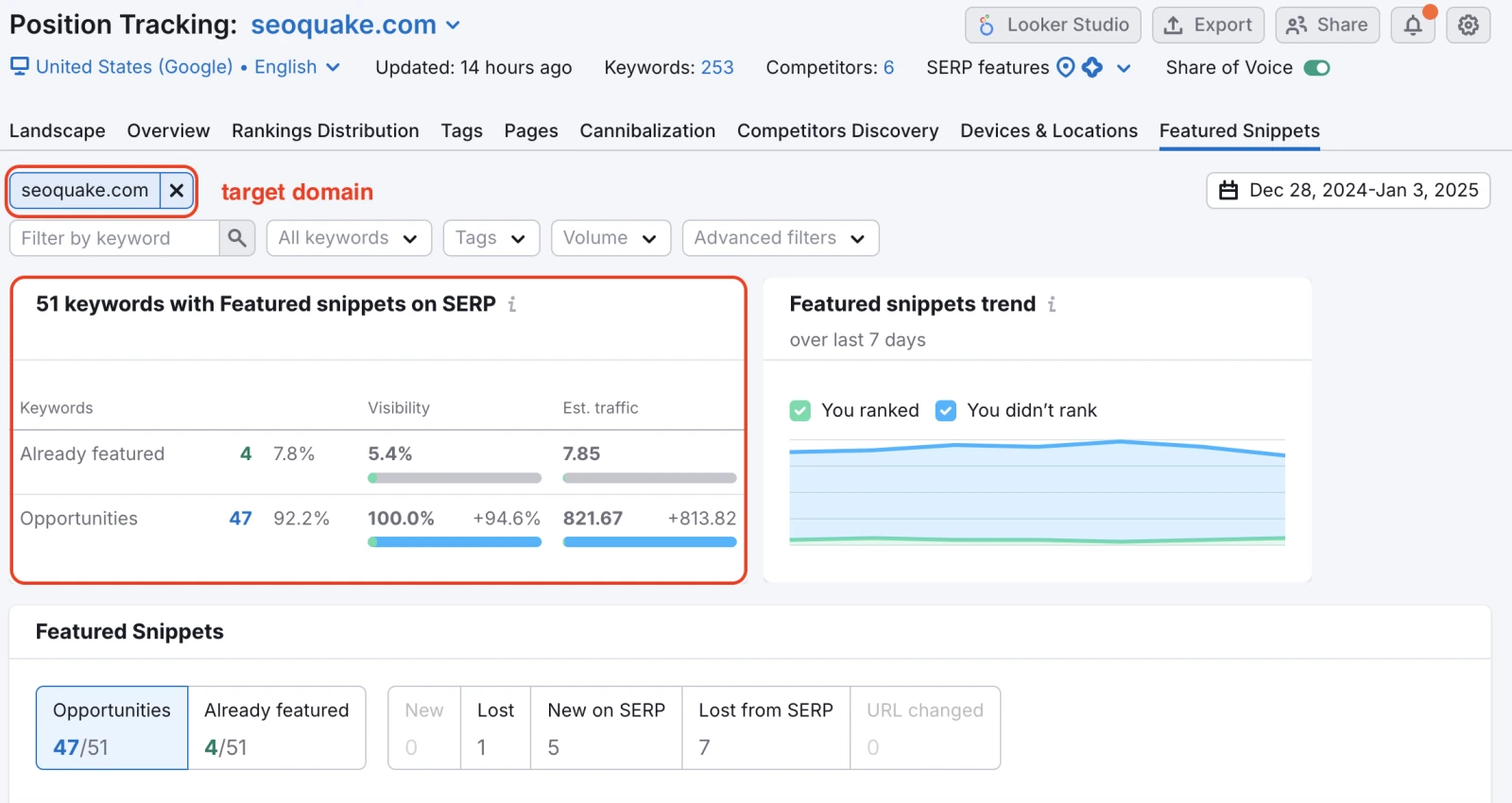
The visible report identifies the campaign context, the selected date range, summary metrics, and the Opportunities category. Screenshot source Confirm the target domain and date range
Check the target domain shown in the report before interpreting the data. The results are based on this domain. Changing it to a competitor lets you inspect that competitor’s presence among the campaign keywords. Review the calendar date range as well, since the New and Lost groups depend on its first and last days.
Start with Opportunities
Open Opportunities to see keywords that have a featured snippet but where the target domain is not featured. The report sorts these by the difference between the target domain’s organic position and the position of the URL currently in the snippet, so rows near the top can be useful starting points.
Inspect the competing result
For a promising row, compare the two positions and examine the page that currently holds the snippet. Consider how its answer is presented, such as whether it uses a list or concise sentences. To see the search results page, click the blue number in the row and choose View SERP.
Review changes across the date range
Use Already featured, New, Lost, New on SERP, Lost from SERP, and URL changed to understand the report’s different change patterns. For example, New and Lost compare the target domain’s snippet presence on the first and last days. URL changed flags cases where the target domain held a snippet on both dates but with different URLs.
Choose a content follow-up
Use the report observations to select a landing page and target keyword for an On Page SEO Checker campaign. Its SERP Features ideas can provide competitor analysis and tips for targeting a snippet. Treat the report’s traffic estimates as estimates: Est. Traffic potential concerns potential daily traffic if a snippet is acquired, while Est. Traffic gained estimates daily organic visits from a snippet already held.
How does this Semrush setup work in practice?
Worked example: analyzing competitive snippet opportunities for target content queries
An organic search manager examines Position Tracking reports in Semrush to identify queries where the brand ranks on page one but lacks the snippet.
| Choice | Why it matters | How to check |
|---|---|---|
| Keep the campaign’s own domain selected. | The report’s figures are based on the target domain, so this keeps the comparison aligned with the site being optimized. | The target-domain field shows the intended site. |
| Prioritize a row where the site’s organic position is closer to the snippet URL’s position. | The report sorts by this difference by default, which helps surface closer comparisons near the top. | Read both the You position and the snippet URL position before prioritizing. |
| Open the snippet URL and use View SERP for context. | Seeing the page format and search result helps the manager understand what currently occupies the snippet. | Record the answer structure and confirm the result in the SERP view. |
| Add the selected landing page and keyword to an On Page SEO Checker campaign. | This gives a focused next review using the supplied SERP Features ideas guidance. | The follow-up uses the same page and keyword as the opportunity row. |
Inspect the SERP snapshot for selected opportunities to evaluate whether tabular or list formatting is required to challenge the current snippet holder.
How do you verify your result in Semrush?
You have a prioritized set of tracked snippet opportunities, context on which URL currently holds each snippet, and a clear distinction between current presence, changes over the selected dates, and new or vanished SERP snippets. Use these as investigation signals, not as a guarantee that a page will win a snippet or receive a particular amount of traffic.
| Step | What you should see |
|---|---|
| Open the Featured Snippets report | The report shows its featured snippet summary and keyword categories. |
| Confirm the target domain and date range | The domain is the one you intend to assess, and the date range matches your comparison. |
| Start with Opportunities | You can identify a keyword, your position under You, and the current snippet URL and position under Who is in Featured snippet. |
| Inspect the competing result | You have noted the competing page’s format and verified what the snippet looks like in the SERP view. |
| Review changes across the date range | You can describe the selected category’s date-range comparison and whether it concerns the target domain or the SERP itself. |
| Choose a content follow-up | You have a specific page and keyword to investigate, or a reason to monitor the selected row instead. |
Related Semrush guides include How to add competitors in Semrush Position Tracking and How to build a Semrush My Reports report from a template.
Which official Semrush sources were checked?
Every step and limit in this Semrush guide was verified against official documentation on 21 Nov 2026 following how we check figures, alongside more walkthroughs in our Semrush tutorials hub:
How do you troubleshoot common Semrush issues?
Why does Opportunities show keywords where my site already ranks well?
The group includes keywords where a snippet exists but the target domain is not in it. Compare your position with the snippet URL’s position. The current holder may be outside the first or second organic position. Inspect the SERP and page format before deciding what to change.
Why did the New or Lost lists change after I adjusted the calendar?
Those categories compare snippet presence on the first and last days of the selected range. Set the date range you intend to analyze, then review the categories again.
Does Est. Traffic potential tell me how much traffic I will gain?
No. The supplied product description defines it as an estimate of daily traffic if the site acquires the snippet. Treat it as an estimate for prioritization, not a predicted outcome.
 Reviewed byDanny Kirk
Founder of ReddiReach.
 Checked byAndrés Felipe
Digital designer and marketer.
Every figure is checked against the vendor's own page. Read our editorial standards.