
Key Takeaways
- Diagnose and resolve execution errors using Zapier Zap History logs, then replay failed tasks to restore automated workflow operations.
- Ensure access to the Zapier account managing the affected Zap and confirm the target execution displays an Errored status.
- Execute the five steps by opening history, reviewing failed step error messages, checking payload logs, fixing root causes, and replaying runs.
- Verify the resolution by checking that the replayed run status transitions to Success and confirming data arrived in the connected destination app.
Zapier Zap History provides detailed diagnostic logs and error messages for troubleshooting failed automated task executions. Resolving underlying data or authentication issues enables users to replay failed runs directly without creating duplicate trigger events.
For plan limits and team seat pricing behind this workflow, read our Zapier review or connect Zapier to AI agents in Zapier API and MCP.
Key steps
What do you need before starting in Zapier?
Zapier requires the following workspace setup before you begin:
- A Zapier account with access to the Zap and its run history.
- The failed run should show Errored. Safely halted, On hold, and other unsuccessful statuses can have different causes and recovery steps.
How do you complete the steps in Zapier?
Follow these 5 steps in Zapier in order:
Open Zap History and find an errored run
In your Zapier account, open Zap History and look for the relevant run. Select a run whose status is Errored to open its run details. If the status says Safely halted, the Zap may have stopped intentionally, for example because a search step found no match. If it says On hold, check the hold reason and resolve that separately.
Record the run’s timestamp and status before changing anything. If the run is Safely halted or On hold rather than Errored, follow the status-specific path because the failed-step troubleshooting and replay flow may not apply.
Open the failed step’s troubleshooting guidance
In the run details, locate the errored step and click Troubleshoot. Review the AI-generated explanation and suggested steps. Treat the suggestions as a diagnosis to evaluate against the run data and your app’s behavior.
Treat the Troubleshoot guidance as a hypothesis. Compare it with the failed step’s app, inputs, and error text. A suggested fix that does not match the actual run data can send you toward the wrong account or field.
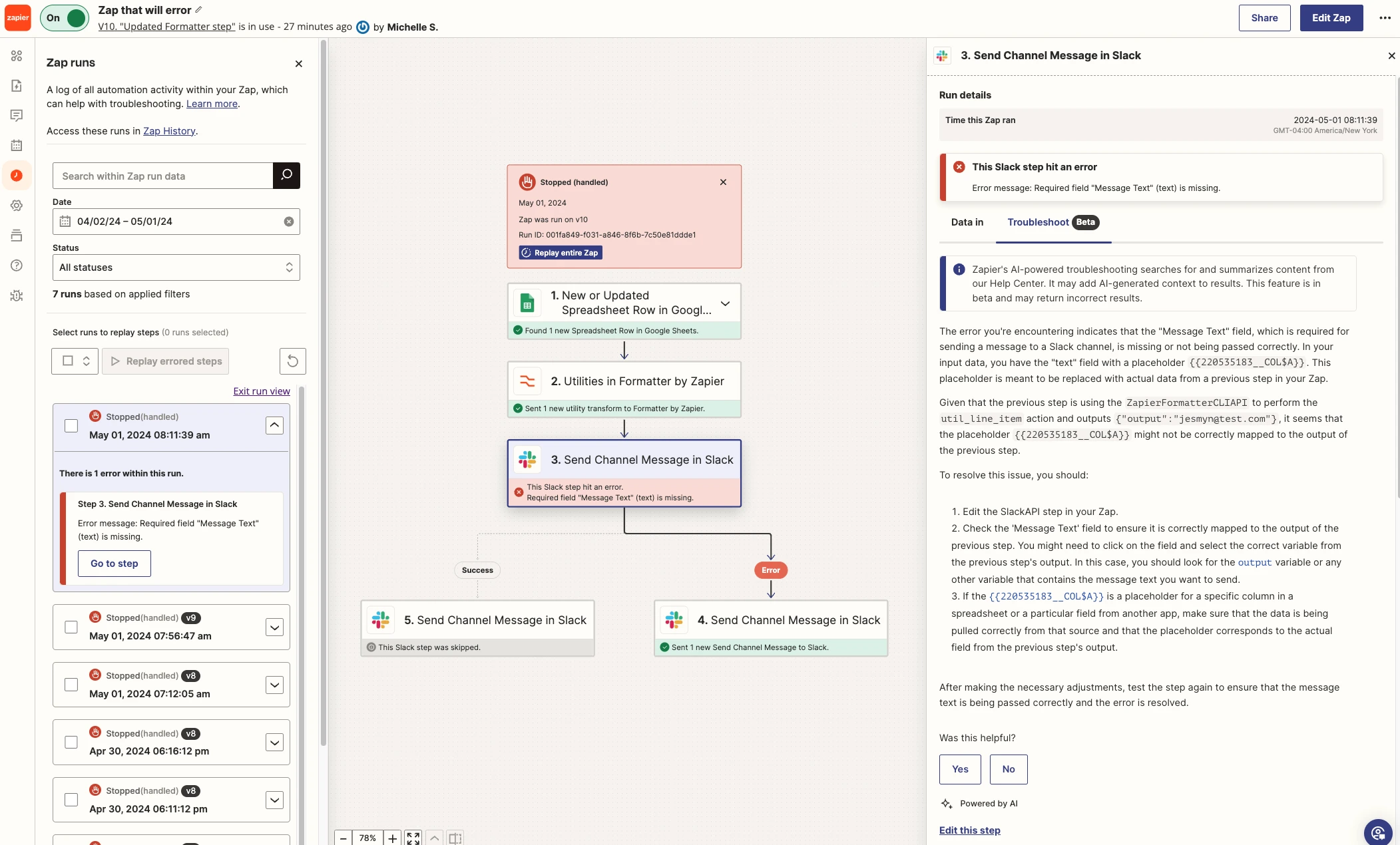
Open the failed step to see its error context and troubleshooting controls beside the workflow. Screenshot source Inspect the step logs if the cause is unclear
In the run details for the same failed step, click Logs. Review the HTTP status code, error message, and endpoint. Select the error log and expand Request information for details such as parameters and request body. For example, a 401 points toward an authentication problem, while a 403 can indicate that the connected account lacks permission. Logs may not be available if required information was missing.
Use Logs while they are available, and capture the exact error text and relevant request details for your diagnosis. Zapier says Logs are available for up to seven days after a step runs, including replay attempts, so an older run may no longer provide this evidence.
Correct the cause in the connected app or Zap
Use the error details to choose a fix. Reconnect an app account if authorization expired. Check permissions if the app refused the request. Review required values and formats if the request data was invalid. If the same error repeats, check whether Zapier or the connected app reports an outage.
Change the narrowest cause you have confirmed, such as reconnecting the specific account or correcting a required field. Before replaying, consider whether the step can create a duplicate in the destination app and inspect the run’s earlier successful actions.
Replay the failed task
After fixing the cause, return to Zap History and replay the failed task. The Zap must be on and replay limits may apply, including the run’s age and available tasks. Replay can retry the errored task without repeating earlier successful actions, so check the run details before choosing a broader replay.
After replay, check both the run status and the destination record. A successful replay status is useful, but confirming the expected data arrived helps catch mapping or duplicate-record problems.
How does this Zapier setup work in practice?
Worked example: troubleshooting an authentication failure on a spreadsheet update Zap
An administrator investigates a failed Zapier workflow where form submissions failed to create rows in a target spreadsheet due to an expired connection.
| Choice | Why it matters | How to check |
|---|---|---|
| Open the Errored run and select the spreadsheet step | The email step succeeded, so the spreadsheet action is the point to diagnose and recover. | Confirm the selected step is marked errored in the run details. |
| Compare the error with the Logs and request information | The exact error and request details help distinguish an authorization issue from a malformed row. | Confirm the log supports an account authorization problem. Logs may be unavailable for older steps. |
| Reconnect or correct access for the spreadsheet account | Address the specific authorization cause before retrying the action. | Where available, confirm the connected account can access the intended spreadsheet. |
| Replay the failed task | Replaying the errored task can retry the failed action without repeating the earlier successful email step. | Review the replayed run in Zap History and inspect the spreadsheet for the intended row. |
Replay the failed run in Zap History after reconnecting the account to verify the task completes with a green success indicator.
How do you verify your result in Zapier?
Confirm the replayed run completes successfully in Zap History and review the step details to make sure the intended data reached the connected app. If it fails again, use the new error details to narrow down what remains unresolved.
| Step | What you should see |
|---|---|
| Open Zap History and find an errored run | The selected run’s details page lists its steps and shows which step errored. |
| Open the failed step’s troubleshooting guidance | The Troubleshoot tab displays instructions for the selected errored step. |
| Inspect the step logs if the cause is unclear | You can identify the error message or status code, or confirm that the step has no log because required input was missing. |
| Correct the cause in the connected app or Zap | The specific account, permission, field value, format, or service issue identified in the run has been addressed. |
| Replay the failed task | Zap History shows the replay attempt and its resulting status. |
Related Zapier guides include How to add a Zapier filter before an action and How to build a Zapier automation with a trigger and action.
Which official Zapier sources were checked?
Every step and limit in this Zapier guide was verified against official documentation on 21 Nov 2026 following how we check figures, alongside more walkthroughs in our Zapier tutorials hub:
How do you troubleshoot common Zapier issues?
Why can’t I find a Troubleshoot tab?
Open a run marked Errored and select the specific errored step in its details. The Troubleshoot tab appears for the failed step. Other statuses, such as Safely halted or On hold, have different troubleshooting paths.
Should I replay a run before fixing the error?
Fix the cause first. A replay may hit the same error again. A one-time server error can be temporary, but repeated failures call for checking the app connection, permissions, input data, and possible outages.
Why are Logs missing for an older failed step?
Logs are available for up to seven days after a step runs, including replay attempts, and may take time to load. If the run is older, use the remaining run details and error message to diagnose it. For a new failure, inspect Logs promptly.
Why does replay say the Zap has diverged too much?
Zapier documents this when significant changes to the Zap, such as changing step order or apps, occurred after the run started. Review the current Zap against the original run. Zapier’s guidance for this error is to replay the entire Zap run, so first consider whether repeating earlier successful actions could have side effects.
 Reviewed byDanny Kirk
Founder of ReddiReach.
 Checked byAndrés Felipe
Digital designer and marketer.
Every figure is checked against the vendor's own page. Read our editorial standards.