
Key Takeaways
- Enable Reply Tracking inside the Tracking and Automations panel on each individual Campaign Summary page.
- Reply Tracking defaults to Off on every email, and these reply-viewing steps apply to accounts created before December 20, 2024.
- Four steps cover opening Campaign Settings, checking Reply Tracking, sending the email, and reading logged responses inside Campaign Reports.
- Confirm tracking works by opening Reports, selecting your campaign name, and clicking Replies on the left sidebar.
Enabling Reply Tracking in ActiveCampaign logs subscriber responses inside your campaign reports and forwards genuine replies straight to your From email address. Marketing teams turn it on per campaign when they want measurable response metrics alongside inbox forwarding.
For plan limits and team seat pricing behind this workflow, read our ActiveCampaign review or connect ActiveCampaign to AI agents in ActiveCampaign API and MCP.
Key steps
What do you need before starting in ActiveCampaign?
ActiveCampaign requires the following workspace setup before you begin:
- An ActiveCampaign account created before December 20, 2024 with Campaigns and Reports access
- A draft direct campaign or automation email ready to configure
- An active From email inbox to receive forwarded subscriber replies
How do you complete the steps in ActiveCampaign?
Follow these 4 steps in ActiveCampaign in order:
Open the Campaign Settings page for your email
Open the direct campaign or automation email you want to configure. Direct campaigns open straight to the Campaign Settings (Campaign Summary) page, while inside an automation email you click Next from the designer to reach Campaign Settings.
Reply Tracking is set to Off by default and must be turned on individually for each direct broadcast or automated email. Double-check your assigned From email address here, since ActiveCampaign forwards logged replies to that inbox.
Check Reply Tracking under Tracking and Automations
Scroll to the Tracking and Automations section on the Campaign Summary page and click the Reply Tracking checkbox. ActiveCampaign saves your change automatically as soon as the box is checked.
Enabling Reply Tracking keeps your visible From address intact while changing the Reply-To header to a system address (ending in acemsrvc.com). You cannot edit that tracking address unless you disable Reply Tracking, though configuring DKIM can help reduce yellow caution warnings in Gmail.
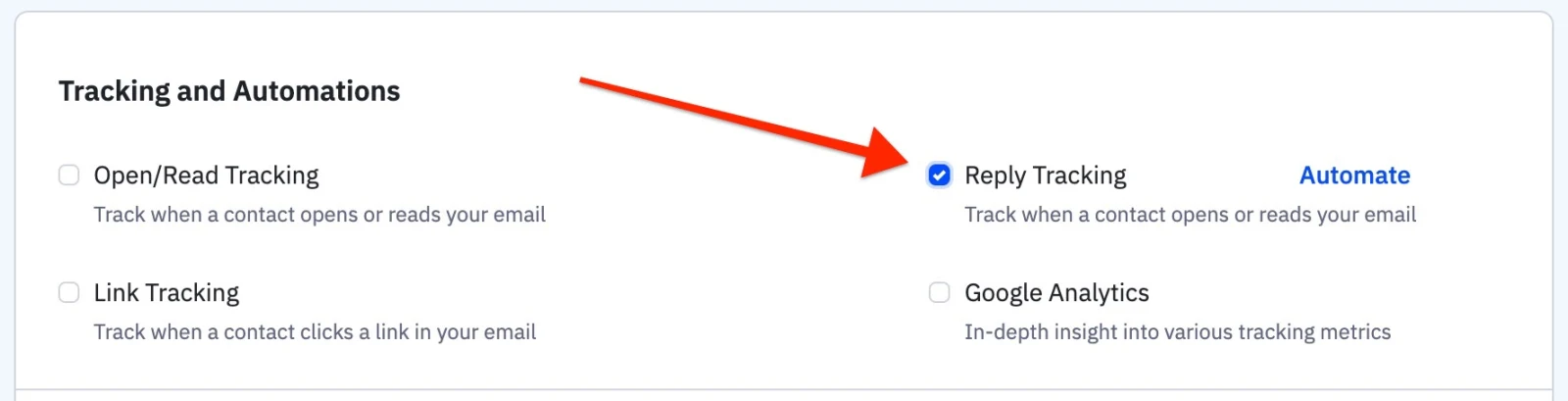
Check the Reply Tracking option inside the Tracking and Automations section so ActiveCampaign automatically saves reply logging. Screenshot source Send or schedule the campaign to start logging responses
Review your campaign details and click Send Now to send a direct campaign immediately, schedule it for later, or finish your automation email. Incoming responses are logged automatically in ActiveCampaign and forwarded right away to your From email address.
ActiveCampaign skips instant forwarding for common automated replies, including out-of-office and vacation responders, email change notices, ticket auto-replies, and human-verification prompts. Vacation responders route directly to the Return-path From address, and sending from a Gmail alias preserves the original To address on self-replies.
Read logged contact messages in Campaign Reports
Click Reports on the left menu, click your campaign's name, and select Replies on the left sidebar. Locate any contact who responded and click View Reply to inspect the full message text.
Reviewing Replies inside Reports lets teammates read qualitative subscriber feedback and track reply volume centrally without needing shared access to the sender's personal inbox.
How does this ActiveCampaign setup work in practice?
Worked example: Capturing webinar topic replies from a customer broadcast
A customer education lead sends a monthly broadcast inviting subscribers to reply with onboarding questions while logging engagement in ActiveCampaign Reports.
| Choice | Why it matters | How to check |
|---|---|---|
| Check Reply Tracking on Campaign Summary | Records responder names and messages in Reports while forwarding real questions to the From inbox. | Reply Tracking box is checked under Tracking and Automations. |
| Send from a primary DKIM-authenticated domain mailbox | Avoids Gmail alias self-reply quirks and reduces warning banners from the system Reply-To header. | Verified primary From address appears before clicking Send Now. |
| Review responses via Reports > campaign name > Replies | Lets teammates inspect replies via View Reply without out-of-office inbox clutter. | Responder rows and View Reply links populate inside Replies. |
Real customer questions forward cleanly to the education inbox while the team reviews all logged responses via View Reply in Campaign Reports.
How do you verify your result in ActiveCampaign?
Confirm Reply Tracking works by replying from an external test email and checking both your From inbox and Reports > campaign name > Replies. Next, open View Reply to follow up with engaged subscribers or refine calls to action on upcoming broadcasts.
| Step | What you should see |
|---|---|
| Open the Campaign Settings page for your email | The Campaign Summary page opens showing your sender details and the Tracking and Automations section. |
| Check Reply Tracking under Tracking and Automations | The Reply Tracking checkbox displays an active checkmark under Tracking and Automations. |
| Send or schedule the campaign to start logging responses | Your campaign moves to sent or scheduled status (or returns cleanly to the automation canvas). |
| Read logged contact messages in Campaign Reports | The Replies report lists responding contacts with a View Reply action displaying their message content. |
Related ActiveCampaign guides include How to create a welcome automation from scratch in ActiveCampaign and How to import pre-built automation recipes in ActiveCampaign.
Which official ActiveCampaign sources were checked?
Every step and limit in this ActiveCampaign guide was verified against official documentation on 27 Nov 2026 following how we check figures, alongside more walkthroughs in our ActiveCampaign tutorials hub:
How do you troubleshoot common ActiveCampaign issues?
Why did my campaign Reply-To address change to an acemsrvc.com address?
ActiveCampaign rewrites the Reply-To header to a system tracking address so replies can be logged in Reports before forwarding to your From address. You cannot customize that address without disabling Reply Tracking, though DKIM helps reduce yellow warning banners in Gmail.
Why was an out-of-office responder not forwarded by Reply Tracking?
Reply Tracking withholds automated messages like out-of-office notices, vacation responders, ticket acknowledgments, email change alerts, and spam challenges from instant forwarding. Many mail clients also send automatic vacation replies directly to the Return-path From address.
Why did a test reply behave unexpectedly when my From address is a Gmail alias?
When your From address is an alias of the receiving Gmail account, Gmail treats a reply to self as a follow-up to the original recipient and preserves the To address. Test from a separate non-alias email account to verify standard Reply-To forwarding.
 Reviewed byDanny Kirk
Founder of ReddiReach.
 Checked byAndrés Felipe
Digital designer and marketer.
Every figure is checked against the vendor's own page. Read our editorial standards.