
Key Takeaways
- Import official or community templates from the ActiveCampaign Marketplace and map them to your account through the Automation Import Wizard.
- Verify your ActiveCampaign plan supports the recipe's features beforehand so you avoid unavailable-feature alerts after importing.
- Five steps cover selecting a Marketplace recipe, logging in to import, opening Purchased templates, completing the Import Wizard, and customizing or sharing workflows.
- Confirm the import succeeded when the Automation Import Wizard finishes and opens the mapped workflow on your automation canvas.
Importing automation recipes from the ActiveCampaign Marketplace copies complete workflow steps, designed emails, and conditional logic into your workspace. Teams use pre-built recipes to launch repeatable sequences quickly and map account assets with the Automation Import Wizard.
For plan limits and team seat pricing behind this workflow, read our ActiveCampaign review or connect ActiveCampaign to AI agents in ActiveCampaign API and MCP.
Key steps
What do you need before starting in ActiveCampaign?
ActiveCampaign requires the following workspace setup before you begin:
- ActiveCampaign login credentials for the workspace where the recipe will run
- An ActiveCampaign plan supporting the actions and logic included in the recipe
- Existing lists, tags, sender details, or custom deal fields needed during wizard mapping
How do you complete the steps in ActiveCampaign?
Follow these 5 steps in ActiveCampaign in order:
Browse built-in templates or select a Marketplace recipe
Open the Automations overview page and click Create new automation to search built-in ActiveCampaign recipes by keyword or category, or visit the ActiveCampaign Marketplace and click a community or official recipe name to inspect its details.
Recipes bundle the workflow framework, designed campaign emails, and wait or branch logic. Check whether a community recipe is free or carries a creator-set fee, and confirm your plan supports its features to avoid post-import alerts.
Log in to import the recipe into your workspace
Click Login to import recipe on the Marketplace listing to open the login modal, then enter your ActiveCampaign account credentials.
Sign in with the credentials of your target production workspace rather than creating a new trial account so the template imports straight into the right library.
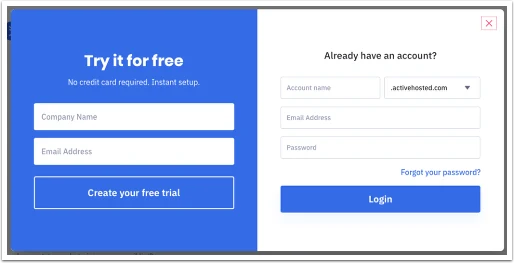
Sign in with your ActiveCampaign account credentials in the modal after clicking Login to import recipe. Screenshot source Open the imported template from Purchased automations
Click Go to your automations in the confirmation modal (or close it with the top-right X, click Create an automation on the Automations overview page, and open Purchased), then click the imported recipe.
Every Marketplace import is stored under the Purchased section of the Create an Automation modal, even free recipes, so your team can reuse the base template anytime.
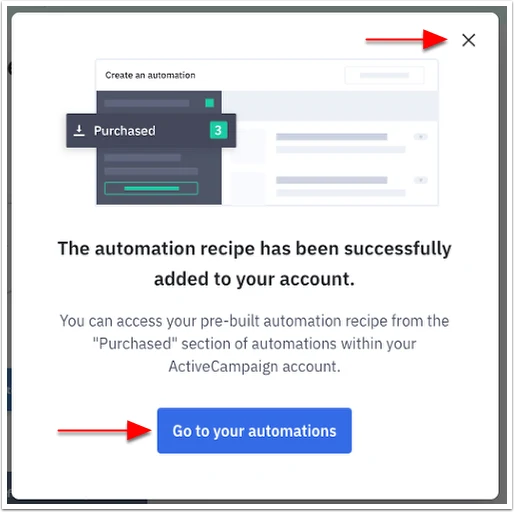
Click Go to your automations in the confirmation modal to open your account and configure the imported recipe. Screenshot source Map your lists, emails, and fields in the Import Wizard
Follow each step in the Automation Import Wizard to assign your sender details, lists, segments, email names, tags, forms, events, and custom deal fields used in Jump To or If/Else actions.
Read the author notes on every wizard step before advancing, as creators explain what copy is needed and how to adjust wait or branch rules for your funnel.
Customize the canvas or submit your own Marketplace recipe
Adjust email copy, designs, or conditions on the canvas to fit your business. To share a custom workflow back to the Marketplace later, generate an Automation Share URL via Share in your automation dropdown, visit the Marketplace, click Manage my recipes > Submit a recipe, enter the title, description, wizard notes, price, industry (Any if general), use case (Sales, Marketing, or Ops), up to three features, and a 1,000px-wide screenshot, and click Submit Automation.
An Automation Share URL freezes the workflow as it existed when generated; if you edit the automation later, create a new sharing link and update it under Manage My Recipes > Product Listings.
How does this ActiveCampaign setup work in practice?
Worked example: Importing a pipeline follow-up recipe for sales ops
A sales operations lead imports a free Marketplace follow-up recipe to send timed deal emails without building branches from scratch.
| Choice | Why it matters | How to check |
|---|---|---|
| Click Login to import recipe with workspace credentials | Copies the automation framework, campaigns, and wait logic into the live account. | Confirmation modal displays Go to your automations. |
| Launch template from Create an Automation > Purchased | Starts the Automation Import Wizard from the stored Marketplace template. | Wizard opens with mapping steps and author notes. |
| Map sender details, target list, and custom deal field | Replaces recipe placeholders inside emails and If/Else conditions. | Canvas loads with active account fields and no plan alerts. |
The lead updates the email copy on the canvas, confirms all If/Else deal conditions reference live fields, and activates the sequence.
How do you verify your result in ActiveCampaign?
Verify every trigger, email, and conditional node on the canvas references your live lists, tags, and sender info rather than placeholders. Next, tailor the imported email designs to your brand voice before setting the automation active.
| Step | What you should see |
|---|---|
| Browse built-in templates or select a Marketplace recipe | The Marketplace recipe page opens displaying the Login to import recipe button. |
| Log in to import the recipe into your workspace | The page reloads with a confirmation modal stating the recipe has been added to your account. |
| Open the imported template from Purchased automations | Selecting the recipe under Purchased opens the Automation Import Wizard. |
| Map your lists, emails, and fields in the Import Wizard | Finishing the wizard opens the mapped automation on your ActiveCampaign canvas. |
| Customize the canvas or submit your own Marketplace recipe | Your tailored automation saves cleanly on the canvas ready for final activation. |
Related ActiveCampaign guides include How to create a welcome automation from scratch in ActiveCampaign and How to enable and view campaign Reply Tracking in ActiveCampaign.
Which official ActiveCampaign sources were checked?
Every step and limit in this ActiveCampaign guide was verified against official documentation on 27 Nov 2026 following how we check figures, alongside more walkthroughs in our ActiveCampaign tutorials hub:
How do you troubleshoot common ActiveCampaign issues?
Where do free Marketplace recipes show up after importing into ActiveCampaign?
All imported Marketplace templates appear under the Purchased section of the Create an Automation modal, even when downloaded for free. Open Automations, click Create an automation, and check Purchased to launch it.
What happens if a recipe includes features unavailable on my ActiveCampaign plan?
Feature access inside imported recipes depends on your subscription plan. ActiveCampaign shows an alert right after import if unavailable features are present so you can swap or remove those actions.
Why did edits to my automation not appear on my published Marketplace listing?
An Automation Share URL captures a static snapshot of your workflow at the moment you create the link. Generate a new Share URL from your updated automation and replace the link under Manage My Recipes > Product Listings.
 Reviewed byDanny Kirk
Founder of ReddiReach.
 Checked byAndrés Felipe
Digital designer and marketer.
Every figure is checked against the vendor's own page. Read our editorial standards.