
Key Takeaways
- Track search positions in Ahrefs Rank Tracker by submitting target search terms alongside specific geographical regions.
- Verify that an Ahrefs project exists and that sufficient tracked-keyword slots remain available in the account allowance.
- Follow four clear steps to open the Keywords report, launch the input modal, insert terms, and assign location settings.
- Confirm new queries appear in the Ahrefs Rank Tracker table showing assigned target locations and initial tracking dates.
Add keyword lists and geographical locations to an Ahrefs Rank Tracker project to monitor search engine visibility over time. Each unique keyword and location combination consumes tracked-keyword capacity within your Ahrefs subscription allowance.
For plan limits and team seat pricing behind this workflow, read our Ahrefs review or connect Ahrefs to AI agents in Ahrefs API and MCP.
Key steps
What do you need before starting in Ahrefs?
Ahrefs requires the following workspace setup before you begin:
- An Ahrefs project with Rank Tracker set up.
- The keywords you want to monitor and the country or local area to track.
How do you complete the steps in Ahrefs?
Follow these 4 steps in Ahrefs in order:
Open the project’s Keywords report
From the Ahrefs Dashboard, find the project you want to update. Open its Rank Tracker view and select Keywords to see the current tracked terms. Check that you have the right project before adding anything.
Confirm the project represents the site or business whose rankings you need. A keyword added to a different project consumes a separate keyword-location-project combination, even if the phrase and location match another project.
Open Add Keywords
In the Keywords report, select Add Keywords. In the location selector, keep the existing locations or add another location if you want to track rankings there too. For a local business, choose the relevant country and then the city or other available local area.
Choose locations based on where the search performance needs to be monitored. Adding a second location is useful for a genuine geographic comparison, but each keyword-location combination uses tracked-keyword capacity.
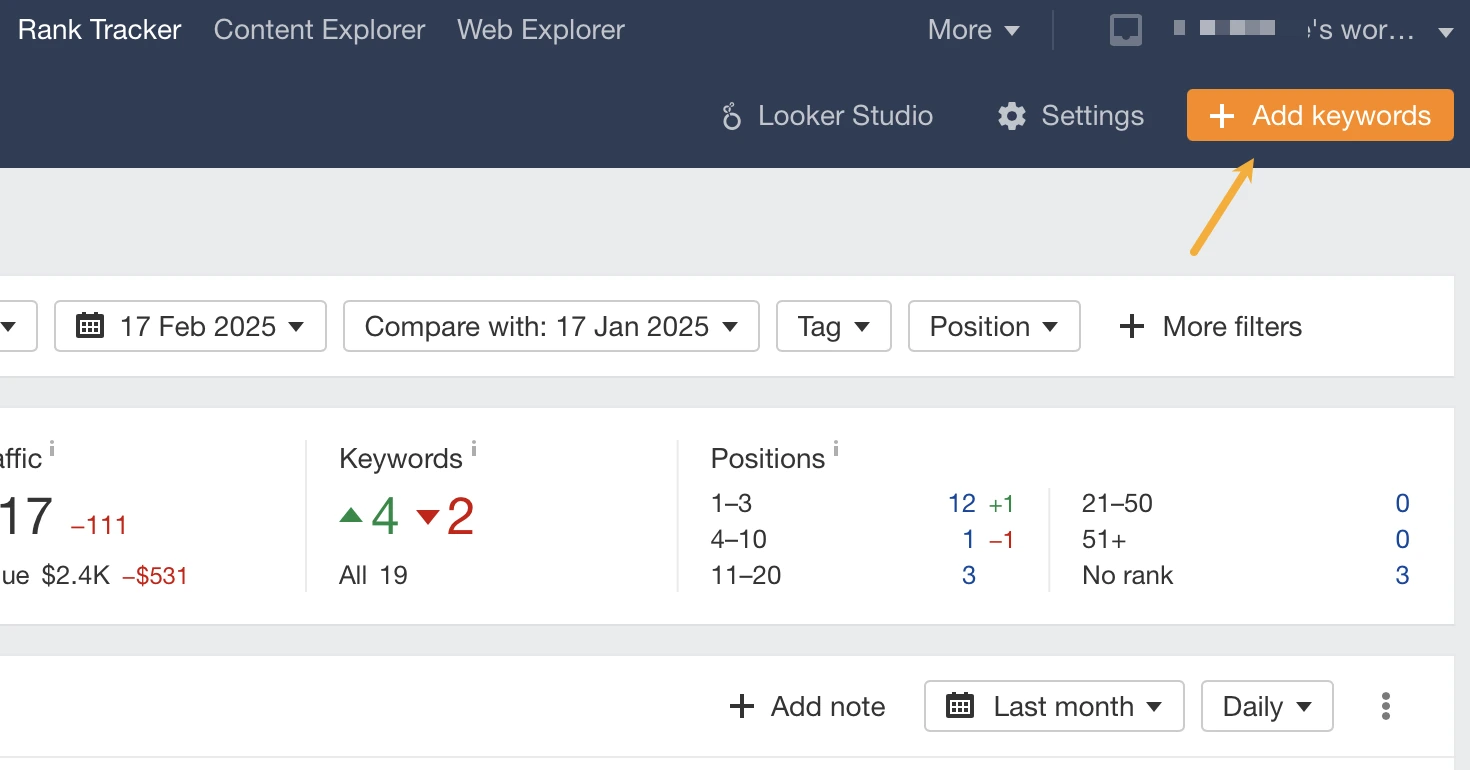
The Add keywords button is at the top right of Rank Tracker. Screenshot source Enter the keywords
Type or paste the keywords into the entry field, separating each with a comma. For example, you could enter emergency plumber, drain repair for a plumbing project. If you want the same terms tracked in multiple locations, include those locations in the selection before submitting.
Before pasting, remove accidental duplicate phrases and separate entries with commas. If a phrase is meaningful in two locations, retain it once in the entry and select both locations rather than treating it as two different keywords.
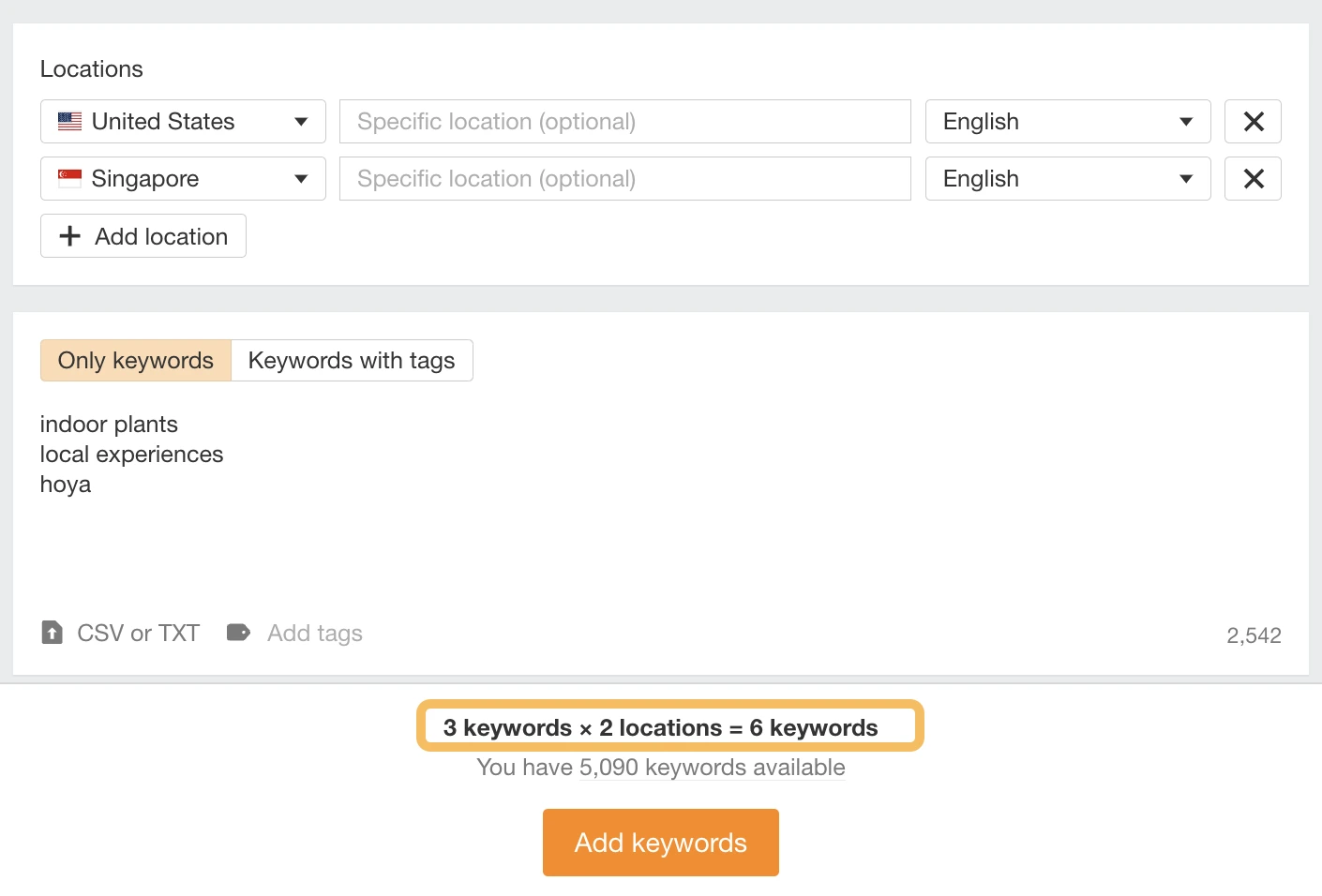
Choose the tracking locations above the keyword list. Check the total above Add keywords. Screenshot source Add the keywords and review the allowance
Select Add keywords. Ahrefs displays the number of keywords being added beside the button. Review that count before submitting. Each keyword tracked in one location in one project counts as one tracked keyword, so multiple locations increase the total.
Compare the displayed count with the intended keyword and location combinations before submitting. If it exceeds the available allowance, review the location selection and existing project usage. Excess keywords may be frozen or incur charges when Pay-as-you-go is enabled.
How does this Ahrefs setup work in practice?
Worked example: track service searches in two cities
A local service company tracks regional queries across two metropolitan areas by adding identical keyword lists paired with distinct municipal locations in Ahrefs.
| Choice | Why it matters | How to check |
|---|---|---|
| Use the company’s existing Rank Tracker project | This keeps the terms with the project already monitoring the relevant website. | The Keywords report shows the intended project. |
| Select City A and City B | The comparison is useful only if both actual service areas matter to the business. Each selected location increases the tracked combinations. | Both intended locations appear selected. |
| Enter “emergency plumber, drain repair” | These two illustrative phrases cover distinct services without adding unrelated queries. | The entry area contains both phrases, comma-separated. |
| Review the displayed count before adding | Two phrases across two locations would represent four keyword-location combinations for this project, if none are already accounted for. | The displayed number agrees with the intended additions. |
The target phrases appear in the Ahrefs Rank Tracker table under each assigned city, confirming independent tracking for both geographic targets.
How do you verify your result in Ahrefs?
Return to the project’s Keywords report and confirm the added terms appear in the tracked-keyword table. Use the list to monitor their positions for the selected location. If a term is missing, check the project and location selection first.
| Step | What you should see |
|---|---|
| Open the project’s Keywords report | The project’s tracked-keyword table is visible. |
| Open Add Keywords | The keyword entry area is open and the intended location is selected. |
| Enter the keywords | Each intended keyword appears in the entry area, separated by commas. |
| Add the keywords and review the allowance | The displayed keyword count matches your intended keyword and location combinations. |
Related Ahrefs guides include Ahrefs Link Intersect guide and Find broken internal links in Ahrefs Site Audit.
Which official Ahrefs sources were checked?
Every step and limit in this Ahrefs guide was verified against official documentation on 21 Nov 2026 following how we check figures, alongside more walkthroughs in our Ahrefs tutorials hub:
How do you troubleshoot common Ahrefs issues?
Can I add another location to keywords I already track?
Yes. In Add Keywords, add the location and submit the keyword again. Ahrefs counts each keyword-location combination separately.
Why are some added keywords frozen?
Ahrefs says keywords above your tracked-keyword allowance may be frozen, or may incur charges if Rank Tracker Pay-as-you-go is enabled. Check the usage count shown in the add flow and your account’s Limits and Usage settings.
Why is the displayed addition count higher than the number of phrases I entered?
Rank Tracker counts each keyword in each selected location within the project. Review the location selection and compare the displayed count with the combinations you intended before submitting.
 Reviewed byDanny Kirk
Founder of ReddiReach.
 Checked byAndrés Felipe
Digital designer and marketer.
Every figure is checked against the vendor's own page. Read our editorial standards.