
Key Takeaways
- Track industry brands inside AI Peekaboo by selecting entities identified in model responses or adding custom domain profiles.
- Ensure an active AI Peekaboo brand workspace is configured with existing prompt runs before linking competitor profiles.
- Execute four structured steps to access competitor settings, review detected brands, add targets, and verify monitoring parameters.
- Confirm the newly added company appears on your AI Peekaboo dashboard with benchmark scoring calculated against your brand.
Add competitor brands to AI Peekaboo to monitor how external brands perform across tracked prompts and model answer generations. Benchmarking these entities reveals relative visibility trends across leading generative search and conversational platforms.
For plan limits and team seat pricing behind this workflow, read our AI Peekaboo review or connect AI Peekaboo to AI agents in AI Peekaboo API and MCP.
Key steps
What do you need before starting in AI Peekaboo?
AI Peekaboo requires the following workspace setup before you begin:
- Open the AI Peekaboo workspace and brand you want to manage.
- Have tracked prompt answers available to see brands already named, or know the competitor’s name and domain for manual entry.
How do you complete the steps in AI Peekaboo?
Follow these 4 steps in AI Peekaboo in order:
Open the competitor controls
In the dashboard sidebar, open Competitors. Choose Add competitor to open the add dialog. The dialog lets you add a brand from Brands in AI Answers, AI Suggestions, or Manual.
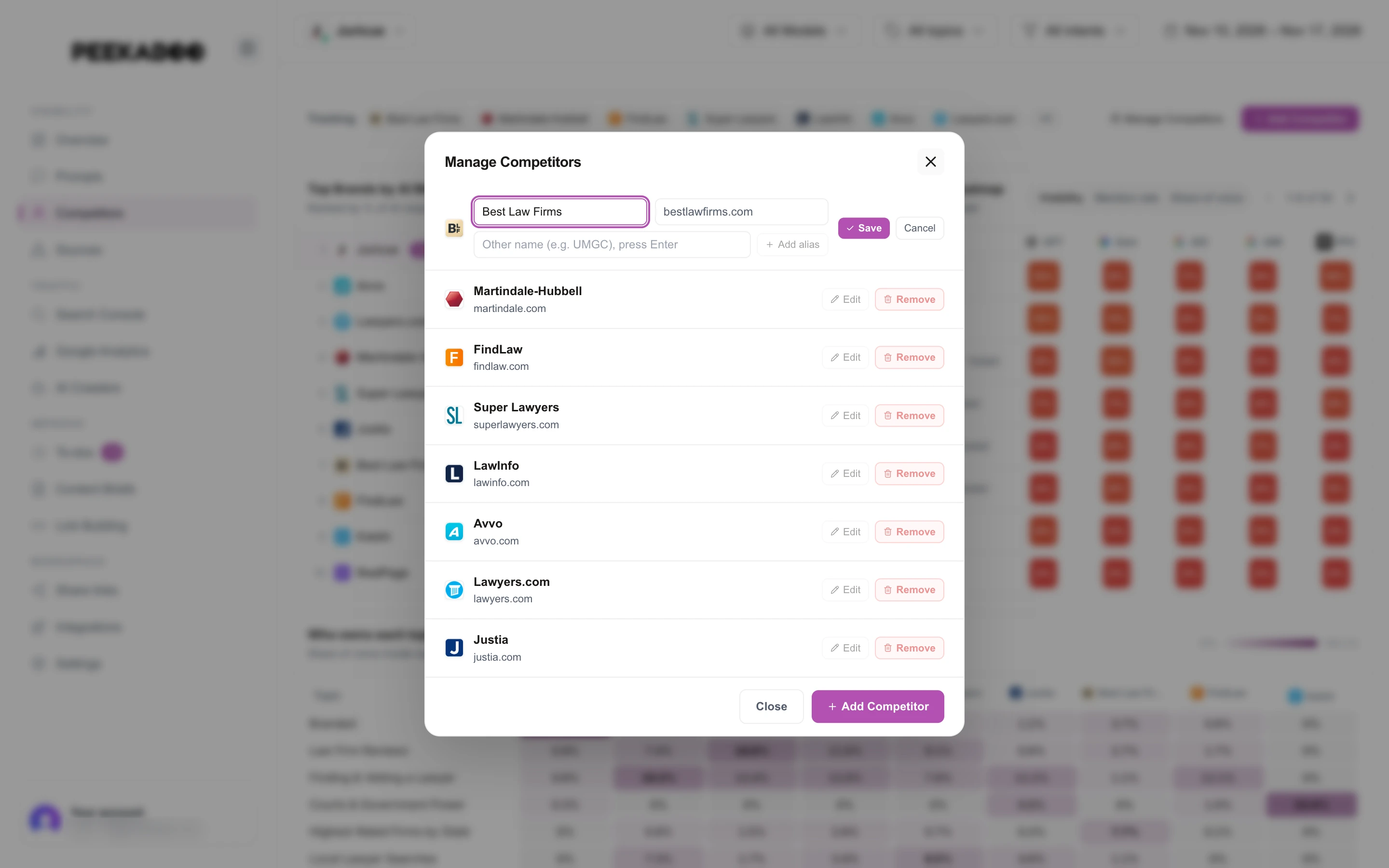
The Manage competitors panel lists brands and gives you a control to add another. Screenshot source Review brands already appearing in answers
Choose Brands in AI Answers to see real brands detected in your tracked prompts’ AI responses that you have not added yet. For example, if an answer names another project management tool, check whether it belongs in your comparison set before selecting it. This option is useful when you want to track brands AI is already surfacing in your category.
Treat Brands in AI Answers as evidence that a brand appeared in your tracked responses, not automatic proof that it competes for the same customers. For a project management product, a broad collaboration platform may be mentioned alongside direct alternatives. Check whether the brand offers a comparable product before adding it, and keep adjacent brands separate if they would distort the comparison.
Add a relevant brand
Select a suitable brand from Brands in AI Answers to add it. If you want suggestions instead, choose AI Suggestions and review each proposed brand and its justification. You can regenerate the suggestions if the first set is not a fit. To add a brand you already know, choose Manual and enter its name and domain.
When using Manual, enter the brand name and domain that identify the actual competitor, rather than a parent company or unrelated regional site. If choosing an AI Suggestion, read its justification against your category and audience. A relevant name with a mismatched domain can make later comparisons confusing, so verify the accepted entry in the list.
Review the tracked competitor
Return to the competitor list and confirm the new brand is present. Competitors can be edited or removed later. If the workspace is free and has no subscription, it supports up to three tracked competitors, so check the list before adding more.
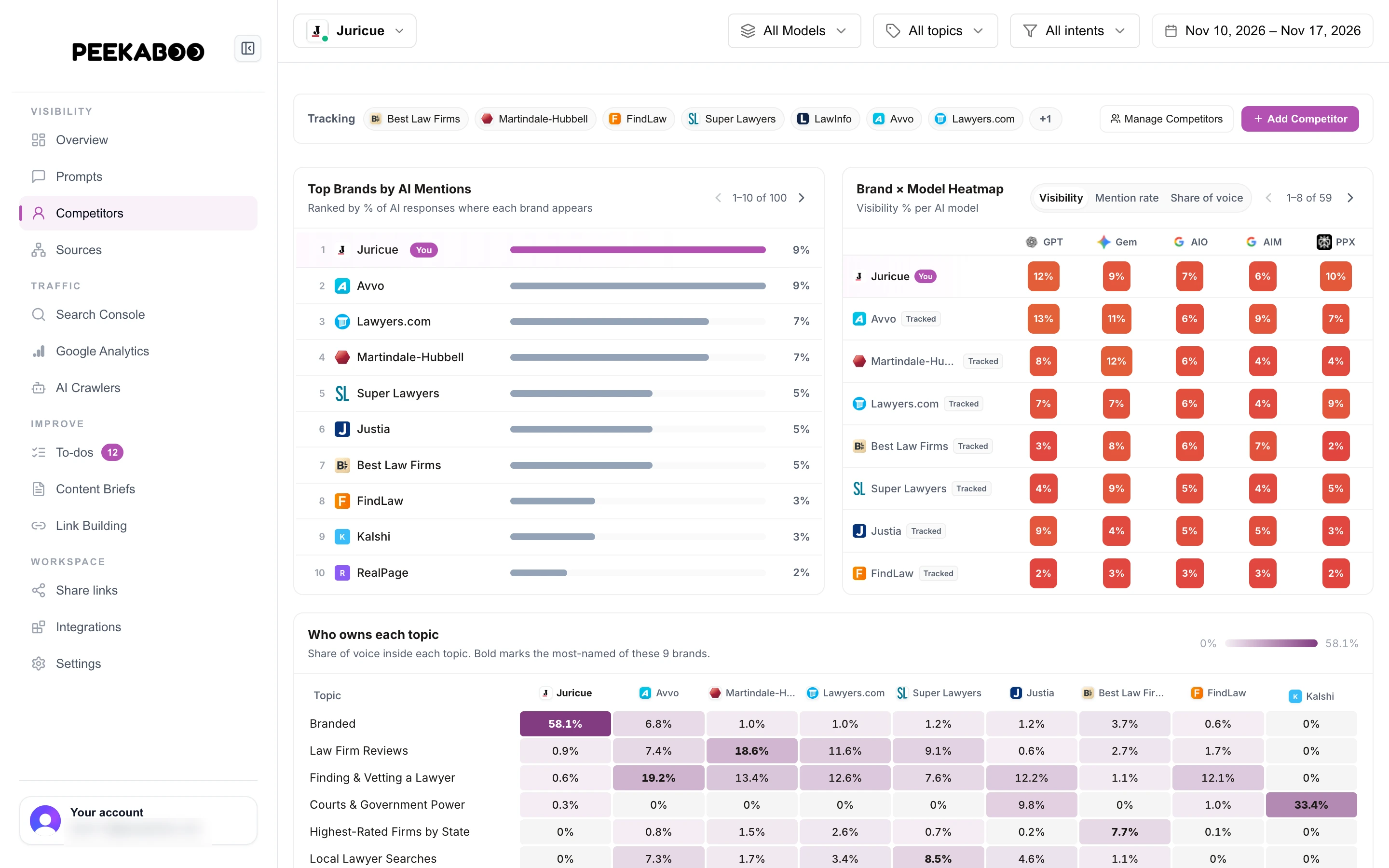
After adding the competitor, look for it in the Competitors report and compare the visibility chart and model heatmap. Screenshot source
How does this AI Peekaboo setup work in practice?
Worked example: choose a direct competitor for comparison
A software team using AI Peekaboo identifies a competing company frequently cited in generative answers and adds it as a benchmark brand.
| Choice | Why it matters | How to check |
|---|---|---|
| Review the answer where the brand appeared | The context can show whether it was recommended as a direct substitute or merely mentioned as an adjacent tool. | The reviewer records the prompt and the brand’s role in the response. |
| Compare the brand’s product with the tracked product | A similar use case makes the competitor comparison more meaningful. | The reviewer can identify a concrete overlapping job customers use both products to do. |
| Select the direct rival from Brands in AI Answers if listed | It appeared in actual tracked answers and fits the comparison set. | The dialog accepts the selection and the brand appears in the tracked list. |
| Keep the broader platform out unless the comparison goal includes adjacent tools | Including an adjacent brand could make relative visibility harder to interpret. | The team documents the comparison scope and verifies only intended brands are tracked. |
The brand appears in AI Peekaboo tracking tables, allowing the team to measure citation frequency across shared prompt sets.
How do you verify your result in AI Peekaboo?
Confirm the new brand appears in the Competitors list. Use the comparison in your dashboard to see how it performs on the same tracked prompts and scoring process as your own brand.
| Step | What you should see |
|---|---|
| Open the competitor controls | The add dialog displays the three competitor entry options. |
| Review brands already appearing in answers | The brand list shows brands detected in your answers that are not already tracked. |
| Add a relevant brand | The chosen brand is accepted by the dialog and appears in the tracked list. |
| Review the tracked competitor | The added brand appears in the competitor list. If the free workspace is at its three-brand limit, the list or dialog indicates the limit. |
Related AI Peekaboo guides include Build a prompt list in AI Peekaboo and Customize the AI Peekaboo Overview.
Which official AI Peekaboo sources were checked?
Every step and limit in this AI Peekaboo guide was verified against official documentation on 21 Nov 2026 following how we check figures, alongside more walkthroughs in our AI Peekaboo tutorials hub:
How do you troubleshoot common AI Peekaboo issues?
I do not see a brand under Brands in AI Answers. What should I do?
That list contains brands found in tracked prompt responses that are not already competitors. Try AI Suggestions or use Manual to enter a brand name and domain.
Can I change or remove a competitor later?
Yes. The competitor workflow allows you to edit or remove brands after they are added.
A tracked competitor appears under a different domain than expected. What should I check?
Review the name and domain entered for the brand and compare them with the competitor’s actual site. If the entry is wrong, use the workflow’s edit option to correct it, then confirm the updated brand in the tracked list before interpreting comparisons.
 Reviewed byDanny Kirk
Founder of ReddiReach.
 Checked byAndrés Felipe
Digital designer and marketer.
Every figure is checked against the vendor's own page. Read our editorial standards.