
Key Takeaways
- Generate query sets in AI Peekaboo by utilizing AI-powered suggestions tailored to customer intent stages and product features.
- Open your designated AI Peekaboo brand account and determine core search intent categories before requesting prompt ideas.
- Follow five defined actions to launch prompt workflows, select intents, define suggestion counts, evaluate drafts, and save items.
- Verify the approved prompts appear on the AI Peekaboo Prompts dashboard with appropriate topic and intent classifications assigned.
Build a prompt tracking list in AI Peekaboo by generating automated suggestions based on target search intents and website content. Review and approve relevant prompts to track how conversational models represent your solutions during customer research journeys.
For plan limits and team seat pricing behind this workflow, read our AI Peekaboo review or connect AI Peekaboo to AI agents in AI Peekaboo API and MCP.
Key steps
What do you need before starting in AI Peekaboo?
AI Peekaboo requires the following workspace setup before you begin:
- Open the correct AI Peekaboo brand workspace.
- Have a clear idea of the customer questions you want to measure and which search intents matter.
How do you complete the steps in AI Peekaboo?
Follow these 5 steps in AI Peekaboo in order:
Open the prompt creation workflow
Choose Prompts in the dashboard, then open the AI prompt suggestion flow. Use the intent-based option to create a batch from the types of customer questions you want covered. AI Peekaboo also supports generating prompts from a URL, which is useful when you want suggestions grounded in one product or comparison page.
Choose intent and language
Select the search intents that match the questions you want to track, then set the language. For a software product, for example, Commercial and Investigational intents can surface comparisons and evaluation questions. Prefer questions connected to choosing or assessing a product over a batch made up only of broad informational queries.
Choose intents to represent distinct customer decisions rather than selecting every available category. For a software tool, commercial questions can capture comparisons, while investigational questions can capture evaluation before purchase. The tradeoff is coverage versus clarity: more intents produce a broader list, but a focused set is easier to interpret. Confirm the selected intents and language match the audience you want to measure.
Set a suggestion count and context
Choose how many prompts to request. If the form offers a business context field, use a concise description of the product, audience, and category so suggestions have relevant framing. Keep the context factual. It guides the generated list but does not replace reviewing each question.
Generate and review the suggestions
Generate the batch. Suggestions appear preselected with a short justification for each. Read them one by one, deselect questions that do not represent real customer language or fit your tracking goals, and keep the useful ones. If you started from a URL instead, check that each prompt reflects the page you supplied.
Review each suggestion for a real decision a customer might make, such as comparing two plans or checking whether a tool supports a required workflow. Deselect near-duplicates even when their wording differs, because repeated questions can crowd out useful coverage. Keep a short note on the question each prompt represents so later results have context.
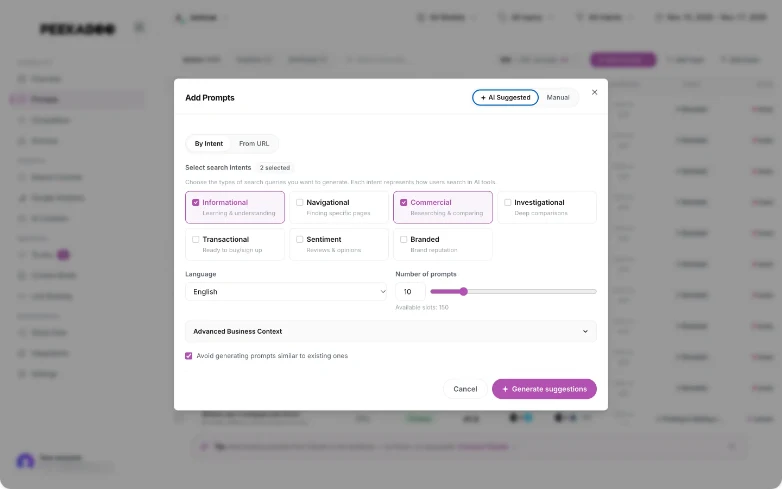
Review each generated prompt and its justification before adding it to tracking. Screenshot source Add the selected prompts
Choose the control to add the selected prompts to your tracked list. Check the remaining prompt slots counter if it is shown. If the workspace is at its limit, the add action is blocked with a message. Free workspaces with no trial or paid plan started can track up to 25 prompts.
How does this AI Peekaboo setup work in practice?
Worked example: build a focused prompt set for a CRM evaluation
A CRM provider configures AI Peekaboo to monitor how generative engines answer software comparison and feature compatibility questions.
| Choice | Why it matters | How to check |
|---|---|---|
| Select Commercial and Investigational intents | These match comparison and evaluation questions rather than broad learning queries. | The selected intents are visible before generation. |
| Set the language used by the target audience | Language affects whether suggestions reflect the questions the intended customers ask. | The form displays the intended language setting. |
| Request a manageable batch and describe the product factually | A concise context can guide relevance, while a smaller batch makes careful review practical. | The count and business context are visible before generating. |
| Keep distinct comparison and workflow questions | Each prompt measures a different decision. Duplicated phrasings add little coverage. | The accepted list has no obvious near-duplicates and each question maps to one goal. |
The approved evaluation queries display in the AI Peekaboo dashboard, establishing a baseline to monitor future AI answers.
How do you verify your result in AI Peekaboo?
Open the Prompts page and confirm the new questions are listed as tracked prompts. Use their Topic and Search Intent labels to organize later analysis and refine the list as you learn which customer questions matter.
| Step | What you should see |
|---|---|
| Open the prompt creation workflow | The prompt creation flow offers AI-generated prompts and lets you choose the intent-based route. |
| Choose intent and language | The selected intent and language settings are visible before you generate suggestions. |
| Set a suggestion count and context | The form shows your requested count and any business context you entered. |
| Generate and review the suggestions | The suggestion list appears with selectable prompts and a justification for each. |
| Add the selected prompts | The selected prompts are added, or the interface displays a clear limit message if the cap prevents adding them. |
Related AI Peekaboo guides include Customize the AI Peekaboo Overview and How to add tracked competitors in AI Peekaboo.
Which official AI Peekaboo sources were checked?
Every step and limit in this AI Peekaboo guide was verified against official documentation on 21 Nov 2026 following how we check figures, alongside more walkthroughs in our AI Peekaboo tutorials hub:
How do you troubleshoot common AI Peekaboo issues?
Can I make suggestions for one page instead of selecting intents?
Yes. Choose the From URL route and paste a page from your site. Suggestions are generated based on that page’s content.
Why could I not add the whole selection?
The workspace may have reached its prompt limit. Review the slots counter and the message shown by the app. Archive prompts you no longer need or change the monitoring configuration if appropriate.
The suggestions are relevant to my category but target the wrong customer. How should I correct the batch?
Deselect prompts that assume the wrong audience or use case. If the flow offers a business context field, clarify the intended customer and product in factual terms, then generate another batch and review it. Keep only questions that represent decisions your target audience actually makes.
 Reviewed byDanny Kirk
Founder of ReddiReach.
 Checked byAndrés Felipe
Digital designer and marketer.
Every figure is checked against the vendor's own page. Read our editorial standards.