
Key Takeaways
- Open AI Peekaboo Prompts and select an individual query to inspect its full response history and source links.
- Ensure the targeted prompt has completed analysis runs, because newly submitted questions lack captured answers and citation links.
- Execute five structured steps to locate the question, open its detail view, and review cited reference URLs.
- Confirm the prompt detail view displays historical answers alongside active clickable source links for the target question.
AI Peekaboo displays complete answer histories and cited external links on individual prompt detail pages. Inspecting individual prompts reveals specific source evidence for single queries rather than blended aggregate metrics.
For plan limits and team seat pricing behind this workflow, read our AI Peekaboo review or connect AI Peekaboo to AI agents in AI Peekaboo API and MCP.
Key steps
What do you need before starting in AI Peekaboo?
AI Peekaboo requires the following workspace setup before you begin:
- Open the AI Peekaboo brand workspace containing the tracked prompt.
- The prompt must have analysis history. A new or not-yet-run prompt may not have answers or citations to display.
How do you complete the steps in AI Peekaboo?
Follow these 5 steps in AI Peekaboo in order:
Open the Prompts page
Choose Prompts from the dashboard navigation. The table lists tracked questions and includes search and filters, so you can locate one prompt without browsing unrelated answers.
Find the specific question
Enter a distinctive phrase from the question in Search prompts. If needed, use the Active tab for currently analyzed prompts or adjust the model, topic, intent, or date range filters at the top of the page.
Search with a distinctive phrase rather than a broad word that many questions share. If the row is absent, check whether the Active tab or the model, topic, intent, and date range filters are narrowing the table before changing the search phrase.
Open the prompt detail page
Select the prompt row to open its own page. This detail view is scoped to that prompt and includes its score, a chart of individual runs, Response History, and sources cited for it.
Confirm the question text on the detail page before using its history. Similar prompts can ask different things, and their sources should not be combined as if they answer the same question.
Read an answer and its sources
In Response History, open an answer or run to review what the AI returned. Inspect the sources listed for that result and open a cited URL when you need to verify what page the answer referenced. Sources may be absent for a particular answer if the model did not return citations.
When a cited URL matters to your decision, open it and compare the page's actual subject with the answer passage. A captured source link identifies the page returned with that answer. It does not by itself prove the page supports every claim in the response.
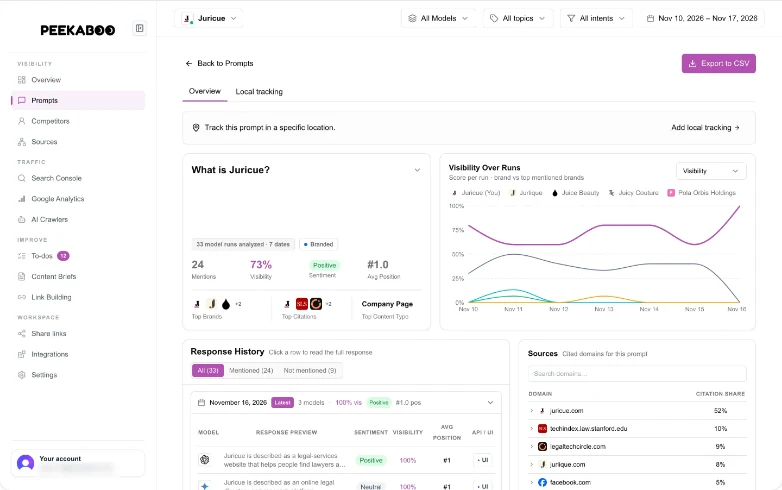
Review the selected prompt’s answer history and its captured source links. Screenshot source Use the evidence in context
Compare sources across more than one run before treating a single citation as a pattern. If the prompt’s visibility score is zero, its sources can still show that your site contributed to the answer. Citations and brand mentions are tracked separately.
For a recurring pattern, compare runs for the same prompt and note which sources recur and which appear once. Keep citation evidence separate from visibility and brand mentions, since those measure different things.
How does this AI Peekaboo setup work in practice?
Investigate a citation on a zero-visibility buying prompt
An analyst reviews a tracked query about project management software where brand visibility is zero to check whether company URLs were cited.
| Choice | Why it matters | How to check |
|---|---|---|
| Search the distinctive phrase “small nonprofit” | A specific phrase narrows the prompt list more reliably than a generic term such as “tools.” | Confirm the full question text in the returned row. |
| Open that prompt's detail page | The page scopes the review to this question and shows its run history. | The detail view identifies the intended prompt and displays Response History. |
| Open the relevant answer or run | Sources belong to a particular returned answer, so the analyst should inspect the run under review. | The displayed response matches the buying question and run being assessed. |
| Check the captured source links | A company URL could be cited even when the brand name is absent from answer text. | Open any company URL and verify its page subject. If no source is listed, record that this answer exposes no captured citation. |
| Compare another run for the same prompt | A second run helps distinguish a repeated citation from a one-time result. | Compare the source URLs and answer text without treating differing runs as a contradiction. |
If a company URL is present, record it as citation evidence even when visibility is zero, then inspect whether its content is relevant to the answer. If it is absent, do not infer that the site was never used beyond the captured evidence.
How do you verify your result in AI Peekaboo?
Confirm you are on the detail page for the intended prompt and can see its Response History and any captured sources. Use the cited URLs to investigate which pages informed answers to that specific question.
| Step | What you should see |
|---|---|
| Open the Prompts page | The Prompts page shows the prompt table and Search prompts control. |
| Find the specific question | The target question appears in the filtered prompt table. |
| Open the prompt detail page | The page identifies the selected prompt and shows its individual run or response history. |
| Read an answer and its sources | The selected prompt’s response and any captured source links are visible in its detail view. |
| Use the evidence in context | You can distinguish the answer’s citation links from the prompt’s visibility or mention metrics. |
Related AI Peekaboo guides include Build a prompt list in AI Peekaboo and Customize the AI Peekaboo Overview.
Which official AI Peekaboo sources were checked?
Every step and limit in this AI Peekaboo guide was verified against official documentation on 21 Nov 2026 following how we check figures, alongside more walkthroughs in our AI Peekaboo tutorials hub:
How do you troubleshoot common AI Peekaboo issues?
The prompt has no sources. Does that mean the answer was not analyzed?
Not necessarily. Sources appear when the returned answer exposes citations. Review the run and answer history. A model may provide an answer without captured source links.
Why does the prompt show zero visibility when my site is cited?
Visibility records whether your brand name appeared in answer text. A citation records a source link, so the two can differ. Check the sources on the prompt detail page.
Why can’t I find an older answer after opening the right prompt?
The prompt detail view shows its available run and response history, while the Prompts table’s date range filters which prompts appear in the table. Recheck the table filters to locate the prompt. Then use its detail page to review the history that is available there.
 Reviewed byDanny Kirk
Founder of ReddiReach.
 Checked byAndrés Felipe
Digital designer and marketer.
Every figure is checked against the vendor's own page. Read our editorial standards.