
Key Takeaways
- Reuse saved dynamic segments across CRM > Contacts bulk management, email campaign recipient targeting, and automation triggers or Yes/No branches.
- Create and save at least one dynamic contact segment in Brevo before loading it in Contacts, Campaigns, or Automations.
- Four steps cover loading a saved segment in CRM Contacts, running bulk actions across all matched records, targeting campaigns, and branching automations.
- Confirm accuracy by checking the filtered total in CRM > Contacts before applying bulk edits or activating workflows.
Saved segments in Brevo let you reuse dynamic search filters across CRM contact actions, targeted email campaigns, and automated workflow branches. Teams use saved segments to execute bulk CRM updates, exclude suppressed cohorts, and trigger automations without rebuilding rules.
For plan limits and team seat pricing behind this workflow, read our Brevo review or connect Brevo to AI agents in Brevo API and MCP.
Key steps
What do you need before starting in Brevo?
Brevo requires the following workspace setup before you begin:
- A Brevo account with access to CRM Contacts, Campaigns, and Automations
- At least one saved segment configured with your target attribute or event rules
- Target lists, CRM owners, or attribute values ready if running bulk contact actions
How do you complete the steps in Brevo?
Follow these 4 steps in Brevo in order:
Load a saved segment on the CRM Contacts page
Go to CRM > Contacts, click Load a list or a segment, open the Segments tab, and select your saved segment. If your account holds more than 2 million contacts, click Search Contacts to apply the segment filter to your list.
Because saved segments are dynamic, loading one automatically includes newly matching contacts without manual updates.
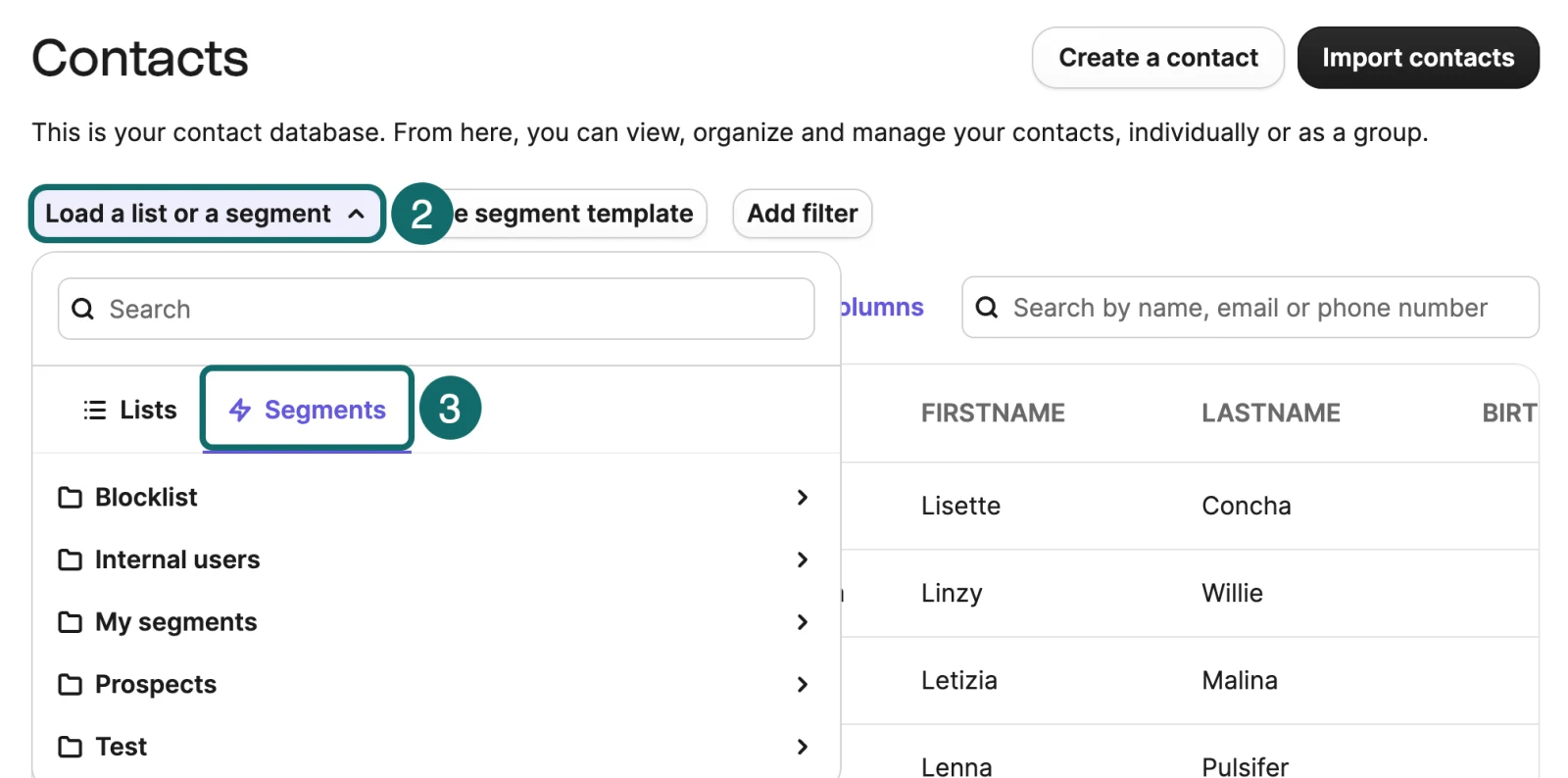
Click Load a list or a segment in CRM > Contacts and open the Segments tab to pick your saved filter. Screenshot source Select all matched contacts and run a bulk CRM action
Check the box at the top left of the table and click Select all the contacts to include every record in the segment across all pages. Choose a bulk action to Add the contacts to a list, Blocklist the contacts, Edit the attributes of the contacts, Assign an owner to the contacts, Export the contacts, Copy the SMS number of the contacts to their WhatsApp number, or Delete the contacts permanently.
Verify the total contact count before running irreversible actions like Delete the contacts permanently or Blocklist the contacts, exporting a backup CSV first when needed.
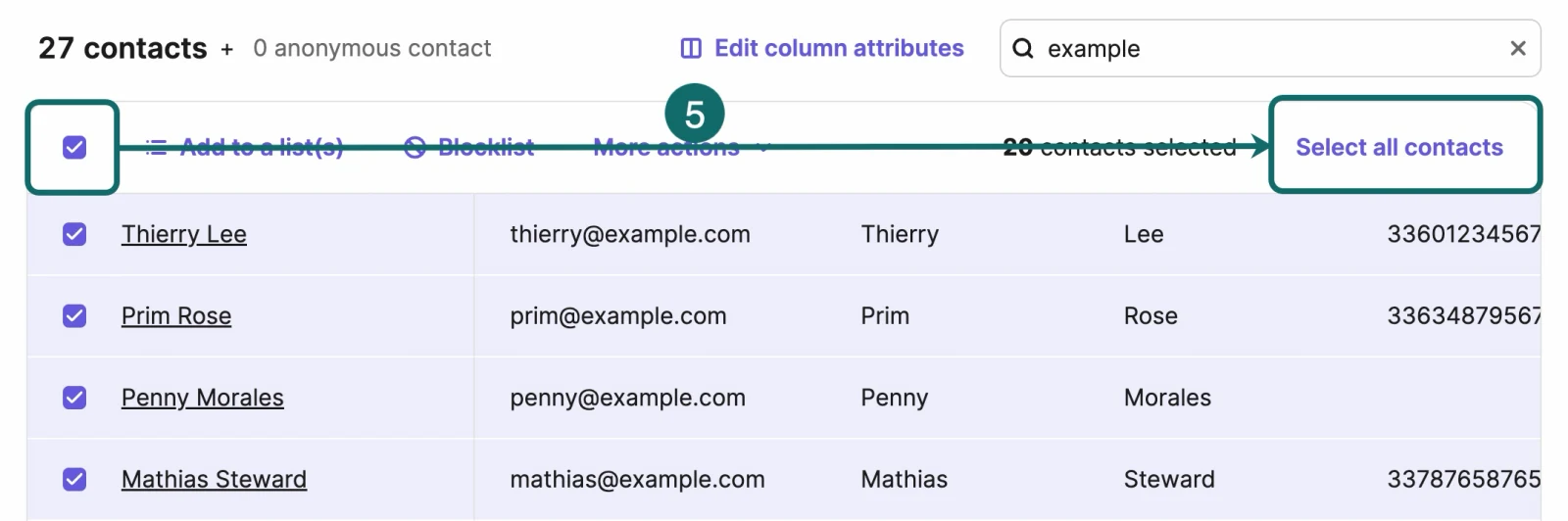
Check the top-left table box and click Select all the contacts so bulk actions include every record in the segment. Screenshot source Target or exclude saved segments in email campaigns
During email campaign setup, open the To recipient section to select the saved segments you want to message and exclude segments you want to skip.
Sending to dynamic segments maximizes relevance while keeping excluded cohorts out automatically at send time.
Trigger or branch workflows with segments in an automation
In Brevo Automations, start a workflow when a contact matches your saved segment (such as sending an intro email when assigned to you), or add a segment check with Yes and No branches. Place steps only in Yes to act on matching contacts, only in No to exclude matching contacts (like blocklisted records), or add distinct actions in both Yes and No.
Reusing one saved segment across CRM views, campaigns, and automation branches keeps audience rules consistent everywhere.
How does this Brevo setup work in practice?
Worked example: Assigning regional leads and automating rep intros
A B2B ops manager uses a saved regional segment to assign unowned leads in bulk, copy WhatsApp numbers, and trigger rep intro emails.
| Choice | Why it matters | How to check |
|---|---|---|
| CRM > Contacts > Load a list or a segment > Segments | Loads every contact matching regional territory criteria dynamically. | Contacts table displays the filtered regional segment. |
| Checkbox > Select all the contacts > Assign owner + Copy SMS to WhatsApp | Updates every page of matched contacts in two bulk operations. | All segment records show the owner and WhatsApp number. |
| Automation triggered on assigned segment + No-branch blocklist exclusion | Emails newly assigned contacts while skipping blocklisted records via No. | Active contacts receive the automated rep introduction. |
Existing territory leads get an owner and WhatsApp number in bulk, while future assigned leads automatically receive the intro email.
How do you verify your result in Brevo?
Verify bulk updates applied across all pages in CRM > Contacts and confirm your campaign or automation steps link to the intended saved segment. Next, consolidate redundant static lists into reusable dynamic segments.
| Step | What you should see |
|---|---|
| Load a saved segment on the CRM Contacts page | The CRM > Contacts table filters down to contacts currently matching your saved segment. |
| Select all matched contacts and run a bulk CRM action | All contacts in the segment are selected and Brevo executes your chosen bulk action. |
| Target or exclude saved segments in email campaigns | Your campaign recipient summary lists the targeted and excluded saved segments. |
| Trigger or branch workflows with segments in an automation | Your automation references the saved segment in its trigger or Yes/No branch step. |
Related Brevo guides include How to create, design, and schedule an email campaign in Brevo and How to structure dynamic contact segments for targeting in Brevo.
Which official Brevo sources were checked?
Every step and limit in this Brevo guide was verified against official documentation on 27 Nov 2026 following how we check figures, alongside more walkthroughs in our Brevo tutorials hub:
How do you troubleshoot common Brevo issues?
Why did selecting my segment in CRM > Contacts not filter the table right away?
Accounts with more than 2 million contacts require a manual trigger after picking a segment. Click Search Contacts after selecting your saved segment on the Segments tab to apply the filter.
Why did my bulk action only affect the first page of contacts in the segment?
Checking only the top-left table box selects just the rows on the current page. Click Select all the contacts next to the checkbox so Brevo includes every contact in the segment.
How do I exclude contacts matching a segment from an automation email?
Add a segment condition split into Yes and No branches inside your automation. Leave the Yes branch empty and add your email action strictly inside the No branch.
 Reviewed byDanny Kirk
Founder of ReddiReach.
 Checked byAndrés Felipe
Digital designer and marketer.
Every figure is checked against the vendor's own page. Read our editorial standards.