
Key Takeaways
- Configure crawler boundaries in Ahrefs project settings by selecting the appropriate URL scope mode and protocol configuration.
- Identify the exact target URL and determine whether audits must cover single paths, specific hostnames, or all associated subdomains beforehand.
- Complete five direct setup steps in Ahrefs to enter target URLs, select scope modes, and configure protocol monitoring rules.
- Verify scope settings in Ahrefs by inspecting the project dashboard to ensure external subdomains and excluded paths remain unmonitored.
Define project boundaries in Ahrefs Site Audit and Site Explorer by selecting Exact URL, Path, Domain, or Subdomains scope modes. Choosing the proper scope and protocol ensures crawl budgets focus on relevant website sections.
For plan limits and team seat pricing behind this workflow, read our Ahrefs review or connect Ahrefs to AI agents in Ahrefs API and MCP.
Key steps
What do you need before starting in Ahrefs?
Ahrefs requires the following workspace setup before you begin:
- The URL that should anchor the project scope.
- A clear decision about whether the project should cover a single page, a folder, one domain or subdomain, or subdomains too.
- Awareness that the default protocol option includes both HTTP and HTTPS.
How do you complete the steps in Ahrefs?
Follow these 5 steps in Ahrefs in order:
Decide which pages belong in the project
Write down the intended boundary before choosing a mode. Exact URL covers one specified page. Path covers URLs that begin with the exact path entered. Domain covers the specified domain or subdomain. Subdomains includes the specified domain and its subdomains.
The difference matters: a project anchored to a folder can exclude the same folder on another host, and a domain scope can exclude pages on subdomains. Select the narrowest mode that matches the pages you intend to include.
Enter the anchor in Domain or path
When creating a project, enter the URL that defines the starting point in “Domain or path.” The chosen mode interprets this entry, so preserve the host and path that express your intended scope.
For example, an entry for a site’s blog folder paired with Path covers URLs beginning with that path. A different host or subdomain is outside that exact starting path.
Choose Exact URL or Path for a narrow scope
Choose Exact URL when only the specified page should count. Choose Path when you want the entered path and URLs beginning with it, such as a folder and its pages.
Path follows the exact path you entered. A path on the non-www host does not include the equivalent path on www, because that URL is outside the defined path. This makes Path useful for folder-level coverage when host boundaries matter.
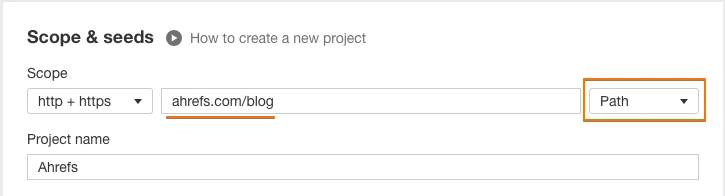
The visible project form illustrates Path scope for a blog folder and the default option that includes both HTTP and HTTPS. Screenshot source Choose Domain or Subdomains for broader coverage
Choose Domain to include URLs on the specified domain or subdomain while excluding subdomains beyond it. For instance, a subdomain-specific Domain scope can include pages on that subdomain while excluding the parent domain.
Choose Subdomains when the scope should also include pages across the domain’s subdomains. A Subdomains scope anchored on a subdomain also includes its sub-subdomains. The distinction is whether those additional hosts should be covered.
Set and check the protocol option
The protocol selector can limit coverage to HTTP or HTTPS. Its default, “http + https,” includes both protocols. Keep that default when both are intended. Select a single protocol only when your project should cover URLs using that protocol.
Before proceeding, review the mode, entered anchor, and protocol together. Each affects which URLs fall within the project’s scope.
How does this Ahrefs setup work in practice?
Worked example: scoping a blog audit on a single subfolder
A technical SEO configures an Ahrefs audit project to crawl a specific subfolder path while excluding auxiliary subdomains and unassociated corporate sections.
| Choice | Why it matters | How to check |
|---|---|---|
| Enter the blog folder’s non-www URL in “Domain or path.” | The path and host together define the starting boundary for the chosen mode. | Confirm the entry contains the intended host and blog path. |
| Select Path. | The desired coverage is the folder and URLs beginning with that exact path. | Confirm the Path mode is selected. |
| Keep “http + https” if both protocols should be included. | That option includes both protocols. A narrower protocol choice would limit the project. | Check that the protocol selection matches the scenario. |
| Review whether www pages should be excluded before creating the project. | The same folder on another host is outside the exact path boundary. | Confirm the configured path does not unintentionally include a different host. |
The project dashboard establishes that crawling remains restricted to the specified path, ensuring reports track only target editorial content without consuming credits on unrelated subdomains.
How do you verify your result in Ahrefs?
The project scope now expresses a specific URL boundary. Exact URL is one page, Path follows an entered path, Domain covers one domain or subdomain, and Subdomains also includes subdomains. The protocol setting determines whether HTTP, HTTPS, or both are covered. Review these boundaries before relying on the project to represent a particular part of a site.
| Step | What you should see |
|---|---|
| Decide which pages belong in the project | You can describe the intended boundary in one sentence, such as “only this page” or “this folder and its descendants.” |
| Enter the anchor in Domain or path | The entered host and path match the intended project boundary. |
| Choose Exact URL or Path for a narrow scope | Exact URL is selected for one page, or Path is selected for the intended folder and its descendants. |
| Choose Domain or Subdomains for broader coverage | The selected mode includes exactly the intended host boundary, including subdomains only when desired. |
| Set and check the protocol option | The selected protocol matches the URLs the project should cover, and the complete scope configuration is internally consistent. |
Related Ahrefs guides include Ahrefs Link Intersect guide and Find broken internal links in Ahrefs Site Audit.
Which official Ahrefs sources were checked?
Every step and limit in this Ahrefs guide was verified against official documentation on 21 Nov 2026 following how we check figures, alongside more walkthroughs in our Ahrefs tutorials hub:
How do you troubleshoot common Ahrefs issues?
Will Path include the same folder on www and non-www?
No. Path includes URLs beginning with the exact path entered. The same path on a different host is outside that defined path.
What is the difference between Domain and Subdomains?
Domain includes the specified domain or subdomain and excludes other subdomains. Subdomains includes the specified domain and its subdomains, including sub-subdomains when anchored on a subdomain.
Does the default protocol setting include both HTTP and HTTPS?
Yes. The default “http + https” option includes both. The selector can also be set to HTTP or HTTPS alone.
 Reviewed byDanny Kirk
Founder of ReddiReach.
 Checked byAndrés Felipe
Digital designer and marketer.
Every figure is checked against the vendor's own page. Read our editorial standards.