
Key Takeaways
- Create board automation rules in Trello by pairing concrete trigger events with automated card movements or archiving actions.
- Confirm you have editing permissions on the target Trello board and clear rules for which list movements should trigger changes.
- Execute the six steps from opening the Automation builder through defining triggers, pairing actions, saving rules, and testing executions.
- Verify the rule shows enabled in the Automation builder and review the activity log to ensure sample cards trigger clean executions.
Build an automated rule in Trello by selecting an event trigger and configuring one or more corresponding actions in the Automation builder. Test the active rule using a disposable board card to verify actions execute as configured.
For plan limits and team seat pricing behind this workflow, read our Trello review or connect Trello to AI agents in Trello API and MCP.
Key steps
What do you need before starting in Trello?
Trello requires the following workspace setup before you begin:
- Sign in to Trello and open the board where the rule should run.
- Decide on a specific board event and the action Trello should take.
- Use English for custom automation rules, which Trello documents as English-only.
How do you complete the steps in Trello?
Follow these 6 steps in Trello in order:
Open the Automation builder
From the board, select the Automation lightning button at the top. If it is not visible, open the board menu (…), then select Automation. The builder groups automations by type, including Rule, Scheduled, Due Date, Card button, and Board button.
Start a rule
Choose Rule, then select Create automation. A rule responds to an event on the board. For a simple housekeeping example, use a card being moved into the list named “Done” as the trigger.
Choose the trigger
Select a trigger category and then the relevant trigger. Pick the card movement event and specify the “Done” list if the editor asks for a list. The trigger defines when Trello should run the rule, including when another board member performs that action.
Match the trigger to the exact event and list that should cause the rule to run. For example, moving any card into “Done” is broader than moving only reviewed cards into “Done”. If the latter distinction matters, check whether the rule editor offers a suitable trigger condition before saving. Avoid relying on an assumed condition.
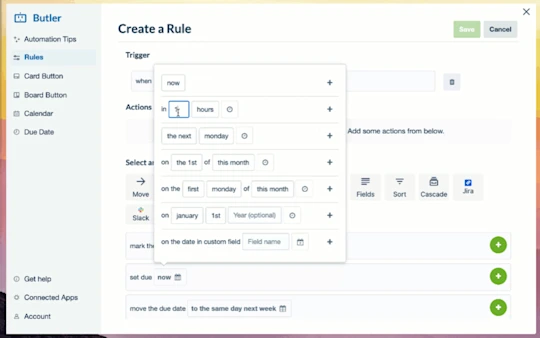
In the rule editor, choose the trigger conditions before adding the action. Screenshot source Add an action
Select an action category and choose the action to perform. For the example, choose the card action that archives the card. Keep the rule narrow so it acts only on the event and list you intended. Trello allows additional actions through Add another action.
Consider the effect of each action on a card before adding it. Archiving a card removes it from the active board view, so use a safe test card and avoid combining extra actions until the trigger and first action behave as intended. Trello supports up to 20 actions in an automation.
Save and activate the rule
Review the trigger and action, then select Save. Trello saves and activates the custom automation. Return to the builder to locate the rule. Use its edit control if you need to change the trigger or action later.
Try the trigger and inspect the result
Use a test card that is safe to archive. Move it into “Done” and confirm the rule’s action happens. If you need to investigate a run, the builder’s View log control shows when an automation triggered and whether it reported errors.
If the test does not produce the expected result, open the rule’s View log control and look for that run and any reported error. A rule can also be triggered by another member’s matching board action, so consider those events when reviewing unexpected runs.
How does this Trello setup work in practice?
Archive completed cards after a safe review
A operations team wants cards moved to the Done list archived automatically after review, using a disposable test card to confirm behavior first.
| Choice | Why it matters | How to check |
|---|---|---|
| Use the board’s Rule automation type | The desired automation responds to a board event, a card moving into a list, rather than a time or button press. | The editor shows a rule trigger section. |
| Set the card movement into “Done” as the trigger | The list name makes the trigger specific to this workflow. Any additional review condition must be supported by the editor before relying on it. | Read the trigger summary and confirm it names the intended movement and list. |
| Choose the archive card action | This removes completed cards from active work, but makes them less visible on the board, so confirm that archiving fits the team’s review process. | The action summary names archive, and the test card is safe to remove from the active view. |
| Save and move the test card into “Done” | A controlled test checks the actual trigger-action pair before the team depends on the rule. | Confirm the test card is archived and use View log if the result is missing or unexpected. |
Confirm the test card archives automatically and inspect the Trello automation activity log to ensure no execution errors occurred.
How do you verify your result in Trello?
Confirm the rule is enabled in the Automation builder and the test card responds to the trigger as expected. Adjust the rule if your workflow changes, and review its log when a run does not behave as expected.
| Step | What you should see |
|---|---|
| Open the Automation builder | The Automation builder is open and shows automation types. |
| Start a rule | The new rule editor is open with a trigger section. |
| Choose the trigger | The trigger summary names the board event and the intended list. |
| Add an action | The action summary names the action you want the rule to take. |
| Save and activate the rule | The saved rule is listed in the builder and enabled. |
| Try the trigger and inspect the result | The test card is archived after it enters “Done,” or the automation log shows the corresponding run. |
Related Trello guides include How to add labels to Trello cards and How to attach a file to a Trello card.
Which official Trello sources were checked?
Every step and limit in this Trello guide was verified against official documentation on 21 Nov 2026 following how we check figures, alongside more walkthroughs in our Trello tutorials hub:
How do you troubleshoot common Trello issues?
Where can I see whether a rule ran?
In the Automation builder, use the rule’s View log control to see when it triggered and whether it had errors.
Does the rule run when someone else moves a card?
Yes. Trello’s documentation says rules, scheduled automations, and due-date automations trigger from matching events performed by other people as well as you.
Why did the rule run more often than expected?
Rules respond to matching actions by other board members as well as your own, so check whether another person moved a card into the trigger list. Review the rule’s trigger summary and View log. If the event is too broad, edit the trigger to a narrower supported condition, then test again.
Why is the rule saved but the test card was not archived?
Confirm the rule is enabled in the Automation builder and that the test action matched the trigger exactly, including the destination list. Then use View log to see whether Trello recorded a run or an error. Correct the trigger or action based on that evidence and retry with a safe card.
 Reviewed byDanny Kirk
Founder of ReddiReach.
 Checked byAndrés Felipe
Digital designer and marketer.
Every figure is checked against the vendor's own page. Read our editorial standards.