
Key Takeaways
- Create targets from Goals (+ New goal), Metrics (... > Set Goal), or the Datablock Editor (Compare with > Goal) with automatic, manual, or sub-goal tracking.
- Connect your data source beforehand for automatic tracking, and plan separate goals if a financial metric spans multiple currencies.
- Five steps cover setting ownership and privacy, choosing progress tracking, adjusting granular period values, scheduling Status updates, and linking Aligned goals.
- Confirm tracking on the Goals page or goal details view, and monitor multi-account goals under Accounts > Goals Overview.
Goals in Databox track progress toward KPIs automatically from connected data sources, manually through milestone updates, or by rolling up linked sub-goals. Teams use goals with clear ownership, custom period targets, and Slack or email alerts to keep targets on track.
For plan limits and team seat pricing behind this workflow, read our Databox review or connect Databox to AI agents in Databox API and MCP.
Key steps
What do you need before starting in Databox?
Databox requires the following workspace setup before you begin:
- Databox permissions to create goals and assign user or team ownership
- A connected data source metric (like GA4 Sessions) or existing sub-goals
- Single-currency metrics selected per goal when tracking financial KPIs
How do you complete the steps in Databox?
Follow these 5 steps in Databox in order:
Start a new goal and define ownership, timeframe, and privacy
Open Goals and click + New goal (or on Metrics click ... > Set Goal, or open the Datablock Editor on a dashboard and choose Compare with > Goal). Select Goal as the type, enter a title, choose an owner plus company or team attribution, pick a timeframe, and set privacy to Public, Selected users, or Private.
Assigning both an individual owner and a team clarifies accountability, while Selected users or Private hides sensitive targets until ready.
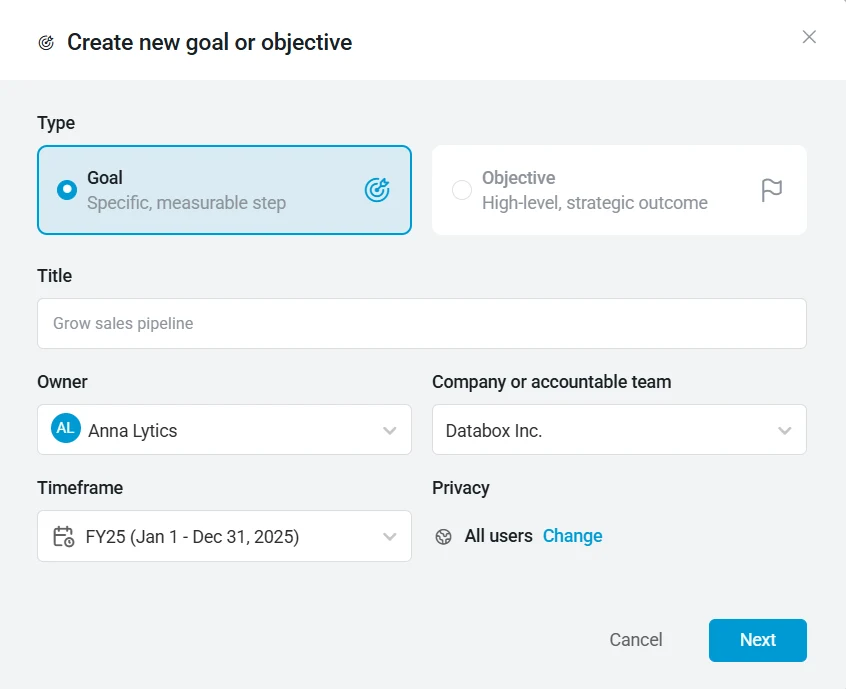
Fill in the goal title, owner, timeframe, and Public, Selected users, or Private visibility in Step 1. Screenshot source Choose automatic metric, manual, or sub-goal progress tracking
Pick how progress updates: automatic tracking from a connected metric (selecting the metric, breakdown, fixed/percent/metric target, and reach, stay above, or stay below condition), manual updates (start and target values with number, percent, or currency units), or sub-goal rollups (percent average, number sum, or currency sum).
Use automatic tracking for live metrics like GA4 Sessions and manual updates for offline milestones like hiring. Selecting a breakdown scopes the goal to that dimension, and multi-currency metrics require separate single-currency goals.
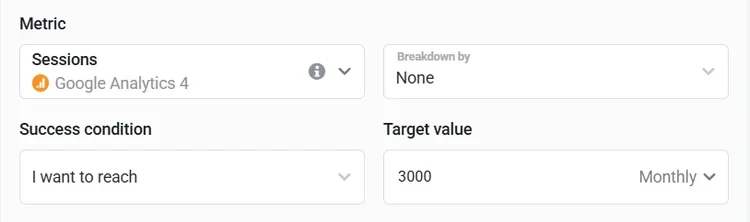
Select automatic metric tracking, manual updates, or sub-goal rollup to define how Databox calculates goal completion. Screenshot source Customize historical or seasonal targets in Advanced period settings
To edit targets for past periods or customize individual intervals, click Advanced period settings, select Adjust manually in the bottom left, enter values per period, and click Save.
Target values apply only to current and future periods by default, so Adjust manually lets you backfill past benchmarks or ramp seasonal targets.
Configure automated status updates or manual owner reminders
On the goal detail page, set Status updates for your tracking type. For automatic or sub-goal progress, pick Email and/or Slack on a daily, weekly, monthly, quarterly, or status-change trigger (On track, At risk, or Off track); for manual goals, set weekly, bi-weekly, monthly, or quarterly Email owner reminders.
Scheduled updates send at 9 a.m. account time: Fridays for weekly, every other Friday for bi-weekly, month-end for monthly, and quarter-end for quarterly.
Connect related cross-team targets with Aligned goals
On the Goals page, click View details on a goal, scroll to Aligned goals, and click + Add goal to link a related target. Multi-account teams can also open Accounts > Goals Overview to view goals across connected accounts.
Aligned goals link related initiatives on both detail pages for side-by-side reference without contributing to the parent goal's progress math.
How does this Databox setup work in practice?
Worked example: Tracking organic sessions alongside a content hiring target
A growth lead sets an automated Q4 GA4 Sessions goal with Slack alerts and aligns a manual writer-hiring goal beside it.
| Choice | Why it matters | How to check |
|---|---|---|
| Automatic metric goal (GA4 Sessions, reach target, Public) | Pulls live GA4 progress automatically without manual entry. | Goal card shows live GA4 Sessions against the Q4 target. |
| Status updates: Slack + Email weekly and on status change | Sends Friday 9 a.m. recaps and immediate At risk or Off track alerts. | Status updates lists Slack, Email, and status triggers. |
| View details > Aligned goals > + Add goal (Manual: Hire 2 writers) | Links hiring milestones for context without altering GA4 math. | Hiring goal appears under Aligned goals with Email reminders. |
The team reviews Friday 9 a.m. Slack pacing updates for GA4 Sessions while clicking straight into the aligned hiring goal for context.
How do you verify your result in Databox?
Confirm your goal shows live progress on the Goals page and active Status updates on the detail view. Next, display the target on a dashboard via Compare with > Goal or review multi-account targets in Accounts > Goals Overview.
| Step | What you should see |
|---|---|
| Start a new goal and define ownership, timeframe, and privacy | Step 1 displays your completed title, owner, timeframe, and privacy setting. |
| Choose automatic metric, manual, or sub-goal progress tracking | Your metric condition, manual unit range, or sub-goal formula is configured. |
| Customize historical or seasonal targets in Advanced period settings | Custom target figures save across your chosen past, current, and future periods. |
| Configure automated status updates or manual owner reminders | The goal detail page displays your active Email or Slack update schedule. |
| Connect related cross-team targets with Aligned goals | Both targets appear inside each other's Aligned goals section. |
Related Databox guides include How to set up metric notifications and alerts in Databox and How to set up scheduled dashboard notifications in Databox.
Which official Databox sources were checked?
Every step and limit in this Databox guide was verified against official documentation on 27 Nov 2026 following how we check figures, alongside more walkthroughs in our Databox tutorials hub:
How do you troubleshoot common Databox issues?
How do sub-goal rollups differ from Aligned goals in Databox?
Sub-goals calculate parent goal completion automatically using a percent average, number sum, or currency sum. Aligned goals do not change parent progress math and simply link related targets on both detail pages.
Can one Databox goal track a financial metric with multiple currencies?
No, each goal supports only a single currency unit. Create separate goals per currency whenever a financial metric contains multiple currencies.
Why are past months blank after I created a new Databox goal?
New target values apply only to current and future periods by default. Click Advanced period settings, select Adjust manually in the bottom left, enter historical targets, and click Save.
 Reviewed byDanny Kirk
Founder of ReddiReach.
 Checked byAndrés Felipe
Digital designer and marketer.
Every figure is checked against the vendor's own page. Read our editorial standards.