
Key Takeaways
- Automate recurring JPG or PDF snapshots of dashboards or Looped Dashboards from Settings > Notifications > + New notification > dashboard.
- Verify your Databox profile time zone beforehand, as both schedule timing and displayed data follow your profile time zone.
- Four steps cover selecting the dashboard, choosing JPG or PDF format and date options, setting schedules and internal or external recipients, and saving.
- Confirm your snapshot rule is active in Settings > Notifications, where you can edit recipients, formats, or schedules anytime.
Scheduled dashboard notifications in Databox automatically deliver a JPG or PDF snapshot of any dashboard or Looped Dashboards via Email or Slack. Teams use scheduled snapshots to share recurring visual reports with executives and external clients without manual exports or logins.
For plan limits and team seat pricing behind this workflow, read our Databox review or connect Databox to AI agents in Databox API and MCP.
Key steps
What do you need before starting in Databox?
Databox requires the following workspace setup before you begin:
- At least one Databox dashboard or Looped Dashboards set ready to share
- Your Databox user profile time zone configured accurately
- Internal Databox users or external email addresses (plus Slack connected if sending to Slack)
How do you complete the steps in Databox?
Follow these 4 steps in Databox in order:
Open Notifications and select a dashboard or Looped Dashboards
Click your bottom-left profile name and select Notifications (or open Settings > Notifications), click + New notification, choose dashboard, and select your dashboard or Looped Dashboards. You can also click ... > Notifications on a Dashboards card or open the drop-down arrow > Notifications on Looped Dashboards.
Unlike metric notifications, dashboard snapshots support external email addresses so clients and advisors need no Databox login.
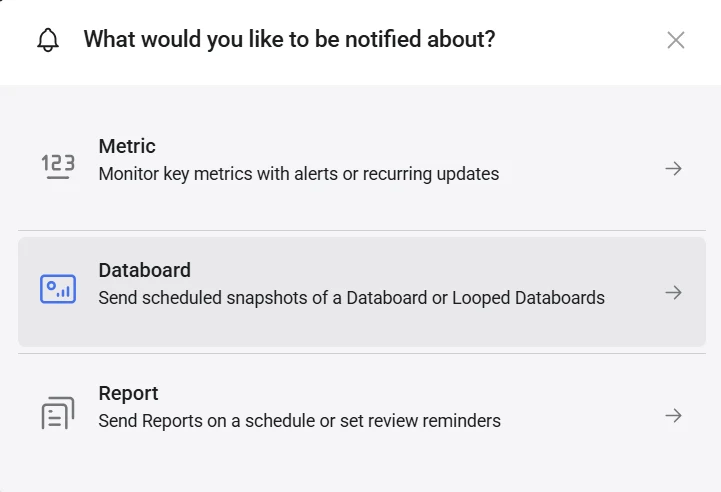
Select dashboard in the New notification modal and choose the dashboard or Looped Dashboards you want to send. Screenshot source Select JPG or PDF format, date range, and export options
Confirm the Dashboard dropdown, choose JPG or PDF, and set the date range to As set on dashboard(s) or Custom. Optionally check Background images in exported document to keep custom backgrounds and Shareable link to include a live dashboard URL.
Pick JPG for quick single-dashboard views, and pick PDF for Looped Dashboards so every looped screen combines into one scrollable file instead of separate JPGs.
Set delivery frequency, channels, and recipients
Configure Frequency (interval, day or date, and send time in your profile Time zone) and choose Email, Slack, or both under Delivery method. Under Recipient(s), pick Databox users or type external email addresses and click + Add after each one, then optionally complete Add a custom subject and Add a personal note.
Always click + Add after typing each external email so it saves. For monthly archives, schedule delivery on the last day of the month at 11 PM with a consistent custom subject line for easy inbox filtering.
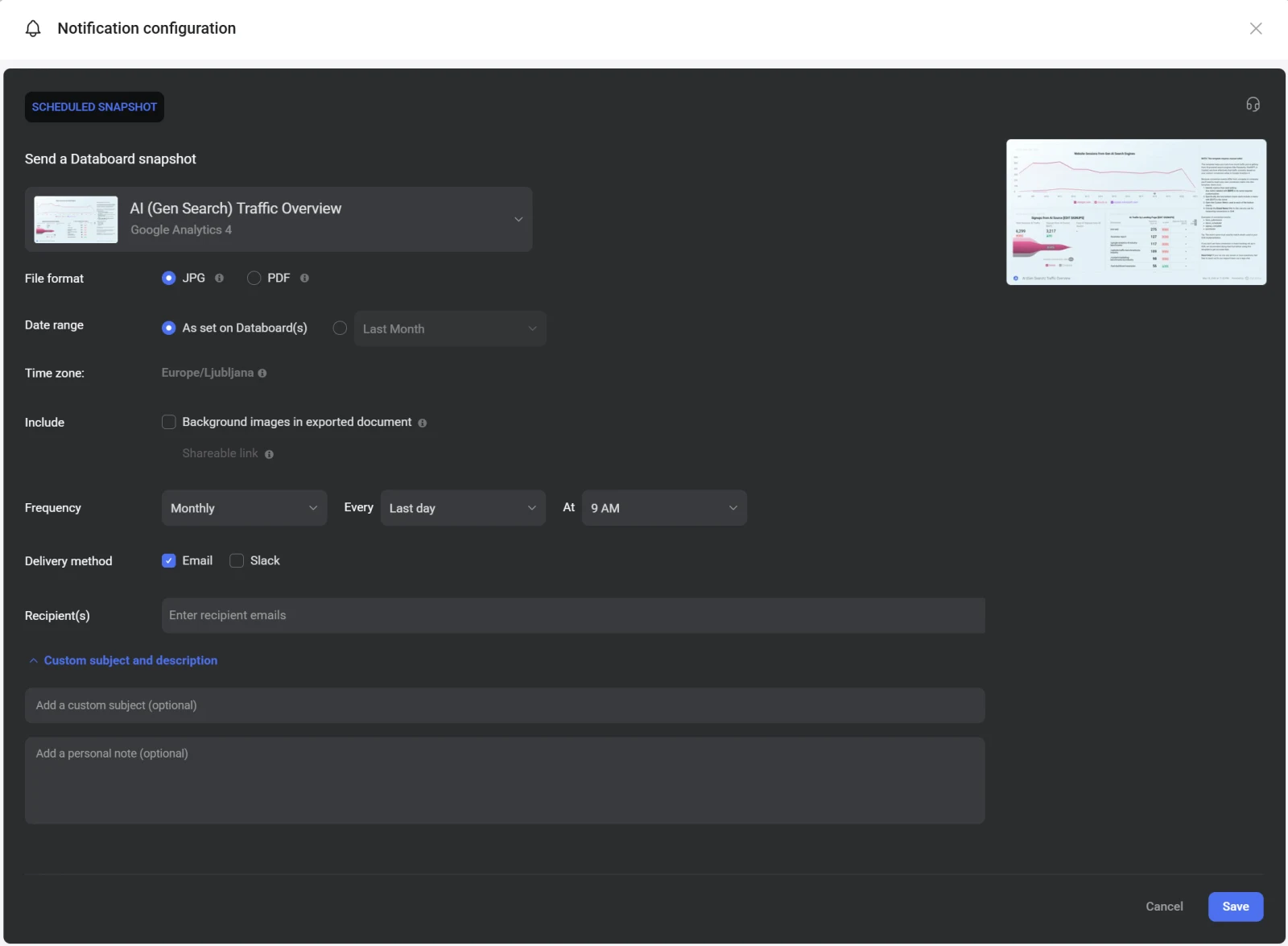
Configure export format, Frequency, Email or Slack delivery, and Recipient(s) via + Add in Scheduled snapshot settings. Screenshot source Save and manage your scheduled dashboard snapshot
Click Save to activate recurring delivery. To update recipients, change JPG to PDF, edit the note, or remove the schedule later, open Settings > Notifications, click Edit (then Save), or open the drop-down arrow and select Delete.
Keep in mind that changing your profile Time zone later shifts both the send hour and the data window of snapshots created under your profile.
How does this Databox setup work in practice?
Worked example: Delivering a multi-dashboard executive pack at month end
A revops manager sends a three-screen Looped Dashboards summary to external board advisors and an internal Slack channel every month end.
| Choice | Why it matters | How to check |
|---|---|---|
| Looped Dashboards + PDF format + Shareable link checked | Packages all three dashboards into one PDF with a live view link. | PDF and Shareable link are enabled in snapshot settings. |
| Monthly on the last day at 11 PM (profile Time zone) | Captures complete end-of-month data right before midnight. | Frequency shows last-day monthly delivery at 11 PM. |
| Email + Slack, external emails added via + Add, shared custom subject | Reaches non-Databox advisors and groups monthly archives in one inbox folder. | External addresses appear added before clicking Save. |
Advisors and executives receive one combined PDF plus a live link in Email and Slack at 11 PM every month end without manual exports.
How do you verify your result in Databox?
Confirm your scheduled snapshot appears under Settings > Notifications with the right dashboard, format, recipients, and timing. Next, apply matching custom subject lines across related month-end snapshots for automated inbox filing.
| Step | What you should see |
|---|---|
| Open Notifications and select a dashboard or Looped Dashboards | Scheduled snapshot settings open with your selection in the Dashboard dropdown. |
| Select JPG or PDF format, date range, and export options | Your file format, date range, and optional link or background boxes are selected. |
| Set delivery frequency, channels, and recipients | Every internal and external recipient appears added alongside your Frequency and Delivery method. |
| Save and manage your scheduled dashboard snapshot | Your scheduled dashboard notification appears active in Settings > Notifications. |
Related Databox guides include How to create and track automated metric goals in Databox and How to set up metric notifications and alerts in Databox.
Which official Databox sources were checked?
Every step and limit in this Databox guide was verified against official documentation on 27 Nov 2026 following how we check figures, alongside more walkthroughs in our Databox tutorials hub:
How do you troubleshoot common Databox issues?
Should I pick JPG or PDF when scheduling Looped Dashboards in Databox?
Choose PDF for Looped Dashboards so all dashboards in the loop combine into one clean document. Selecting JPG sends a separate image file for each individual dashboard.
Why did an external recipient not receive my scheduled dashboard snapshot?
Typing an external address into Recipient(s) does not register it until you click + Add. Open Settings > Notifications, click Edit, enter the email followed by + Add, and click Save.
How can I archive an end-of-month snapshot of my Databox dashboards?
Schedule a snapshot for the last day of each month at 11 PM in your profile time zone to capture full monthly totals. Reuse the same custom subject line across dashboards to filter them into one inbox folder.
 Reviewed byDanny Kirk
Founder of ReddiReach.
 Checked byAndrés Felipe
Digital designer and marketer.
Every figure is checked against the vendor's own page. Read our editorial standards.