
Key Takeaways
- Intercom Workflows combine predefined conversation, ticket, Messenger, and reusable triggers with a visual drag-and-drop canvas across chat, email, social, Slack, and SMS channels.
- Before designing multi-channel flows, verify your Intercom subscription is active and decide whether your automation starts from a supported Workflow trigger or requires Series for custom backend events.
- In five steps, you pick a trigger or category template, build conditional Branches and Let Fin Answer blocks, link modular flows and Data connectors, configure abandoned-workflow auto-close timers, and filter or duplicate live Workflows.
- Verify your Workflow in Fin AI Agent > Workflows by inspecting sent, engaged, and completed metrics and testing each conditional branch on your target channel.
You can automate omnichannel customer journeys and modular team handoffs across chat, email, Slack, WhatsApp, Instagram, Facebook, and SMS using Intercom's visual Workflows builder. Pairing predefined triggers, conditional **Branches**, **Let Fin Answer** blocks, **Reusable workflows**, and abandoned-chat auto-close timers keeps large automation libraries scalable and clean.
For plan limits and team seat pricing behind this workflow, read our Intercom review or connect Intercom to AI agents in Intercom API and MCP.
Key steps
What do you need before starting in Intercom?
Intercom requires the following workspace setup before you begin:
- An active Intercom workspace with permissions to access Fin AI Agent > Workflows and Settings > AI & Automation > Automation
- Connected inbound messaging channels (such as Messenger, Email, Slack, WhatsApp, Instagram, Facebook, or SMS) where your Workflow will run
- Awareness that custom backend system events require Intercom Series rather than Workflow triggers
How do you complete the steps in Intercom?
Follow these 5 steps in Intercom in order:
Select a predefined trigger or channel template
Navigate to Fin AI Agent > Workflows and click New workflow. Choose a predefined Trigger from scratch (starting a conversation, during a conversation, internal processes, customer-facing actions, ticket-only events, or Reusable workflows), or pick a ready-made template from Popular, Fin AI Agent (such as Use Fin AI Agent over Email channel, Slack, SMS, WhatsApp, Instagram, Messenger, Facebook, Let Fin answer outside of office hours, or Let Fin AI Agent handle phone calls), Teammate efficiency, End user experience, Message proactively, or Connect apps (including Create GitHub Issue, Add GitHub Issue comment, and Update GitHub Issue).
Note that Workflows cannot be started directly from an arbitrary backend or custom system event (like an app 'plan approved' webhook), and a Wait for Webhook step only awaits a response to a request the Workflow itself already sent. Whenever an automation must start from a custom backend event or attribute, build a Series instead.
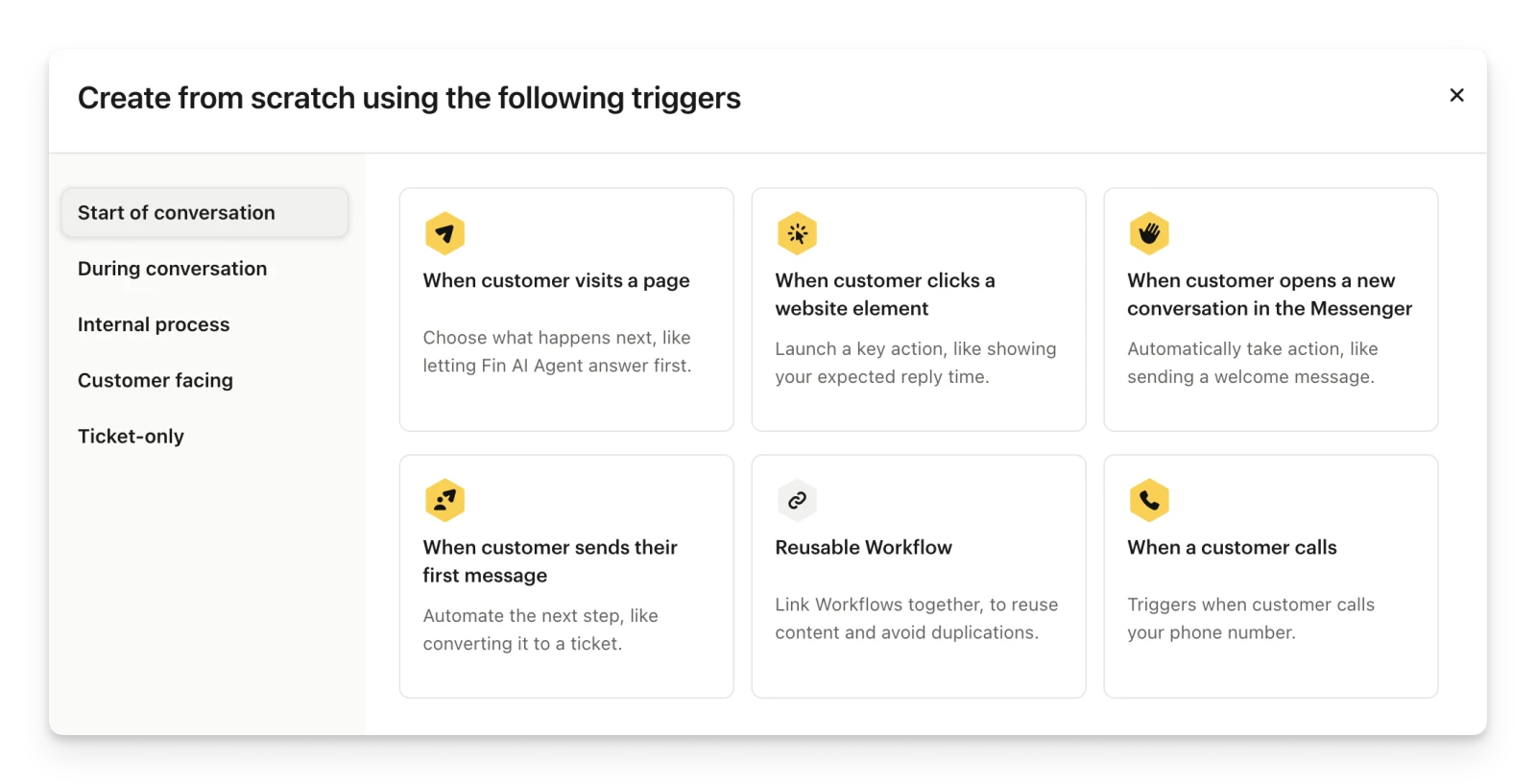
Choose the conversation, Messenger, ticket, or reusable workflow trigger that initiates your automation when building from scratch. Screenshot source Design conditional Branches and Let Fin Answer steps
On the visual Workflows canvas, add reply buttons and Branches to check customer or conversation conditions and route visitors down tailored pathways. Insert a Let Fin Answer step wherever you want Fin AI Agent to resolve questions conversationally before escalating unresolved threads to teammates, and set the idle timeout directly on that specific Let Fin answer block.
Each Let Fin answer block maintains its own independent inactivity timer setting, so lengthening the idle timeout in one complex troubleshooting Workflow will not alter timers in other Workflows.
Collect attributes, connect data, and pass to reusable workflows
Enhance your paths with Update attributes to collect or prefill existing customer profile fields (like name or contact details), Data connectors to fetch real-time order statuses or sync external support tools, ticket steps to open, assign, or auto-close tickets, internal notes that mention teammates, and Pass to other workflows to hand off into modular Reusable workflows.
Centralizing shared logic (such as a single 'Triage conversations' reusable workflow called by chat, WhatsApp, and email entry Workflows) eliminates duplicate maintenance whenever routing rules change.
Enable Auto-close abandoned workflow conversations
Go to Settings > AI & Automation > Automation and enable Auto-close abandoned workflow conversations to keep idle threads out of your inbox. Select which Workflow triggers auto-close applies to and pick an inactivity wait time of 3, 5, 7, 10, or 15 minutes.
The inactivity timer counts strictly from the last bot or AI response (system notices do not reset it) and only fires when the customer is sitting on a Workflow step that requires input. If the final step in a path simply sends a closing message without awaiting input, the Workflow is already complete and auto-close will not trigger.
Filter, duplicate, or pause Workflows safely
Return to Fin AI Agent > Workflows to search instantly as you type, open or close all grouped sections with one click, inspect performance details (title, state, updated at/by, sent, engaged, completed, people type, created at, and first set live), or filter by Audience, State, Tag, Channel, and Type. Use duplicate to clone an existing Workflow onto another compatible trigger (for example, duplicating Customer opens a new conversation in the Messenger into Customer sends their first message or Reusable workflow), and switch a Workflow to paused or draft before deleting it.
Remember that pausing a Workflow only stops new conversations from triggering it; conversations already in progress (including active Wait steps) run to completion on the version they entered. Also note that if a workspace subscription ever becomes inactive, Intercom pauses all Workflows automatically and a teammate must manually set them live again after reactivation.
How does this Intercom setup work in practice?
Worked example: Deploying omnichannel Fin deflection with a shared triage flow
An ecommerce operations team wants Messenger and WhatsApp inquiries answered first by Fin AI Agent, escalated through one shared triage flow when unresolved, and auto-closed if shoppers abandon input prompts for 10 minutes.
| Choice | Why it matters | How to check |
|---|---|---|
| Create Messenger and WhatsApp Workflows using Fin AI Agent channel templates with Let Fin Answer | Deploys Fin across both channels with channel-appropriate idle timeouts per Let Fin answer block. | Both channel Workflows show active Let Fin Answer blocks on the builder canvas. |
| Build one Reusable workflow for unresolved triage and link both via Pass to other workflows | Avoids maintaining duplicate Branches, Update attributes prompts, and team assignments in two places. | Updating a branch inside the Reusable workflow updates escalations from both Messenger and WhatsApp. |
| Enable Auto-close abandoned workflow conversations at 10 minutes in Settings > AI & Automation > Automation | Closes threads where customers stop replying at an attribute-collection step without touching completed flows. | Test threads abandoned at an input prompt auto-close 10 minutes after the last bot message. |
Customers get instant Fin answers on Messenger and WhatsApp, unresolved chats route through a single modular triage Workflow, and abandoned mid-prompt threads close automatically.
How do you verify your result in Intercom?
Open Fin AI Agent > Workflows, filter by your target Channel and State, and test an inbound message to confirm Branches, Let Fin Answer, and Reusable workflows handoffs execute cleanly and increment your sent, engaged, and completed counters. Next, audit any paused or draft Workflows you no longer need and batch-delete obsolete drafts to keep your library tidy.
| Step | What you should see |
|---|---|
| Select a predefined trigger or channel template | Your Workflow canvas initializes with a supported conversation, ticket, channel, or reusable trigger configured. |
| Design conditional Branches and Let Fin Answer steps | Conditional Branches connect cleanly to downstream paths and each Let Fin Answer block displays its own configured inactivity timeout. |
| Collect attributes, connect data, and pass to reusable workflows | Profile updates, Data connectors, teammate mentions, and Pass to other workflows links validate without unlinked canvas ends. |
| Enable Auto-close abandoned workflow conversations | Auto-close abandoned workflow conversations shows enabled under Settings > AI & Automation > Automation with your chosen trigger list and minute threshold. |
| Filter, duplicate, or pause Workflows safely | Your Workflow appears live under its Channel and Type filters in Fin AI Agent > Workflows with active engagement counters. |
Related Intercom guides include How to build background inbox automations with Workflows in Intercom and How to route VIP and priority conversations with Workflows in Intercom.
Which official Intercom sources were checked?
Every step and limit in this Intercom guide was verified against official documentation on 27 Nov 2026 following how we check figures, alongside more walkthroughs in our Intercom tutorials hub:
How do you troubleshoot common Intercom issues?
Can I trigger an Intercom Workflow directly from a custom backend event sent by our app?
No, Workflows can only start from Intercom's predefined conversation, Messenger, ticket, or reusable-workflow triggers, and Wait for Webhook only listens for replies to requests sent by that Workflow. Use Intercom Series instead whenever an automation must enter people directly from custom backend events or attributes.
Why did Auto-close abandoned workflow conversations not close a thread after the customer went silent?
Auto-close in Settings > AI & Automation > Automation only triggers when a customer stops responding at a Workflow step that requires customer input. If the final step in your path simply sends a message without waiting for input, Intercom considers the Workflow complete and will not auto-close the thread.
What happens to active Wait steps when I pause a live Workflow?
Pausing a Workflow only prevents new conversations from triggering it. Every conversation that already entered the Workflow continues running to completion under the version it triggered, including running the full configured duration of any Wait steps.
 Reviewed byDanny Kirk
Founder of ReddiReach.
 Checked byAndrés Felipe
Digital designer and marketer.
Every figure is checked against the vendor's own page. Read our editorial standards.