
Key Takeaways
- Open the Share menu in Trello to create an invitation link for a board, or use Workspace settings to generate workspace-level invitation links.
- Confirm you have administrative or member invitation permissions on the specific Trello board or Workspace where collaborators should be added.
- Complete the 5-step process by selecting invitation scope, generating the board link, creating workspace links if required, distributing links, and revoking when needed.
- Verify invitation success by confirming incoming collaborator notifications as members join and verifying their user icons appear on the active board header.
Invite team members to a project board or workspace using a shareable invitation link generated directly within Trello. Creating and distributing a direct link streamlines collaborator onboarding while allowing administrators to revoke access links when projects conclude.
For plan limits and team seat pricing behind this workflow, read our Trello review or connect Trello to AI agents in Trello API and MCP.
Key steps
What do you need before starting in Trello?
Trello requires the following workspace setup before you begin:
- Access to the Trello board or Workspace where people should join.
- Invitation permissions for the member generating the link when invitees redeem it.
- The intended recipients’ names or a plan for sharing the link only with trusted people.
How do you complete the steps in Trello?
Follow these 5 steps in Trello in order:
Choose a board or Workspace invitation
Decide whether people should join one board or the Workspace. On a board, open the Share menu to find its invitation link options. For a Workspace invitation, go to the Workspace’s Collaborators page.
Anyone invited to a board or Workspace counts as a Collaborator. On a Free Workspace, collaborators also count toward its 10-Collaborator limit, so consider that when choosing who to invite.
Create the board invitation link
In the board’s Share menu, use the link invitation option and select Create Link. Where the interface offers an invitation role, choose whether invitees can join as a member or, for Premium and Enterprise Workspace boards, as an observer.
The observer option is available only for boards in Premium and Enterprise Workspaces. If that choice is not available, use the role the interface provides for your board.
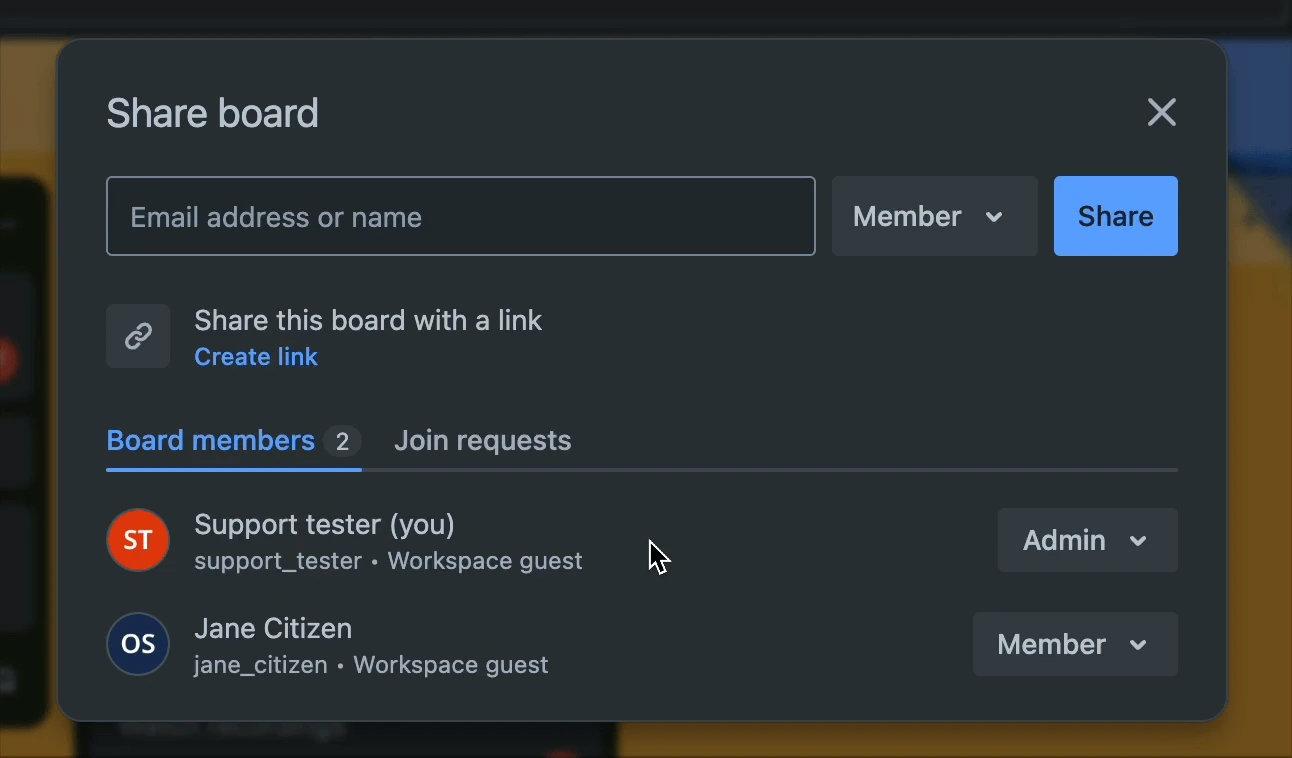
The board invitation flow is visible, including Create link and the role menu for choosing how invitees can join. Screenshot source Create a Workspace link when that is the target
On the Workspace’s Collaborators page, find “Invite members to join you” and select “Invite with link.” Trello copies the shareable Workspace invitation link to your clipboard.
Keep the board and Workspace flows distinct: the board link grants access to that board, while the Workspace flow invites people to the Workspace.
Share the link with intended collaborators
Share the link only with people you trust. Anyone who has the link can automatically join the board or Workspace, including someone who receives a forwarded copy. The invitation page shows the inviter’s name and the board or Workspace title.
After someone joins, the inviter receives a notification. The invitation documentation also describes a notification-bell alert. Trello mobile users receive a push notification and an in-app notification.
Remove a board invitation link when needed
To disable a board link, return to the board’s Share menu, select Delete link, and confirm with “Delete share link.” The visible board flow lets you remove the active link.
A member’s generated link works only while that member has invitation permissions when it is redeemed. Removing a member from a board or Workspace makes their links for that board or Workspace no longer redeemable. If the member is removed from a board and then added back, links they created continue to work.
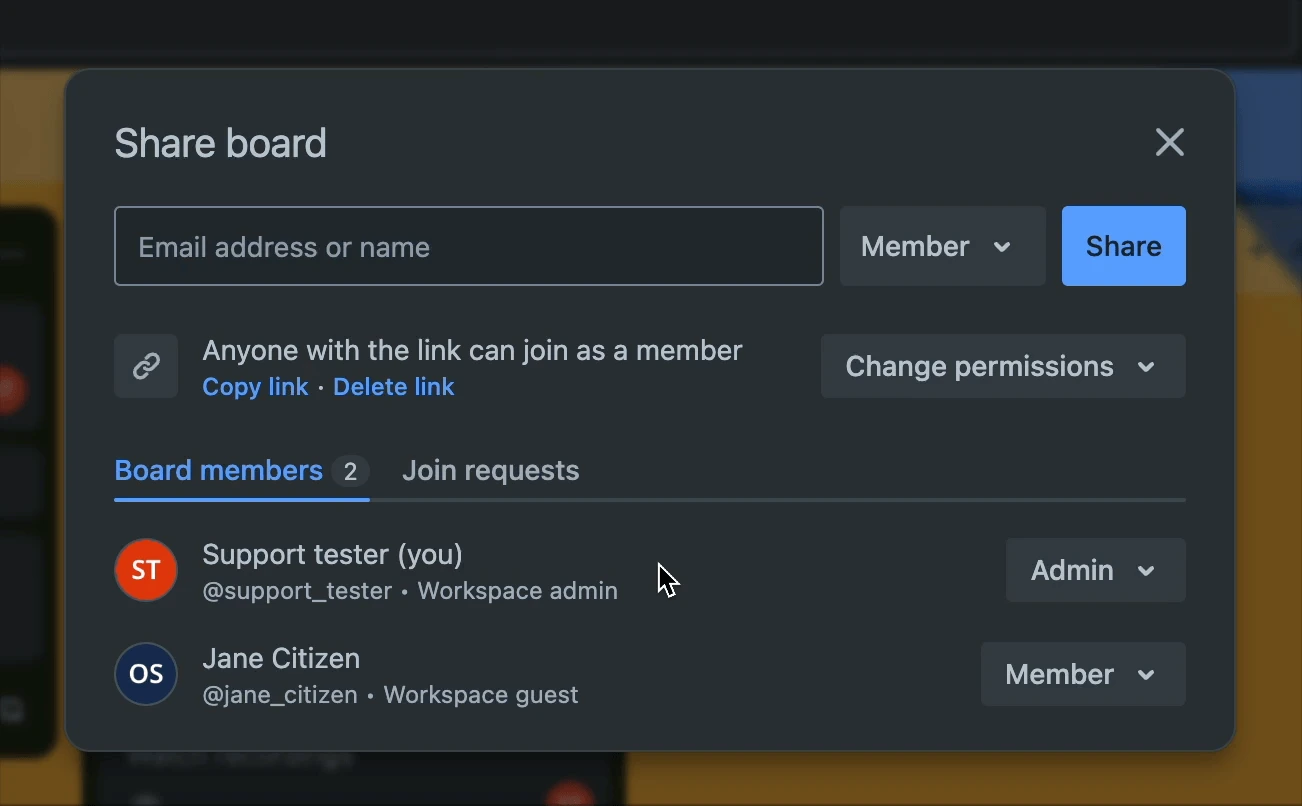
The active board invitation link and Delete link control are visible in the Share menu. Screenshot source
How does this Trello setup work in practice?
Worked example: inviting external contributors to a project tracking board
A project coordinator needs to grant access to two external creative consultants on a specific Trello project board without admitting them to broader company workspaces.
| Choice | Why it matters | How to check |
|---|---|---|
| Open the project board’s Share menu rather than the Workspace Collaborators page. | The invitation is for one board, not the whole Workspace. | Confirm the board title is the intended one. |
| Create a link and choose the available member role. | The scenario needs board collaborators. Observer invitations are documented for Premium and Enterprise Workspace boards only. | Confirm the role shown in the flow matches the intended access. |
| Send the link directly to the two trusted collaborators. | Anyone with the link can join, including people who receive it through forwarding. | Share it only with the intended recipients. |
| Watch for the join notification, then delete the link if further invitations should stop. | The notification confirms a join, while deleting the link disables that board invitation link. | Confirm the join notification and, if needed, complete the Delete share link confirmation. |
Generate a board-level link, share it directly with the two contributors, and confirm both profile icons appear on the board members bar upon joining.
How do you verify your result in Trello?
The intended collaborators can join through the board or Workspace invitation route you selected. Watch for the join notification to confirm acceptance. If a board invitation should no longer be usable, delete its link and confirm. Share links carefully because anyone who obtains one can use it to join.
| Step | What you should see |
|---|---|
| Choose a board or Workspace invitation | You are in the Share menu for the intended board or on the Collaborators page for the intended Workspace. |
| Create the board invitation link | A link has been created for the intended board, with the available role selected. |
| Create a Workspace link when that is the target | The Workspace invitation link has been copied from the intended Collaborators page. |
| Share the link with intended collaborators | The link has been shared only with the intended people, and you can identify the join notification when someone accepts. |
| Remove a board invitation link when needed | The unwanted board link is deleted and the deletion confirmation has been completed. |
Related Trello guides include How to add labels to Trello cards and How to attach a file to a Trello card.
Which official Trello sources were checked?
Every step and limit in this Trello guide was verified against official documentation on 21 Nov 2026 following how we check figures, alongside more walkthroughs in our Trello tutorials hub:
How do you troubleshoot common Trello issues?
Can anyone who receives a forwarded link join?
Yes. Anyone with the invitation link can automatically join its board or Workspace, including someone who receives a forwarded copy. Share it only with trusted people.
Can I invite an observer using a board link?
The documented observer choice is available for boards in Premium and Enterprise Workspaces. In the board Share flow, create the link and choose the offered role.
Why might someone’s previously created link stop working?
The link works only if its generating member has invitation permissions when it is redeemed. Removing that member from the board or Workspace makes their links for it no longer redeemable. If they are removed from and then added back to a board, their previously created board links continue to work.
 Reviewed byDanny Kirk
Founder of ReddiReach.
 Checked byAndrés Felipe
Digital designer and marketer.
Every figure is checked against the vendor's own page. Read our editorial standards.