
Key Takeaways
- Configure repeating planning cycles under Team Settings > Cycles and track delivery on your team's Cycles view.
- Set your team timezone and optional estimate points under Team Settings > General before enabling cycles.
- Enable cycles with a duration and cooldown, configure rollover and active issue automations, adjust future cycles as needed, and read the cycle graph.
- Verify on the Cycles view that upcoming cycles display capacity dials and the active cycle plots scope, target, started, and completed lines.
You can enable automated, time-boxed cycles in Linear so product and engineering teams execute short-term work on a predictable schedule without manual sprint creation. Teams use cooldown periods, automatic rollovers, capacity dials, and scope graphs to sustain momentum decoupled from releases.
For plan limits and team seat pricing behind this workflow, read our Linear review or connect Linear to AI agents in Linear API and MCP.
Key steps
What do you need before starting in Linear?
Linear requires the following workspace setup before you begin:
- Access to Team Settings in Linear, with timezone and optional issue estimates configured under Team Settings > General.
- Clarity on parent and sub-team hierarchy, since sub-teams automatically inherit future cycle schedules from their parent team.
How do you complete the steps in Linear?
Follow these 4 steps in Linear in order:
Enable cycles and set duration, cooldown, and upcoming count
Open Team Settings > Cycles and turn on Enable cycles. Set Each cycle lasts from 1 to 8 weeks, choose the starting weekday (beginning at 12:00 AM in Team Settings > General timezone), add an optional cooldown period, and pre-create up to 15 upcoming cycles.
To start mid-week while keeping a fixed weekday afterward, set today as the start date first, then update the start date to your recurring cadence. Issues cannot be assigned to cooldown periods, preserving dedicated space for planning and technical debt.
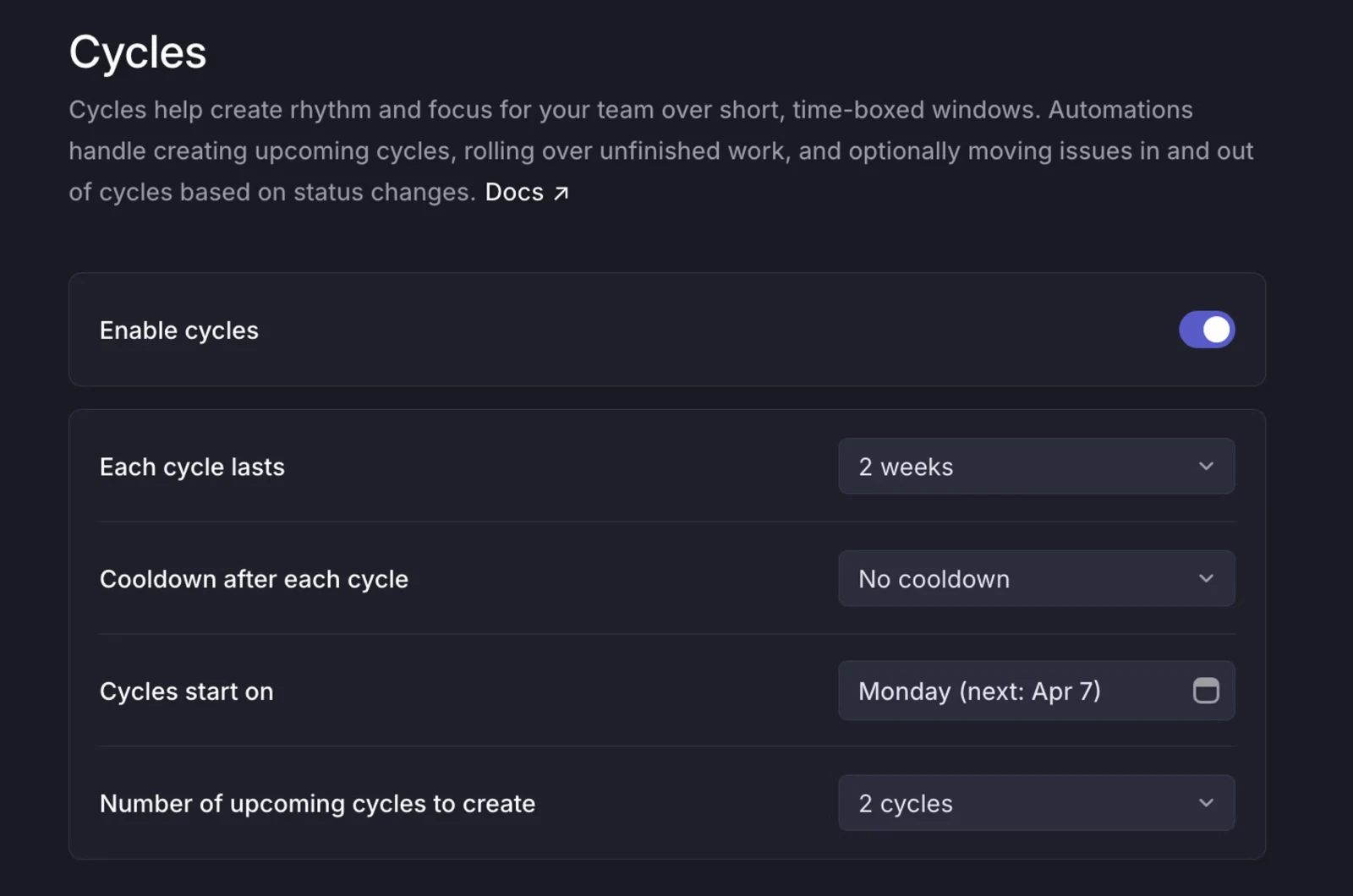
Turn on Enable cycles under Team Settings > Cycles and configure duration, start day, cooldowns, and upcoming cycles. Screenshot source Turn on rollover and unassigned active issue automations
Under Team Settings > Cycles, enable auto-adding unassigned Started or Completed issues into the active cycle. When toggling on Active issues, choose Move to Backlog for existing unassigned active issues (Unstarted or Started statuses) or Keep in Active to assign them to the current or next cycle.
Unfinished open issues assigned to a closing cycle roll over automatically, excluding items moved to backlog, triage, canceled, or completed during cooldown. During cooldowns, unassigned completed issues credit the previous cycle while started ones join the next cycle.
Edit cycle names, shift future dates, or start today
On the Cycles view, click a cycle's overflow menu (...) and select Edit cycle... to update its focus name or description, move future start and end dates, or choose Subscribe to cycle calendar (Google Calendar, feed URL, or .ics). Select Start cycle today on the next cycle and confirm the warning to launch early.
Editing a trailing number in a cycle title re-sequences subsequent cycles automatically. Past dates cannot be changed, Start cycle today cannot be reverted, and shortening dates without cooldowns shows a Cycles paused gap while extending trims the next cycle.
Check capacity dials and inspect the live cycle graph
Review the capacity dial on unstarted cycles in the Cycles view (estimated from your prior three completed cycles' velocity, or team headcount initially). Once active, view the chart on Cycles or press Cmd/Ctrl I inside a cycle to open the sidebar graph.
The gray line shows total scope (using Settings > Team > General > Estimates or issue count), the blue dotted target line flattens over weekends, the stacked yellow band shows started work, and the solid blue line and bars track completed issues.
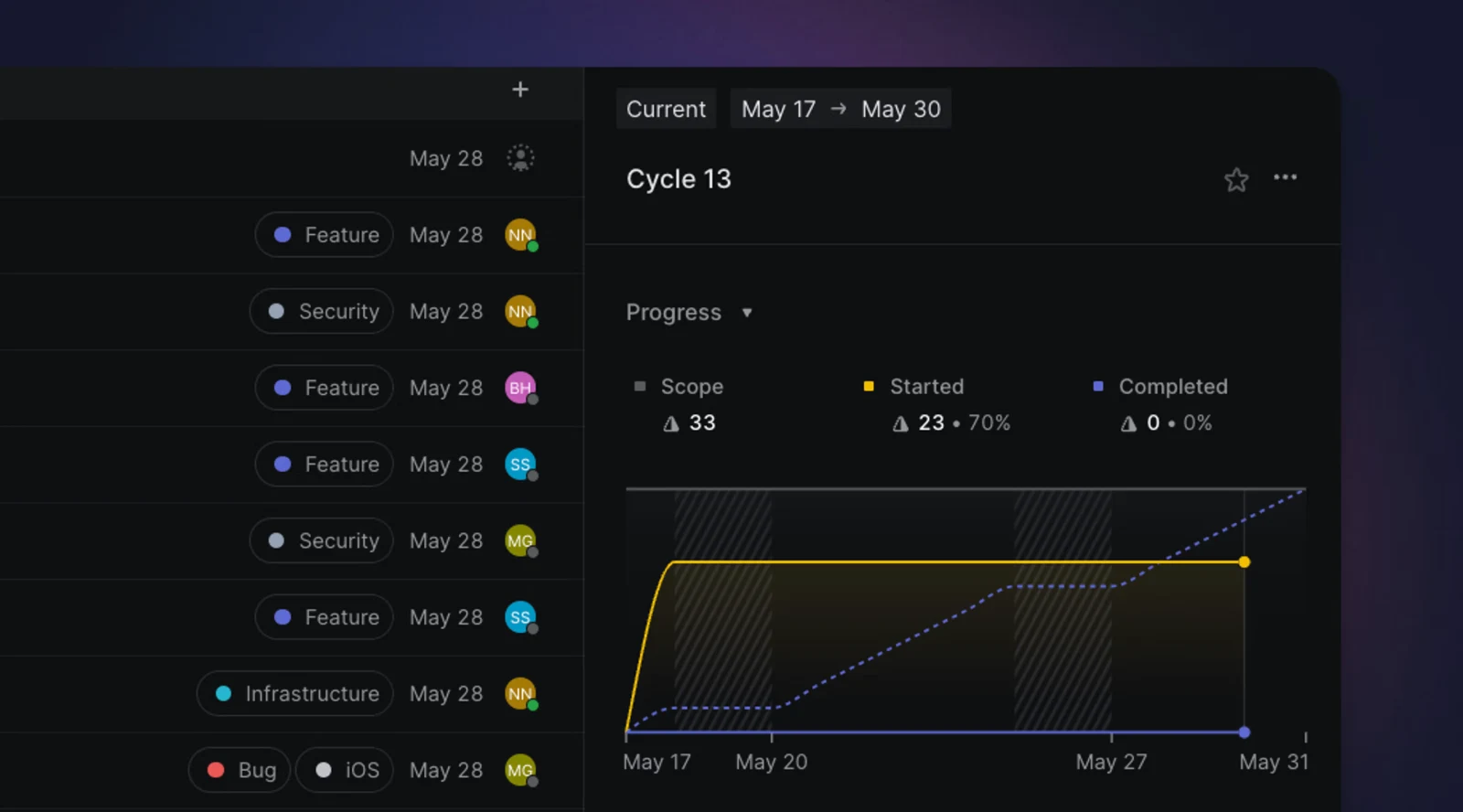
Press Cmd/Ctrl I inside a cycle to inspect the scope, target, started, and completed lines on the cycle graph. Screenshot source
How does this Linear setup work in practice?
Worked example: Two-week engineering cycles with a one-week cooldown
A backend team wants two-week Monday cycles paired with a one-week cooldown for technical debt and planning.
| Choice | Why it matters | How to check |
|---|---|---|
| Each cycle lasts set to 2 weeks starting Monday, 1-week cooldown, 4 upcoming cycles | Generates two months of planning buckets with protected debt cleanup after every cycle. | Cycles view shows the active cycle, 1-week cooldown, and 4 future cycles. |
| Auto-add Started and Completed issues enabled; existing active set to Move to Backlog | Starts cleanly while capturing unplanned urgent fixes picked up mid-cycle. | Starting an unassigned issue automatically assigns it to the current cycle. |
| Capacity dial checked in planning and Cmd/Ctrl I graph reviewed mid-week | Keeps scope aligned with three-cycle velocity and highlights scope additions early. | Solid blue completed line tracks at or above the dotted target line. |
Open issues roll into the next cycle automatically at close, while issues completed shortly after closure during cooldown can still be attributed back to the closed cycle.
How do you verify your result in Linear?
Check your team's Cycles page to confirm the active cycle graph updates live and upcoming cycles display velocity capacity dials. Next, share your schedule via Subscribe to cycle calendar and review Cycle Success snapshots after your first cycle completes.
| Step | What you should see |
|---|---|
| Enable cycles and set duration, cooldown, and upcoming count | Linear creates your current and upcoming cycles matching your week duration, start day, and cooldown interval. |
| Turn on rollover and unassigned active issue automations | Automation toggles save your rules for unassigned started or completed work and existing active issues. |
| Edit cycle names, shift future dates, or start today | The Cycles view reflects your updated titles, adjusted future dates, or newly launched active cycle. |
| Check capacity dials and inspect the live cycle graph | Pressing Cmd/Ctrl I inside the active cycle displays the scope, target, started, and completed progress chart. |
Related Linear guides include How to create standard and form issue templates in Linear and How to structure teams, projects, and issues in Linear.
Which official Linear sources were checked?
Every step and limit in this Linear guide was verified against official documentation on 27 Nov 2026 following how we check figures, alongside more walkthroughs in our Linear tutorials hub:
How do you troubleshoot common Linear issues?
Why does a closed cycle's issue list differ from its historical graph and Cycle Success?
Linear saves completed cycle graphs and stats as historical snapshots at close, counting completed issues at 100% and started issues at 25% for Cycle Success. Later edits, reopenings, or cycle moves update the live issue list without altering the snapshot.
What happens if we disable Cycles or make an existing team a sub-team?
Disabling Cycles marks the current cycle completed, deletes upcoming cycles, and keeps historical cycle data if re-enabled later. Making a team a sub-team preserves its past cycles and aligns future cycles to the parent team.
Can unfinished issues stay in a closed cycle or can past cycle dates be edited?
No, past cycle dates are locked and unfinished open issues always roll forward unless moved to backlog, triage, canceled, or completed during cooldown. Issues from that cycle finished shortly after close before the next cycle starts can still be moved back.
 Reviewed byDanny Kirk
Founder of ReddiReach.
 Checked byAndrés Felipe
Digital designer and marketer.
Every figure is checked against the vendor's own page. Read our editorial standards.