
Key Takeaways
- Interactive Presentation Mode presents Miro frames as sequential slides while preserving live reactions and canvas zooming.
- You need board owner, co-owner, or team/guest editor access to see the Present button, because visitors cannot start presentations.
- Order frames, add presenter notes, launch Present mode, enable lightbox or activity apps, and hand off or stop when finished.
- Confirm the presentation is active when your board enters full-screen mode with the presenter toolbar along the bottom edge.
Turn any Miro board into a guided, full-screen slide deck without losing live collaboration. Teams use Interactive Presentation Mode to walk stakeholders through ordered frames while keeping reactions, presenter notes, and activity apps inside one view.
For plan limits and team seat pricing behind this workflow, read our Miro review or connect Miro to AI agents in Miro API and MCP.
Key steps
What do you need before starting in Miro?
Miro requires the following workspace setup before you begin:
- A Miro account on Free, Starter, Business, Enterprise, or Education (activity apps and handoff require Starter, Business, Enterprise, or Education).
- Board owner, co-owner, or editor access as a team member or guest (visitors cannot start presentations).
- Miro frames placed around the board sections you want to present.
How do you complete the steps in Miro?
Follow these 5 steps in Miro in order:
Sequence slides in the Frames panel
Click the Frames and Layers icon in the bottom-right corner of your board and select Frames. Drag frames in the sidebar to set slide order, click below a frame to rename it, or click the three dots (...) beside its name to copy its link, export, add a frame, or select Hide frame.
Hiding scratchpad frames skips them during presentations without deleting content inside them. Use Magic organize to align scattered frames automatically.
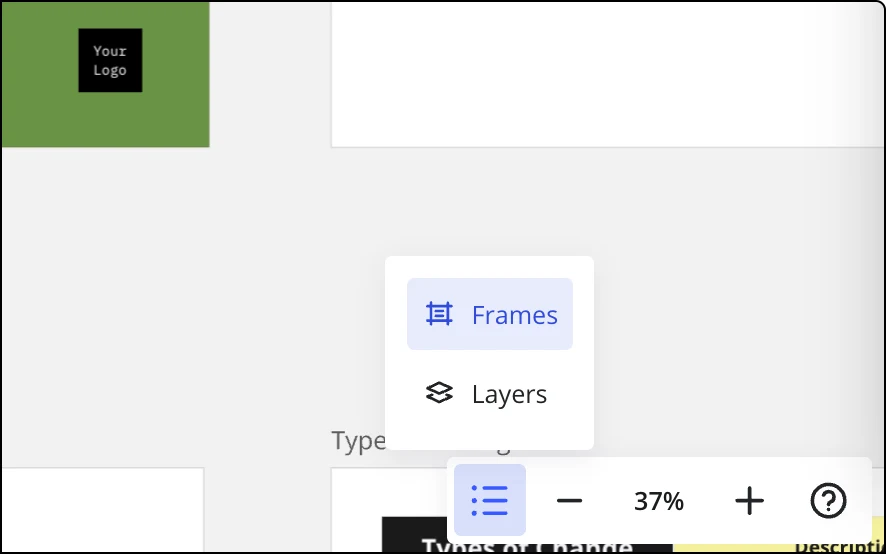
Click the Frames and Layers icon in the bottom-right corner and select Frames to order your presentation slides. Screenshot source Add private cues in Presenter notes
In the Frames panel, click the three dots (...) next to Present and select Presenter notes. Enter talking points and reminders for each slide in the separate window.
Presenter notes stay visible only to you. While presenting, reopen them anytime from the bottom toolbar via Preferences > Presenter notes.
Launch full-screen presentation mode
Click Present in the top-right People toolbar (or inside the Frames panel). Miro enters full-screen mode and displays a join modal to everyone on the board.
Joined participants follow your view, can pan freely and click Return to presenter, and can send reactions or raise their hand on the bottom toolbar.
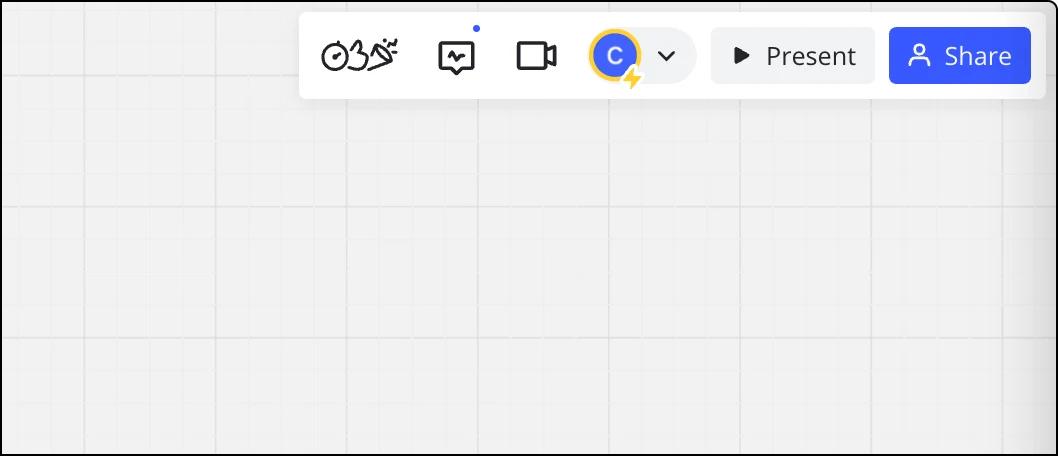
Select the Present button in the top-right People toolbar to start full-screen presentation mode for the board. Screenshot source Spotlight frames and run activity apps
On the bottom toolbar, click Preferences and toggle on Dark background for a lightbox border, then click any frame to zoom in. On paid and Education plans, click Activity apps to launch Breakout frames, Timer, or Voting, and toggle Show creation tools to pick allowed participant tools.
The dark border fades whenever you zoom out or pan away. Restricting participant creation tools is unavailable on the Starter plan.
Hand off control or stop presenting
Open the people list on the bottom toolbar, click Handoff, and choose the next speaker (or another editor can click Take over). Press Escape to exit full-screen locally, or click Stop on the bottom toolbar to end the session for everyone.
Participants can click Leave on the bottom toolbar and click Join in the top-right corner later. Clicking Stop returns all collaborators to standard board view.
How does this Miro setup work in practice?
Worked example: Co-hosting a quarterly roadmap review
A product lead and design lead on a Business plan present an eight-frame roadmap board with live voting mid-deck.
| Choice | Why it matters | How to check |
|---|---|---|
| Click Hide frame on two sizing frames | Excludes rough notes without deleting objects. | Only eight roadmap frames remain active in the sidebar. |
| Toggle Dark background under Preferences | Spotlights one quarter frame at a time. | A dark border surrounds the active frame. |
| Launch Voting in Activity apps and use Handoff | Collects live votes and passes control to the design lead. | Attendees see the presenter change notice and voting prompt. |
Both hosts present seamlessly and click Stop so the team can add follow-up sticky notes.
How do you verify your result in Miro?
Verify your setup by clicking Present, confirming hidden frames are skipped, and checking your Presenter notes window. Grant co-speakers board editor access beforehand so they can accept a handoff.
| Step | What you should see |
|---|---|
| Sequence slides in the Frames panel | The Frames sidebar lists named, unhidden frames from top to bottom in presentation order. |
| Add private cues in Presenter notes | A private Presenter notes window opens linked to your slides. |
| Launch full-screen presentation mode | Your board enters full-screen mode with the bottom presenter toolbar visible. |
| Spotlight frames and run activity apps | Active frames show a dark lightbox border and selected activity apps open for attendees. |
| Hand off control or stop presenting | Clicking Stop closes the presenter toolbar and restores standard board view for everyone. |
Related Miro guides include How to run a collaborative session timer in Miro and How to set up an anonymous voting session in Miro.
Which official Miro sources were checked?
Every step and limit in this Miro guide was verified against official documentation on 27 Nov 2026 following how we check figures, alongside more walkthroughs in our Miro tutorials hub:
How do you troubleshoot common Miro issues?
Why is the Present button missing from my top-right Miro toolbar?
Only board owners, co-owners, and editors who are team members or guests see the Present button. Visitors and viewers cannot launch presentations, so ask the board owner for editor access.
How do I skip a slide without deleting the items inside it?
Open the Frames panel, click the three dots beside the frame name, and select Hide frame. You can also move the frame to the bottom of the list or delete the frame container alone.
Why cannot I restrict participant creation tools during my presentation?
Restricting participant creation tools inside Activity apps requires a Business, Enterprise, or Education plan. Starter plan users can run activity apps, but cannot limit individual creation tools.
 Reviewed byDanny Kirk
Founder of ReddiReach.
 Checked byAndrés Felipe
Digital designer and marketer.
Every figure is checked against the vendor's own page. Read our editorial standards.