
Key Takeaways
- Group multiple URLs and domains into an Ahrefs portfolio to track aggregated search visibility and backlink performance metrics.
- Assemble target URLs and verify portfolio seat permissions within your Ahrefs account before assembling multi-domain tracking groups.
- Complete the six configuration steps to launch setup, paste URLs, define tracking scopes, set permissions, create portfolios, and inspect metrics.
- Click into individual portfolio aggregate metrics on the Ahrefs dashboard to verify that Site Explorer loads corresponding trend reports.
Ahrefs portfolios let you aggregate and monitor organic traffic and backlink metrics across multiple domains or URLs. Setting up a portfolio provides unified performance dashboards without requiring separate site-by-site reviews.
For plan limits and team seat pricing behind this workflow, read our Ahrefs review or connect Ahrefs to AI agents in Ahrefs API and MCP.
Key steps
What do you need before starting in Ahrefs?
Ahrefs requires the following workspace setup before you begin:
- An Ahrefs account with access to the Dashboard and portfolios.
- The target URLs you want to group, with the intended scope for each.
- A portfolio name that makes the set easy to identify. The screenshot’s example uses Subdomains as the target mode.
How do you complete the steps in Ahrefs?
Follow these 6 steps in Ahrefs in order:
Choose Portfolio from the Dashboard
On the Ahrefs Dashboard, select Create and choose Portfolio. This opens the portfolio setup form. The screenshot shows a New portfolio modal for entering target URLs and settings.
Enter the target URLs
Add the URLs you want to analyze together. The screenshot shows a list of competitor domains and indicates a limit of up to 10 root domains for that form. Enter only targets that belong in this portfolio, and review the list for accuracy before setting the scope.
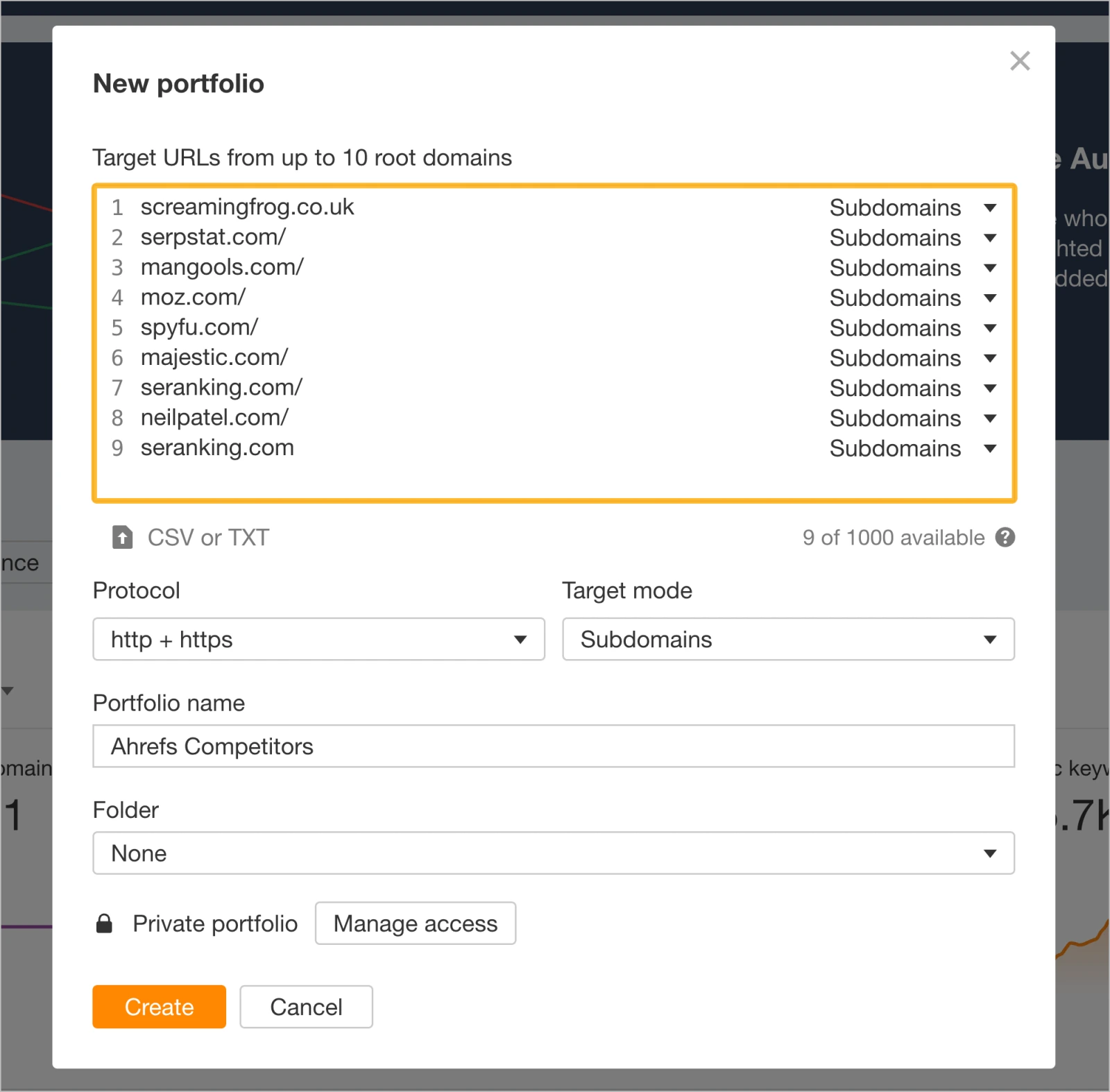
The screenshot shows the portfolio setup form and its visible URL, scope, naming, and access controls. Screenshot source Set the scope for each target
Choose the target scope that matches the pages or site sections you mean to include. In the screenshot, the visible target mode is Subdomains, shown beside the listed targets. The evidence says scope can be defined for each target URL, much like with a project. Check each target’s displayed scope rather than assuming one choice is right for every portfolio.
Name the portfolio and review its settings
Enter a name that describes the grouped set. The screenshot also shows a Folder selection and controls labeled Private portfolio and Manage access. Review the available folder and access options for your situation. Share it with the appropriate team members when that is part of your intended setup.
Create the portfolio
Review the URL list, scope, name, and settings, then select Create. The portfolio should then appear on the Dashboard with top-level metrics. The exact metrics available can depend on the account plan, so use the metrics actually displayed in your account.
Open a report from a Dashboard metric
Select a displayed metric to go to its corresponding report in Site Explorer. Use the report to investigate the portfolio’s aggregate performance in more detail. The source describes portfolios as a way to analyze aggregate metrics. It does not guarantee that every report or metric is available in every account.
How does this Ahrefs setup work in practice?
Worked example: grouping a set of competitor sites
A search analyst monitors aggregate search trends and backlink acquisition across several competitor domains in one unified Ahrefs view.
| Choice | Why it matters | How to check |
|---|---|---|
| Create a portfolio from the Dashboard. | A portfolio groups target URLs for bulk analysis. | The New portfolio form is open. |
| Enter the selected competitor targets and verify each one. | The portfolio should represent only the comparison set the analyst intends to monitor. | The displayed list matches the hypothetical target set. |
| Set each target’s scope and choose a descriptive portfolio name. | Scope determines what is grouped for each target, while the name distinguishes the set on the Dashboard. | Each scope is intentional and the name identifies the comparison set. |
| Create the portfolio and open a relevant displayed metric. | The Dashboard metric leads to its corresponding Site Explorer report for further analysis. | The analyst can inspect the report and decide which target or pages warrant closer review. |
The combined portfolio dashboard displays aggregate organic search traffic and referring domain trends, allowing direct drill-down into specific member sites.
How do you verify your result in Ahrefs?
The selected URLs are grouped in one portfolio, with their scope and access settings established during setup. The Dashboard provides top-level metrics, and selecting a metric opens its corresponding Site Explorer report. Use the reports to make a next decision, such as investigating the pages or domains that contribute to a portfolio metric.
| Step | What you should see |
|---|---|
| Choose Portfolio from the Dashboard | The portfolio creation form is open. |
| Enter the target URLs | The form lists the intended target URLs and no unintended entries. |
| Set the scope for each target | Each target has the intended scope in the form. |
| Name the portfolio and review its settings | The name is clear, and the folder and access settings shown are set as intended. |
| Create the portfolio | The portfolio appears on the Dashboard. |
| Open a report from a Dashboard metric | Selecting a visible metric opens the corresponding Site Explorer report. |
Related Ahrefs guides include Ahrefs Link Intersect guide and Find broken internal links in Ahrefs Site Audit.
Which official Ahrefs sources were checked?
Every step and limit in this Ahrefs guide was verified against official documentation on 21 Nov 2026 following how we check figures, alongside more walkthroughs in our Ahrefs tutorials hub:
How do you troubleshoot common Ahrefs issues?
Why can’t I add all of my target URLs?
The screenshot’s form indicates a limit of up to 10 root domains for that setup. Review the targets and their root domains, and organize the intended scope accordingly. The evidence does not establish limits beyond what the form displays.
Why does a portfolio metric include pages I did not expect?
The target scope may be broader than the pages you meant to group. Review the scope shown for each target URL and adjust it to match the intended set.
Why can’t I open a report from the metric I expected?
The Dashboard metric may differ from what you expected, or the account may not show the same set of metrics. Use an available metric on the portfolio and follow it to its corresponding Site Explorer report.
 Reviewed byDanny Kirk
Founder of ReddiReach.
 Checked byAndrés Felipe
Digital designer and marketer.
Every figure is checked against the vendor's own page. Read our editorial standards.