Key Takeaways
- Embed linked database views in Notion to display, filter, and organize shared project records across separate workspace pages.
- Confirm you have access to the source Notion database and write permissions on the target dashboard page before linking views.
- Complete four implementation steps by navigating to destination pages, invoking database menus, selecting source tables, and customizing views.
- Apply page-specific filters to verify that the linked Notion view displays only relevant records without modifying the source database content.
Notion linked views display database content on separate pages while preserving centralized data integrity. Embedding these views allows teams to filter and sort shared databases within custom project dashboards.
For plan limits and team seat pricing behind this workflow, read our Notion review or connect Notion to AI agents in Notion API and MCP.
Key steps
What do you need before starting in Notion?
Notion requires the following workspace setup before you begin:
- A Notion page where you want the view to appear.
- An existing database in your workspace that you can access.
How do you complete the steps in Notion?
Follow these 4 steps in Notion in order:
Open the destination page
In Notion’s sidebar, open the page where you want the database view. For example, use a project dashboard to show a view of your team’s task database alongside project notes.
Open the database menu
Click an empty line in the page and type /database. Choose Database from the menu. Select Link to existing data source when the database setup opens.
Choose the database
Search for and select the database that contains the records you want to show.
When several databases have similar names, search using a distinctive part of the database name and inspect the selected view's entries before adding project-specific filters. A linked view shows records from its selected data source, so an incorrect selection can look plausible while omitting the records you expect. Confirm a known record is present.
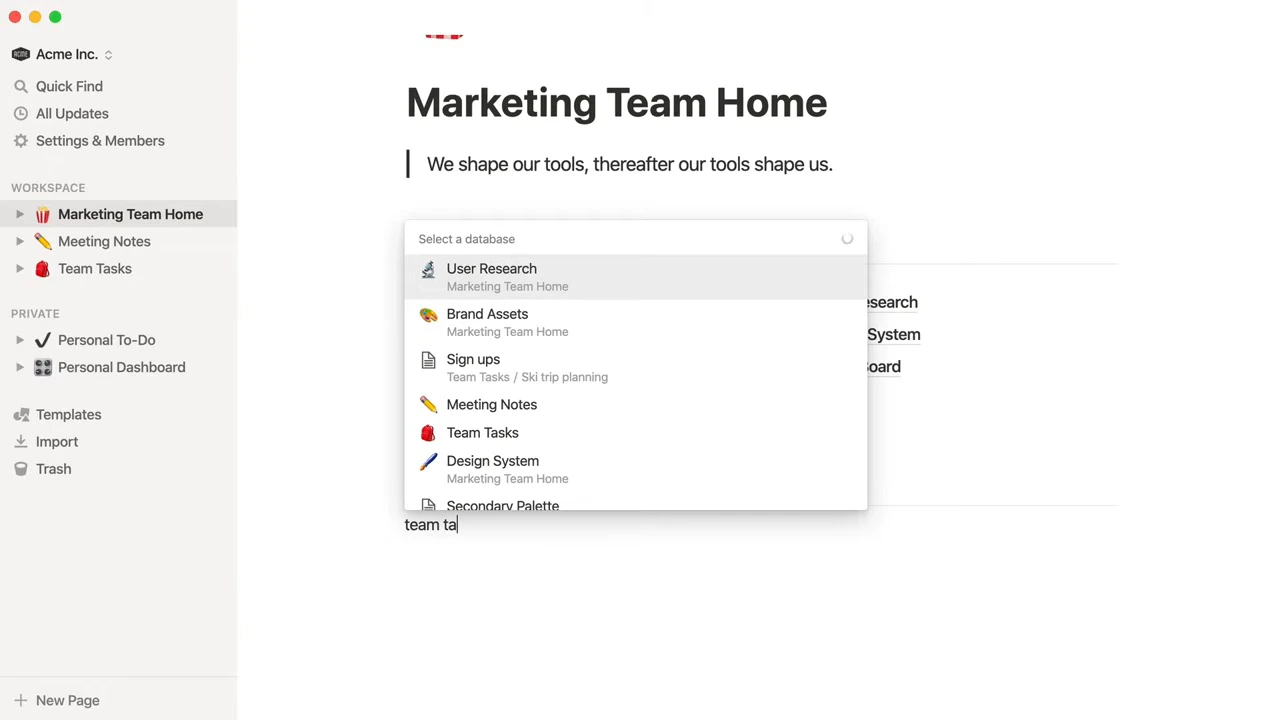
Search for the original database in the picker. This example links Team Tasks into Marketing Team Home. Screenshot source Adjust this view for the page
Use the linked view’s controls to choose a useful layout and, when helpful, add filters or sorts. For example, on a project dashboard, filter a task database to show tasks for that project. These view settings can differ from the original database’s view.
For a project dashboard, choose a filter only if the database has a property that identifies the project, such as a project relation or project name. Select the value matching the destination page, then check both a task that should appear and one that should not. If the view cannot distinguish projects from its available properties, leave it broad or use a suitable property before narrowing it.
A linked view can make a large source easier to scan, but it remains connected to the same database entries. Use a focused layout and sort when they help the dashboard's task. Do not treat the view as a separate copy for editing an independent set of records. Confirm a change is on the intended entry before updating it.
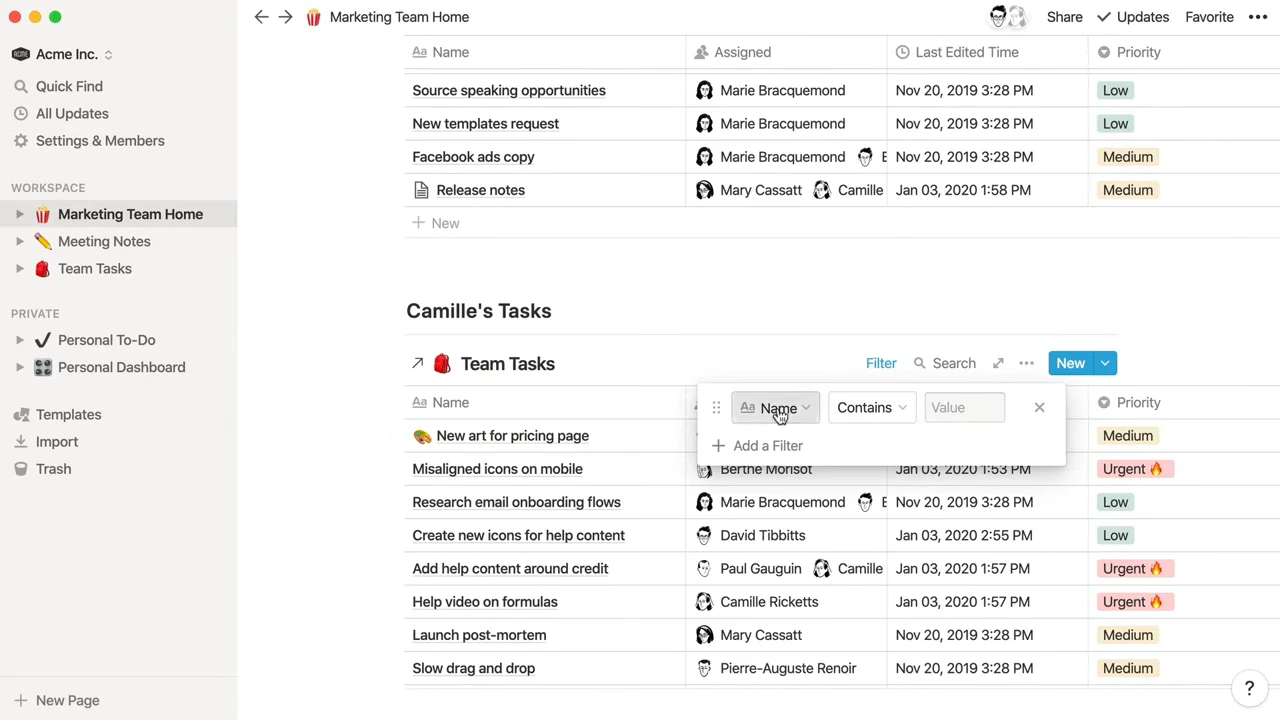
After linking, open the filter controls to limit what the destination page shows. Screenshot source
How does this Notion setup work in practice?
Worked example: show launch tasks on a project dashboard
A technical program manager embeds a filtered view of the master task database into a dedicated project page to display upcoming deliverables.
| Choice | Why it matters | How to check |
|---|---|---|
| Select the existing team task database | The team already maintains tasks there, so the dashboard can show current records without moving them. | A known task from that database appears in the linked view. |
| Filter by the project property for Spring launch | This narrows the dashboard to records assigned to the named project. | A known launch task remains visible and a task from another project is absent. |
| Filter by the status value the team uses for open work | The dashboard should focus on unfinished follow-up. Use actual values available in the database. | A completed task is excluded and an open task remains, if those records exist. |
| Sort by Due date ascending, if available and populated | Earlier dated tasks are easier to prioritize. Blank dates may not help identify the next action. | Compare two dated tasks and confirm the earlier one appears first. |
The linked view displays only tasks matching the specific project filter, allowing team members to edit status directly from their local dashboard.
How do you verify your result in Notion?
Confirm that the linked database appears on the destination page and shows its entries. Add a filter or sort that makes the view useful in that page’s context, such as showing only tasks for one project.
| Step | What you should see |
|---|---|
| Open the destination page | The destination page is open and ready to edit. |
| Open the database menu | The database picker opens and offers existing databases. |
| Choose the database | The selected database appears as a view on the destination page. |
| Adjust this view for the page | The linked view displays the database entries and any layout, filters, or sorts you selected. |
Related Notion guides include How to create a Notion database with a board view and How to filter and sort a Notion database view.
Which official Notion sources were checked?
Every step and limit in this Notion guide was verified against official documentation on 21 Nov 2026 following how we check figures, alongside more walkthroughs in our Notion tutorials hub:
How do you troubleshoot common Notion issues?
Will changing the linked view change the original database?
The linked view uses the original database, but you can configure its filters and sorts separately. The original data source remains the source of the entries.
I can’t find the database in the selection menu. What should I check?
Search the menu using the database’s name and confirm that you have access to it. Notion’s documented workflow is to select an existing database from that menu.
The linked view has no project option to filter by. What should I do?
Inspect the properties available in the task database and confirm whether project membership is recorded there. If it is not, the view cannot reliably isolate a project using that field. Keep the view unfiltered or add project information through the database's normal workflow, then configure the filter.
 Reviewed byDanny Kirk
Founder of ReddiReach.
 Checked byAndrés Felipe
Digital designer and marketer.
Every figure is checked against the vendor's own page. Read our editorial standards.