
Key Takeaways
- Track daily ranking fluctuations and backlink updates across target domains using the visual Calendar report in Ahrefs Site Explorer.
- Maintain an active Ahrefs Standard plan or higher to unlock the full historical depth of the Calendar reporting interface.
- Execute five structured steps to select target metrics, specify custom date ranges, review annotations, and filter underlying data.
- Verify that identified search movements correlate across Ahrefs historical graphs and isolate specific dates before conducting deeper analysis.
Use Ahrefs Site Explorer’s Calendar report to inspect daily keyword-position, ranking-page, referring-domain, and backlink changes, then narrow the dates and investigate a notable movement.
For plan limits and team seat pricing behind this workflow, read our Ahrefs review or connect Ahrefs to AI agents in Ahrefs API and MCP.
Key steps
What do you need before starting in Ahrefs?
Ahrefs requires the following workspace setup before you begin:
- An Ahrefs account with access to the Calendar report. The full report is available from Standard onwards. Lite has a limited version.
- The domain or site you want to investigate in Site Explorer.
- A date or period of interest. The calendar initially shows recent months. Use the date-range selector for older history.
How do you complete the steps in Ahrefs?
Follow these 5 steps in Ahrefs in order:
Open Calendar for the site you want to review
In Ahrefs, open Site Explorer and enter the domain you want to investigate. Open the Calendar report. The calendar lays out day-to-day changes so you can identify dates that merit a closer look.
If you are checking a particular section of a site, keep that scope in mind as you review the report. The relevant data is tied to the Site Explorer target you opened.
Choose the kind of change to investigate
Select the report that matches your question. Positions shows changes in organic keyword positions. Pages shows pages that began ranking for at least one keyword in the top 100 and pages that lost their keyword rankings. Referring domains shows new and lost referring domains, while Backlinks tracks new and lost backlinks daily.
Start with one report to keep the investigation focused. For example, use Pages to find ranking-page changes, then inspect Positions if you need to understand keyword movement.
Set the date range
Click and drag across the calendar to select a custom range. For history earlier than the most recent three months shown, use the date-range selector and choose “Custom range.”
Choose a period that includes the change and enough surrounding time to compare it with nearby days. The date selection defines which days you are inspecting. It does not itself explain why a change occurred.
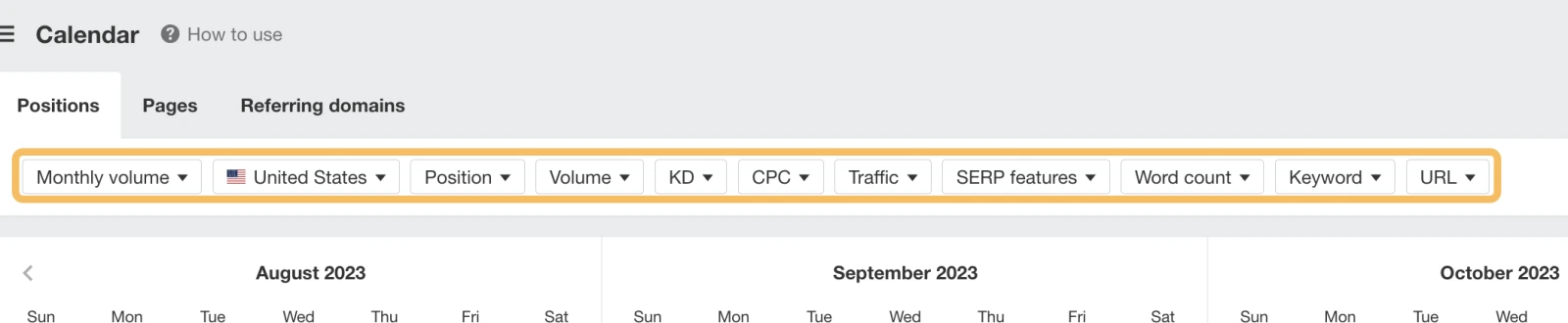
The screenshot shows the Positions report’s keyword filters above calendar dates, a useful view when narrowing a date-based investigation. Screenshot source Inspect the day and its annotations
Review the selected date for the reported changes. Google Core Updates and relevant Ahrefs Updates may be annotated on the calendar. Hover over an annotation to see more information.
If you see a notable change, check whether an annotation occurred near that date. Treat timing as context for investigation, not proof that an update caused the movement.
Filter and follow a change into its details
Positions and Pages include keyword filters like those in Organic Keywords. Use them to narrow the report to the keywords or pages relevant to your question. Referring domains has backlink filter options to help focus its results.
For a keyword-level follow-up, inspect SERP history and positions history. Export those details to CSV or Google Sheets if you need to compare or analyze them outside the report.
How does this Ahrefs setup work in practice?
Worked example: investigating a ranking-page change
A site owner notices an unexpected organic traffic movement and wants to check whether ranking pages also changed during the same reporting interval.
| Choice | Why it matters | How to check |
|---|---|---|
| Open Site Explorer for the site being investigated and choose Calendar. | The question concerns day-to-day changes for one target. | Confirm the target shown is the site under review. |
| Choose Pages and select a hypothetical three-day period around the reported movement. | Pages shows newly ranking pages and pages that lost keyword rankings. A short surrounding period helps inspect timing. | Verify the chosen period includes the date of interest. |
| Review the changed page and switch to Positions to inspect its keyword movement. | The two reports answer related but distinct questions: which pages changed and how organic keyword positions changed. | Confirm the keyword or page filter narrows the view to the relevant result. |
| Check any nearby annotation, then inspect positions history before drawing a conclusion. | An annotation can provide timing context, while the history gives a more specific view of the keyword’s position changes. | Record the observed dates and changes without treating correlation as cause. |
Next, decide whether the evidence warrants checking a different date range or a related report such as Referring domains or Backlinks. Choose that report only if it answers the follow-up question.
How do you verify your result in Ahrefs?
You have a date-bounded view of the chosen change type and a focused result for follow-up. A movement appearing near a Google or Ahrefs annotation is a useful lead, but the calendar alone does not establish causation. Compare the relevant histories and preserve the date range and report type when sharing your finding.
| Step | What you should see |
|---|---|
| Open Calendar for the site you want to review | The Calendar report is open for the intended Site Explorer target. |
| Choose the kind of change to investigate | The selected report matches the change you want to understand. |
| Set the date range | The selected dates include the event you want to examine. |
| Inspect the day and its annotations | You have identified the reported change and checked any nearby annotations for context. |
| Filter and follow a change into its details | Your filtered view or exported history contains the specific result you meant to investigate. |
Related Ahrefs guides include Ahrefs Link Intersect guide and Find broken internal links in Ahrefs Site Audit.
Which official Ahrefs sources were checked?
Every step and limit in this Ahrefs guide was verified against official documentation on 21 Nov 2026 following how we check figures, alongside more walkthroughs in our Ahrefs tutorials hub:
How do you troubleshoot common Ahrefs issues?
Why can’t I see dates older than the recent calendar view?
The calendar shows the most recent three months by default. Use the date-range selector and choose “Custom range” to go further back.
Why does the Pages report not show every page on the site?
It reports pages that started ranking for at least one keyword in the top 100 and pages that lost their keyword rankings. It is not described as a list of every site page.
Does an update annotation explain a ranking change?
No. The annotation shows that a Google Core Update or relevant Ahrefs Update happened near the date. Check the keyword and position history to investigate the change. Proximity alone does not show cause.
 Reviewed byDanny Kirk
Founder of ReddiReach.
 Checked byAndrés Felipe
Digital designer and marketer.
Every figure is checked against the vendor's own page. Read our editorial standards.